> ## Documentation Index
> Fetch the complete documentation index at: https://docs.solidyne.ar/llms.txt
> Use this file to discover all available pages before exploring further.
# Audio Connections
> Audio Connections
## Analog Inputs and Outputs
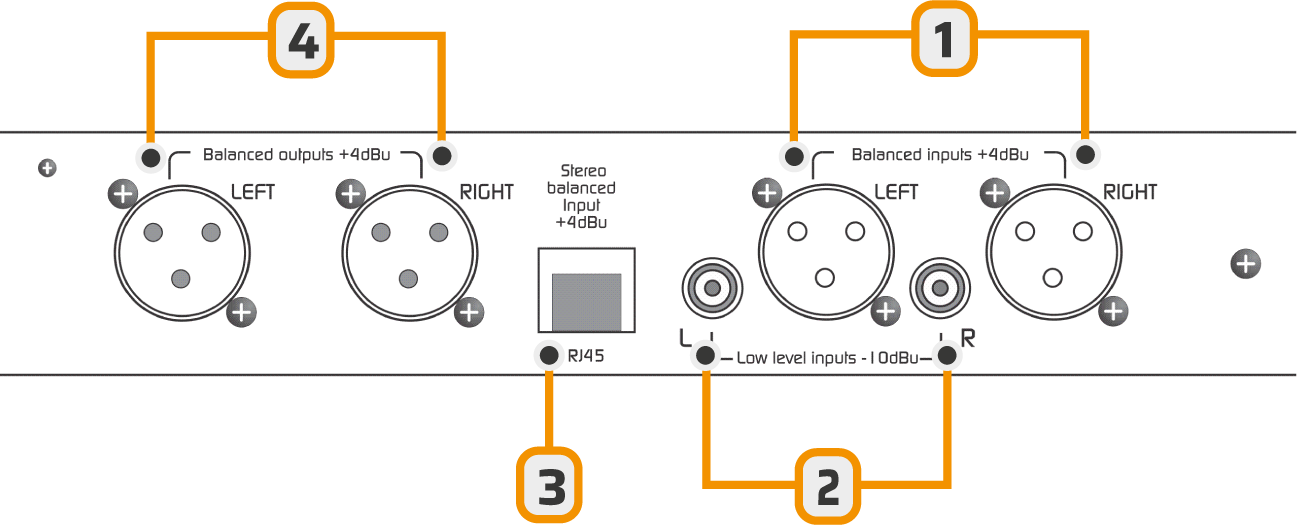 | **Identifier** | **Type / Connector** | **Nominal Level** | **Details** |
| :------------: | ---------------------------- | :---------------: | ------------------------------------------------------------------- |
| **1** | Balanced inputs (Female XLR) | +4 dBu | Electronically balanced
| **Identifier** | **Type / Connector** | **Nominal Level** | **Details** |
| :------------: | ---------------------------- | :---------------: | ------------------------------------------------------------------- |
| **1** | Balanced inputs (Female XLR) | +4 dBu | Electronically balanced
600 Ohms |
| **2** | Unbalanced inputs (RCA) | -10 dBV approx. | Higher gain, designed for weaker signals. Impedance 10 KOhms |
| **3** | Balanced stereo input (RJ45) | +4 dBu | [Pin diagrams and adapter cables wiring](/en/diagramas/RJ45-pinout) |
| **4** | Balanced outputs (Male XLR) | +4 dBu | Electronically balanced
600 Ohms / 10 KOhms |
XLR connection is standard: shield to **pin 1**, inner conductors to **2 (signal +)** and **3 (signal -)**
## USB Digital Input/Output
The **Audimax 362HD/USB** model includes an optional module to send and receive audio through a PC connection using a standard USB A/B cable.
* When connected to a **Windows©** computer, the system automatically recognizes the processor and installs the necessary drivers.\
No additional drivers are required.
* The unit is recognized as a **stereo sound card**:
* **USB playback device** → corresponds to the **audio input to the processor**.
* **USB capture device** → corresponds to the **audio output from the processor**.
### About USB Detection
* Before connecting the USB port, ensure that both the **console and PC are properly grounded** through three-terminal power plugs.
Check with a multimeter (25V AC scale) between the PC chassis and console chassis.\
Reading should be 0V. Otherwise, the USB input of the processor or computer could be damaged.
* Avoid changing USB cables between ports, as Windows may reassign device order.
***
## HD Mode (High Definition)
**HD mode** is intended for audio applications that do not use the FM stereo encoding stage (MPX).
* Fully digital stations (HD Radio and streaming).
* Sound reinforcement applications (small rooms, auditoriums, shopping centers).
**When switching to HD mode:**
* FM pre-emphasis network is disabled (and therefore the de-emphasis on audio outputs).
* A **fast-action limiter** is enabled on the outputs.
* **MPX** outputs are disabled.
### Enabling HD Mode
To change the operating mode, you need to access the internal **micro-switches** by removing the top cover of the unit.
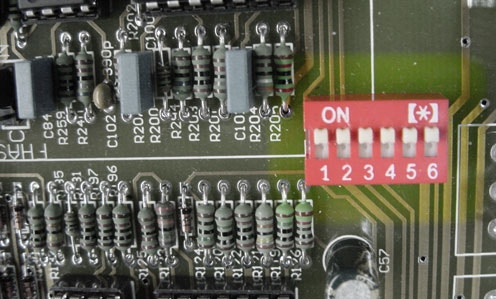 * All switches **ON** = FM Mode
* All switches **OFF** = HD Mode
The status is indicated on the front panel through the **"FM"** LED:
* Lit = FM
* Off = HD
From factory, the unit comes configured in **FM mode**.
* All switches **ON** = FM Mode
* All switches **OFF** = HD Mode
The status is indicated on the front panel through the **"FM"** LED:
* Lit = FM
* Off = HD
From factory, the unit comes configured in **FM mode**.