> ## Documentation Index
> Fetch the complete documentation index at: https://docs.solidyne.ar/llms.txt
> Use this file to discover all available pages before exploring further.
# RDS Configuration
> Radio Data System stage configuration
## RDS
The **542APC** processor includes an internal RDS encoder.\
RDS is a system that adds supplementary information to the FM signal through a data channel. Its main functions include:
* On-screen display of the station network name and program type (news, sports, music, variety, religious, etc.).
* Automatic tuning to a station network selected by the user.\
Allows listening to the same station during a long trip without manually changing frequency when one station's signal weakens.
* Automatic reception of traffic information.\
The receiver switches within the same network to the station broadcasting traffic information and then automatically returns to the previously selected station.
### Basic RDS Configuration
RDS configuration and control is done via **Ethernet (IP)** through the 542APC's ETHERNET port.\
Basic parameters are set from the **web interface** under **FM OUTPUT**, which shows a diagram with RDS and access to its configuration.
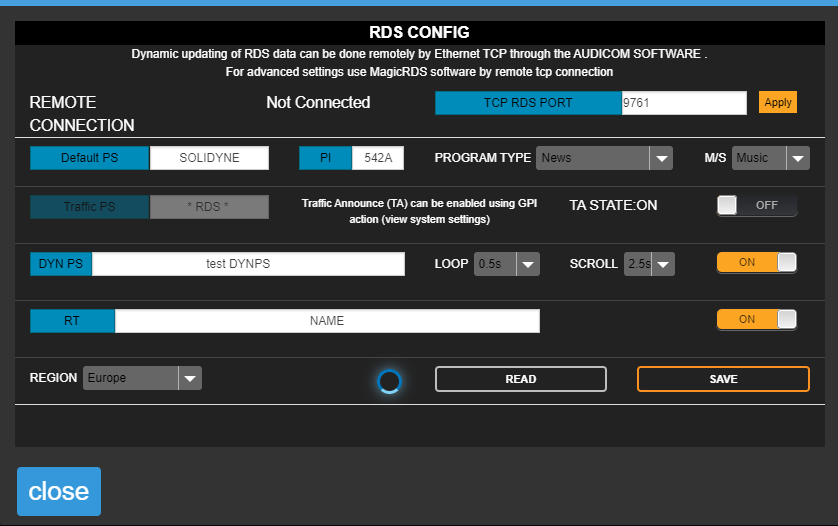 #### Configurable Parameters
* **TCP RDS PORT**\
Defines the **TCP port** for communication with external RDS software.\
Default value: `9762`.\
To modify it, enter the new value and press **APPLY**.
To control the RDS encoder in real-time, for example to send current song information, an external computer running Magic RDS or Solidyne Audicom software is required.
* **Default PS (Program Service)**\
Static text, typically the station name.\
Maximum length: **8 characters** (per RDS standard).
* **PI (Program Identification)**\
Identifies a network of stations or repeaters in a chain, allowing the receiver to switch automatically based on reception quality.\
Format: **4-digit hexadecimal** number (0000 to FFFF).
* **Program Type**\
Defines the type of broadcast content (e.g., news, sports, music).
* **M/S (Music/Speech)**\
Indicates whether the content is music or speech.
* **TA State (Traffic Announcement)**\
On/off flag indicating when traffic announcements are on-air.\
Controlled manually or via remote **GPI**.
* **Traffic PS**\
Displayed instead of PS field when traffic flag is active.\
Leave blank if not used.
* **DYN PS (Dynamic Program Service)**\
Allows displaying dynamic messages (up to **64 characters**) by sequentially replacing the static PS. Usage examples: song titles, artist, news, commercials.\
Text scrolls at the speed defined in the **Scroll** field.
* **Loop**\
Time between dynamic text repetitions. During this period, the **static PS** is shown.
* **Scroll**\
Scrolling speed (high or low).\
High speed may not be compatible with some receivers, especially in cars or areas with poor reception. This is because PS scrolling **is not included in the RDS standard**. High speed should be avoided.
Dynamic PS usage is restricted in some countries and is not part of the RDS standard.\
Some receivers may not properly display Dynamic/Scrolling PS.\
The manufacturer is not responsible for improper use of this feature.
### Advanced Usage with Magic RDS
For advanced functions, external **Magic RDS** software (Windows) is required, connected to the same network as the 542APC.\
This software allows dynamic data updates (e.g., song titles) from various playout automation systems.
### Audicom Integration
If the station uses **Solidyne Audicom**, Magic RDS is not necessary. Communication is direct between Audicom and the processor via LAN. For more details, consult the Audicom documentation.
#### Magic RDS Installation
A version of the software can be downloaded at: `www.solidynepro.com/DW/setupRDS.rar`
Configuration steps (valid only for the version distributed by Solidyne):
1. Install and run Magic RDS.
2. Go to **Options → Preferences**.
3. In the preferences window, select the **General** tab.
4. Change connection type to **Ethernet TCP/IP**.
5. In **Port**, enter the TCP configured in the 542APC (default 9762).
6. In **Host**, enter the 542APC's IP address (visible on the unit's display).
If using RDS with real-time updates linked to automation software, configure the **542APC with a static IP**.
### Remote Access
The processor can receive RDS data via **Internet** when located on another network.\
Requirements:
* ISP must assign a **static IP** on the remote LAN.
* Configure LAN port forwarding:
* **Port 80** → 542APC local IP
* **Port 9762** (or other configured for RDS) → 542APC local IP
#### Configurable Parameters
* **TCP RDS PORT**\
Defines the **TCP port** for communication with external RDS software.\
Default value: `9762`.\
To modify it, enter the new value and press **APPLY**.
To control the RDS encoder in real-time, for example to send current song information, an external computer running Magic RDS or Solidyne Audicom software is required.
* **Default PS (Program Service)**\
Static text, typically the station name.\
Maximum length: **8 characters** (per RDS standard).
* **PI (Program Identification)**\
Identifies a network of stations or repeaters in a chain, allowing the receiver to switch automatically based on reception quality.\
Format: **4-digit hexadecimal** number (0000 to FFFF).
* **Program Type**\
Defines the type of broadcast content (e.g., news, sports, music).
* **M/S (Music/Speech)**\
Indicates whether the content is music or speech.
* **TA State (Traffic Announcement)**\
On/off flag indicating when traffic announcements are on-air.\
Controlled manually or via remote **GPI**.
* **Traffic PS**\
Displayed instead of PS field when traffic flag is active.\
Leave blank if not used.
* **DYN PS (Dynamic Program Service)**\
Allows displaying dynamic messages (up to **64 characters**) by sequentially replacing the static PS. Usage examples: song titles, artist, news, commercials.\
Text scrolls at the speed defined in the **Scroll** field.
* **Loop**\
Time between dynamic text repetitions. During this period, the **static PS** is shown.
* **Scroll**\
Scrolling speed (high or low).\
High speed may not be compatible with some receivers, especially in cars or areas with poor reception. This is because PS scrolling **is not included in the RDS standard**. High speed should be avoided.
Dynamic PS usage is restricted in some countries and is not part of the RDS standard.\
Some receivers may not properly display Dynamic/Scrolling PS.\
The manufacturer is not responsible for improper use of this feature.
### Advanced Usage with Magic RDS
For advanced functions, external **Magic RDS** software (Windows) is required, connected to the same network as the 542APC.\
This software allows dynamic data updates (e.g., song titles) from various playout automation systems.
### Audicom Integration
If the station uses **Solidyne Audicom**, Magic RDS is not necessary. Communication is direct between Audicom and the processor via LAN. For more details, consult the Audicom documentation.
#### Magic RDS Installation
A version of the software can be downloaded at: `www.solidynepro.com/DW/setupRDS.rar`
Configuration steps (valid only for the version distributed by Solidyne):
1. Install and run Magic RDS.
2. Go to **Options → Preferences**.
3. In the preferences window, select the **General** tab.
4. Change connection type to **Ethernet TCP/IP**.
5. In **Port**, enter the TCP configured in the 542APC (default 9762).
6. In **Host**, enter the 542APC's IP address (visible on the unit's display).
If using RDS with real-time updates linked to automation software, configure the **542APC with a static IP**.
### Remote Access
The processor can receive RDS data via **Internet** when located on another network.\
Requirements:
* ISP must assign a **static IP** on the remote LAN.
* Configure LAN port forwarding:
* **Port 80** → 542APC local IP
* **Port 9762** (or other configured for RDS) → 542APC local IP