> ## Documentation Index
> Fetch the complete documentation index at: https://docs.solidyne.ar/llms.txt
> Use this file to discover all available pages before exploring further.
# WEB Control Interface
> Access, configuration, and settings through the web interface
[How to configure WEB access](/en/542/542-instalacion-web)
## Initial MONITORING screen
When accessing the processor via the network, the web control interface displays **monitoring screens** showing the action and current status of the various equipment stages.
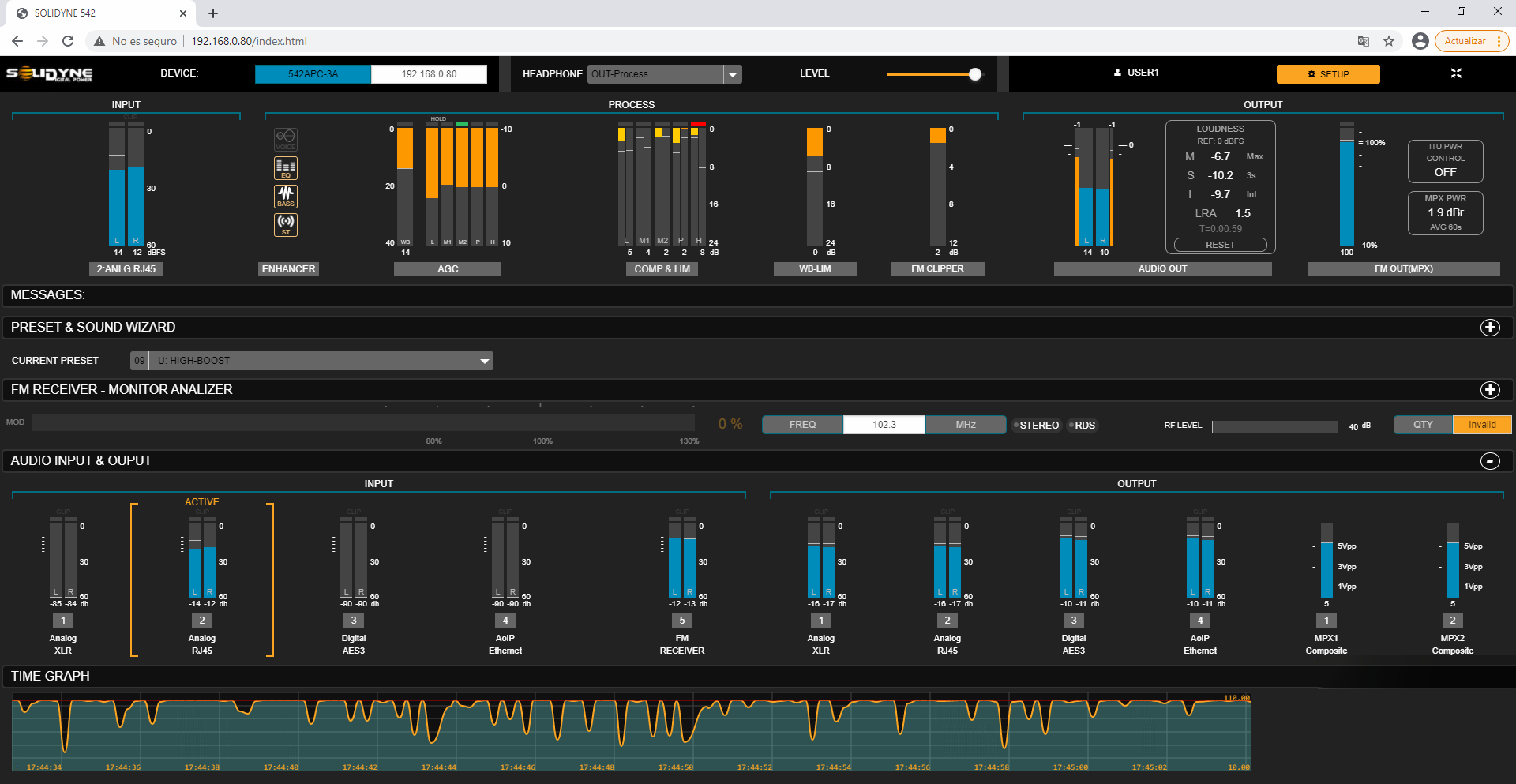 * These screens **do not allow configuration edits**.
* To modify parameters, you must activate **SETUP mode** by pressing the button located in the top-right corner of the window.
Monitoring screens are organized into sections that can be **expanded or collapsed** by clicking the (±) icon:
1. General monitoring (*fixed section*)
2. Presets and Sound Wizards
3. FM Receiver – Monitor Analyzer
4. Audio Inputs and Outputs
5. Time Graph
### *General Monitoring* Section
The top section is **fixed** and remains visible in all modes (MONITORING and SETUP).
Includes:
* **Input level** of the active signal (RMS and peaks in dBFS).
* **Processing action** indicators:
* Enhancer status (active/inactive).
* AGC action (dB).
* Compressor and limiter attenuation (dB).
* Clipper and broadband limiter status (dB).
* MPX clipper (dB).
* **Audio output levels**:
* Dual peak and RMS level indicator.
* Loudness levels per EBU-R128 standard.
The top row displays:
* Equipment **IP** address.
* Signal source and headphone volume.
* Current user (for password access control).
* Button to switch to **SETUP mode**.
***
### *Preset and Sound Wizard* Section
Displays the **current processing preset** and simplified **Wizard** controls that allow quick customization of the sound character.
* Users can switch presets and adjust basic parameters (brightness, bass, compression, loudness).
* The **CLICK HERE TO EDIT** option opens **SETUP mode** to save changes or create new presets.
***
### *FM Receiver – Monitor Analyzer* Section
Displays key parameters of FM transmission analysis. Advanced receiver configuration and detailed reports are available in **SETUP mode** under the **FM Receiver** menu option.
***
### *Audio Inputs and Outputs* Section
Displays level indicators for:
enrolling
* Audio inputs.
* Audio outputs.
* Composite **MPX1** and **MPX2** outputs.
***
### *Time Graph* Section
Graph showing the **evolution of modulation over time**.\\\
Allows switching between:
* MPX level.
* Modulation measured by the FM receiver.
* MPX power per **ITU BS412**.
## Advanced access to configuration and adjustments
The **SETUP** button at the top of the screen allows **editing the parameters and settings** of the **542APC processor**.
* Access to this mode may be **password-protected**.
* Upon entering, a **collapsible side menu** appears on the left, providing access to all adjustment and configuration sections.
- Whenever modifying an audio processing value, press **SAVE PRESET** to retain changes. The SAVE option will blink while unsaved changes exist.
- **System configuration** changes are saved automatically.
- The **active processing preset** is a system value: each time it's changed, the setting is saved automatically.
* These screens **do not allow configuration edits**.
* To modify parameters, you must activate **SETUP mode** by pressing the button located in the top-right corner of the window.
Monitoring screens are organized into sections that can be **expanded or collapsed** by clicking the (±) icon:
1. General monitoring (*fixed section*)
2. Presets and Sound Wizards
3. FM Receiver – Monitor Analyzer
4. Audio Inputs and Outputs
5. Time Graph
### *General Monitoring* Section
The top section is **fixed** and remains visible in all modes (MONITORING and SETUP).
Includes:
* **Input level** of the active signal (RMS and peaks in dBFS).
* **Processing action** indicators:
* Enhancer status (active/inactive).
* AGC action (dB).
* Compressor and limiter attenuation (dB).
* Clipper and broadband limiter status (dB).
* MPX clipper (dB).
* **Audio output levels**:
* Dual peak and RMS level indicator.
* Loudness levels per EBU-R128 standard.
The top row displays:
* Equipment **IP** address.
* Signal source and headphone volume.
* Current user (for password access control).
* Button to switch to **SETUP mode**.
***
### *Preset and Sound Wizard* Section
Displays the **current processing preset** and simplified **Wizard** controls that allow quick customization of the sound character.
* Users can switch presets and adjust basic parameters (brightness, bass, compression, loudness).
* The **CLICK HERE TO EDIT** option opens **SETUP mode** to save changes or create new presets.
***
### *FM Receiver – Monitor Analyzer* Section
Displays key parameters of FM transmission analysis. Advanced receiver configuration and detailed reports are available in **SETUP mode** under the **FM Receiver** menu option.
***
### *Audio Inputs and Outputs* Section
Displays level indicators for:
enrolling
* Audio inputs.
* Audio outputs.
* Composite **MPX1** and **MPX2** outputs.
***
### *Time Graph* Section
Graph showing the **evolution of modulation over time**.\\\
Allows switching between:
* MPX level.
* Modulation measured by the FM receiver.
* MPX power per **ITU BS412**.
## Advanced access to configuration and adjustments
The **SETUP** button at the top of the screen allows **editing the parameters and settings** of the **542APC processor**.
* Access to this mode may be **password-protected**.
* Upon entering, a **collapsible side menu** appears on the left, providing access to all adjustment and configuration sections.
- Whenever modifying an audio processing value, press **SAVE PRESET** to retain changes. The SAVE option will blink while unsaved changes exist.
- **System configuration** changes are saved automatically.
- The **active processing preset** is a system value: each time it's changed, the setting is saved automatically.