> ## Documentation Index
> Fetch the complete documentation index at: https://docs.solidyne.ar/llms.txt
> Use this file to discover all available pages before exploring further.
# Firmware Update
> Procedures for updating firmware by model
## What is Modified
Successive updates of the same software model can:
* Optimize processes.
* Add new features.
* Improve or modify the graphical interface.
* Incorporate new processing presets.
The **version and model** are displayed:
* On the startup screen of the **front panel**.
* On the top line of the **WEB Control** screen.
The unit can be updated while in service.\
It may cause a **brief audio interruption** on-air (less than 2 seconds).
***
## Versions Prior to 2.0
For units with firmware version **1.35 or earlier**, consult the corresponding manual at:\
👉 [Discontinued Units](/en/otros_docs/discontinued)
***
## Units with STREAMER AoIP Module
The **Streamer AoIP** expansion allows direct access to the unit via a link and adds a **simplified update method**.
See details for Units with STREAMER AoIP Option
***
## 542 APC Standard Model
Units with firmware 2.0 or later, which do not have the STREAMER AoIP expansion, are updated with the following procedure:
1. Ensure the computer accessing the processor has **Internet connection** and is on the **same LAN** as the 542APC.
2. Access the **WEB Control** page by entering the **control IP** in a browser.\
(See [**Network Access and Control**](/en/542/542-acceso-web)).
3. Enter **SETUP** mode (top right) and select the **INFO** option from the side menu.
4. The unit will automatically check for an available update and **generate a direct download link**.
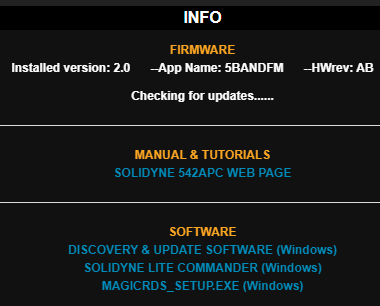 5. Download the firmware update from the link.
6. Download and install the Windows application **Solidyne Discovery & Update** (link in the SOFTWARE section of the INFO screen).
* The installer will create a *Solidyne Audio Processor* folder in the Windows Start menu.
7. Run the **Discovery & Update** application.
5. Download the firmware update from the link.
6. Download and install the Windows application **Solidyne Discovery & Update** (link in the SOFTWARE section of the INFO screen).
* The installer will create a *Solidyne Audio Processor* folder in the Windows Start menu.
7. Run the **Discovery & Update** application.
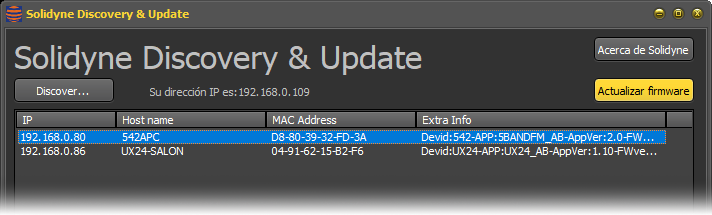 8. Click **Discover...** → Solidyne units on the network will be listed.
9. Select the **542APC** unit and click **Update Firmware**.
10. In the pop-up window, select the update file downloaded in *Step 5* and click **OK**.
11. The application will overwrite the firmware of the 542APC.
12. The unit will remain operational; there will be a **brief audio interruption (less than 2 seconds)** upon restart.
**Do not power off or disconnect the unit during the update.**\
It could cause irreparable user damage.
Avoid performing updates from computers connected via Wi-Fi.
### Remote Updates
Do not perform updates if accessing the unit directly via **Internet (port forwarding)**.\
Always use **remote desktop software** to connect to a PC on the processor's LAN and access the **local WEB Control** from there.
***
8. Click **Discover...** → Solidyne units on the network will be listed.
9. Select the **542APC** unit and click **Update Firmware**.
10. In the pop-up window, select the update file downloaded in *Step 5* and click **OK**.
11. The application will overwrite the firmware of the 542APC.
12. The unit will remain operational; there will be a **brief audio interruption (less than 2 seconds)** upon restart.
**Do not power off or disconnect the unit during the update.**\
It could cause irreparable user damage.
Avoid performing updates from computers connected via Wi-Fi.
### Remote Updates
Do not perform updates if accessing the unit directly via **Internet (port forwarding)**.\
Always use **remote desktop software** to connect to a PC on the processor's LAN and access the **local WEB Control** from there.
***