> ## Documentation Index
> Fetch the complete documentation index at: https://docs.solidyne.ar/llms.txt
> Use this file to discover all available pages before exploring further.
# Streaming Services
> Equipment with RTP, Icecast, and streaming reception services
## Accessing the STREAMER Module
### From a LAN
Processors equipped with the STREAMER AoIP module feature **two Ethernet ports**:
* **Ethernet**→ web interface for CONTROL
* **Ethernet AoIP** → AUDIO STREAM
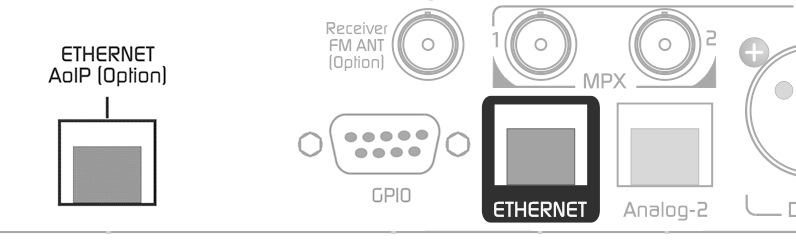 1. Connect the **Ethernet AoIP** port to the LAN using a UTP CAT5 cable. By default, it operates in DHCP. When the connection is successful, the green LED on the RJ45 flashes.
2. To identify the IP assigned to the Streamer module, download the **Solidyne Multi-Discovery** application.
**Solidyne Multi-Discovery**
If there is no physical access to the console, you can [download the Multi-Discovery tool](/en/otros_docs/downloads#tools) to detect Solidyne devices connected to the network.
3. Once we access the module, we proceed with the configuration.
***
### Remote Access via the Internet
The 542APC units with STREAMER AoIP expansion feature a redirection service that avoids advanced configurations (port forwarding, static IPs, etc.).
This service provides remote access to the **control and adjustment web interface** of the equipment.\
It does not establish an audio link with the processor.
The service is provided by third parties. Solidyne offers a temporary free activation, limited to 4 hours of connection.
**Activating Redirection**
1. Access the equipment from the LAN.
2. In the **SYSTEM** menu, open the **Internet Access** tab.
3. Enable the **ENABLE** button.
4. Request account activation by writing to [**support@solidyne.ar**](mailto:support@solidyne.ar) with:
* Subject: "ZROK account activation for remote access".
* Email to register.
* Processor serial number.
5. Enter the received key in the **ENTER KEY** field on the Internet Access screen.
The free ZROK service enables 4-hour sessions.\
For continuous access, the service must be contracted from the external provider.
***
## Integrated Control Interface
The 542APC processors with the STREAMER AoIP module include an integrated interface, providing access to audio streaming services and the WEB Control interface.\
Access requires a username and password.
* **BASIC** user → access to Remote Control (audio, MPX, and reception configuration).
* **ADMIN** user → enables all options, including audio stream configuration.
Default password: **1234** (can be changed on the hardware screen).
1. Connect the **Ethernet AoIP** port to the LAN using a UTP CAT5 cable. By default, it operates in DHCP. When the connection is successful, the green LED on the RJ45 flashes.
2. To identify the IP assigned to the Streamer module, download the **Solidyne Multi-Discovery** application.
**Solidyne Multi-Discovery**
If there is no physical access to the console, you can [download the Multi-Discovery tool](/en/otros_docs/downloads#tools) to detect Solidyne devices connected to the network.
3. Once we access the module, we proceed with the configuration.
***
### Remote Access via the Internet
The 542APC units with STREAMER AoIP expansion feature a redirection service that avoids advanced configurations (port forwarding, static IPs, etc.).
This service provides remote access to the **control and adjustment web interface** of the equipment.\
It does not establish an audio link with the processor.
The service is provided by third parties. Solidyne offers a temporary free activation, limited to 4 hours of connection.
**Activating Redirection**
1. Access the equipment from the LAN.
2. In the **SYSTEM** menu, open the **Internet Access** tab.
3. Enable the **ENABLE** button.
4. Request account activation by writing to [**support@solidyne.ar**](mailto:support@solidyne.ar) with:
* Subject: "ZROK account activation for remote access".
* Email to register.
* Processor serial number.
5. Enter the received key in the **ENTER KEY** field on the Internet Access screen.
The free ZROK service enables 4-hour sessions.\
For continuous access, the service must be contracted from the external provider.
***
## Integrated Control Interface
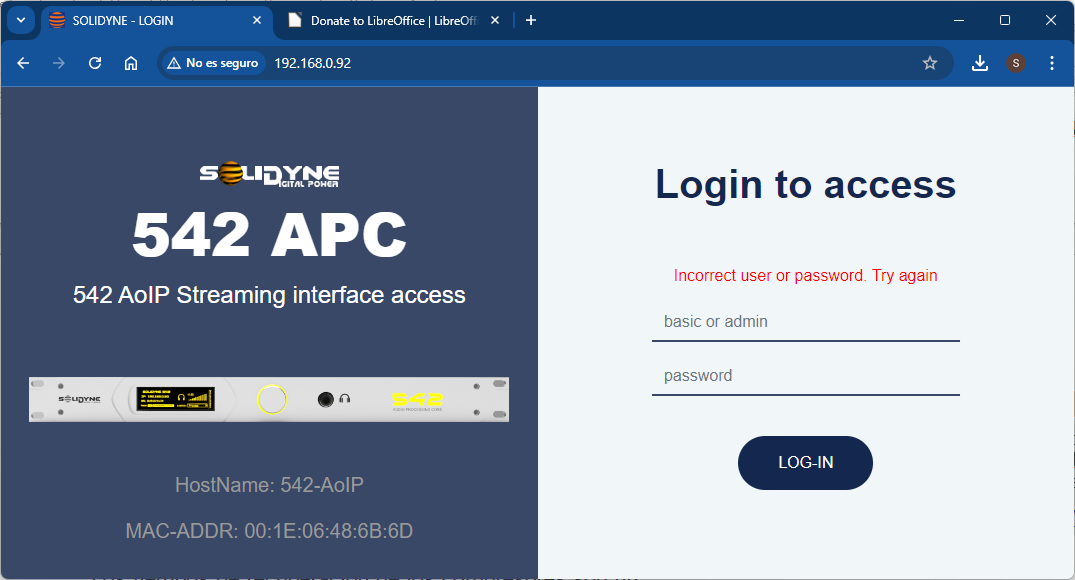
The 542APC processors with the STREAMER AoIP module include an integrated interface, providing access to audio streaming services and the WEB Control interface.\
Access requires a username and password.
* **BASIC** user → access to Remote Control (audio, MPX, and reception configuration).
* **ADMIN** user → enables all options, including audio stream configuration.
Default password: **1234** (can be changed on the hardware screen).
 The **HOME** screen includes access to:
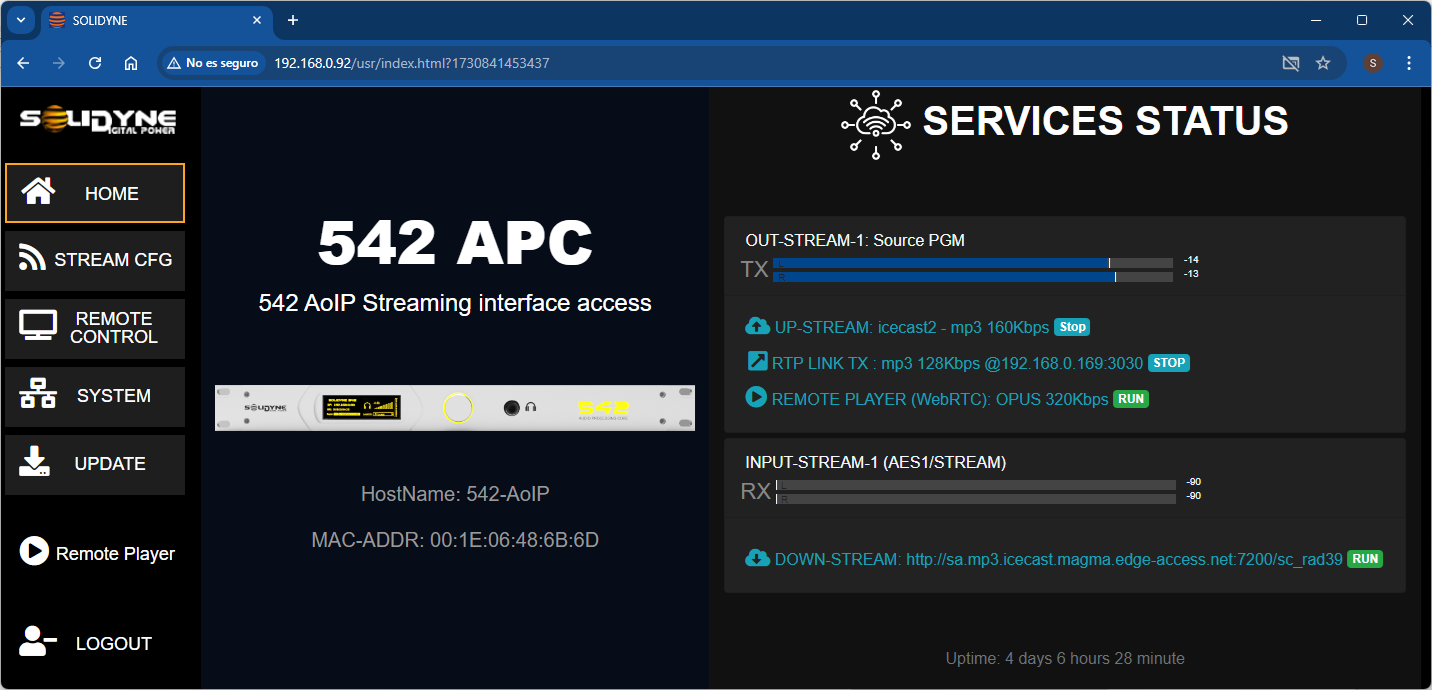 | Option | Description |
| ----------------- | ------------------------------------------------------------------------------------------------------------------------------------------------------------------------------------ |
| **HOME** | Loads the current screen. |
| **STREAM CFG** | Loads the options for configuring streaming services. |
| **REMOTE CNTRL** | Loads the screen for remote configuration of processing parameters and modulation monitoring. |
| **SYSTEM** | Displays options for configuring the local network for the control Ethernet port, system information, and the configuration for accessing the equipment externally via the Internet. |
| **UPDATE** | Simplified firmware update. |
| **REMOTE PLAYER** | Allows listening to the processor's audio via the LAN and Internet. |
| **LOG OUT** | Logs out the user and returns to the login screen. |
***
### Streaming Configurations (STREAM CFG)
In the **STREAM CFG** menu, the following streaming services are configured:
* UP-STREAM (Tx)
* RTP-LINK (Tx)
* DOWN-STREAM (Rx)
* REMOTE PLAYER
* SERVICE CFG
***
## Down-stream RTP - Link (STL)
First, the reception of **audio stream** is described, as it is the most common case for establishing the connection between the processor and the station's studios (STL, *Studio to Transmitter Link*).
**Concept.** The processor receives an **RTP** audio stream generated by an encoder in the studios (for example, a Solidyne DX816 console, UNIDEX line, or other compatible equipment).
### **Network Configuration**
There are different configurations for interconnecting two devices located in different locations. The installation and configuration of the network are beyond this manual; consult specialized technicians. As a reference, two general schemes are mentioned.
1. **Point-to-Point Link**
Two networks from different locations are directly connected (wirelessly or with fiber optics) to form a single **LAN**. There are companies that provide these services.\
In this scheme, the processor is **on the same network** as the codec or transmitting equipment; **the Internet is not involved**.
The point-to-point link can be:
* **Physical**: intranet via fiber.
* **Wireless**: microwave in the WI-FI band or **Wi-Max 5.8 GHz**. These links reach up to **50 km** and have low costs due to being mass-produced equipment. The **5.8 GHz** band is free for data transmission.
2. **Link via the Internet**
Two separate networks are connected through **the Internet**. The configuration is more complex: it usually requires setting up a **VPN** with compatible routers and/or having **fixed public IPs** and **port forwarding**.
The **configuration of the encoder** may vary depending on the network architecture.
As a reference, see the requirements document [**RTP\_AudioStream\_Link(STL)\_requirements**](https://www.solidynepro.com/DW/VPN-PortForwarding.pdf).
***
### Configuring Incoming RTP
The 542APC behaves as a **passive receiver** of an **RTP** audio stream generated by a device/encoder that emits in a **compatible format**. Only **protocol**, **port**, and **IP address** through which the stream enters need to be configured.
| Option | Description |
| ----------------- | ------------------------------------------------------------------------------------------------------------------------------------------------------------------------------------ |
| **HOME** | Loads the current screen. |
| **STREAM CFG** | Loads the options for configuring streaming services. |
| **REMOTE CNTRL** | Loads the screen for remote configuration of processing parameters and modulation monitoring. |
| **SYSTEM** | Displays options for configuring the local network for the control Ethernet port, system information, and the configuration for accessing the equipment externally via the Internet. |
| **UPDATE** | Simplified firmware update. |
| **REMOTE PLAYER** | Allows listening to the processor's audio via the LAN and Internet. |
| **LOG OUT** | Logs out the user and returns to the login screen. |
***
### Streaming Configurations (STREAM CFG)
In the **STREAM CFG** menu, the following streaming services are configured:
* UP-STREAM (Tx)
* RTP-LINK (Tx)
* DOWN-STREAM (Rx)
* REMOTE PLAYER
* SERVICE CFG
***
## Down-stream RTP - Link (STL)
First, the reception of **audio stream** is described, as it is the most common case for establishing the connection between the processor and the station's studios (STL, *Studio to Transmitter Link*).
**Concept.** The processor receives an **RTP** audio stream generated by an encoder in the studios (for example, a Solidyne DX816 console, UNIDEX line, or other compatible equipment).
### **Network Configuration**
There are different configurations for interconnecting two devices located in different locations. The installation and configuration of the network are beyond this manual; consult specialized technicians. As a reference, two general schemes are mentioned.
1. **Point-to-Point Link**
Two networks from different locations are directly connected (wirelessly or with fiber optics) to form a single **LAN**. There are companies that provide these services.\
In this scheme, the processor is **on the same network** as the codec or transmitting equipment; **the Internet is not involved**.
The point-to-point link can be:
* **Physical**: intranet via fiber.
* **Wireless**: microwave in the WI-FI band or **Wi-Max 5.8 GHz**. These links reach up to **50 km** and have low costs due to being mass-produced equipment. The **5.8 GHz** band is free for data transmission.
2. **Link via the Internet**
Two separate networks are connected through **the Internet**. The configuration is more complex: it usually requires setting up a **VPN** with compatible routers and/or having **fixed public IPs** and **port forwarding**.
The **configuration of the encoder** may vary depending on the network architecture.
As a reference, see the requirements document [**RTP\_AudioStream\_Link(STL)\_requirements**](https://www.solidynepro.com/DW/VPN-PortForwarding.pdf).
***
### Configuring Incoming RTP
The 542APC behaves as a **passive receiver** of an **RTP** audio stream generated by a device/encoder that emits in a **compatible format**. Only **protocol**, **port**, and **IP address** through which the stream enters need to be configured.
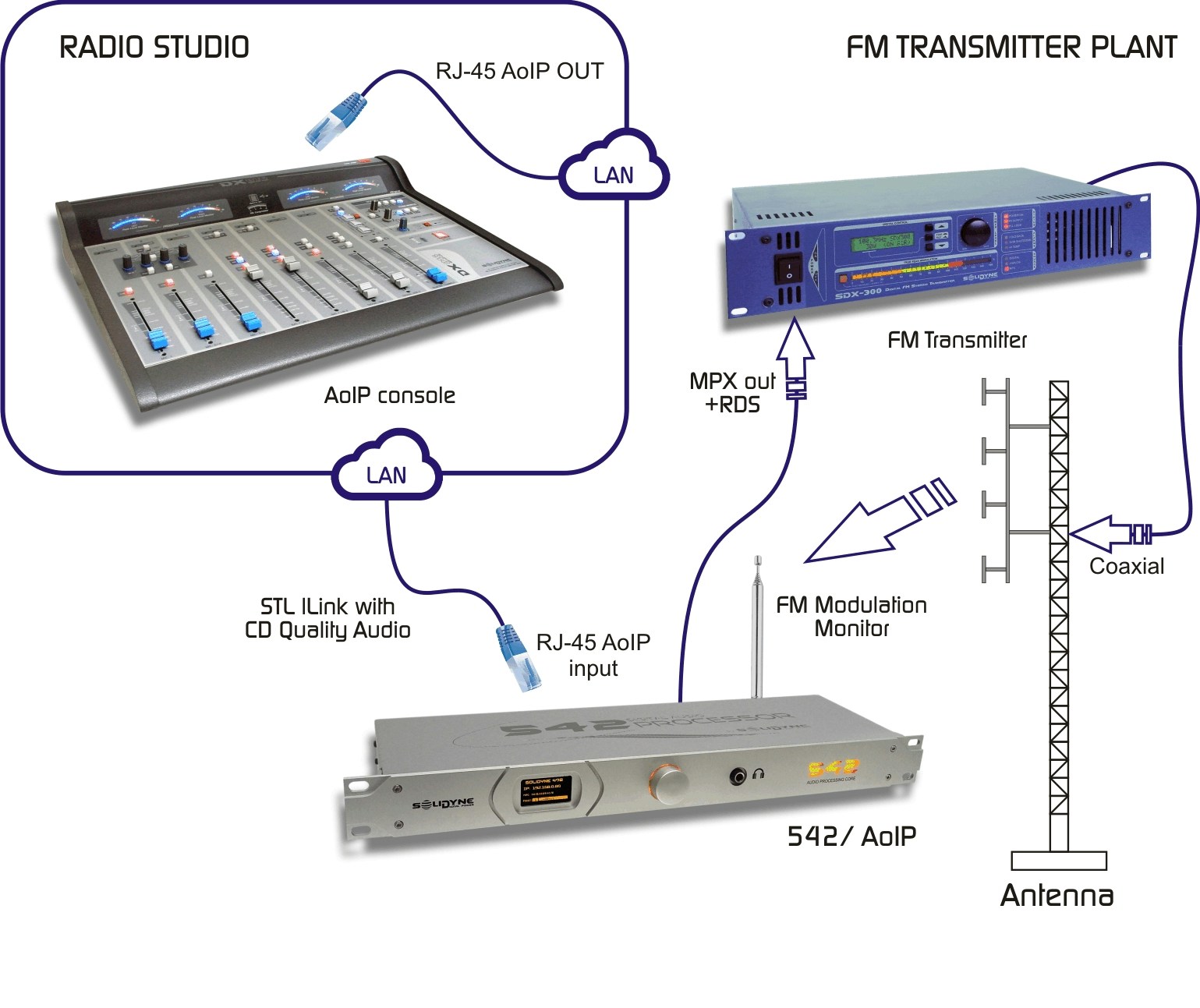 1. It is assumed that the processor is correctly connected to the **same LAN** as the encoder, through the **Ethernet AoIP** port.
2. In the **General Status Screen**, select the **STREAM CFG** option.
3. Select the **DOWN-STREAM (Rx)** tab.
1. It is assumed that the processor is correctly connected to the **same LAN** as the encoder, through the **Ethernet AoIP** port.
2. In the **General Status Screen**, select the **STREAM CFG** option.
3. Select the **DOWN-STREAM (Rx)** tab.
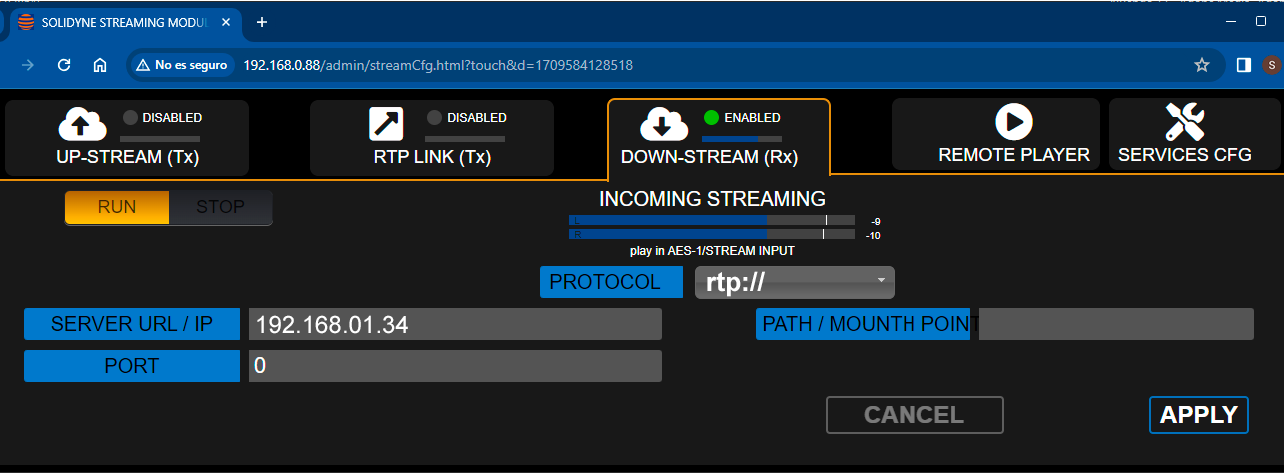 4. Enable reception with **RUN/STOP → RUN**.
5. In **PROTOCOL**, select **RTP**.
6. In **SERVER URL/IP**, enter the **IP of the encoder** (the one generating the streaming in the Studio).\
It is also possible to enter **0.0.0.0** to receive from **any IP** transmitting to the declared UDP port.
7. In **PORT**, enter the **UDP port** through which the RTP arrives (must match the one defined in the encoder).
8. Verify that the encoder emits in a **compatible format**:
* **PCM 44.1 kHz**
* **MP3 CBR/VBR 96–320 kbps**
9. **PATH/MOUNT POINT** is not used for **RTP**. Leave blank.
10. Press **APPLY** to confirm.
11. The processor will start **receiving audio** from the studios. The **signal level** is displayed on the screen.
***
### RTP Transmission from Studios
Any device capable of generating an **RTP** stream can transmit to the processor. Configure:
1. (In this example) The encoder is **within the same LAN** as the processor. In other architectures (VPN/Internet), the configuration may differ.
2. Send **RTP** to the **IP of the STREAMER module** of the 542APC (see **Accessing from a LAN** to obtain the module's IP).
3. Define the **UDP port** (for example, **3030**).
4. **Audio format** (must be compatible with the 542APC, otherwise the connection will not be established):
* **PCM 44.1 kHz** with latencies of **15 to 40 ms**
* **MPEG Layer-3 (MP3) VBR/CBR 96–320 kbps**
For links via **the Internet**, **MPEG/MP3** is recommended: it allows low bandwidth (≈ **0.5 Mbps** for **192 kbps**), but introduces **delays** of **200 to 500 ms**.
**Transmission and Monitoring Delay.**\
When the studio–transmitter link has **delays > 15 ms**, it is not possible to monitor in the studios **by tuning the on-air transmission**: the announcers perceive an "echo" in the headphones that hinders their task.\
In these cases, use an **auxiliary processor in the Studio** to process a **direct console output** for **monitoring**. It does not require the same sound level as on-air, but it should be similar in compression and dynamics.
The **inherent latency of the 542APC** (\~ **9 ms**) is added to the link latency.
***
## Public Streaming Reception
The STREAMER AoIP module can receive public streams (HTTP or MMS), in PCM 16/44.1–48 kHz, MP3, or OPUS.\
They can be used as the main input or backup.
1. In **STREAM CFG**, select **DOWN-STREAM (Rx)**.
2. Enable with **RUN/STOP → RUN**.
3. In **PROTOCOL**, select HTTP or MMS.
4. In **SERVER URL/IP**, enter the HTTP/MMS address of the streaming to be played.
5. Press **APPLY**.
6. The processor starts receiving the streaming. The signal level is displayed on the indicators.
***
## Up-Stream (Icecast/Shoutcast)
The **UP-STREAM (Tx)** tab configures transmission to Icecast/Shoutcast servers.
4. Enable reception with **RUN/STOP → RUN**.
5. In **PROTOCOL**, select **RTP**.
6. In **SERVER URL/IP**, enter the **IP of the encoder** (the one generating the streaming in the Studio).\
It is also possible to enter **0.0.0.0** to receive from **any IP** transmitting to the declared UDP port.
7. In **PORT**, enter the **UDP port** through which the RTP arrives (must match the one defined in the encoder).
8. Verify that the encoder emits in a **compatible format**:
* **PCM 44.1 kHz**
* **MP3 CBR/VBR 96–320 kbps**
9. **PATH/MOUNT POINT** is not used for **RTP**. Leave blank.
10. Press **APPLY** to confirm.
11. The processor will start **receiving audio** from the studios. The **signal level** is displayed on the screen.
***
### RTP Transmission from Studios
Any device capable of generating an **RTP** stream can transmit to the processor. Configure:
1. (In this example) The encoder is **within the same LAN** as the processor. In other architectures (VPN/Internet), the configuration may differ.
2. Send **RTP** to the **IP of the STREAMER module** of the 542APC (see **Accessing from a LAN** to obtain the module's IP).
3. Define the **UDP port** (for example, **3030**).
4. **Audio format** (must be compatible with the 542APC, otherwise the connection will not be established):
* **PCM 44.1 kHz** with latencies of **15 to 40 ms**
* **MPEG Layer-3 (MP3) VBR/CBR 96–320 kbps**
For links via **the Internet**, **MPEG/MP3** is recommended: it allows low bandwidth (≈ **0.5 Mbps** for **192 kbps**), but introduces **delays** of **200 to 500 ms**.
**Transmission and Monitoring Delay.**\
When the studio–transmitter link has **delays > 15 ms**, it is not possible to monitor in the studios **by tuning the on-air transmission**: the announcers perceive an "echo" in the headphones that hinders their task.\
In these cases, use an **auxiliary processor in the Studio** to process a **direct console output** for **monitoring**. It does not require the same sound level as on-air, but it should be similar in compression and dynamics.
The **inherent latency of the 542APC** (\~ **9 ms**) is added to the link latency.
***
## Public Streaming Reception
The STREAMER AoIP module can receive public streams (HTTP or MMS), in PCM 16/44.1–48 kHz, MP3, or OPUS.\
They can be used as the main input or backup.
1. In **STREAM CFG**, select **DOWN-STREAM (Rx)**.
2. Enable with **RUN/STOP → RUN**.
3. In **PROTOCOL**, select HTTP or MMS.
4. In **SERVER URL/IP**, enter the HTTP/MMS address of the streaming to be played.
5. Press **APPLY**.
6. The processor starts receiving the streaming. The signal level is displayed on the indicators.
***
## Up-Stream (Icecast/Shoutcast)
The **UP-STREAM (Tx)** tab configures transmission to Icecast/Shoutcast servers.
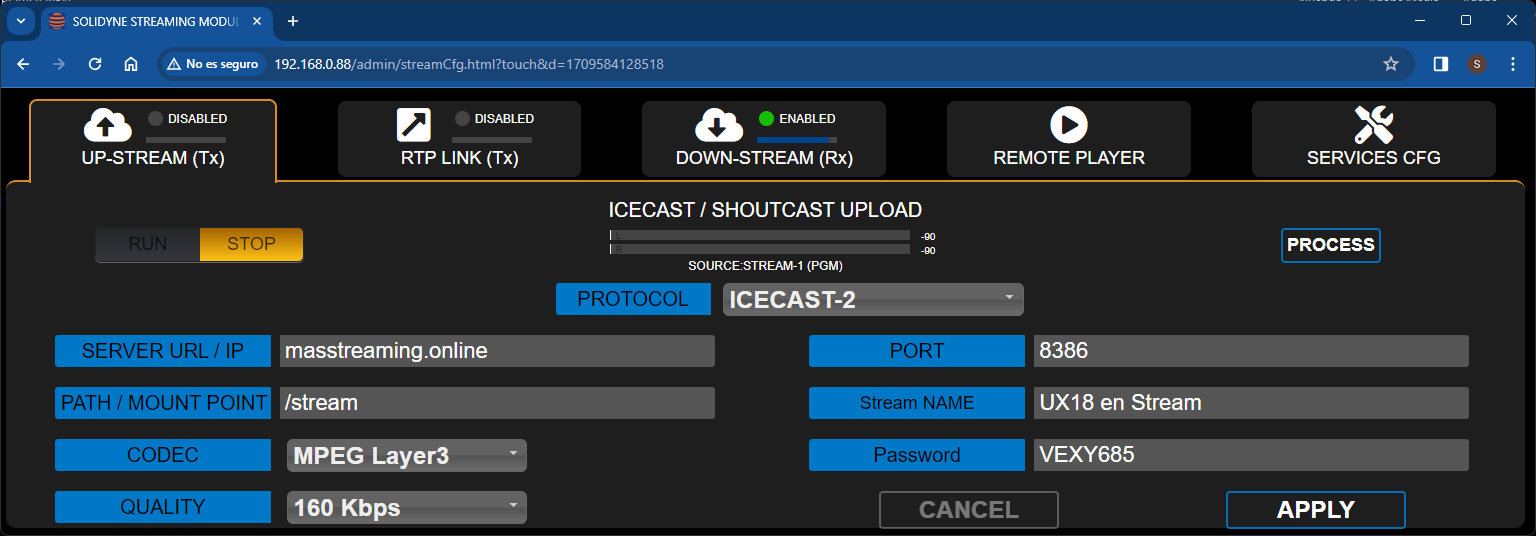 Main parameters:
| Parameter | Description |
| --------------- | ------------------------------------------------------------------------------------------------------------------------------------------- |
| **RUN/STOP** | Starts or stops the upload to the server when changes are confirmed with **APPLY**. To optimize resources, keep it stopped when not in use. |
| **PROTOCOL** | Defines whether the server is **Icecast** or **Shoutcast**. |
| **SERVER IP** | IP address of the Icecast/Shoutcast server. |
| **PORT** | **TCP** listening port of the server. |
| **MOUNTPOINT** | Unique name identifying the stream on the Icecast/Shoutcast server. |
| **Stream NAME** | Name identifying the stream. |
| **PASSWORD** | Access key for publishing on the server (if applicable). |
| **CODEC** | Audio format: **MP3** or **Opus**. |
| **QUALITY** | Bitrate for encoding. |
| **APPLY** | Applies and saves changes; starts or stops the transmission based on the RUN/STOP state. |
The configuration data is provided by the Icecast/Shoutcast hosting service.
***
## RTP Link (Tx)
Allows sending audio to an IP address (local point-to-point link or via the Internet).\
For example, to link to a second studio, a repeater station, or the transmitter plant (STL) when the processor is located in the Studios.
Implementing an RTP link requires advanced knowledge of network configuration.
| Parameter | Description |
| ------------ | ------------------------------------------------------------------------------------------------------------------------------------ |
| **RUN/STOP** | Starts or stops the RTP streaming when changes are confirmed with **APPLY**. To optimize resources, keep it stopped when not in use. |
| **DEST IP** | Destination IP address. |
| **PORT** | **TCP** transmission port. |
| **CODEC** | Format for RTP. Supports **PCM**, **Opus**, and **MP3**. |
| **QUALITY** | Defines the bitrate for **Opus/MP3** (96–320 kbps) or the sampling frequency for **PCM** (32, 44.1, 48 kHz). |
| **PAYLOAD** | Numerical value associated with the audio format, used by the receiving software. |
***
## Remote Listening
This feature allows listening to the processor's audio signal through the web interface, enabling remote listening via the network.
Main parameters:
| Parameter | Description |
| --------------- | ------------------------------------------------------------------------------------------------------------------------------------------- |
| **RUN/STOP** | Starts or stops the upload to the server when changes are confirmed with **APPLY**. To optimize resources, keep it stopped when not in use. |
| **PROTOCOL** | Defines whether the server is **Icecast** or **Shoutcast**. |
| **SERVER IP** | IP address of the Icecast/Shoutcast server. |
| **PORT** | **TCP** listening port of the server. |
| **MOUNTPOINT** | Unique name identifying the stream on the Icecast/Shoutcast server. |
| **Stream NAME** | Name identifying the stream. |
| **PASSWORD** | Access key for publishing on the server (if applicable). |
| **CODEC** | Audio format: **MP3** or **Opus**. |
| **QUALITY** | Bitrate for encoding. |
| **APPLY** | Applies and saves changes; starts or stops the transmission based on the RUN/STOP state. |
The configuration data is provided by the Icecast/Shoutcast hosting service.
***
## RTP Link (Tx)
Allows sending audio to an IP address (local point-to-point link or via the Internet).\
For example, to link to a second studio, a repeater station, or the transmitter plant (STL) when the processor is located in the Studios.
Implementing an RTP link requires advanced knowledge of network configuration.
| Parameter | Description |
| ------------ | ------------------------------------------------------------------------------------------------------------------------------------ |
| **RUN/STOP** | Starts or stops the RTP streaming when changes are confirmed with **APPLY**. To optimize resources, keep it stopped when not in use. |
| **DEST IP** | Destination IP address. |
| **PORT** | **TCP** transmission port. |
| **CODEC** | Format for RTP. Supports **PCM**, **Opus**, and **MP3**. |
| **QUALITY** | Defines the bitrate for **Opus/MP3** (96–320 kbps) or the sampling frequency for **PCM** (32, 44.1, 48 kHz). |
| **PAYLOAD** | Numerical value associated with the audio format, used by the receiving software. |
***
## Remote Listening
This feature allows listening to the processor's audio signal through the web interface, enabling remote listening via the network.
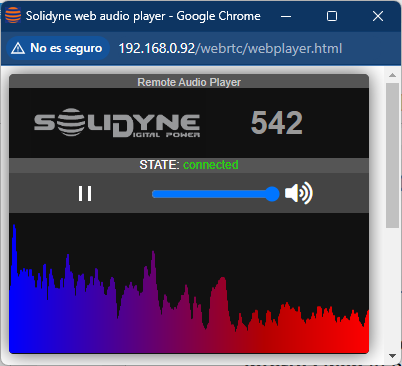 When accessing from a terminal connected to the **local network (LAN)**, no advanced configurations are required: the remote player plays audio directly through the LAN.
When accessing the equipment via **the Internet**, the behavior depends on the network infrastructure. In some cases, configuring a **TURN server** may be necessary. If the player connects but does not receive audio, the system will report to the user that the connection is not possible, and a TURN server must be configured. These configurations must be performed by a **specialized technician** in networks.
The remote player can be launched from the **HOME** screen or from the **REMOTE CONTROL** screen (control IP address).
The transmitted audio is taken from the **Ethernet AoIP output**, which can be switched between:
* the processed signal
* the internal tuner output.
The audio transmission is performed using a **WebRTC** service. In the **STREAM CFG → REMOTE PLAYER** menu, WebRTC-related information is accessed, and the **bitrate** of the audio stream is configured in a range of **128 to 320 kbps**. The transmission format is **Opus**.
***
## Services Config
Informative screen showing the signal assignment matrix for the different services.\
It cannot be modified.
***
## Simplified Updates
Equipment equipped with the **STREAMER AoIP** expansion includes a simplified method for firmware updates. The system automatically downloads the update packages and leaves them ready to be installed when the user decides.
Updates allow:
* Optimizing processes.
* Adding new processes and functions.
* Improving or modifying the graphical user interface.
* Adding new processing settings (presets).
The current version and model are displayed in:
* The front panel startup screen.
* The top line of the **REMOTE CONTROL** screen.
* The **UPDATE** screen itself.
The equipment can be updated while in service. Depending on the type of update, there may be a brief interruption of on-air audio (less than 2 seconds).
### Procedure
This procedure is valid **only for equipment with the STREAMER AoIP expansion**.\
To update equipment without this option, see [**Firmware Update**](/en/542/542-firmware).
1. Access the **IP of the Streamer AoIP module** using a computer connected to the same LAN as the 542APC.\
It is also possible to do this by accessing the 542 directly (see **Remote Access via the Internet**).
2. On the access page, log in as the **ADMIN** user.
3. Access the **UPDATE** menu option.
4. The update screen will load on the right side. The equipment will automatically check if an update is available. If one exists, a list with details will appear.
5. Updates are never installed automatically. The **INSTALL** button is enabled for the user to initiate the process with a single click.
6. The processor remains operational on-air during the update. There will only be a brief interruption (less than 2 seconds) when the equipment reboots.
**WARNING!**\
Do not turn off or disconnect the equipment from the network during the update. It could cause irreparable damage by the user.
When accessing from a terminal connected to the **local network (LAN)**, no advanced configurations are required: the remote player plays audio directly through the LAN.
When accessing the equipment via **the Internet**, the behavior depends on the network infrastructure. In some cases, configuring a **TURN server** may be necessary. If the player connects but does not receive audio, the system will report to the user that the connection is not possible, and a TURN server must be configured. These configurations must be performed by a **specialized technician** in networks.
The remote player can be launched from the **HOME** screen or from the **REMOTE CONTROL** screen (control IP address).
The transmitted audio is taken from the **Ethernet AoIP output**, which can be switched between:
* the processed signal
* the internal tuner output.
The audio transmission is performed using a **WebRTC** service. In the **STREAM CFG → REMOTE PLAYER** menu, WebRTC-related information is accessed, and the **bitrate** of the audio stream is configured in a range of **128 to 320 kbps**. The transmission format is **Opus**.
***
## Services Config
Informative screen showing the signal assignment matrix for the different services.\
It cannot be modified.
***
## Simplified Updates
Equipment equipped with the **STREAMER AoIP** expansion includes a simplified method for firmware updates. The system automatically downloads the update packages and leaves them ready to be installed when the user decides.
Updates allow:
* Optimizing processes.
* Adding new processes and functions.
* Improving or modifying the graphical user interface.
* Adding new processing settings (presets).
The current version and model are displayed in:
* The front panel startup screen.
* The top line of the **REMOTE CONTROL** screen.
* The **UPDATE** screen itself.
The equipment can be updated while in service. Depending on the type of update, there may be a brief interruption of on-air audio (less than 2 seconds).
### Procedure
This procedure is valid **only for equipment with the STREAMER AoIP expansion**.\
To update equipment without this option, see [**Firmware Update**](/en/542/542-firmware).
1. Access the **IP of the Streamer AoIP module** using a computer connected to the same LAN as the 542APC.\
It is also possible to do this by accessing the 542 directly (see **Remote Access via the Internet**).
2. On the access page, log in as the **ADMIN** user.
3. Access the **UPDATE** menu option.
4. The update screen will load on the right side. The equipment will automatically check if an update is available. If one exists, a list with details will appear.
5. Updates are never installed automatically. The **INSTALL** button is enabled for the user to initiate the process with a single click.
6. The processor remains operational on-air during the update. There will only be a brief interruption (less than 2 seconds) when the equipment reboots.
**WARNING!**\
Do not turn off or disconnect the equipment from the network during the update. It could cause irreparable damage by the user.