> ## Documentation Index
> Fetch the complete documentation index at: https://docs.solidyne.ar/llms.txt
> Use this file to discover all available pages before exploring further.
# Receive streaming
> Configuration for decoding an incoming stream
## Audio Stream Generated from Another Console
The AoIP module can be configured to **receive an RTP stream** generated from another Solidyne console with streaming support (e.g., **D612**, **2600** series, **Unidex** series, coder/link **ADA102**).\
The encoding equipment must have the **same firmware (STL)**.
By default, the console comes in **CODER (Studio Encoder)** mode. To receive, it must be configured as **DECODER**.
### Receiver Configuration (Decoder)
1. Access the IP module from a web browser (see [IP Module Access](/es/DX816/816-stl)).
2. In the top menu, click **Location**.
3. \*\*Change \*\*the mode to **→** **Transmitter Decoder**.
* Factory setting: **Studio Encoder**, generates a unidirectional streaming.
* As **Decoder**, default values are adopted (only modify IP and ports).
4. Go to **Configuration → Streaming**.
5. In **Port**, enter the port used on the encoder (the transmitting equipment).
6. In **URL**, keep **0.0.0.0**.
7. Click **Apply** to confirm.
### Buffer Adjustment (RTP Delay)
The **input buffer** (expressed in milliseconds) prevents audio interruptions when bandwidth is insufficient:
| Audio Format | Recommended Buffer |
| --------------------- | -------------------------------------- |
| PCM | 40–80 ms |
| Compressed (e.g. MP3) | >80 ms (depends on codec and decoding) |
Higher buffer → fewer dropouts, but greater **audio delay**.\
The optimal value depends on **bandwidth** and the **format** used.
The audio format is always defined by the **transmitting equipment**.
### Decoded Audio Connection
* Audio received via Ethernet is routed to **balanced inputs** using the external cable (RJ45 to RJ45, provided).
* Connection: **AoIP Output Option → BAL-1 or BAL-2**.
* For DX822 with two AoIP modules: branched output to both inputs (BAL-1 and BAL-2) using a special "Y" cable (supplied).
***
## Reception Using a Computer
It is possible to receive transmission from a DX/AoIP on a computer with compatible RTP software.\
Recommended: **VLC Player** (free – [videolan.org/vlc](http://www.videolan.org/vlc/)).
**Format Configuration in VLC:**
* **PCM16 @ 44.1 kHz**, or
* **MP3** in one of its modes.
Other formats may require a **SDP** payload file.
**Procedure in VLC:**
* Menu: **Media → Open Network Stream**.
* In the URL field, enter:
`[protocol]://[source_IP]:[port]`
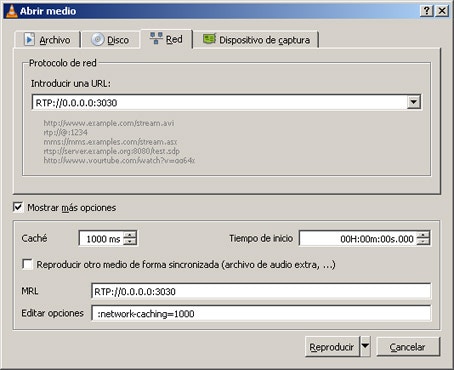 For example:
RTP://0.0.0.0:3030
* `RTP` → protocol.
* `0.0.0.0` → any incoming IP.
* `3030` → port used.
Some versions of VLC accept: `RTP://@:3030`
For example:
RTP://0.0.0.0:3030
* `RTP` → protocol.
* `0.0.0.0` → any incoming IP.
* `3030` → port used.
Some versions of VLC accept: `RTP://@:3030`