> ## Documentation Index
> Fetch the complete documentation index at: https://docs.solidyne.ar/llms.txt
> Use this file to discover all available pages before exploring further.
# Reports: Aaudit
> Broadcast logs and statistics reports
Aaudit is AUDICOM's **broadcast audit tool**. It allows querying, playing back and generating reports from the daily logs of what was aired on the On-Air terminal.
It can be accessed via the **Audit** button in the Applications Bar. By default it's available on the *Commercial* desktop (User = comercial), though it can be added to any user desktop.
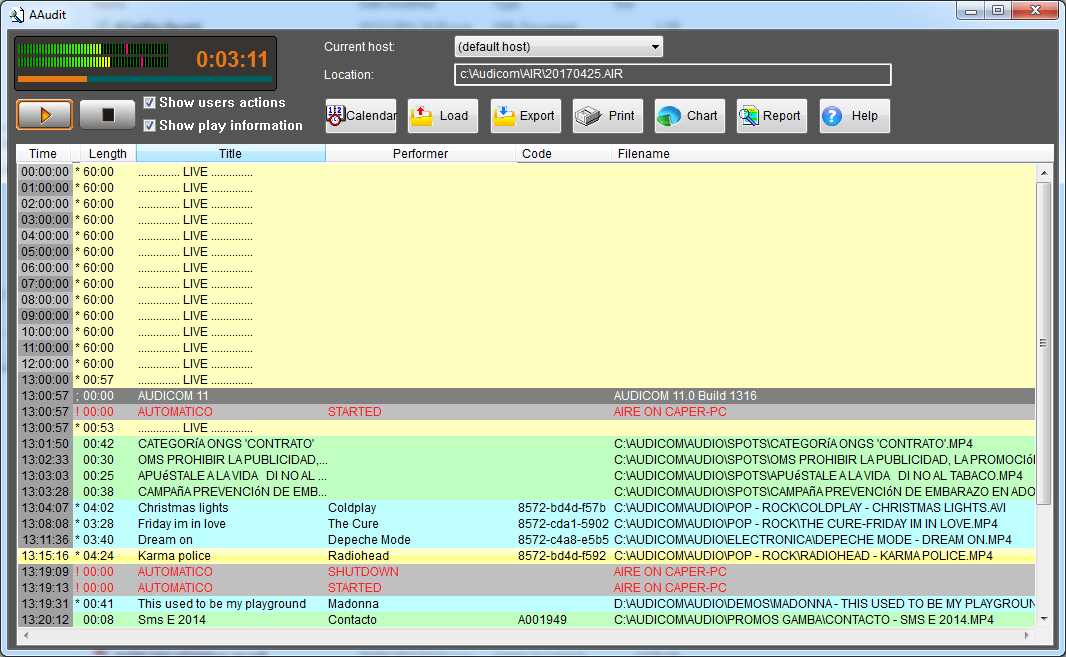
The logs are displayed graphically, similar to the **CyberPlay** window:
* Files played in a commercial break → green background
* Files played by AutoDJ or live blocks → light blue background with asterisk
* Program stop intervals (presumed live) → yellow background
* Even hours → light gray, odd hours → dark gray
Broadcast logs are saved on the On-Air terminal as files with `.air` extension, one for each broadcast day. The location is defined in `Audicom.ini` under `[Directories]`.
Double-clicking an `.air` file in Windows Explorer will open it directly in Aaudit.
 ### Music or spots identification
Aaudit determines the file type using two criteria:
1. **Playback block:** everything aired within a commercial break is marked as *commercial spot*.
* Example: if the operator inserts a music track within a break, it will be marked as spot.
2. **Database:** the **Class** field in InfoMusic is validated.
* `Class = Spot` → appears in green
* `Class ≠ Spot` (Promo, Music) → appears in light blue
* `Empty Class or unregistered file` → considered Spot if aired in a break
***
### User logging
The On-Air module also includes user changes in the logs.\
In Aaudit they appear as gray lines with red text, indicating login/logout time and username.
***
### Playing a title
You can listen to a logged file by selecting it and pressing **Play**.\
The file plays from its original location: if moved or deleted it cannot be played.
***
### Open file
The **.air** button allows opening another log.
* By default files from current month are shown
* The *File types* menu allows expanding view to previous logs
* In installations with multiple on-air terminals, you can select which terminal to open logs from
***
### Save as TXT
Allows exporting the log in plain text, useful for viewing or printing in any text editor.
***
### Print
Generates a paper report similar to graphical reports, but sent directly to printer.
***
### Available reports
The reports menu includes different modes:
* **Global Report:** duration of selected file, number of broadcasts and total airtime
* **Spot tracking:** detailed list of broadcasts of a title within a date range, with playback times to verify complete airing
* **Copyright Listing:** report with Title, Artist, Author, record label and album code, for submission to entities like SADAIC
***
### Graphical reports
Aaudit can generate different visual graphs:
* **Pie Chart:** percentages of music, spots and live programs. Double click → minutes and seconds
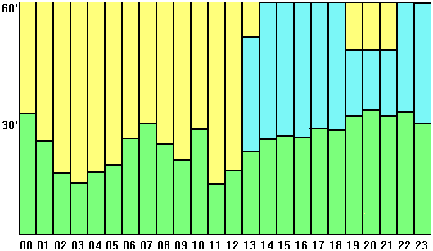
* **24-Hour Composition:** bars showing hourly distribution of music, spots and programs. Double click on bar → exact times
### Music or spots identification
Aaudit determines the file type using two criteria:
1. **Playback block:** everything aired within a commercial break is marked as *commercial spot*.
* Example: if the operator inserts a music track within a break, it will be marked as spot.
2. **Database:** the **Class** field in InfoMusic is validated.
* `Class = Spot` → appears in green
* `Class ≠ Spot` (Promo, Music) → appears in light blue
* `Empty Class or unregistered file` → considered Spot if aired in a break
***
### User logging
The On-Air module also includes user changes in the logs.\
In Aaudit they appear as gray lines with red text, indicating login/logout time and username.
***
### Playing a title
You can listen to a logged file by selecting it and pressing **Play**.\
The file plays from its original location: if moved or deleted it cannot be played.
***
### Open file
The **.air** button allows opening another log.
* By default files from current month are shown
* The *File types* menu allows expanding view to previous logs
* In installations with multiple on-air terminals, you can select which terminal to open logs from
***
### Save as TXT
Allows exporting the log in plain text, useful for viewing or printing in any text editor.
***
### Print
Generates a paper report similar to graphical reports, but sent directly to printer.
***
### Available reports
The reports menu includes different modes:
* **Global Report:** duration of selected file, number of broadcasts and total airtime
* **Spot tracking:** detailed list of broadcasts of a title within a date range, with playback times to verify complete airing
* **Copyright Listing:** report with Title, Artist, Author, record label and album code, for submission to entities like SADAIC
***
### Graphical reports
Aaudit can generate different visual graphs:
* **Pie Chart:** percentages of music, spots and live programs. Double click → minutes and seconds
* **24-Hour Composition:** bars showing hourly distribution of music, spots and programs. Double click on bar → exact times
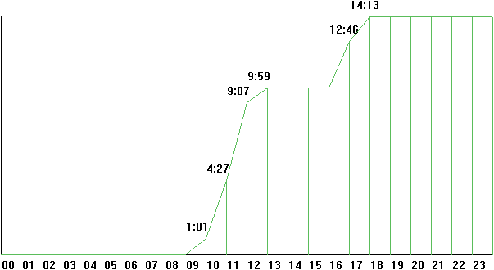
 * **Accumulated break time:** evolution of aired advertising throughout the day
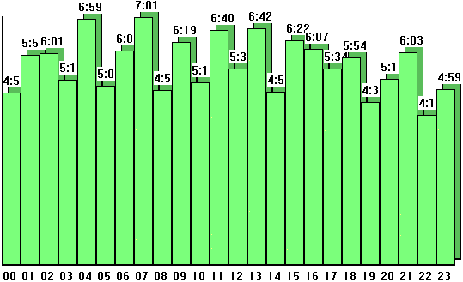
 * **Hourly spots detail:** bars showing minutes of advertising aired each hour
* **3D Graph:** three-dimensional version of pie and bar charts
* **Spots ranking:** comparison of total airtime for each spot
* **Hourly spots detail:** bars showing minutes of advertising aired each hour
* **3D Graph:** three-dimensional version of pie and bar charts
* **Spots ranking:** comparison of total airtime for each spot
 * **Preferred music styles:** pie chart showing airtime by music styles registered in database
***
The `.air` files are usually stored in the `Audicom\Air` folder of the On-Air terminal.\
Their names correspond to the date (`YYYYMMDD.air`). It's recommended to periodically delete very old logs to avoid unnecessary disk usage.
* **Preferred music styles:** pie chart showing airtime by music styles registered in database
***
The `.air` files are usually stored in the `Audicom\Air` folder of the On-Air terminal.\
Their names correspond to the date (`YYYYMMDD.air`). It's recommended to periodically delete very old logs to avoid unnecessary disk usage.