> ## Documentation Index
> Fetch the complete documentation index at: https://docs.solidyne.ar/llms.txt
> Use this file to discover all available pages before exploring further.
# Commercial Breaks
> Manual creation of commercial blocks (breaks)
There are two ways to create a **commercial break**:
* **Automatic**: using the **Admicom** module (recommended).\
→ See: *Traffic, Administration and Statistics*.
* **Manual**: directly in **CyberPlay Editor**.
Non-commercial radio stations or those with few advertisers typically manage breaks manually, without needing to maintain a commercial database.
***
## Manual Creation of Breaks
1. In the **Break** window, enter the break instruction.\
Each instruction corresponds to a single break; you must repeat it for all breaks of the day.
**Example:**
```txt theme={null}
/Tanda Break No. 1 /00:00
```
2. Below, write the filenames of the advertisements that make up that break.\
You can drag them from **File Manager** or **InfoMusic-Production**.
**Example:**
```txt theme={null}
/Tanda Break No. 1 /00:00
Coca-Cola
Sancor
Sony
La Masa Records
```
* Files cannot be scheduled from **extra folders** (see File Manager).
* Files containing a **period (.)** in the name and not registered in the Database **must be scheduled with full extension** (e.g.: `107.5.wav`).
3. To add another break (e.g.: at 00:30), repeat the previous steps.
4. Once all breaks are completed, save the file in the corresponding format (see saving section).
***
## Creating Breaks with Magic Programming
The **Magic Programming** tool simplifies manual break generation. It automatically inserts the instructions, and the operator only needs to load the files below each break.
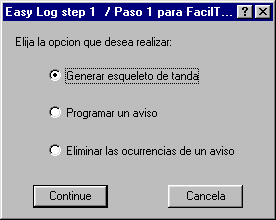 When choosing **Generate Break Template**, a dialog box appears with these options:
* **Start time**: start time of the first break.
* **End time**: time of the last break.
* **Interval between breaks**: minutes between each break.
* **Flexibility**: margin in minutes to shift the break in AutoDJ programs.\
*(All breaks created by Magic Programming are flexible; to change their attributes they must be edited manually).*
### Schedule a Commercial
Allows scheduling a **spot in multiple breaks** automatically.\
Define:
* The **time range** (e.g.: from 19:00 to 22:00).
When choosing **Generate Break Template**, a dialog box appears with these options:
* **Start time**: start time of the first break.
* **End time**: time of the last break.
* **Interval between breaks**: minutes between each break.
* **Flexibility**: margin in minutes to shift the break in AutoDJ programs.\
*(All breaks created by Magic Programming are flexible; to change their attributes they must be edited manually).*
### Schedule a Commercial
Allows scheduling a **spot in multiple breaks** automatically.\
Define:
* The **time range** (e.g.: from 19:00 to 22:00).
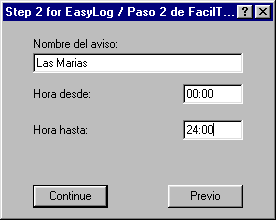 * The **minimum separation** between appearances (e.g.: every 15 minutes).
The advertisement will be inserted in all breaks within the defined range.
### Remove Advertisement Occurrence
Allows **removing all occurrences** of an advertisement within a specified time range.
Remember: For changes to take effect, you must **save the files** and, if it corresponds to **today's or tomorrow's** programming, you must **reload the files in the On-Air terminal**.
### Print
Option to print:
* The **breaks log** (`.LOG`).
* The **programs log** (`.PGM`).
* The **complete schedule** (CyberPlay window).
Printing is performed on the currently loaded files.
* The **minimum separation** between appearances (e.g.: every 15 minutes).
The advertisement will be inserted in all breaks within the defined range.
### Remove Advertisement Occurrence
Allows **removing all occurrences** of an advertisement within a specified time range.
Remember: For changes to take effect, you must **save the files** and, if it corresponds to **today's or tomorrow's** programming, you must **reload the files in the On-Air terminal**.
### Print
Option to print:
* The **breaks log** (`.LOG`).
* The **programs log** (`.PGM`).
* The **complete schedule** (CyberPlay window).
Printing is performed on the currently loaded files.