> ## Documentation Index
> Fetch the complete documentation index at: https://docs.solidyne.ar/llms.txt
> Use this file to discover all available pages before exploring further.
> Overview of Audicom's main player
# CyberPlay: Main Content Grid
## General Concepts
**CyberPlay** automatically creates the radio's daily event schedule with exact timing.
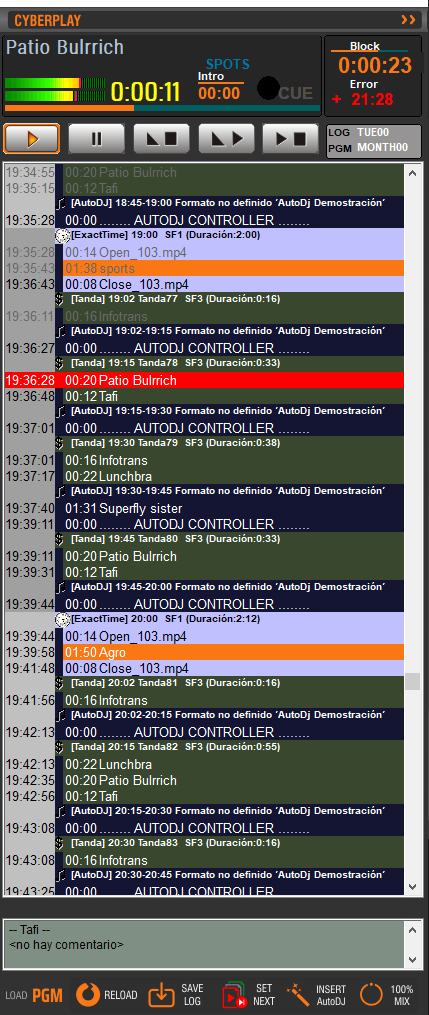 * The window displays the **complete programming grid from 00:00 to 24:00**, including all events, not just computer-controlled ones.
* Traditional programming blocks are preserved: live shows, news, reports, remote connections, etc.
CyberPlay can operate in:
* **Commercial break** mode, managing only advertising blocks.
* Full mode, based on the **PGM programming grid**.
To generate a full year of programming (365 days), only **7 templates** are required, one for each day of the week.
* These are created using simple commands in the **CyberPlay Editor** module.
* Special day templates can also be defined.
AUDICOM's Traffic module creates a daily commercial break list in the format:\
`YYMMDD.LOG` (Year, Month, Day).
CyberPlay merges and displays both lists (commercials and programming) as a single unified list.
CyberPlay loads the **LOG** and **PGM** files at 18:00 each day.\
This time can be modified from the Configuration Panel.
The CyberPlay window shows programming for the current day, previous day, and next day.
* The list can be navigated using the scroll bar.
### Color Identification
Different content types are distinguished on screen by colors:
* **Green**: commercial break
* **Yellow**: live block
* **Blue**: AutoDJ block
* **Pink**: remote link (satellite or Internet)
* **Purple**: Exacttime
* **Black**: pause (stop point)
### Time Identification
* Even hours: light gray background
* Odd hours: dark gray background
* Previous day: hours in blue
* Current day: hours in black
* Next day: hours in red
### Playback Cursor
* Red line indicates the title currently playing
* Played titles appear in gray
* Cursor has automatic centering, returning to screen if hidden
* If an item is selected, cursor changes to yellow and centering is temporarily suspended for 1 minute
* An arrow on the vertical bar indicates if the playing title is out of view
Clicking the arrow forces centering on the playing title.
***
## Commercial Blocks
Contains advertisements. Each block equals one commercial break.
Block example:
* The window displays the **complete programming grid from 00:00 to 24:00**, including all events, not just computer-controlled ones.
* Traditional programming blocks are preserved: live shows, news, reports, remote connections, etc.
CyberPlay can operate in:
* **Commercial break** mode, managing only advertising blocks.
* Full mode, based on the **PGM programming grid**.
To generate a full year of programming (365 days), only **7 templates** are required, one for each day of the week.
* These are created using simple commands in the **CyberPlay Editor** module.
* Special day templates can also be defined.
AUDICOM's Traffic module creates a daily commercial break list in the format:\
`YYMMDD.LOG` (Year, Month, Day).
CyberPlay merges and displays both lists (commercials and programming) as a single unified list.
CyberPlay loads the **LOG** and **PGM** files at 18:00 each day.\
This time can be modified from the Configuration Panel.
The CyberPlay window shows programming for the current day, previous day, and next day.
* The list can be navigated using the scroll bar.
### Color Identification
Different content types are distinguished on screen by colors:
* **Green**: commercial break
* **Yellow**: live block
* **Blue**: AutoDJ block
* **Pink**: remote link (satellite or Internet)
* **Purple**: Exacttime
* **Black**: pause (stop point)
### Time Identification
* Even hours: light gray background
* Odd hours: dark gray background
* Previous day: hours in blue
* Current day: hours in black
* Next day: hours in red
### Playback Cursor
* Red line indicates the title currently playing
* Played titles appear in gray
* Cursor has automatic centering, returning to screen if hidden
* If an item is selected, cursor changes to yellow and centering is temporarily suspended for 1 minute
* An arrow on the vertical bar indicates if the playing title is out of view
Clicking the arrow forces centering on the playing title.
***
## Commercial Blocks
Contains advertisements. Each block equals one commercial break.
Block example:
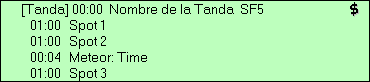 ```
00:00 Air time
SF5 Break time flexibility
Spot1; Spot2; Spot3 Commercial spot files
Meteor: Time Special command that announces current time
```
***
## Program Blocks
Correspond to radio content:
* Live shows
* Automated music programming (**AutoDJ**)
* Remote links (satellite or Internet)
Block header example:
```
[Live] Block type
18:00-18:00 Start and end time
Block name (untitled in this case)
Program Length: ... Program duration
```
For more information about organizing programming, see the **Programming Schedule** chapter.
```
00:00 Air time
SF5 Break time flexibility
Spot1; Spot2; Spot3 Commercial spot files
Meteor: Time Special command that announces current time
```
***
## Program Blocks
Correspond to radio content:
* Live shows
* Automated music programming (**AutoDJ**)
* Remote links (satellite or Internet)
Block header example:
```
[Live] Block type
18:00-18:00 Start and end time
Block name (untitled in this case)
Program Length: ... Program duration
```
For more information about organizing programming, see the **Programming Schedule** chapter.