> ## Documentation Index
> Fetch the complete documentation index at: https://docs.solidyne.ar/llms.txt
> Use this file to discover all available pages before exploring further.
# Playback Controls
> Transport controls and information display
\
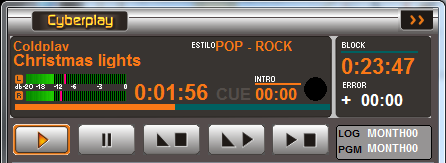
The playback module includes:
* Artist, title and genre of the current playing file.
* Level meter (dBfs).
* Elapsed time indicator (hours:minutes:seconds).
* A horizontal progress bar that fills as playback advances.
* Transport controls (explained in the *CyberPlay Operation* section).
 ### Intro
Countdown timer that indicates the duration of a song's introduction, which is the time before the vocalist begins singing.
* Helps the announcer know how long they can talk over the song intro.
* The **Intro** time is defined in the **InfoMusic Production** window and can be modified from **InfoMusic Air**.
* If titles have presentation files (**Partner**), the Intro time is crucial for adjusting these presentations.
### Crossfades
To the right of the **Intro** indicator, a circle progressively fills each time AUDICOM performs a crossfade between two audio files.
### Block
Shows the remaining time until the end of a block in minutes and seconds.
* A line above the numbers graphically indicates elapsed time.
* In live programs (manual mode), AUDICOM remains stopped during the block.
* The counter shows time remaining until the next commercial break as a warning.
* The operator must press **Play** to air the commercial break.
### Error
Indicates in minutes and seconds how far ahead or behind the programming is compared to the original schedule.
* In automatic mode, AUDICOM corrects the error when possible using commercial block tolerances.
* In manual mode, timing errors can occur due to different program or news durations.
Example:
* An error of **-05:00** indicates the next block will start 5 minutes earlier than scheduled.
* This information allows the operator to make corrections by adding or removing music, promos or spots.
### Expanded Mode
Allows widening the CyberPlay window to show more display information.
* **LOG**: Commercial break file loaded for the current day.
* Double-click the field to open a window to load any `.log` file for the day.
* **PGM**: Program file loaded for the current day.
* Double-click the field to open a window to load any `.pgm` file for the day.
### Comments Window
Shows additional data about the currently playing title:
* Artist and author.
* Notes or comments.
All data comes from the database.
* When 15 seconds remain in the current title, information for the next track appears.
* Also indicates if the title has associated files, like presentations.
### Pop-up Messages
If a user attempts a restricted operation, a pop-up message appears informing about the restriction.
* These messages disappear automatically after a few seconds.
* They can also be closed by clicking or pressing **ESC**.
Example: attempted playback from **File Manager** by an unauthorized user.
***
## Playback Controls
Below are the controls and operations for the CyberPlay window (On-Air Screen).\
Keyboard shortcuts are shown in brackets.
### Play `[spacebar / Home]`
* Starts playback from the title marked as "next" (green cursor).
* If Play is pressed during playback, it skips to the next title.
* The skip is always a hard cut.
* To transition to the next track with a fade, use **Fade → Play**.
**Autorun Mode**
* In case of restart after power failure, if **Autorun** is enabled:
* AUDICOM starts as **auto** user.
* If 1 minute passes without intervention, playback starts from the title closest to current time.
* Configured in **Configuration Panel > Preferences**.
For AUDICOM to run at computer startup, create a shortcut to `aire.exe` in Windows **Startup** menu.
Some stations create a "virtual autorun" by scheduling a **Satfill** block overnight.\
This procedure is explained in *Overnight Transmission Break*.
***
### Pause / Stop `[End]`
* When pressed during playback:
* **Pause**: stops the title, can resume with Play.
* **Stop**: completely stops playback.
***
### Fade & Stop `[Ctrl + End]`
Reduces level by 20 dB per second until playback stops.
***
### Fade & Play `[Ctrl + Home]`
* Current title ends with progressive fade.
* Next title begins playing.
* If titles have fade-in and fade-out, **crossfade** is applied.
***
### Stop Point `[Page Up]`
Inserts a pause in the CyberPlay list:
* When current title ends, playback stops.
* Next title becomes "next" (green cursor).
* Representation: black bar with **PAUSE** label.
Operations:
* Insert pause on selected title (yellow cursor).
* If no selection, inserts below red cursor (playing title).
* Remove pause: select it and press *Pause* button, or drag it to the left.
* Can also be done from context menu (right click).
***
## Title Window Actions
### Select a Title `[↑ / ↓ Arrows]`
* Click on a title marks it with yellow cursor (selection).
* With arrows, selection cursor moves through the list.
### Preview (Cue) `[Delete]`
* Double click on title → playback through **Cue** output.
* Second double click → plays last 5 seconds (**CUE END**).
* Output configuration in **Configuration Panel**.
* Control from **InfoMusic Air**, with level meters and position bar.
* Stop Cue playback: **Stop-cue** in InfoMusic or **ESC** key.
**Console Cue**
* Activate **CUE** by double clicking counter's left label.
* Audio plays from Live Assist but:
* Not reported via RDS/iRDS.
* Not logged in `.air` files.
This mode is not recommended. Can lead to errors when working without dedicated monitoring channel.
### Remove a Title `[Backspace]`
* Select title and drag it to left side of CyberPlay or toward counters.
* Alternatively: right click → **Remove**.
### Insert a Title `[Insert]`
* Can insert titles from other modules (InfoMusic, MediaManager, Live Assist).
* Drag it to CyberPlay window.
* Blue line appears indicating insertion position.
* Can also use insert button (blue arrow) or **Enter** key.
### Change Title Position
* Select title and drag up/down.
* Blue line appears indicating new position.
Many operations may be restricted by user profile.\
If you attempt a prohibited action, a pop-up message will indicate the restriction.\
For questions, consult the network administrator or technical manager.
### Intro
Countdown timer that indicates the duration of a song's introduction, which is the time before the vocalist begins singing.
* Helps the announcer know how long they can talk over the song intro.
* The **Intro** time is defined in the **InfoMusic Production** window and can be modified from **InfoMusic Air**.
* If titles have presentation files (**Partner**), the Intro time is crucial for adjusting these presentations.
### Crossfades
To the right of the **Intro** indicator, a circle progressively fills each time AUDICOM performs a crossfade between two audio files.
### Block
Shows the remaining time until the end of a block in minutes and seconds.
* A line above the numbers graphically indicates elapsed time.
* In live programs (manual mode), AUDICOM remains stopped during the block.
* The counter shows time remaining until the next commercial break as a warning.
* The operator must press **Play** to air the commercial break.
### Error
Indicates in minutes and seconds how far ahead or behind the programming is compared to the original schedule.
* In automatic mode, AUDICOM corrects the error when possible using commercial block tolerances.
* In manual mode, timing errors can occur due to different program or news durations.
Example:
* An error of **-05:00** indicates the next block will start 5 minutes earlier than scheduled.
* This information allows the operator to make corrections by adding or removing music, promos or spots.
### Expanded Mode
Allows widening the CyberPlay window to show more display information.
* **LOG**: Commercial break file loaded for the current day.
* Double-click the field to open a window to load any `.log` file for the day.
* **PGM**: Program file loaded for the current day.
* Double-click the field to open a window to load any `.pgm` file for the day.
### Comments Window
Shows additional data about the currently playing title:
* Artist and author.
* Notes or comments.
All data comes from the database.
* When 15 seconds remain in the current title, information for the next track appears.
* Also indicates if the title has associated files, like presentations.
### Pop-up Messages
If a user attempts a restricted operation, a pop-up message appears informing about the restriction.
* These messages disappear automatically after a few seconds.
* They can also be closed by clicking or pressing **ESC**.
Example: attempted playback from **File Manager** by an unauthorized user.
***
## Playback Controls
Below are the controls and operations for the CyberPlay window (On-Air Screen).\
Keyboard shortcuts are shown in brackets.
### Play `[spacebar / Home]`
* Starts playback from the title marked as "next" (green cursor).
* If Play is pressed during playback, it skips to the next title.
* The skip is always a hard cut.
* To transition to the next track with a fade, use **Fade → Play**.
**Autorun Mode**
* In case of restart after power failure, if **Autorun** is enabled:
* AUDICOM starts as **auto** user.
* If 1 minute passes without intervention, playback starts from the title closest to current time.
* Configured in **Configuration Panel > Preferences**.
For AUDICOM to run at computer startup, create a shortcut to `aire.exe` in Windows **Startup** menu.
Some stations create a "virtual autorun" by scheduling a **Satfill** block overnight.\
This procedure is explained in *Overnight Transmission Break*.
***
### Pause / Stop `[End]`
* When pressed during playback:
* **Pause**: stops the title, can resume with Play.
* **Stop**: completely stops playback.
***
### Fade & Stop `[Ctrl + End]`
Reduces level by 20 dB per second until playback stops.
***
### Fade & Play `[Ctrl + Home]`
* Current title ends with progressive fade.
* Next title begins playing.
* If titles have fade-in and fade-out, **crossfade** is applied.
***
### Stop Point `[Page Up]`
Inserts a pause in the CyberPlay list:
* When current title ends, playback stops.
* Next title becomes "next" (green cursor).
* Representation: black bar with **PAUSE** label.
Operations:
* Insert pause on selected title (yellow cursor).
* If no selection, inserts below red cursor (playing title).
* Remove pause: select it and press *Pause* button, or drag it to the left.
* Can also be done from context menu (right click).
***
## Title Window Actions
### Select a Title `[↑ / ↓ Arrows]`
* Click on a title marks it with yellow cursor (selection).
* With arrows, selection cursor moves through the list.
### Preview (Cue) `[Delete]`
* Double click on title → playback through **Cue** output.
* Second double click → plays last 5 seconds (**CUE END**).
* Output configuration in **Configuration Panel**.
* Control from **InfoMusic Air**, with level meters and position bar.
* Stop Cue playback: **Stop-cue** in InfoMusic or **ESC** key.
**Console Cue**
* Activate **CUE** by double clicking counter's left label.
* Audio plays from Live Assist but:
* Not reported via RDS/iRDS.
* Not logged in `.air` files.
This mode is not recommended. Can lead to errors when working without dedicated monitoring channel.
### Remove a Title `[Backspace]`
* Select title and drag it to left side of CyberPlay or toward counters.
* Alternatively: right click → **Remove**.
### Insert a Title `[Insert]`
* Can insert titles from other modules (InfoMusic, MediaManager, Live Assist).
* Drag it to CyberPlay window.
* Blue line appears indicating insertion position.
* Can also use insert button (blue arrow) or **Enter** key.
### Change Title Position
* Select title and drag up/down.
* Blue line appears indicating new position.
Many operations may be restricted by user profile.\
If you attempt a prohibited action, a pop-up message will indicate the restriction.\
For questions, consult the network administrator or technical manager.