> ## Documentation Index
> Fetch the complete documentation index at: https://docs.solidyne.ar/llms.txt
> Use this file to discover all available pages before exploring further.
# iRDS - Streaming Generation
> Description of your new file.
## Introduction
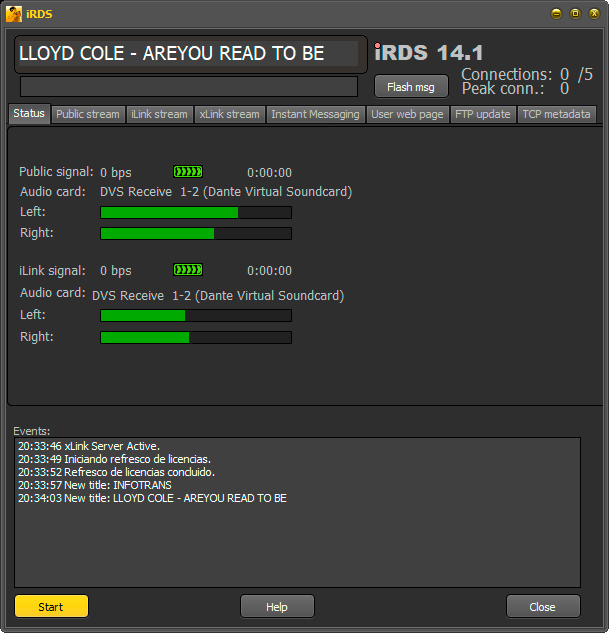
The **iRDS Control** centralizes the station's **streaming** functions. It connects to the streaming server and delivers the digitized signal for online distribution.
* Allows **simultaneous encoding in two qualities**:
* **Public**: lower quality, intended for Internet listeners.
* **iLink**: high quality, for inter-station links.
* Both signals include **metadata**:
* Public stream: sends **Artist + Title**, similar to RDS system.
* iLink signal: adds **precise synchronization** (\< 0.1 s), ensuring each repeater broadcasts **local** commercials, promos and weather reports, creating the feeling of a live program in each city.
 ***
## Audio for Internet Listeners
* iRDS generates a **WMA stream** (Windows Media Audio) and transmits it through **port 8080**.
* Besides audio, it transmits **Artist and Title**, visible in the end user's player.
* The stream is not distributed directly: it requires a contracted **streaming server** that redistributes the audio to listeners.
* The **simultaneous user capacity** depends on the contracted plan.
***
## Audio for Internet Listeners
* iRDS generates a **WMA stream** (Windows Media Audio) and transmits it through **port 8080**.
* Besides audio, it transmits **Artist and Title**, visible in the end user's player.
* The stream is not distributed directly: it requires a contracted **streaming server** that redistributes the audio to listeners.
* The **simultaneous user capacity** depends on the contracted plan.
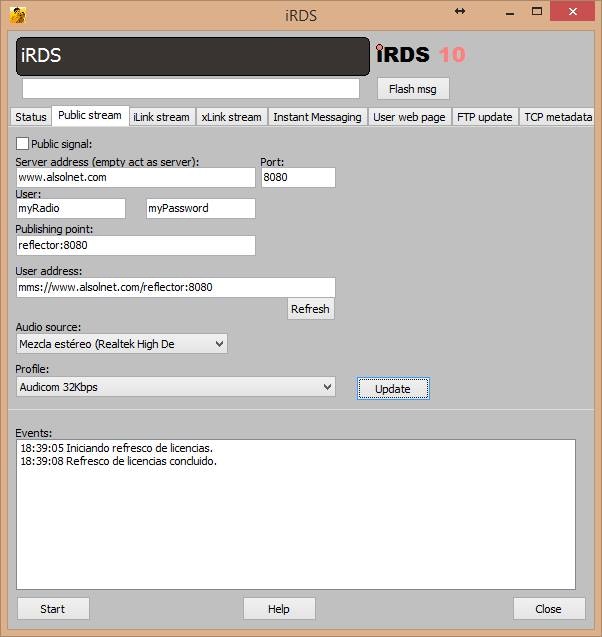 **Activation:**
* Check **Public Signal** to enable streaming.
* If unchecked, no transmission occurs.
**iRDS Screen:**
* Displays currently playing **Artist + Title**.
* **Flash msg** field: sends instant messages to listener's player.
**Configuration Parameters:**
* **Public signal**: enables transmission to server.
* **Server address / Port**: server URL + port.
* If empty, iRDS can act as server (testing only).
* **Publishing point**: stream identifier (e.g. `FM102`, `Radio_Cultura`).
* **User address**: automatically generated address (e.g. `mms://encoder.iviplanet.com:8080/AUDICOM`).
* **Audio source**: take **processed on-air signal** (from tuner or dedicated Internet processor).
* **Profile**: WMA encoding.
* 48-64 kbps: standard.
* Higher bitrate means fewer simultaneous listeners (limited by server bandwidth).
***
## AAC+ Transmission over Icecast
To transmit to **Icecast servers**, an **external encoder** linked to metadata is required:
Configure the encoder to transmit to Icecast server.
Must be **8.322 or higher**.
In `Start > Programs > Startup`, create shortcut to **EdCast** to run with Windows.
Set RDS to save **Title + Artist** information to `shoutcast.txt`.
Configure EdCast to read `shoutcast.txt` every **2 seconds** and add that metadata to stream.
**Activation:**
* Check **Public Signal** to enable streaming.
* If unchecked, no transmission occurs.
**iRDS Screen:**
* Displays currently playing **Artist + Title**.
* **Flash msg** field: sends instant messages to listener's player.
**Configuration Parameters:**
* **Public signal**: enables transmission to server.
* **Server address / Port**: server URL + port.
* If empty, iRDS can act as server (testing only).
* **Publishing point**: stream identifier (e.g. `FM102`, `Radio_Cultura`).
* **User address**: automatically generated address (e.g. `mms://encoder.iviplanet.com:8080/AUDICOM`).
* **Audio source**: take **processed on-air signal** (from tuner or dedicated Internet processor).
* **Profile**: WMA encoding.
* 48-64 kbps: standard.
* Higher bitrate means fewer simultaneous listeners (limited by server bandwidth).
***
## AAC+ Transmission over Icecast
To transmit to **Icecast servers**, an **external encoder** linked to metadata is required:
Configure the encoder to transmit to Icecast server.
Must be **8.322 or higher**.
In `Start > Programs > Startup`, create shortcut to **EdCast** to run with Windows.
Set RDS to save **Title + Artist** information to `shoutcast.txt`.
Configure EdCast to read `shoutcast.txt` every **2 seconds** and add that metadata to stream.
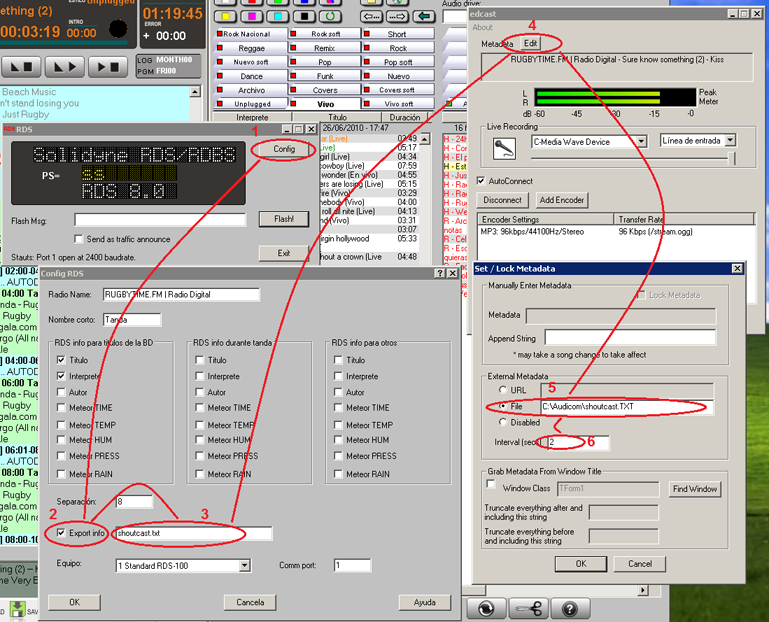 **Result:**\
The stream played in Winamp or Windows Media Player will display **song names** or **station name**, according to applied configuration.
***
## How to Listen to the Stream
The **listener accesses the stream** through the **radio's website**, where an **audio player** must be configured with the contracted streaming server parameters.
### Generate Website from iRDS
As a quick alternative, **iRDS automatically generates** a basic page with an embedded player. This allows publishing the stream in seconds, without requiring prior web development.\
The function is detailed later in this chapter.
***
## Audio for Inter-station Links (iLink)
The **iLink** signal allows transmitting high-quality audio along with **synchronization metadata**, used in repeaters to manage regional programming.
* **Direct connection**: up to 5 remote terminals, no web server required.
* **More than 5 terminals**: requires streaming server with WMA support.
* **Activation**: check **iLink Signal**.
**Result:**\
The stream played in Winamp or Windows Media Player will display **song names** or **station name**, according to applied configuration.
***
## How to Listen to the Stream
The **listener accesses the stream** through the **radio's website**, where an **audio player** must be configured with the contracted streaming server parameters.
### Generate Website from iRDS
As a quick alternative, **iRDS automatically generates** a basic page with an embedded player. This allows publishing the stream in seconds, without requiring prior web development.\
The function is detailed later in this chapter.
***
## Audio for Inter-station Links (iLink)
The **iLink** signal allows transmitting high-quality audio along with **synchronization metadata**, used in repeaters to manage regional programming.
* **Direct connection**: up to 5 remote terminals, no web server required.
* **More than 5 terminals**: requires streaming server with WMA support.
* **Activation**: check **iLink Signal**.
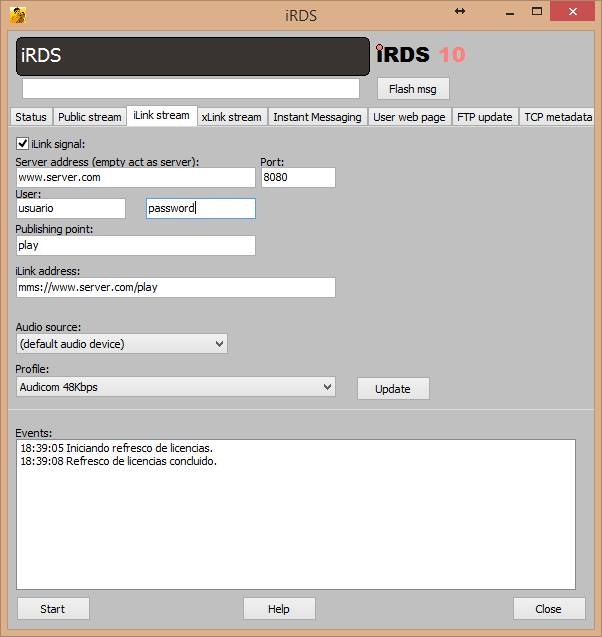 **Main Parameters:**
* **Server address/Port**: usually blank. Only needed if using external server. Default port: **8081**.
* **iLink address**: address where repeaters connect.
* **Audio source**: external input with complete program signal.
* **Profile**: recommended bitrate: **≥128 kbps** for high-quality links.
**Verification from another PC (default values example):**
* Public streaming: `mms://machineName:8080` or `http://machineName:8080`
* iLink streaming: `mms://machineName:8081` or `http://machineName:8081`
***
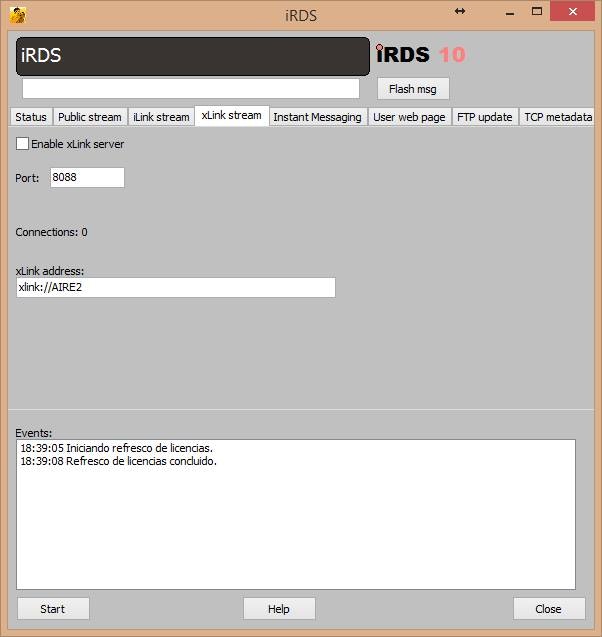
### xLink — Zero-delay Link
**xLink** mode transmits **metadata only**, allowing the repeater to broadcast **without delay**.
* Usage: when repeater is in same building and receives audio through **physical connection** (analog or digital).
* Activation: check **xLink Signal**.
* Operation: repeater receives audio through local input and metadata via LAN, replacing **commercials and station IDs** as appropriate.
**Main Parameters:**
* **Server address/Port**: usually blank. Only needed if using external server. Default port: **8081**.
* **iLink address**: address where repeaters connect.
* **Audio source**: external input with complete program signal.
* **Profile**: recommended bitrate: **≥128 kbps** for high-quality links.
**Verification from another PC (default values example):**
* Public streaming: `mms://machineName:8080` or `http://machineName:8080`
* iLink streaming: `mms://machineName:8081` or `http://machineName:8081`
***
### xLink — Zero-delay Link
**xLink** mode transmits **metadata only**, allowing the repeater to broadcast **without delay**.
* Usage: when repeater is in same building and receives audio through **physical connection** (analog or digital).
* Activation: check **xLink Signal**.
* Operation: repeater receives audio through local input and metadata via LAN, replacing **commercials and station IDs** as appropriate.
 ### Reception at Remote Station
At regional station:
* iLink/xLink signal is received through **AUDICOM Multicast iLink** module.
* Repeater must have **own material** (ads and station IDs) to replace elements from head-end.
* Reception programming is detailed in next chapter section.
***
## Automatic Website
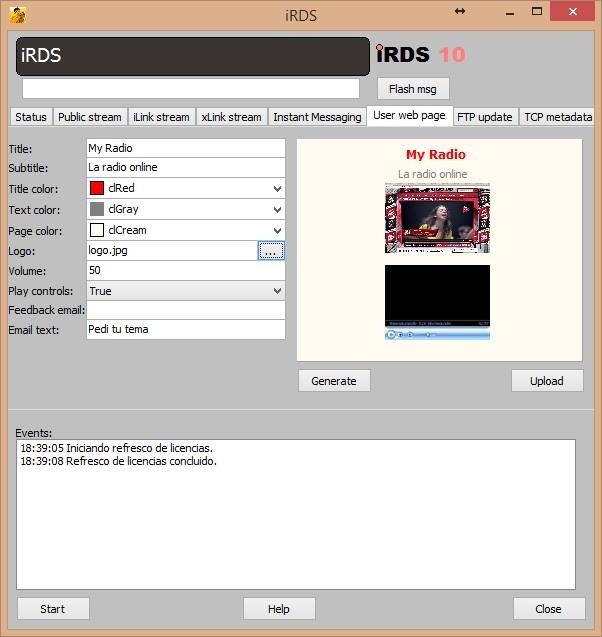
iRDS can generate a **basic transmission page** with integrated player, useful as temporary or test solution.
* Uses server data defined in **Public Signal**.
* Page is created in seconds and allows listening to stream without additional configuration.
### Reception at Remote Station
At regional station:
* iLink/xLink signal is received through **AUDICOM Multicast iLink** module.
* Repeater must have **own material** (ads and station IDs) to replace elements from head-end.
* Reception programming is detailed in next chapter section.
***
## Automatic Website
iRDS can generate a **basic transmission page** with integrated player, useful as temporary or test solution.
* Uses server data defined in **Public Signal**.
* Page is created in seconds and allows listening to stream without additional configuration.
 ### Publishing the Page
A **web hosting** with access username and password is required for publishing.
* From iRDS, press **UPLOAD** and upload generated page.
* Access:
* `http://your_website_domain/AUDICOM/player.htm`
* Example: `http://www.radioeter.com/AUDICOM/player.htm`
***
## FTP Update
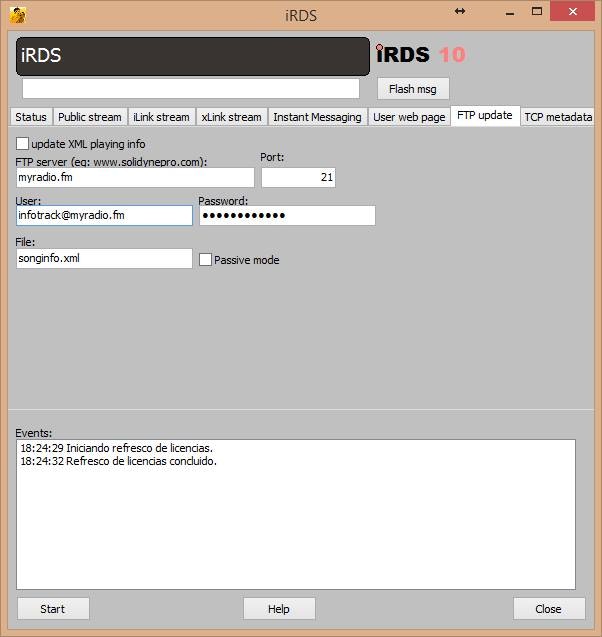
Function that exports **playback metadata** (Artist/Title) to an **XML** file on an **FTP** server.
* Usage: automate information on station's website.
### Publishing the Page
A **web hosting** with access username and password is required for publishing.
* From iRDS, press **UPLOAD** and upload generated page.
* Access:
* `http://your_website_domain/AUDICOM/player.htm`
* Example: `http://www.radioeter.com/AUDICOM/player.htm`
***
## FTP Update
Function that exports **playback metadata** (Artist/Title) to an **XML** file on an **FTP** server.
* Usage: automate information on station's website.
 ## TCP Metadata
Allows transmitting **real-time metadata** through a **TCP port** on local network, for integration with third-party applications.
**Available options** (between `< >`, comma-separated):
* ``
* `<ARTIST>`
* `<BLOCK>` (CyberPlay block type: AutoDJ, Live, Spots)
* `<CLASS>`
* `<STYLE>`
**Example configured string:**
`NP=<BLOCK>,<ARTIST>,<TITLE>,<CLASS>`
**Example real output:**
* Music track:\
`NP=AutoDJ,KATY PERRY,Unconditionally,Musica`
* Commercial spot:\
`NP=Batch,,Publi Banda Ancha,`
**Connection:**\
Subscribe via **TCP to port 8090** on machine running iRDS (usually Air PC, unless using dedicated server).
<img src="https://mintcdn.com/solidyne/zpOza8pyFwYZpOKr/images/audicom/au-irds-tcp.png?fit=max&auto=format&n=zpOza8pyFwYZpOKr&q=85&s=aa98e1a4aa722cdba6f52d960a092ebe" alt="Au Irds Tcp Pn" title="Au Irds Tcp Pn" className="mx-auto" style={{ width:"75%" }} width="600" height="635" data-path="images/audicom/au-irds-tcp.png" />
## TCP Metadata
Allows transmitting **real-time metadata** through a **TCP port** on local network, for integration with third-party applications.
**Available options** (between `< >`, comma-separated):
* ``
* `<ARTIST>`
* `<BLOCK>` (CyberPlay block type: AutoDJ, Live, Spots)
* `<CLASS>`
* `<STYLE>`
**Example configured string:**
`NP=<BLOCK>,<ARTIST>,<TITLE>,<CLASS>`
**Example real output:**
* Music track:\
`NP=AutoDJ,KATY PERRY,Unconditionally,Musica`
* Commercial spot:\
`NP=Batch,,Publi Banda Ancha,`
**Connection:**\
Subscribe via **TCP to port 8090** on machine running iRDS (usually Air PC, unless using dedicated server).
<img src="https://mintcdn.com/solidyne/zpOza8pyFwYZpOKr/images/audicom/au-irds-tcp.png?fit=max&auto=format&n=zpOza8pyFwYZpOKr&q=85&s=aa98e1a4aa722cdba6f52d960a092ebe" alt="Au Irds Tcp Pn" title="Au Irds Tcp Pn" className="mx-auto" style={{ width:"75%" }} width="600" height="635" data-path="images/audicom/au-irds-tcp.png" />