> ## Documentation Index
> Fetch the complete documentation index at: https://docs.solidyne.ar/llms.txt
> Use this file to discover all available pages before exploring further.
# Live Assist
> Instant playback button panels.
## Live Assist Button Panels
The **Live Assist 1** and **Live Assist 2** modules enable instant playback of audio files.\
They are mainly used for playing **SFX, promos, jingles and beds**.
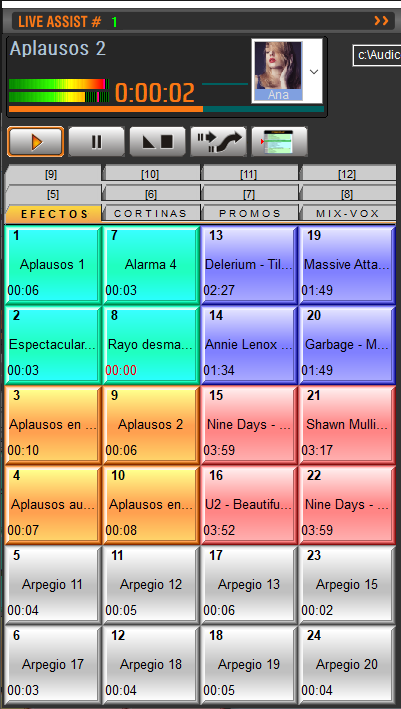 * Audio files are organized in button grids.
* Each profile has 12 pages or tabs.
* The number of buttons per page depends on rows and columns defined in the **Configuration Panel**.
* The panel can be resized and button sizes adjust automatically.
Live Assist supports control from:
* Keyboard (see *Keyboard Control* section).
* External controllers via **MIDI**.
### Audio Devices
* Can be assigned independent output devices or share the same as **CyberPlay**.
* When sharing, mixing is done internally according to **MIX** value.
* Assignment is done from the **Configuration Panel**.
### Video
In **Audicom Black Video**, Live Assist also supports video playback.
* Does not interrupt or overlap with videos playing through CyberPlay or PlayList Manager.
## Output Devices
Both modules can play through internal mix with CyberPlay or through independent outputs.\
Assignment is done from the **Configuration Panel**.
## Expanded View
You can toggle between compact and expanded views.
* Toggle using the **Maximize** button in the title bar.
## Pause, Stop and Fade-Stop
* **Pause**: stops playback and allows resuming with Play.
* **Stop**: completely stops and returns to start.
* **Fade-Stop**: gradually fades out level then stops.
## Preview (Cue)
* Right click on a button → plays in **CUE** through dedicated channel.
* Hold right click >1s also activates CUE.
* Alternatively: double click on **CUE** label in display.
Console CUE mode is not recommended:
* Does not report to RDS/iRDS.
* Does not log to `.air` files.
* Requires enabling/disabling CUE for each action → prone to errors.
## Playback Modes
Live Assist has three modes, selectable by pressing the button successively:
* **Normal**:
* Plays once.
* If another file is triggered, it queues (flashing text).
* **Loop**:
* Continuous loop playback.
* Stops with Stop or changing modes.
* **Instant**:
* If another button is triggered, interrupts previous playback.
### Chain to Air
* With Air module stopped:
* Trigger one or more Live Assist buttons.
* Then press the chain to air button.
* Window closes and after sequence ends, Air playlist continues.
From keyboard, same operation using **spacebar** after triggering a file.
## Start and End Markers
Set Live Assist to CUE mode with double click on CUE label.\
This prevents audio from reporting to RDS or logging to `.air` files.
Press the button you want to mark.
Right click to select **Mark In** or **Mark Out**.\
Listen to audio and mark at desired point.
## Icons Window
* Shows name and icon of active Live Assist profile.
* Icons are `.ico` files located in `\Audicom\LA-Icons`.
* Icons can be added or removed as needed.
### Private Profiles
* Private profiles are only accessible by the user who created them.
* They appear identified with owner's name.
* If another user attempts access, a restriction message appears.
### Export / Import Page
* **Export**: saves current page as a Playlist (`.txt`).
* **Import**: loads a Playlist into Live Assist buttons.
List items load into buttons in sequence order.
### Creating Live Assist Profiles
In icons window, right click → **Add**.\
Enter profile name and icon.
Enable **Private** option if profile should only be available to that user.\
(Requires administrator authorization).
Drag titles from Media Manager.\
Button takes the color of title's category.
To change name or icon: load profile → right click on icon → **Edit**.
## Live Assist Configuration
### Button Panel Size
* Set in **Configuration Panel > Preferences**.
* Number of rows and columns can be modified.
* Larger buttons with fewer quantity, smaller with more quantity.
* Default configuration: **4 columns x 12 rows = 48 buttons per page**.
* Font type and size can also be changed.
### Data Files
* Information is saved in `Liveass.dat` and `Liveass2.dat`.
* Path is defined in `audicom.ini`.
Example:
```ini theme={null}
[Live Assist]
Grid=5 12
State=1
LastPos=0 3 0
IconPath=c:\Audicom\LA-ICONS
File=c:\Audicom\LIVEASS.DAT
LastPos2=0 0 0
```
### Icons
* Default location is `\Audicom\LA-Icons`.
* Location can be changed in `audicom.ini`.
* Can be freely added or removed.
* Audio files are organized in button grids.
* Each profile has 12 pages or tabs.
* The number of buttons per page depends on rows and columns defined in the **Configuration Panel**.
* The panel can be resized and button sizes adjust automatically.
Live Assist supports control from:
* Keyboard (see *Keyboard Control* section).
* External controllers via **MIDI**.
### Audio Devices
* Can be assigned independent output devices or share the same as **CyberPlay**.
* When sharing, mixing is done internally according to **MIX** value.
* Assignment is done from the **Configuration Panel**.
### Video
In **Audicom Black Video**, Live Assist also supports video playback.
* Does not interrupt or overlap with videos playing through CyberPlay or PlayList Manager.
## Output Devices
Both modules can play through internal mix with CyberPlay or through independent outputs.\
Assignment is done from the **Configuration Panel**.
## Expanded View
You can toggle between compact and expanded views.
* Toggle using the **Maximize** button in the title bar.
## Pause, Stop and Fade-Stop
* **Pause**: stops playback and allows resuming with Play.
* **Stop**: completely stops and returns to start.
* **Fade-Stop**: gradually fades out level then stops.
## Preview (Cue)
* Right click on a button → plays in **CUE** through dedicated channel.
* Hold right click >1s also activates CUE.
* Alternatively: double click on **CUE** label in display.
Console CUE mode is not recommended:
* Does not report to RDS/iRDS.
* Does not log to `.air` files.
* Requires enabling/disabling CUE for each action → prone to errors.
## Playback Modes
Live Assist has three modes, selectable by pressing the button successively:
* **Normal**:
* Plays once.
* If another file is triggered, it queues (flashing text).
* **Loop**:
* Continuous loop playback.
* Stops with Stop or changing modes.
* **Instant**:
* If another button is triggered, interrupts previous playback.
### Chain to Air
* With Air module stopped:
* Trigger one or more Live Assist buttons.
* Then press the chain to air button.
* Window closes and after sequence ends, Air playlist continues.
From keyboard, same operation using **spacebar** after triggering a file.
## Start and End Markers
Set Live Assist to CUE mode with double click on CUE label.\
This prevents audio from reporting to RDS or logging to `.air` files.
Press the button you want to mark.
Right click to select **Mark In** or **Mark Out**.\
Listen to audio and mark at desired point.
## Icons Window
* Shows name and icon of active Live Assist profile.
* Icons are `.ico` files located in `\Audicom\LA-Icons`.
* Icons can be added or removed as needed.
### Private Profiles
* Private profiles are only accessible by the user who created them.
* They appear identified with owner's name.
* If another user attempts access, a restriction message appears.
### Export / Import Page
* **Export**: saves current page as a Playlist (`.txt`).
* **Import**: loads a Playlist into Live Assist buttons.
List items load into buttons in sequence order.
### Creating Live Assist Profiles
In icons window, right click → **Add**.\
Enter profile name and icon.
Enable **Private** option if profile should only be available to that user.\
(Requires administrator authorization).
Drag titles from Media Manager.\
Button takes the color of title's category.
To change name or icon: load profile → right click on icon → **Edit**.
## Live Assist Configuration
### Button Panel Size
* Set in **Configuration Panel > Preferences**.
* Number of rows and columns can be modified.
* Larger buttons with fewer quantity, smaller with more quantity.
* Default configuration: **4 columns x 12 rows = 48 buttons per page**.
* Font type and size can also be changed.
### Data Files
* Information is saved in `Liveass.dat` and `Liveass2.dat`.
* Path is defined in `audicom.ini`.
Example:
```ini theme={null}
[Live Assist]
Grid=5 12
State=1
LastPos=0 3 0
IconPath=c:\Audicom\LA-ICONS
File=c:\Audicom\LIVEASS.DAT
LastPos2=0 0 0
```
### Icons
* Default location is `\Audicom\LA-Icons`.
* Location can be changed in `audicom.ini`.
* Can be freely added or removed.