> ## Documentation Index
> Fetch the complete documentation index at: https://docs.solidyne.ar/llms.txt
> Use this file to discover all available pages before exploring further.
# News Suite
> Text editor for read content
## Introduction
AUDICOM offers different ways to **schedule news** for automatic broadcast, whether generated at the radio station or received remotely via **email** or **telephone**. There are two main modes: **scheduled news** and **instant news**.
### Scheduled News
Scheduled news is divided into two categories:
* **Certain occurrence**\
These are items whose existence is confirmed and are directly included in the schedule.\
Example: `/METEOR` commands (time, temperature, etc.).\
In this case, it is recommended to define them directly in the radio schedule (`.PGM`) or through an **ExactTime Special Inclusion**.
* **Uncertain occurrence**\
News that should be broadcast at a defined time, but whose arrival is not guaranteed.\
These are implemented through **chained items** within an ExactTime Special Inclusion.\
These allow defining up to **4 consecutive files** (opening, promo, news and closing).
* The sequence is **only broadcast** if all files exist.
* If one is missing, the entire sequence is canceled.
* The news file uses a **metaname** that changes each day, ensuring its validity only for that date.
For more details, see: **"Special Inclusion" in "Schedule Content → Manual Programming → Create content blocks"**.
Scheduled news can come from:
* **AUDICOM WebTools** (mail-link).
* **Voice Mailing Software** (telephone).
### Instant News
Designed for radio stations broadcasting in **automatic programming** (`AutoDJ`, `i-Link`, satellite), without needing to manually change the schedule.
* The **NEWS** system is a background application that periodically checks for incoming news.
* If news arrives (via email or telephone, depending on implementation), the system broadcasts it and then returns to regular programming.
## News Suite
The **News Suite** module is designed for **live** operation.
* Allows working with **text files** associated with **audio files**.
* Can insert news into the **On-Air Screen**, either as **text only** or **text + audio**.
* In networks, multiple journalists can write their news on different terminals and send them to the news chief, who organizes and forwards them to the operator's terminal.
* The operator associates each text with corresponding **audio files** for broadcast.
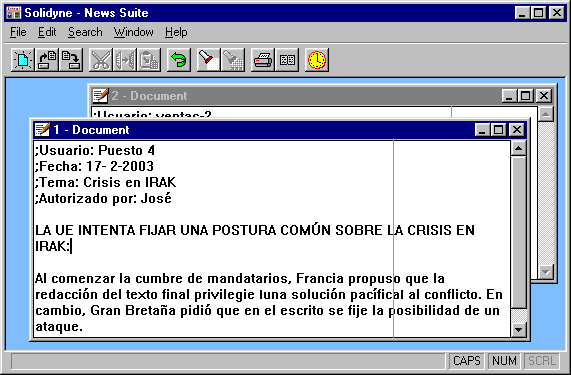 We access the **News Suite** module from the **"+"** menu in the **toolbar**.\
It is a **text editor** designed for writing **news** and **journalistic reports**.
* Works with standard **TXT** format files.
* Its operation is similar to other basic processors (e.g.: Windows Notepad).
* Allows working with **multiple files open simultaneously**.
The **green line** that appears on the right indicates the **width to which the text will be adjusted** in the **comments window** of the On-Air Screen and in the **WebTools** interface.\
To view the text as the announcer will see it, manually adjust the window to the green line.
**Reading Time Estimation**
News Suite includes a tool that **estimates reading time** for a text.
* The calculation is based on a **reading speed** variable expressed in **characters per second (c.p.s.)**.
* The default value is **15 c.p.s.** (average value).
* Can be modified from the menu: **Edit > Set Speed**.
To know the estimated duration of a text:
* Click the **clock icon** or press **F9**.
* A box will appear showing:
* Total word count.
* Total character count.
* Estimated reading time (minutes and seconds).
### Text Files with Associated Audio
Each text file can be associated with one or two **audio files**.
**Procedure:**
1. Write and save the text file.
2. Open the **File Manager** and expand the second window (red arrow in the lower right corner).
3. Display **text files** in one window and **audio files** to associate in the other.
4. Select the text file and drag the audio file to it.
The text file will be renamed as follows:
**Audio File Association Rules**
* If the text file is named "news.txt" and the audio file is "audio.mp3", the text file will be renamed to "news.mp3.txt".
* If a second audio file is associated, it will be added to the name: "news.mp3.wav.txt".
The text file name will show the audio file extensions in the order they were associated.
When a text file has associated audio:
* A speaker icon appears next to the file name.
* The audio file can be played from the text editor using **F7** or the **Play** button.
* The audio file can be played from the **On-Air Screen** using **F7**.
### Printing
To print a text file:
1. Open the file to print.
2. Go to **File > Print** or press **Ctrl + P**.
3. Select printing options:
* Font type and size
* Line spacing
* Margins
* Header and footer
* Page numbers
The print preview shows exactly how the text will be printed.
### Backup
News Suite automatically creates backup copies of text files:
* Backups are stored in the **Backup** folder inside the News Suite directory.
* Each time a file is saved, a backup copy is created.
* Backup files have the extension ".bak".
* The backup folder is automatically cleaned every 30 days.
To restore a backup file:
1. Go to the Backup folder.
2. Copy the desired .bak file.
3. Paste it in the News folder.
4. Remove the .bak extension.
It is recommended to keep additional backups of important files on external storage devices.
We access the **News Suite** module from the **"+"** menu in the **toolbar**.\
It is a **text editor** designed for writing **news** and **journalistic reports**.
* Works with standard **TXT** format files.
* Its operation is similar to other basic processors (e.g.: Windows Notepad).
* Allows working with **multiple files open simultaneously**.
The **green line** that appears on the right indicates the **width to which the text will be adjusted** in the **comments window** of the On-Air Screen and in the **WebTools** interface.\
To view the text as the announcer will see it, manually adjust the window to the green line.
**Reading Time Estimation**
News Suite includes a tool that **estimates reading time** for a text.
* The calculation is based on a **reading speed** variable expressed in **characters per second (c.p.s.)**.
* The default value is **15 c.p.s.** (average value).
* Can be modified from the menu: **Edit > Set Speed**.
To know the estimated duration of a text:
* Click the **clock icon** or press **F9**.
* A box will appear showing:
* Total word count.
* Total character count.
* Estimated reading time (minutes and seconds).
### Text Files with Associated Audio
Each text file can be associated with one or two **audio files**.
**Procedure:**
1. Write and save the text file.
2. Open the **File Manager** and expand the second window (red arrow in the lower right corner).
3. Display **text files** in one window and **audio files** to associate in the other.
4. Select the text file and drag the audio file to it.
The text file will be renamed as follows:
**Audio File Association Rules**
* If the text file is named "news.txt" and the audio file is "audio.mp3", the text file will be renamed to "news.mp3.txt".
* If a second audio file is associated, it will be added to the name: "news.mp3.wav.txt".
The text file name will show the audio file extensions in the order they were associated.
When a text file has associated audio:
* A speaker icon appears next to the file name.
* The audio file can be played from the text editor using **F7** or the **Play** button.
* The audio file can be played from the **On-Air Screen** using **F7**.
### Printing
To print a text file:
1. Open the file to print.
2. Go to **File > Print** or press **Ctrl + P**.
3. Select printing options:
* Font type and size
* Line spacing
* Margins
* Header and footer
* Page numbers
The print preview shows exactly how the text will be printed.
### Backup
News Suite automatically creates backup copies of text files:
* Backups are stored in the **Backup** folder inside the News Suite directory.
* Each time a file is saved, a backup copy is created.
* Backup files have the extension ".bak".
* The backup folder is automatically cleaned every 30 days.
To restore a backup file:
1. Go to the Backup folder.
2. Copy the desired .bak file.
3. Paste it in the News folder.
4. Remove the .bak extension.
It is recommended to keep additional backups of important files on external storage devices.