> ## Documentation Index
> Fetch the complete documentation index at: https://docs.solidyne.ar/llms.txt
> Use this file to discover all available pages before exploring further.
> System login. Users and passwords.
# Logging into Audicom
## I-Logon
The installer creates an AUDICOM shortcut on the Windows desktop and an applications group in the **Start** menu.
When running AUDICOM, the system login window (**Log-on**) appears.
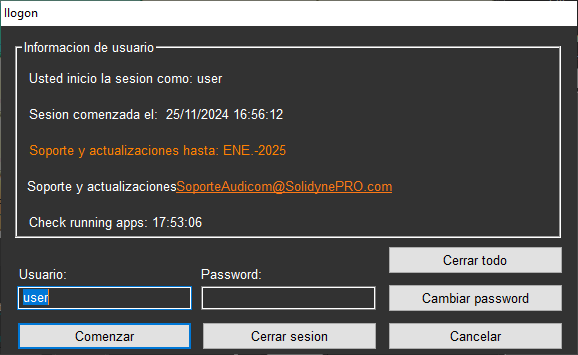 * Here you must enter username and password.
* The corresponding profile will load, including desktop organization and default security levels.
* Users with permissions and restrictions are managed from the **Administration Panel** (see *Access levels and passwords*).
It is recommended that each operator logs out at the end of their shift.\
The system will continue running under the system user (**auto**).\
The new operator must log in by accessing the I-Logon window with a double click on the **RADIO/USER** area.
* Double clicking the **USER** icon opens the I-Logon window.
* Here you must enter username and password.
* The corresponding profile will load, including desktop organization and default security levels.
* Users with permissions and restrictions are managed from the **Administration Panel** (see *Access levels and passwords*).
It is recommended that each operator logs out at the end of their shift.\
The system will continue running under the system user (**auto**).\
The new operator must log in by accessing the I-Logon window with a double click on the **RADIO/USER** area.
* Double clicking the **USER** icon opens the I-Logon window.
 I-Logon and the Tool Bar (Info button) show the expiration date of the support and updates license.
After entering username and password, press **Start**.
* The username is **not case-sensitive**.
* The password **is case-sensitive**.
All user changes are logged in the `.air` files, so management staff can track who operated the system at any time.
***
## Usernames and passwords
### Predefined users
AUDICOM includes a set of default users with different profiles:
* **user**
* **admin**
* **auto**
Predefined users have no password.\
The **auto** user is part of the system and **cannot be deleted**.
* It activates when an operator logs out.
* Maintains programming in automatic mode.
Auto mode is also used after a power failure.\
If the I-Logon window remains open for 1 minute without any user logging in, AUDICOM starts automatically.\
Audio playback begins one minute later.\
See: *Power failures - auto-start*.
### New users
* Usernames and passwords are defined by the administrator.
* Once created, the username cannot be modified.
* The password can be changed from I-Logon:
1. Press **Change Password**.
2. Enter current password.
3. Type new password and confirm it.
4. Click **OK**.
The new password will be required at next login.
You can create a user per operator, or users per workstation (e.g. "Production", "Programming").\
This way each terminal has a single access key.
***
## Logging out
When an operator leaves, they must **log out** to prevent unauthorized use.
* If another operator logs in, they do so directly with their user.
* This automatically closes the previous session.
If you want to leave the system active without an operator in charge:
* Select **Log out** in I-Logon.
* AUDICOM will remain active under the **auto** user.
In this mode:
* Only basic functions are enabled (**Play / Stop**).
* Desktop customizations are not saved.
* Changes to commercial schedule are not allowed.
Programming must be prepared for AUDICOM to continue operating automatically (AutoDJ, streaming, PlayLists, etc.).
***
## Shutting down AUDICOM
To close all applications, press **Close**.\
This will terminate all AUDICOM-related programs.
I-Logon and the Tool Bar (Info button) show the expiration date of the support and updates license.
After entering username and password, press **Start**.
* The username is **not case-sensitive**.
* The password **is case-sensitive**.
All user changes are logged in the `.air` files, so management staff can track who operated the system at any time.
***
## Usernames and passwords
### Predefined users
AUDICOM includes a set of default users with different profiles:
* **user**
* **admin**
* **auto**
Predefined users have no password.\
The **auto** user is part of the system and **cannot be deleted**.
* It activates when an operator logs out.
* Maintains programming in automatic mode.
Auto mode is also used after a power failure.\
If the I-Logon window remains open for 1 minute without any user logging in, AUDICOM starts automatically.\
Audio playback begins one minute later.\
See: *Power failures - auto-start*.
### New users
* Usernames and passwords are defined by the administrator.
* Once created, the username cannot be modified.
* The password can be changed from I-Logon:
1. Press **Change Password**.
2. Enter current password.
3. Type new password and confirm it.
4. Click **OK**.
The new password will be required at next login.
You can create a user per operator, or users per workstation (e.g. "Production", "Programming").\
This way each terminal has a single access key.
***
## Logging out
When an operator leaves, they must **log out** to prevent unauthorized use.
* If another operator logs in, they do so directly with their user.
* This automatically closes the previous session.
If you want to leave the system active without an operator in charge:
* Select **Log out** in I-Logon.
* AUDICOM will remain active under the **auto** user.
In this mode:
* Only basic functions are enabled (**Play / Stop**).
* Desktop customizations are not saved.
* Changes to commercial schedule are not allowed.
Programming must be prepared for AUDICOM to continue operating automatically (AutoDJ, streaming, PlayLists, etc.).
***
## Shutting down AUDICOM
To close all applications, press **Close**.\
This will terminate all AUDICOM-related programs.