> ## Documentation Index
> Fetch the complete documentation index at: https://docs.solidyne.ar/llms.txt
> Use this file to discover all available pages before exploring further.
# Network Configuration
> Audicom network configuration and usage
## Windows Network Installation Example
For proper AUDICOM network operation, the following is required:
* **Microsoft TCP/IP network** (Windows default).
* **Dedicated network** recommended (own router, not shared with administrative areas).
* Suggested speed: **1 Gbit** (sufficient for most installations).
* Each PC must have:
* **Dedicated partition for operating system** (10 GB is sufficient).
* Installation folder at `C:\Audicom`.
* **Read/write** shared `Audicom` folder.
* **File and printer sharing** service enabled.
Although **UNC** access is slower than DOS drive letter access, **UNC is the official recommendation** to ensure network compatibility.
Example network with three terminals:
1. **On-Air Terminal**: `947AUDICOM-PC`
2. **Artistic Content**: `Production`
3. **Commercial**: `Commercial`
> Tip: name each machine according to its studio (e.g.: `AM`, `FM`, `Production`) for easier network identification.
***
## AUDICOM Network Configuration
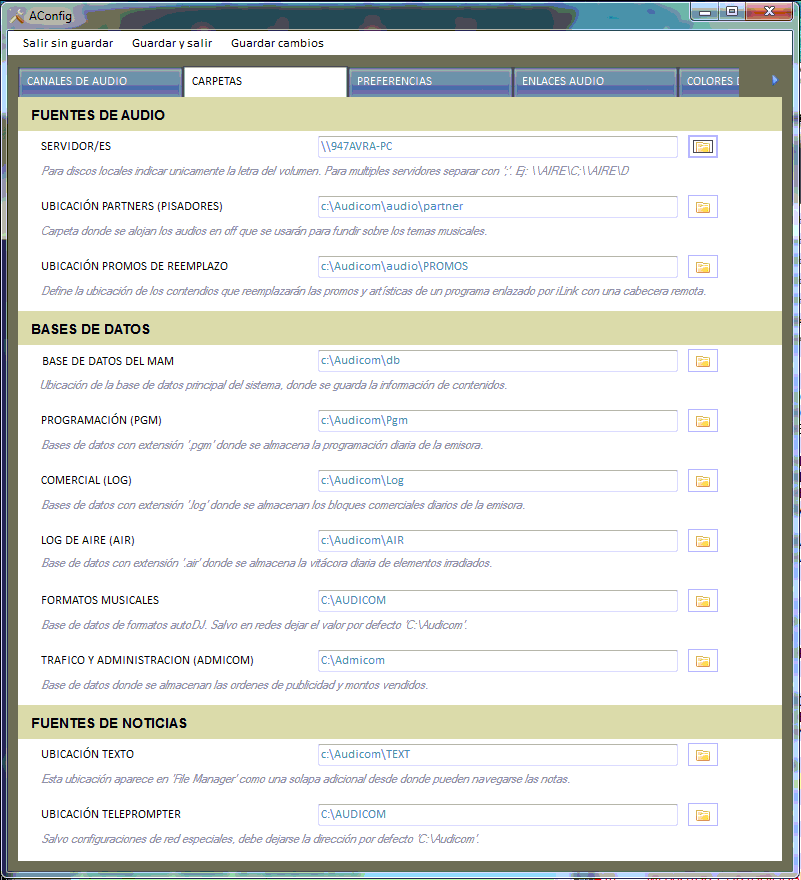
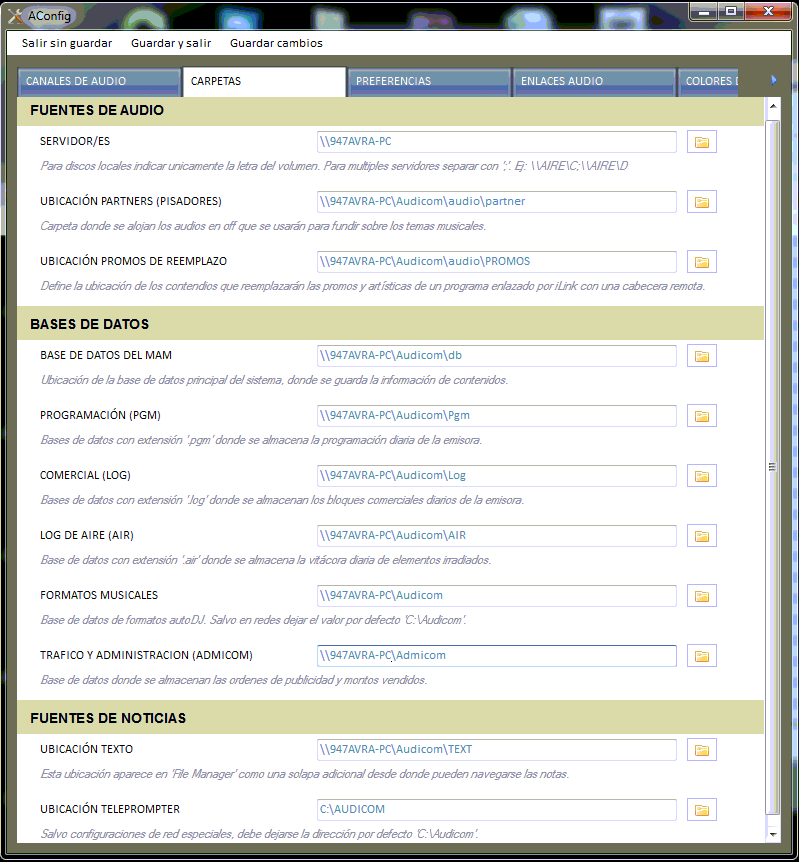
Initial configuration is done from the **AUDICOM Configuration Panel**, **Folders** tab.
* On first launch, set the **File Server** to the network path where system files are located.\
Example:
* `\\Server`
* `\\947AUDICOM-PC` (On-Air server)
### Configuration on Air Computer / Server
It's essential to configure access **using UNC** (e.g.: `\\AIR-AUDICOM\Audicom`) instead of `C:\Audicom`.
This way, **all Database references are stored in UNC mode** and are accessible by other terminals.\
If configured in local mode (`C:\Audicom`), other terminals won't be able to locate the files.
Even if the installation doesn't have a dedicated server (the Air PC itself stores the files), using a **UNC path** is essential to ensure the Database is unique and accessible from all stations.
 ### Workstation Configuration
(Production, Artistic Programming, Commercial)
* All terminals must share the `Audicom` folder with **FULL** access (read/write).
* Applications are installed on each terminal, but **media files and Database reside on the Air PC**.
* Additional modules (Administration, Billing) are only installed on the **Commercial Administration** terminal.
* Each terminal is customized according to its function (Production, Commercial, Air, etc.).
### Workstation Configuration
(Production, Artistic Programming, Commercial)
* All terminals must share the `Audicom` folder with **FULL** access (read/write).
* Applications are installed on each terminal, but **media files and Database reside on the Air PC**.
* Additional modules (Administration, Billing) are only installed on the **Commercial Administration** terminal.
* Each terminal is customized according to its function (Production, Commercial, Air, etc.).
 ## Database Location
`ADBDir=C:\Audicom\DB`\
Indicates the location of the **AUDICOM music Database**.
In a simple **two-terminal** setup (Production ↔ Air, no dedicated server), it's most practical to locate the Database on the **On-Air computer**.\
The Production terminal is configured (from the **Configuration Panel**) to point to that remote database using a **UNC path**:
`\\947AUDICOM-PC\Audicom\DB`
### Networks with Multiple On-Air Terminals
In more complex scenarios (AM, FM, Production, News, Commercial, Server), **Distributed Databases** are used:
* Each Air terminal (`AM`, `FM`) hosts its own local Database.
* This optimizes access and ensures independence if network or server failure occurs.
* The Production terminal is configured to read/write to one of them (e.g. `FM`) but can switch to `AM` to manage its Database.
Configuration example (UNC mode):
* `AM` → `ADBDir=\\AM\Audicom\DB`
* `FM` → `ADBDir=\\FM\Audicom\DB`
* `Production` → `ADBDir=\\FM\Audicom\DB`
Each Air terminal works with its local Database. From Production, InfoMusic-Prod can manage both.
## Programming Files
* `LogDir=C:\Audicom\LOG`
* `PgmDir=C:\Audicom\PGM`
**.log** (commercial) and **.pgm** (music) files are stored here.\
In the example, workstations access the **LOG** and **PGM** folders on the Air terminal.
In networks with multiple broadcast stations, users can access all terminals using **CyberPlay Editor**.
***
## Server/s (system drives)
`Server/s= \\947AUDICOM-PC\Audicom\Audio`
Defines the system storage drives.\
In network, access is always via **UNC**, never with local paths (`C:\`).
* The **default** folder is `\Audicom\Audio`.
* **Subfolders** outside `Audio` are not allowed.
* Each volume must contain a single `\Audicom\Audio` folder.
To declare multiple volumes, list them separated by `;` (no spaces):
`Server/s=\947AUDICOM-PC;\947AUDICOM-PC\D;\Production;\Production\D`
Sharing the entire `C:\` drive is not necessary.\
Only the `Audicom` folder is shared (full access).\
For additional drives (`D:\`, `E:\`), sharing the entire drive is recommended.
Example:\
`\\947AUDICOM-PC` → shares only `C:\Audicom`\
`\\947AUDICOM-PC\D` → shares entire `D:\` drive
The order of drives in the **Server/s** line affects File Manager: it will first show folders from the first listed drive (usually local), then network drives.
## Music Formats
The **AutoDj Editor** module saves configuration in `Autodj.ini`.\
The **On-Air module** always reads the local file to schedule automatic blocks.
* In Production, AutoDj Editor accesses via UNC the file located on the Air terminal.
* In installations with more than one broadcast station, AutoDj Editor allows selecting the **Current Terminal** from a dropdown menu.
If a format is created on the wrong terminal, the On-Air program won't recognize it, as it always reads the local `Autodj.ini`.
## Database Location
`ADBDir=C:\Audicom\DB`\
Indicates the location of the **AUDICOM music Database**.
In a simple **two-terminal** setup (Production ↔ Air, no dedicated server), it's most practical to locate the Database on the **On-Air computer**.\
The Production terminal is configured (from the **Configuration Panel**) to point to that remote database using a **UNC path**:
`\\947AUDICOM-PC\Audicom\DB`
### Networks with Multiple On-Air Terminals
In more complex scenarios (AM, FM, Production, News, Commercial, Server), **Distributed Databases** are used:
* Each Air terminal (`AM`, `FM`) hosts its own local Database.
* This optimizes access and ensures independence if network or server failure occurs.
* The Production terminal is configured to read/write to one of them (e.g. `FM`) but can switch to `AM` to manage its Database.
Configuration example (UNC mode):
* `AM` → `ADBDir=\\AM\Audicom\DB`
* `FM` → `ADBDir=\\FM\Audicom\DB`
* `Production` → `ADBDir=\\FM\Audicom\DB`
Each Air terminal works with its local Database. From Production, InfoMusic-Prod can manage both.
## Programming Files
* `LogDir=C:\Audicom\LOG`
* `PgmDir=C:\Audicom\PGM`
**.log** (commercial) and **.pgm** (music) files are stored here.\
In the example, workstations access the **LOG** and **PGM** folders on the Air terminal.
In networks with multiple broadcast stations, users can access all terminals using **CyberPlay Editor**.
***
## Server/s (system drives)
`Server/s= \\947AUDICOM-PC\Audicom\Audio`
Defines the system storage drives.\
In network, access is always via **UNC**, never with local paths (`C:\`).
* The **default** folder is `\Audicom\Audio`.
* **Subfolders** outside `Audio` are not allowed.
* Each volume must contain a single `\Audicom\Audio` folder.
To declare multiple volumes, list them separated by `;` (no spaces):
`Server/s=\947AUDICOM-PC;\947AUDICOM-PC\D;\Production;\Production\D`
Sharing the entire `C:\` drive is not necessary.\
Only the `Audicom` folder is shared (full access).\
For additional drives (`D:\`, `E:\`), sharing the entire drive is recommended.
Example:\
`\\947AUDICOM-PC` → shares only `C:\Audicom`\
`\\947AUDICOM-PC\D` → shares entire `D:\` drive
The order of drives in the **Server/s** line affects File Manager: it will first show folders from the first listed drive (usually local), then network drives.
## Music Formats
The **AutoDj Editor** module saves configuration in `Autodj.ini`.\
The **On-Air module** always reads the local file to schedule automatic blocks.
* In Production, AutoDj Editor accesses via UNC the file located on the Air terminal.
* In installations with more than one broadcast station, AutoDj Editor allows selecting the **Current Terminal** from a dropdown menu.
If a format is created on the wrong terminal, the On-Air program won't recognize it, as it always reads the local `Autodj.ini`.