> ## Documentation Index
> Fetch the complete documentation index at: https://docs.solidyne.ar/llms.txt
> Use this file to discover all available pages before exploring further.
# Access Levels and Passwords
> User configuration and access restrictions
## User Configuration and Access Levels
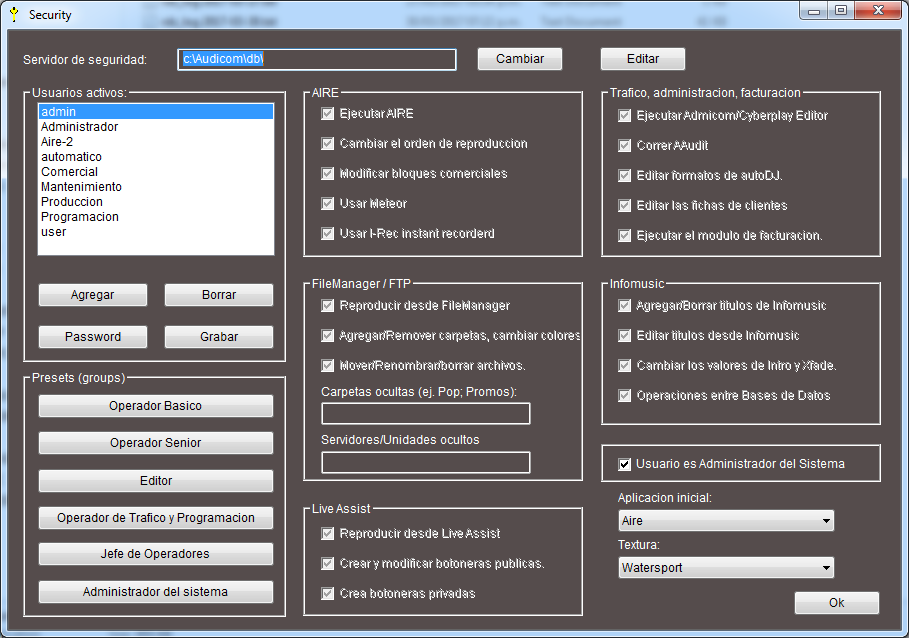 Each operator has a **username** and **password** that determine their system permissions.\
User and permission management is exclusively handled through the **Access Levels** module (`security.exe`), accessible at:
`Start Menu > Programs > AUDICOM > Access Levels`
***
## Creating User Profiles
### Administrator
* The first user to configure is always the **Administrator**.
* Initial login:
* Username: `admin`
* Password: *(empty)*
* After logging in, set a password using the **Password** button.
* Store it securely: if lost, you must contact **Solidyne technical support** (`info@solidynePro.com`).
* Any user can become administrator by enabling the **User is administrator** option.
* Administrators can:
* Access the **Access Levels** module.
* Modify all users' permissions.
* Have no operational restrictions.
### New Users
Press **Add** and enter the new username.
Press **Password** to set the password.\
Recommendation: let users set their own passwords to avoid forgetting Administrator-imposed passwords.
Adjust the user's permissions and attributes according to their role.
Press **Save** to register the changes.
To delete a user, select them and press **Delete**.
If a user forgets their password, they must be deleted and created again.
***
## Security Options
### Security Server
* The Security Database stores **passwords and profiles** in an encrypted file.
* All terminals must access this file (typically located on the **Server**).
### Network Failures
* When logging in, a local copy of the user profile is created.
* If the Server is unavailable, AUDICOM will use this local copy.
* In this condition, **desktop changes are not saved**.
***
## Permission Areas
### On-Air
* **Run On-Air**: access to the On-Air Screen.
* **Alter playback order**: if restricted, operator cannot change sequence (green cursor).
* **Modify commercial blocks**: prevents inserting, deleting or reordering ads; breaks remain editable.
* **Use Meteor**: blocks manual Meteor usage.
* **Use Instant-Rec**: restricts access to quick recording module.
### File Manager
* **Play from File Manager**: blocks direct on-air playback.
* **Add/remove folders, modify colors**: restricts structural changes.
* **Move, rename, delete files**: prevents file manipulation.
* **Hidden folders**: listed separated by `;` (e.g.: `Edits;Calls-2`).
* **Hidden Servers/Volumes**: restricts access to drives or UNC terminals (e.g.: `\\Production\D`).
### Live Assist
* **Play from Live Assist**: enables button panels.
* **Create/modify public button panels**: access shared by all users.
* **Create private button panels**: only visible to the user.
### Traffic, Administration and Billing
* **Run Traffic / CyberPlay Editor**: access to ADMICOM and CyberPlay.
* **Run Aaudit**: access to broadcast logs.
* **Edit AutoDj formats**: access to AutoDj Editor.
* **Access Client Records**: access to client database.
* **Run Billing**: access to billing module.
### InfoMusic
* **Add/Delete titles**.
* **Edit existing titles**.
* **Modify Intro and Cross Fade**.
* **Database Operations**: restricts title exports.
### Initial Application
* Defines which application opens at login.
* On On-Air terminals: `aire.exe`
* On Production or others: `desktop.exe`
* For mixed users (On-Air + Production), adjusting shortcuts is recommended.
### Favorite Skin
* Defines the user's graphical environment.
* For a single fixed skin, delete others in `\Audicom\Skins`.
### Presets
* Default configurations based on user position.
### Pop-up Messages
* If user attempts a restricted action, a **warning pop-up** appears.
* Message disappears automatically after a few seconds or by pressing `ESC`.
***
### Shortcuts
* **Shortcuts**: Defines keyboard shortcuts for each user.
* **Shortcuts Editor**: Accessed from `Tools > Shortcuts Editor`.
* **Shortcuts File**: Located at `\Audicom\Data\shortcuts.dat`.
* **Shortcuts Backup**: Located at `\Audicom\Data\shortcuts.bak`.
### Shortcuts Editor
Each operator has a **username** and **password** that determine their system permissions.\
User and permission management is exclusively handled through the **Access Levels** module (`security.exe`), accessible at:
`Start Menu > Programs > AUDICOM > Access Levels`
***
## Creating User Profiles
### Administrator
* The first user to configure is always the **Administrator**.
* Initial login:
* Username: `admin`
* Password: *(empty)*
* After logging in, set a password using the **Password** button.
* Store it securely: if lost, you must contact **Solidyne technical support** (`info@solidynePro.com`).
* Any user can become administrator by enabling the **User is administrator** option.
* Administrators can:
* Access the **Access Levels** module.
* Modify all users' permissions.
* Have no operational restrictions.
### New Users
Press **Add** and enter the new username.
Press **Password** to set the password.\
Recommendation: let users set their own passwords to avoid forgetting Administrator-imposed passwords.
Adjust the user's permissions and attributes according to their role.
Press **Save** to register the changes.
To delete a user, select them and press **Delete**.
If a user forgets their password, they must be deleted and created again.
***
## Security Options
### Security Server
* The Security Database stores **passwords and profiles** in an encrypted file.
* All terminals must access this file (typically located on the **Server**).
### Network Failures
* When logging in, a local copy of the user profile is created.
* If the Server is unavailable, AUDICOM will use this local copy.
* In this condition, **desktop changes are not saved**.
***
## Permission Areas
### On-Air
* **Run On-Air**: access to the On-Air Screen.
* **Alter playback order**: if restricted, operator cannot change sequence (green cursor).
* **Modify commercial blocks**: prevents inserting, deleting or reordering ads; breaks remain editable.
* **Use Meteor**: blocks manual Meteor usage.
* **Use Instant-Rec**: restricts access to quick recording module.
### File Manager
* **Play from File Manager**: blocks direct on-air playback.
* **Add/remove folders, modify colors**: restricts structural changes.
* **Move, rename, delete files**: prevents file manipulation.
* **Hidden folders**: listed separated by `;` (e.g.: `Edits;Calls-2`).
* **Hidden Servers/Volumes**: restricts access to drives or UNC terminals (e.g.: `\\Production\D`).
### Live Assist
* **Play from Live Assist**: enables button panels.
* **Create/modify public button panels**: access shared by all users.
* **Create private button panels**: only visible to the user.
### Traffic, Administration and Billing
* **Run Traffic / CyberPlay Editor**: access to ADMICOM and CyberPlay.
* **Run Aaudit**: access to broadcast logs.
* **Edit AutoDj formats**: access to AutoDj Editor.
* **Access Client Records**: access to client database.
* **Run Billing**: access to billing module.
### InfoMusic
* **Add/Delete titles**.
* **Edit existing titles**.
* **Modify Intro and Cross Fade**.
* **Database Operations**: restricts title exports.
### Initial Application
* Defines which application opens at login.
* On On-Air terminals: `aire.exe`
* On Production or others: `desktop.exe`
* For mixed users (On-Air + Production), adjusting shortcuts is recommended.
### Favorite Skin
* Defines the user's graphical environment.
* For a single fixed skin, delete others in `\Audicom\Skins`.
### Presets
* Default configurations based on user position.
### Pop-up Messages
* If user attempts a restricted action, a **warning pop-up** appears.
* Message disappears automatically after a few seconds or by pressing `ESC`.
***
### Shortcuts
* **Shortcuts**: Defines keyboard shortcuts for each user.
* **Shortcuts Editor**: Accessed from `Tools > Shortcuts Editor`.
* **Shortcuts File**: Located at `\Audicom\Data\shortcuts.dat`.
* **Shortcuts Backup**: Located at `\Audicom\Data\shortcuts.bak`.
### Shortcuts Editor
 * **Keyboard**: Shows available keys.
* **Actions**: Lists assignable functions.
* **Current Assignments**: Shows active shortcuts.
* **Assign**: Links selected key to action.
* **Remove**: Deletes selected shortcut.
* **Default**: Restores factory settings.
* **Save**: Stores changes.
* **Cancel**: Exits without saving.
### Shortcut Types
* **Global**: Work in all modules.
* **Local**: Specific to current module.
* **Restricted**: Limited by user permissions.
### Shortcut Configuration
1. Select key from keyboard display.
2. Choose action from list.
3. Click "Assign" to create shortcut.
4. Save changes.
### Important Notes
* Some keys are reserved by Windows.
* Avoid conflicts with system shortcuts.
* Test shortcuts before implementation.
* Back up shortcuts file before changes.
### Default Shortcuts
| Action | Key |
| -------- | --------- |
| Play | Space |
| Stop | Esc |
| Next | Enter |
| Previous | Backspace |
| Pause | P |
| Cue | C |
| Mark In | I |
| Mark Out | O |
* **Keyboard**: Shows available keys.
* **Actions**: Lists assignable functions.
* **Current Assignments**: Shows active shortcuts.
* **Assign**: Links selected key to action.
* **Remove**: Deletes selected shortcut.
* **Default**: Restores factory settings.
* **Save**: Stores changes.
* **Cancel**: Exits without saving.
### Shortcut Types
* **Global**: Work in all modules.
* **Local**: Specific to current module.
* **Restricted**: Limited by user permissions.
### Shortcut Configuration
1. Select key from keyboard display.
2. Choose action from list.
3. Click "Assign" to create shortcut.
4. Save changes.
### Important Notes
* Some keys are reserved by Windows.
* Avoid conflicts with system shortcuts.
* Test shortcuts before implementation.
* Back up shortcuts file before changes.
### Default Shortcuts
| Action | Key |
| -------- | --------- |
| Play | Space |
| Stop | Esc |
| Next | Enter |
| Previous | Backspace |
| Pause | P |
| Cue | C |
| Mark In | I |
| Mark Out | O |