> ## Documentation Index
> Fetch the complete documentation index at: https://docs.solidyne.ar/llms.txt
> Use this file to discover all available pages before exploring further.
# Recording
> Recording microphone mix
The **MiniMixer** allows recording the microphone mix to the computer while simultaneously broadcasting content from the same PC.
The **MIC REC** output delivers the microphone mix (post-compressor), available even when microphone channels are turned off.
***
## Connection Diagram
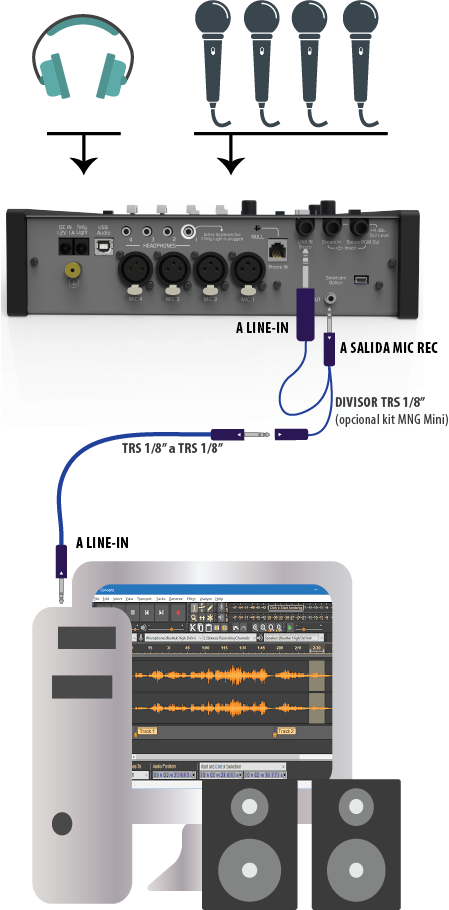 ### Basic Connection
* The computer must have an analog line input (common in desktop or mini-tower PCs).
* The "Y" splitter cable connects the three TRS in parallel.
* Can be purchased with the **Solidyne MNG-Mini** cable kit (see Cables and Accessories section).
* Any standard "Y" splitter TRS 1/8" → 2 × TRS 1/8" female can be used, with TRS-TRS cables to the LINE IN input of the console and computer.
* The recording software must be configured to work with the PC's internal line input and output (or other audio interface connected for microphone recording).
* In the reference diagram, speakers appear connected directly to the computer output.
***
### Alternative Connection with ASIO Interface
If you have an audio interface with **ASIO** support:
* The ASIO interface output can connect directly to MiniMixer's **LINE IN**.
* Software with ASIO support must be used (e.g.: **Reaper**, **Vegas**, **Audition**).
* During recording, internal input monitoring is activated on the software channel, while microphones are heard through MiniMixer's **LINE IN**.
* During playback, recorded material plays directly to the console.
Built-in PC sound cards usually have latencies of \~0.5 seconds, making it impossible to monitor your own voice in real-time.\
In these cases, connection must be done using the basic scheme explained above.
***
### Recording Procedure
The PC plays **Audicom-MX** programming (or other software) entering via USB to MiniMixer (fader #4).\
The console's VU meter should show peaks at **0 VU** to maintain correct streaming level.
The **MASTER MIC** button must be **off**, as microphones should not go on air.\
The on-air light remains off.
* To monitor streaming transmission in headphones: press **PGM** button in **CUE MONITOR** zone.
* For recording: keep this button released to avoid hearing the transmission.
Raise the **MIC-1**, **MIC-2** and **MIC 3+4** faders.\
Adjust levels watching the **MIC COMP** indicator, which should show two LEDs lit.
Use headphones connected to the console.
* If there are speakers in **Headphone-1**, they must be muted to prevent feedback, since automatic muting doesn't activate when the on-air light is off.
In the **PHONE** zone:
* Set **PHONE/LINE IN** to **LINE IN** position.
* Set **CUE/PGM** to **CUE** position.
* Set level control to maximum.\
Final volume adjustment is done with the **CUE MONITOR** control.
Play the file from the computer and listen through speakers or headphones connected to it.
**Playback monitoring**
If the computer monitors through speakers:
* It's advisable to fully close the level in the **PHONE** zone, or lower the microphone faders, to prevent audio leakage from speakers into the headphones.
***
### Recording Software
* **Audacity** (installed with Audicom-MX): open-source multitrack editor ([www.audacityteam.org](http://www.audacityteam.org)).
* Allows recording voice on one track and then adding music and effects on additional tracks.
* **HDCorder**: editor included in Audicom-MX for simple recordings and edits.
Refer to **Audicom** documentation for more details.
### Basic Connection
* The computer must have an analog line input (common in desktop or mini-tower PCs).
* The "Y" splitter cable connects the three TRS in parallel.
* Can be purchased with the **Solidyne MNG-Mini** cable kit (see Cables and Accessories section).
* Any standard "Y" splitter TRS 1/8" → 2 × TRS 1/8" female can be used, with TRS-TRS cables to the LINE IN input of the console and computer.
* The recording software must be configured to work with the PC's internal line input and output (or other audio interface connected for microphone recording).
* In the reference diagram, speakers appear connected directly to the computer output.
***
### Alternative Connection with ASIO Interface
If you have an audio interface with **ASIO** support:
* The ASIO interface output can connect directly to MiniMixer's **LINE IN**.
* Software with ASIO support must be used (e.g.: **Reaper**, **Vegas**, **Audition**).
* During recording, internal input monitoring is activated on the software channel, while microphones are heard through MiniMixer's **LINE IN**.
* During playback, recorded material plays directly to the console.
Built-in PC sound cards usually have latencies of \~0.5 seconds, making it impossible to monitor your own voice in real-time.\
In these cases, connection must be done using the basic scheme explained above.
***
### Recording Procedure
The PC plays **Audicom-MX** programming (or other software) entering via USB to MiniMixer (fader #4).\
The console's VU meter should show peaks at **0 VU** to maintain correct streaming level.
The **MASTER MIC** button must be **off**, as microphones should not go on air.\
The on-air light remains off.
* To monitor streaming transmission in headphones: press **PGM** button in **CUE MONITOR** zone.
* For recording: keep this button released to avoid hearing the transmission.
Raise the **MIC-1**, **MIC-2** and **MIC 3+4** faders.\
Adjust levels watching the **MIC COMP** indicator, which should show two LEDs lit.
Use headphones connected to the console.
* If there are speakers in **Headphone-1**, they must be muted to prevent feedback, since automatic muting doesn't activate when the on-air light is off.
In the **PHONE** zone:
* Set **PHONE/LINE IN** to **LINE IN** position.
* Set **CUE/PGM** to **CUE** position.
* Set level control to maximum.\
Final volume adjustment is done with the **CUE MONITOR** control.
Play the file from the computer and listen through speakers or headphones connected to it.
**Playback monitoring**
If the computer monitors through speakers:
* It's advisable to fully close the level in the **PHONE** zone, or lower the microphone faders, to prevent audio leakage from speakers into the headphones.
***
### Recording Software
* **Audacity** (installed with Audicom-MX): open-source multitrack editor ([www.audacityteam.org](http://www.audacityteam.org)).
* Allows recording voice on one track and then adding music and effects on additional tracks.
* **HDCorder**: editor included in Audicom-MX for simple recordings and edits.
Refer to **Audicom** documentation for more details.