> ## Documentation Index
> Fetch the complete documentation index at: https://docs.solidyne.ar/llms.txt
> Use this file to discover all available pages before exploring further.
# Firmware Update
> Internal software update procedure
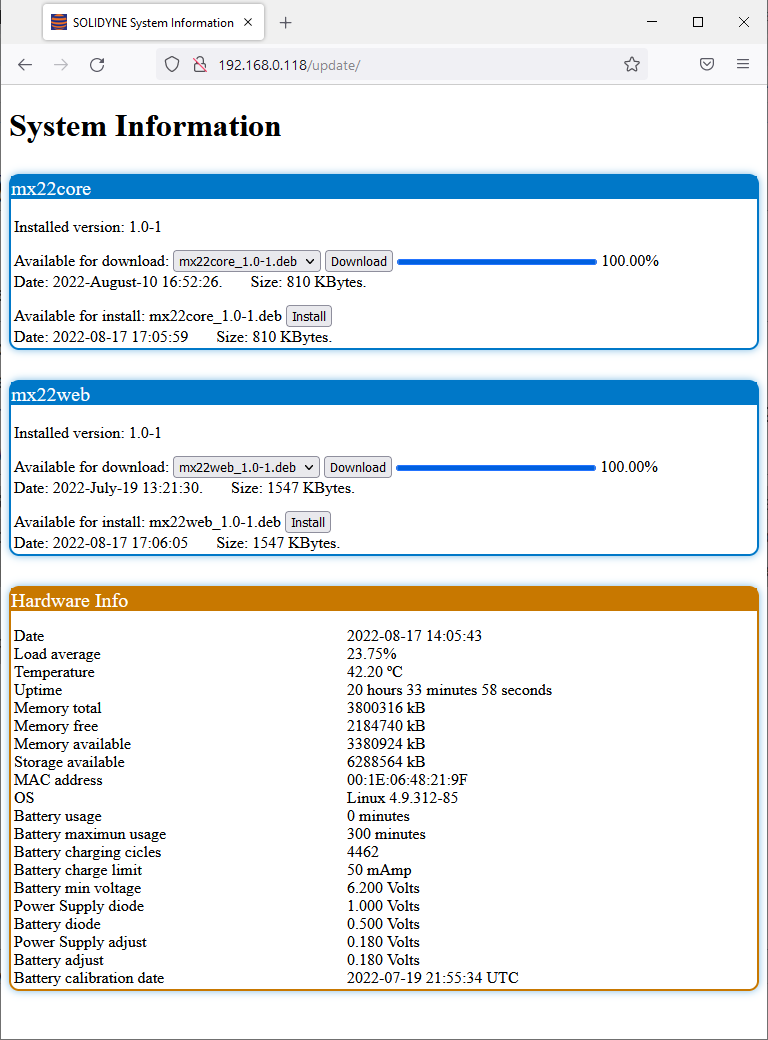
The system update is performed from the console's web interface:
Enter the console's IP address in the browser followed by the subpath **/update**.\
Example: `http://192.168.0.121/update`
The screen displays the installed software packages and, if available, the latest versions ready for update.
Click **Download** to get the latest version.\
The package is stored in the **console's internal memory**.
Once the download is complete, the **Install** option becomes available.\
Click to start the installation process.
 * The console allows updates even over **Wi-Fi**.
* Since the package is stored locally before installation, the console can complete the installation autonomously.
* The **Hardware Info** section displays **hardware** information such as battery charge cycles.
* The console allows updates even over **Wi-Fi**.
* Since the package is stored locally before installation, the console can complete the installation autonomously.
* The **Hardware Info** section displays **hardware** information such as battery charge cycles.