> ## Documentation Index
> Fetch the complete documentation index at: https://docs.solidyne.ar/llms.txt
> Use this file to discover all available pages before exploring further.
# Overview and Functions
> MX2200 Operation. Description of controls and general functions.
## Operating Areas
Audio sources (microphones, computer and telephone lines) enter the console through input channels, which amplify them.\
The console mixes all signals to generate a single main signal called **Program (PGM)**.
The level of each source is controlled using the main faders. The final mix is sent to the studios through one or more transmission channels.
Different areas can be distinguished in the console:
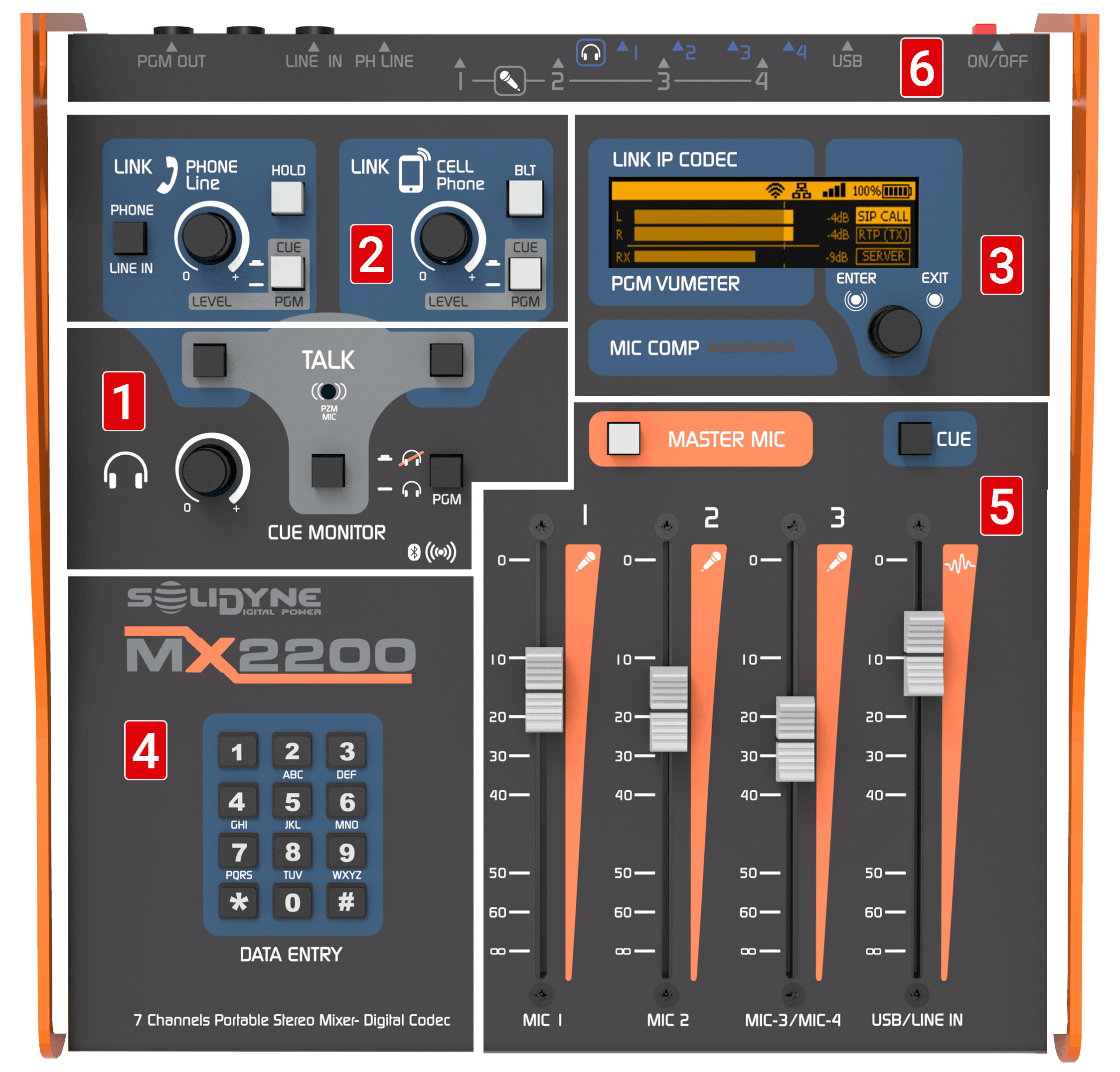 1. **INTERCOM**: controls for talking to telephone lines and headphones.
2. **TELECOMMUNICATIONS**: controls for managing landline and Bluetooth-linked mobile phone.
3. **DISPLAY AND ROTARY CONTROL**: allow management of Internet connection options (streaming and SIP) and recording.
4. **DTMF KEYPAD**: used to enter text in fields and dial (DTMF) on landline calls.
5. **FADERS**: allow mixing microphone and line signals (USB or analog) to generate PGM. Level should be maintained around **0 VU (-10 dBFS)**.
6. **CONNECTION LAYOUT**: indications to easily locate main connectors on the rear panel.
***
## Power Supply
The unit has an internal battery that allows operation up to **4 hours** (see specifications).\
The level is shown on display and it's recommended to connect the charger when it falls to **10%**.\
Full charging time, if battery is depleted, is **10 hours**.
Battery charging requires the unit to be **POWERED ON** and connected to external power supply.
* Included charger delivers **12 VDC / 2 A** and works on **110/240V 50/60 Hz** networks.
* Console can be used connected to charger even with battery at 100%.
* If external power is disconnected while unit is on, system automatically switches to battery mode.
***
## Power On / Off
The power on/off button is on the rear panel.
* When powered on, a startup screen appears for 15 seconds followed by the main screen.
* To power off, press again: system shuts down after 5 seconds.
* Wait a few seconds before powering on again.
***
## Display and Rotary Control
Navigation is done using the rotary encoder:
* **Turn**: navigate between screens or options within a screen.
* **Short press**:
* on screen: enter its items
* on item: edit it
* on value: confirm change
* **Long press (1 s)**: cancel option or change
The **DATA ENTRY** keypad allows entering alphanumeric characters:
* Successive key presses cycle through associated characters.
* Turn encoder to move edit position.
* Confirm: short press. Cancel: long press.
### Main Screens (Quick View)
1. **HOME SCREEN**
1. **INTERCOM**: controls for talking to telephone lines and headphones.
2. **TELECOMMUNICATIONS**: controls for managing landline and Bluetooth-linked mobile phone.
3. **DISPLAY AND ROTARY CONTROL**: allow management of Internet connection options (streaming and SIP) and recording.
4. **DTMF KEYPAD**: used to enter text in fields and dial (DTMF) on landline calls.
5. **FADERS**: allow mixing microphone and line signals (USB or analog) to generate PGM. Level should be maintained around **0 VU (-10 dBFS)**.
6. **CONNECTION LAYOUT**: indications to easily locate main connectors on the rear panel.
***
## Power Supply
The unit has an internal battery that allows operation up to **4 hours** (see specifications).\
The level is shown on display and it's recommended to connect the charger when it falls to **10%**.\
Full charging time, if battery is depleted, is **10 hours**.
Battery charging requires the unit to be **POWERED ON** and connected to external power supply.
* Included charger delivers **12 VDC / 2 A** and works on **110/240V 50/60 Hz** networks.
* Console can be used connected to charger even with battery at 100%.
* If external power is disconnected while unit is on, system automatically switches to battery mode.
***
## Power On / Off
The power on/off button is on the rear panel.
* When powered on, a startup screen appears for 15 seconds followed by the main screen.
* To power off, press again: system shuts down after 5 seconds.
* Wait a few seconds before powering on again.
***
## Display and Rotary Control
Navigation is done using the rotary encoder:
* **Turn**: navigate between screens or options within a screen.
* **Short press**:
* on screen: enter its items
* on item: edit it
* on value: confirm change
* **Long press (1 s)**: cancel option or change
The **DATA ENTRY** keypad allows entering alphanumeric characters:
* Successive key presses cycle through associated characters.
* Turn encoder to move edit position.
* Confirm: short press. Cancel: long press.
### Main Screens (Quick View)
1. **HOME SCREEN**
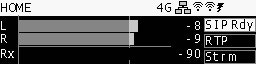 * PGM level indicators (L/R) in dBFS. The mark at **0 VU (-10 dBFS)** shows brighter. Avoid signal permanently exceeding this level.
* Reception level indicator (Rx) for SIP calls.
* Network status (4G/Ethernet/Wi-Fi).
* SIP, RTP and streaming connection status (active, off or error).
* Battery level (plug in at 10%).
* Quick access to **SIP Contacts** by pressing encoder.
2. **CONNECTION CENTER**
* PGM level indicators (L/R) in dBFS. The mark at **0 VU (-10 dBFS)** shows brighter. Avoid signal permanently exceeding this level.
* Reception level indicator (Rx) for SIP calls.
* Network status (4G/Ethernet/Wi-Fi).
* SIP, RTP and streaming connection status (active, off or error).
* Battery level (plug in at 10%).
* Quick access to **SIP Contacts** by pressing encoder.
2. **CONNECTION CENTER**
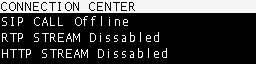 * Shows the three connection modes and their current status.
* Allows establishing or interrupting each connection.
3. **SETUP**
* Shows the three connection modes and their current status.
* Allows establishing or interrupting each connection.
3. **SETUP**
 * Shows active IP addresses.
* Access to all configuration options from here:
1. Wi-Fi
2. Ethernet
3. 4G Modem
4. RTP Stream
5. HTTP Stream (webcasting)
6. SIP Account
7. SIP Directory
8. Battery Info
9. Time Zone (for recordings)
10. Firmware Version
Configuration can also be done remotely via web browser.
4. **RECORDING**
* Shows active IP addresses.
* Access to all configuration options from here:
1. Wi-Fi
2. Ethernet
3. 4G Modem
4. RTP Stream
5. HTTP Stream (webcasting)
6. SIP Account
7. SIP Directory
8. Battery Info
9. Time Zone (for recordings)
10. Firmware Version
Configuration can also be done remotely via web browser.
4. **RECORDING**
 * Shows and edits internal memory recording parameters.
***
## Channels
### Microphones
* The MX2200 handles **3 microphone channels** and supports a fourth shared with MIC 3 fader.
* Gains are **automatic**, adjusting according to fader position. This optimizes signal-to-noise ratio and prevents preamp saturation.
* The **MASTER MIC** button enables microphones, sends them to PGM, activates **On Air Light** and mutes headphones #1 (when an On Air Light is connected).
* Microphones are **not** sent to CUE; they are only heard in headphones when in program.
#### Microphone Compressor
* Dynamic compressor acts when exceeding **-10 dBFS (0 VU)** threshold.
* High ratio, attenuating up to **20 dB**.
* **MIC COMP** 3-state indicator:
* Green: reaches threshold (-10 dBFS)
* Red: maximum attenuation, near clipping (-5 dBFS)
* Clipping: indicated with 3 s hold
When using two microphones in shared channel (MIC 3+4), signal should be kept in yellow zone and occasionally red.
**About stereo mixes**\
Although MX2200 transmits in stereo, microphone channels generate a **mono mix**.\
For stereo captures (e.g. ambient sound), an auxiliary console connected to line input is required, usually with condenser microphones and phantom power.
***
### USB and Analog Line
* **USB/LINE IN** fader controls USB audio if computer is connected.
* If no USB, it takes signal from stereo analog **LINE IN**.
* With USB connected, LINE IN can be used through telephone line control (**PHONE**) when hybrid is not in use.
* To send to program: raise fader. Optimal level when peaks reach **0 VU**.
* To listen in CUE: press **CUE** button above fader.
**USB Audio**\
When connecting USB port to a computer, operating system installs a **USB recording device** that receives PGM mix.
***
## Monitoring
* **CUE MONITOR** control adjusts level in all four headphone outputs.
* Any signal in CUE is sent to all outputs.
* **PGM** button allows muting program signal in headphones and listening only to CUE.
* Shows and edits internal memory recording parameters.
***
## Channels
### Microphones
* The MX2200 handles **3 microphone channels** and supports a fourth shared with MIC 3 fader.
* Gains are **automatic**, adjusting according to fader position. This optimizes signal-to-noise ratio and prevents preamp saturation.
* The **MASTER MIC** button enables microphones, sends them to PGM, activates **On Air Light** and mutes headphones #1 (when an On Air Light is connected).
* Microphones are **not** sent to CUE; they are only heard in headphones when in program.
#### Microphone Compressor
* Dynamic compressor acts when exceeding **-10 dBFS (0 VU)** threshold.
* High ratio, attenuating up to **20 dB**.
* **MIC COMP** 3-state indicator:
* Green: reaches threshold (-10 dBFS)
* Red: maximum attenuation, near clipping (-5 dBFS)
* Clipping: indicated with 3 s hold
When using two microphones in shared channel (MIC 3+4), signal should be kept in yellow zone and occasionally red.
**About stereo mixes**\
Although MX2200 transmits in stereo, microphone channels generate a **mono mix**.\
For stereo captures (e.g. ambient sound), an auxiliary console connected to line input is required, usually with condenser microphones and phantom power.
***
### USB and Analog Line
* **USB/LINE IN** fader controls USB audio if computer is connected.
* If no USB, it takes signal from stereo analog **LINE IN**.
* With USB connected, LINE IN can be used through telephone line control (**PHONE**) when hybrid is not in use.
* To send to program: raise fader. Optimal level when peaks reach **0 VU**.
* To listen in CUE: press **CUE** button above fader.
**USB Audio**\
When connecting USB port to a computer, operating system installs a **USB recording device** that receives PGM mix.
***
## Monitoring
* **CUE MONITOR** control adjusts level in all four headphone outputs.
* Any signal in CUE is sent to all outputs.
* **PGM** button allows muting program signal in headphones and listening only to CUE.
 If individual volume control is needed, use headphones with built-in control or external distributor (recommended).
### Monitor Speaker Output
* With an on-air light connected, headphone output #1 functions as speaker output.
* This is muted when microphones are activated to prevent feedback.
* Audio remains in headphones #2, #3 and #4.
### Talk to CUE
Pressing **TALK** button in CUE MONITOR area:
* Interrupts signal in headphones.
* Sends voice from built-in microphone.
* Allows operator to communicate with headphone users without shouting or gesturing, and without removing headphones.
If individual volume control is needed, use headphones with built-in control or external distributor (recommended).
### Monitor Speaker Output
* With an on-air light connected, headphone output #1 functions as speaker output.
* This is muted when microphones are activated to prevent feedback.
* Audio remains in headphones #2, #3 and #4.
### Talk to CUE
Pressing **TALK** button in CUE MONITOR area:
* Interrupts signal in headphones.
* Sends voice from built-in microphone.
* Allows operator to communicate with headphone users without shouting or gesturing, and without removing headphones.