> ## Documentation Index
> Fetch the complete documentation index at: https://docs.solidyne.ar/llms.txt
> Use this file to discover all available pages before exploring further.
# Recording
> Internal recording.
## Recording Screen
The **MX2200** console allows you to make a **backup recording of the event** in stereo **MP3 format (16 bits / 48 kHz)**, widely supported by audio players and editors.
The RECORDING screen is accessed by rotating the encoder from the HOME screen. It allows you to **start/stop** recording and configure its parameters.
 Navigation is similar to other screens: pressing the knob accesses internal navigation and, within each option, a click allows changing its value or state.
* **STATUS**\
Allows you to **enable or stop** recording.\
When stopped, the file is automatically generated with the content recorded up to that moment.
* **MAX TIME**\
Defines the maximum recording time.
* Prevents the operator from having to stop it manually.
* Recording stops automatically when reaching the defined time.
* Editing: value is entered using the console's numeric keypad (maximum **240 minutes / 4 hours**).
* It's possible to **increase the time limit while recording is in progress**, without interrupting it.
* **BIT RATE**\
Defines audio quality.
* Range: **64 to 320 kbps**.
* The higher the value, the better quality and larger file size.
* At **192 kbps** approximately **100 hours** can be stored inside the console.
When recording is enabled, the main screen indicates the recording status and shows the **remaining available time**.
***
## Managing Recordings
Management (monitoring, playback, renaming, downloading and cleanup) is done **remotely** from a networked computer.
To access: enter the equipment's IP address followed by **/recording** in a browser (Firefox, Chrome, Safari, Edge, etc.).
Example: `192.168.0.118/recording`
Connect the console to the local network using the **Ethernet** port (recommended) or **Wi-Fi** antenna.
On a computer on the same network, open a browser and enter the MX2200's **IP address** with the `/recording` subpath.
To find the assigned IP, rotate the **CONTROL (encoder)** knob and access the **SETUP** screen.\
The first three items show the connection status and IP address for **Ethernet**, **Wi-Fi** and **4G Modem**.
***
### Web Interface
Navigation is similar to other screens: pressing the knob accesses internal navigation and, within each option, a click allows changing its value or state.
* **STATUS**\
Allows you to **enable or stop** recording.\
When stopped, the file is automatically generated with the content recorded up to that moment.
* **MAX TIME**\
Defines the maximum recording time.
* Prevents the operator from having to stop it manually.
* Recording stops automatically when reaching the defined time.
* Editing: value is entered using the console's numeric keypad (maximum **240 minutes / 4 hours**).
* It's possible to **increase the time limit while recording is in progress**, without interrupting it.
* **BIT RATE**\
Defines audio quality.
* Range: **64 to 320 kbps**.
* The higher the value, the better quality and larger file size.
* At **192 kbps** approximately **100 hours** can be stored inside the console.
When recording is enabled, the main screen indicates the recording status and shows the **remaining available time**.
***
## Managing Recordings
Management (monitoring, playback, renaming, downloading and cleanup) is done **remotely** from a networked computer.
To access: enter the equipment's IP address followed by **/recording** in a browser (Firefox, Chrome, Safari, Edge, etc.).
Example: `192.168.0.118/recording`
Connect the console to the local network using the **Ethernet** port (recommended) or **Wi-Fi** antenna.
On a computer on the same network, open a browser and enter the MX2200's **IP address** with the `/recording` subpath.
To find the assigned IP, rotate the **CONTROL (encoder)** knob and access the **SETUP** screen.\
The first three items show the connection status and IP address for **Ethernet**, **Wi-Fi** and **4G Modem**.
***
### Web Interface
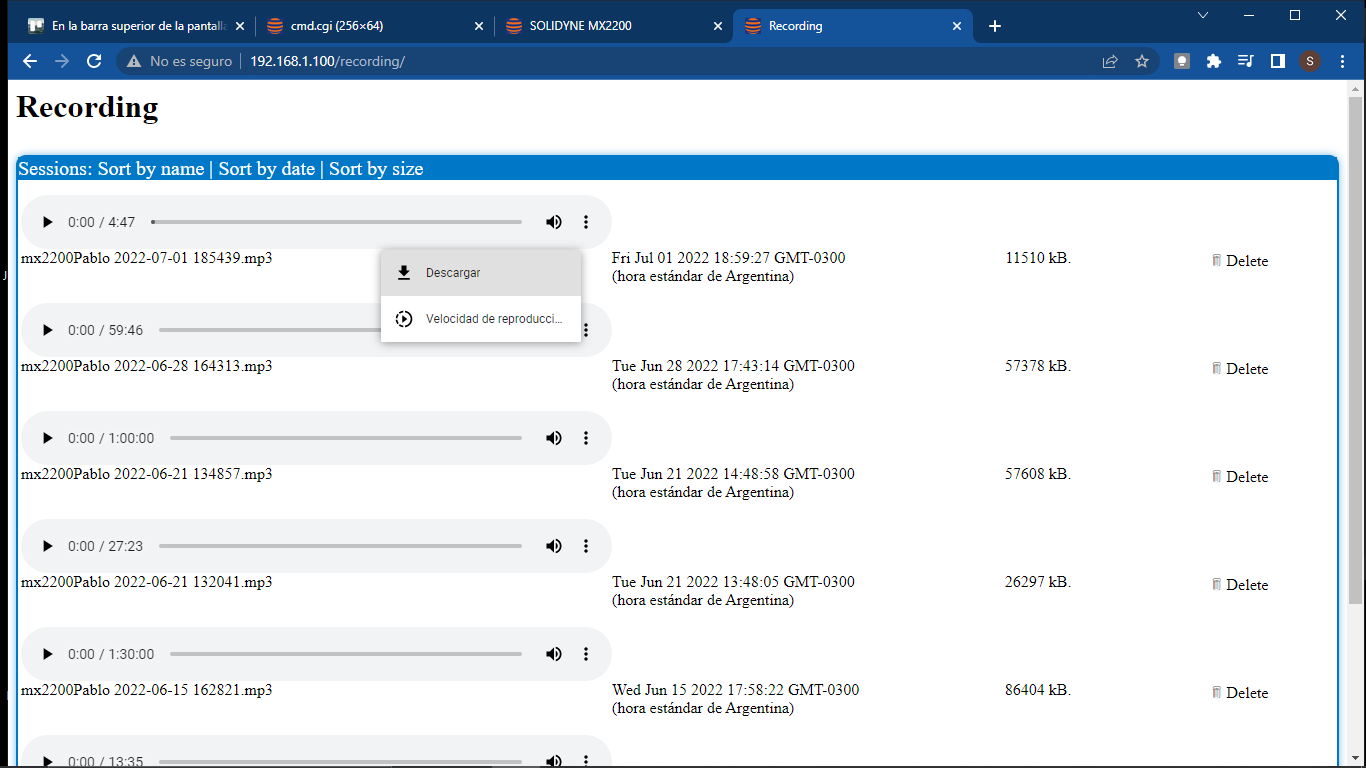 * Each recording is saved with the name: `[Equipment name] + [Date and time]`
* The **HTML5** interface includes a player to **forward, rewind and pause**.
* The list can be sorted by **name, date or size**.
The displayed date corresponds to the **local time of the client computer**, not the console.
* Audio can be **downloaded** and will be saved to the browser's default downloads folder.
* Each recording is saved with the name: `[Equipment name] + [Date and time]`
* The **HTML5** interface includes a player to **forward, rewind and pause**.
* The list can be sorted by **name, date or size**.
The displayed date corresponds to the **local time of the client computer**, not the console.
* Audio can be **downloaded** and will be saved to the browser's default downloads folder.