> ## Documentation Index
> Fetch the complete documentation index at: https://docs.solidyne.ar/llms.txt
> Use this file to discover all available pages before exploring further.
# RTP Streaming
> Studio Linking via RTP
**RTP** connection offers maximum quality and low latency, but requires **network configuration** at both ends (transmitter and receiver).\
It is ideal for **fixed installations** or locations with **known and controlled networks**.
**Network Prerequisites**\
Make sure you have the correct **IP/port** defined and have resolved **NAT / firewall / port forwarding** at the receiver. Without this preparation, the link may not establish.
Turn the **encoder** to **CONNECTION CENTER** and press it to enter connection options.
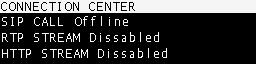 Choose **RTP STREAM** and press to open the RTP link screen (enable/disable).
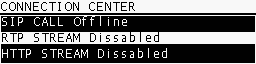 Select **YES** to start the RTP link to the studios.
 When active, both **CONNECTION CENTER** and **HOME** screens show **RTP STREAM ENABLED**.
Repeat the procedure and select **NO** to disable RTP.
Before starting, verify that the **network and audio format** configuration in the MX2200 matches what is expected at the receiver (destination IP, **port**, **codec** and **sampling rate**).
**RTP transmission is unidirectional**. Return is not typically used in this mode because the location generates content without studio interaction.
If you need **return audio** (intercom or floor), use a **SIP call** or **telephone communication** (Bluetooth mobile or POTS landline) in parallel to RTP.
To receive streaming from an MX2200 on a **computer**, use software with **RTP** support. **VLC Player** (free) is recommended.
Configure the MX2200 with a format that the receiver supports directly:
* **PCM16 @ 44.1 kHz** (linear)
* **MP3** (any available mode)
**OPUS** requires an **SDP (Session Description)** file to describe the content to the player.
In **VLC Player** go to **Media → Open Network Location**.
Use the format:
```
[protocol]://[source_IP]:[port]
```
Example:
```
rtp://0.0.0.0:3030
```
Where:
* `rtp` is the protocol used by MX2200.
* `0.0.0.0` means "**listen from any incoming IP**" on the receiving PC.
* `3030` is the configured **port** for reception.
Some VLC versions also accept: `rtp://@:3030`
Ensure the configured **UDP port** is **allowed** in both system firewall and studio router.
When active, both **CONNECTION CENTER** and **HOME** screens show **RTP STREAM ENABLED**.
Repeat the procedure and select **NO** to disable RTP.
Before starting, verify that the **network and audio format** configuration in the MX2200 matches what is expected at the receiver (destination IP, **port**, **codec** and **sampling rate**).
**RTP transmission is unidirectional**. Return is not typically used in this mode because the location generates content without studio interaction.
If you need **return audio** (intercom or floor), use a **SIP call** or **telephone communication** (Bluetooth mobile or POTS landline) in parallel to RTP.
To receive streaming from an MX2200 on a **computer**, use software with **RTP** support. **VLC Player** (free) is recommended.
Configure the MX2200 with a format that the receiver supports directly:
* **PCM16 @ 44.1 kHz** (linear)
* **MP3** (any available mode)
**OPUS** requires an **SDP (Session Description)** file to describe the content to the player.
In **VLC Player** go to **Media → Open Network Location**.
Use the format:
```
[protocol]://[source_IP]:[port]
```
Example:
```
rtp://0.0.0.0:3030
```
Where:
* `rtp` is the protocol used by MX2200.
* `0.0.0.0` means "**listen from any incoming IP**" on the receiving PC.
* `3030` is the configured **port** for reception.
Some VLC versions also accept: `rtp://@:3030`
Ensure the configured **UDP port** is **allowed** in both system firewall and studio router.