> ## Documentation Index
> Fetch the complete documentation index at: https://docs.solidyne.ar/llms.txt
> Use this file to discover all available pages before exploring further.
# Ethernet Ports
> Remote Control and Streaming Ports
## Ethernet Connection for Remote Control
The console features an **Ethernet port** for remote control through local network (LAN). The **internal web control interface** can be accessed with a web browser from any computer connected to the same network.
### Step 1: Physical Connection
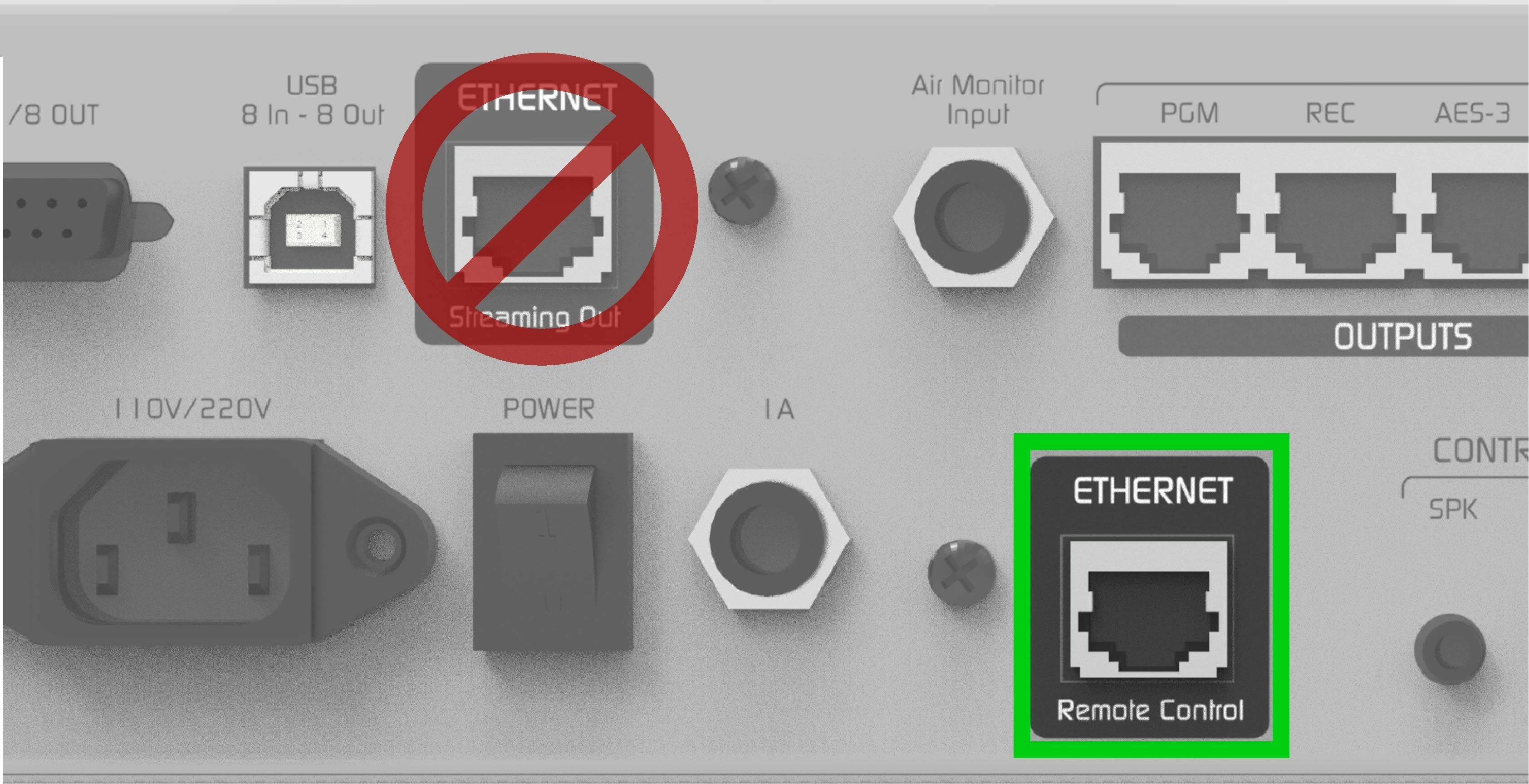
Connect the UNIDEX **CONTROL ETHERNET** port to a **router** port using a standard Ethernet network cable.
Do not confuse the **CONTROL** Ethernet connector with the **STREAMING** Ethernet port.
 * By default, UNIDEX is configured with **DHCP enabled**.
* The router will automatically assign an available IP address. This IP may change when restarting the console, unless a static IP is configured, but this is usually not necessary.
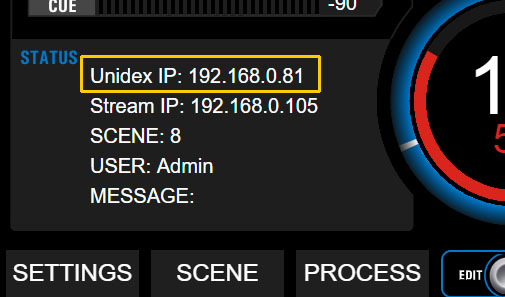
* The current IP address is displayed on the console's **main screen** under:\
**UNIDEX IP.**
* By default, UNIDEX is configured with **DHCP enabled**.
* The router will automatically assign an available IP address. This IP may change when restarting the console, unless a static IP is configured, but this is usually not necessary.
* The current IP address is displayed on the console's **main screen** under:\
**UNIDEX IP.**
 * If a static IP needs to be assigned, go to:`SETTINGS → SYSTEM`
### **Step 2**: Browser Access
From any computer connected to the **same local network** (preferably via cable) open a web browser (**Google Chrome** recommended) and enter the IP address shown as **UNIDEX IP**.
**Solidyne Multi-Discovery**
If physical access to the console is not available, you can [**download the Multi-Discovery tool**](/en/unidex/unidex-discovery) that detects Solidyne devices connected to the network.
This will open the web interface for console operation and configuration. The interface is similar to the one shown on the **onboard touchscreen**.
***
## Ethernet Connection for Streaming Services
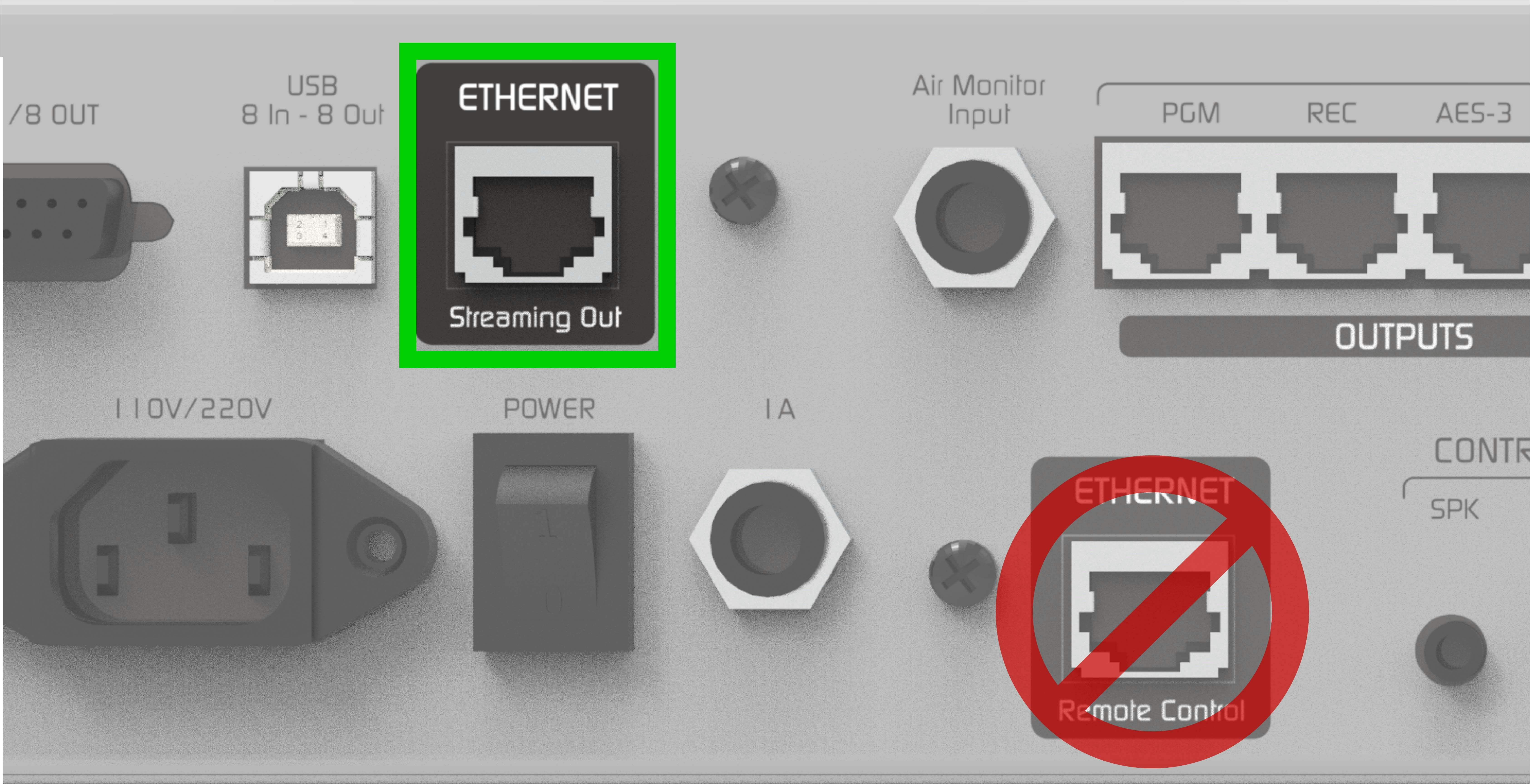
1. Connect the **Streaming Out** port to the LAN router using a standard Ethernet cable.
DO NOT CONFUSE the **streaming Ethernet connector** with the **remote control** Ethernet connector.\
Both use RJ45, but serve completely different functions.
* If a static IP needs to be assigned, go to:`SETTINGS → SYSTEM`
### **Step 2**: Browser Access
From any computer connected to the **same local network** (preferably via cable) open a web browser (**Google Chrome** recommended) and enter the IP address shown as **UNIDEX IP**.
**Solidyne Multi-Discovery**
If physical access to the console is not available, you can [**download the Multi-Discovery tool**](/en/unidex/unidex-discovery) that detects Solidyne devices connected to the network.
This will open the web interface for console operation and configuration. The interface is similar to the one shown on the **onboard touchscreen**.
***
## Ethernet Connection for Streaming Services
1. Connect the **Streaming Out** port to the LAN router using a standard Ethernet cable.
DO NOT CONFUSE the **streaming Ethernet connector** with the **remote control** Ethernet connector.\
Both use RJ45, but serve completely different functions.
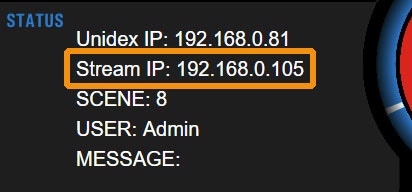
 2. The router will assign an IP address via **DHCP**, visible on the main screen as: **Stream IP**
3. This IP may change when restarting the console, unless a static IP is configured.
4. Streaming services can be configured in two ways:
* From the console's **touchscreen**.
* From any computer on the network, accessing the **Stream IP** address through a web browser.
2. The router will assign an IP address via **DHCP**, visible on the main screen as: **Stream IP**
3. This IP may change when restarting the console, unless a static IP is configured.
4. Streaming services can be configured in two ways:
* From the console's **touchscreen**.
* From any computer on the network, accessing the **Stream IP** address through a web browser.