> ## Documentation Index
> Fetch the complete documentation index at: https://docs.solidyne.ar/llms.txt
> Use this file to discover all available pages before exploring further.
# Scenes and User Profiles
> Scene and access profile management
The user and scene management screen allows:
* Changing the active user
* Changing the current scene
* Using advanced channel organization functions
Access it by pressing the **SCENES** option, available in the contextual buttons when the console shows the **main screen**.
 ## USERS
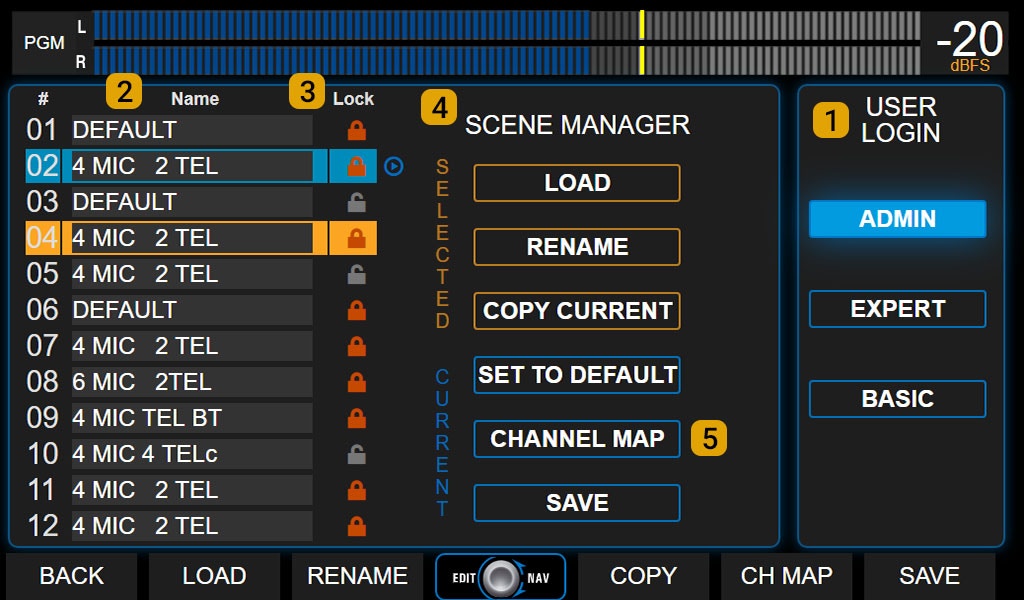
The **USER LOGIN** area (1) shows the currently active user and allows switching to another user by touching the corresponding option.\
There are **three user levels** with different preset permissions. Restrictions apply both to console screen operation and remote web interface.
### BASIC User
Most restricted profile:
* No password protection
* No access to advanced configuration options (SETTINGS)
* Can change scenes but cannot save changes or create new scenes
* Can view processor settings and status but cannot modify or turn them on/off
* Can temporarily modify basic channel options (**GAIN**, **NAME**, **PAN**, **CHANNEL ACTIONS**) but cannot save changes to the scene
### EXPERT User
Profile with intermediate restrictions:
* Password protected (default: `expert`). Only ADMIN user can change it
* Like BASIC, no access to advanced configuration (SETTINGS)
* Full access to audio processing
* In **CHANNEL** screen can change **gain**, **pan**, **name**, **input assignment** and **channel mode**, but cannot access SETTINGS
* Can save current scene, except if protected
* Can create new scenes, even from a protected one
### ADMIN User
Profile with full access:
* Password protected (default: `admin`). Can change all passwords from **SETTINGS** screen
* Can create protected or read-only scenes that are operational for BASIC and EXPERT but only editable by ADMIN
Passwords are defined in the **SETTINGS - USERS** screen.
#### Startup User
On power up, the console starts with a predefined user profile (factory default: ADMIN) and never requests password.
In **SETTINGS → USERS** you can:
* Change the startup user
* **Change passwords** for ADMIN and EXPERT
## SCENES
A **scene** stores all console configuration, except system settings (network, streaming, startup user, etc.). It includes:
* Input and output configuration
* Channel and bus assignments
* Gains
* Audio processor settings
Scenes allow quickly loading a preset configuration according to each show's requirements; for example, reassigning inputs, changing channel order or adjusting microphone processors.
The scene must be saved after modifying any parameter (gain, equalizer, channel name, etc.) for the change to be permanently stored.
### Available Scenes
The list (see 2 in image) shows 12 user scenes.
* Navigate by turning the encoder and confirm by pressing it
* Active scene is highlighted in **light blue**
* Selected scene (but not confirmed) is highlighted in **orange**
### Protected Scenes (Lock)
* Only **ADMIN** profile can create them
* Identified with a padlock icon
* BASIC and EXPERT users can load them but cannot modify or delete them
### Scene Manager
Presents two option groups: for the **selected scene** and for the **active scene**.
**LOAD**: Loads the selected scene. Can be done from touchscreen, contextual button or encoder.
* Requires confirmation (cancels after 8 seconds if not confirmed)
* All profiles can load any scene
* If channels are on-air, they remain active even if position changes, maintaining bus assignments
* If the new assigned channel has a different fader level, previous digital level is maintained and indicated by flashing OLED
* **Audio cuts if previously on-air input is not assigned** to a channel in new scene
* Cannot change scenes with telephone line on-air or on hold
**RENAME**: Changes selected scene name.
* Disabled for BASIC
**COPY CURRENT**: Copies active scene over selected scene.
* Requires confirmation
* Disabled for BASIC
**SET TO DEFAULT**: Restores active scene to factory configuration.
* Disabled for BASIC
**SAVE**: Saves current configuration of:
* Input assignment to 24 channels
* Signal assignment to outputs
* Specific input/output configuration (phantom, MIX-MINUS modes, etc.)
* Input and output gains
* Channel labels and actions
* Audio processor settings
* Assignment status, including VBUS
Scene does **not save** status of **ON-AIR** or **CUE** buttons.
### Factory Scenes
Any of the 12 scenes can be reset to a default configuration. Additionally, UNIDEX comes from factory with scenes designed with different configurations and UDX expansions, intended as base or example for creating new configurations.
Download [default scene configuration infographic](https://solidynepro.com/descargas/productos/UX24_Quickguide_Default_scenes_routing.pdf) (PDF)
### Export and Import Scenes
Scenes can be exported and imported from the **WEB control interface**.\
From the scene management option in web control, each scene can be exported as a disk file. And later imported into any of the 12 available positions.
## Channel Map
The **CHANNEL MAP** function shows all channel configuration and allows easy reordering.\
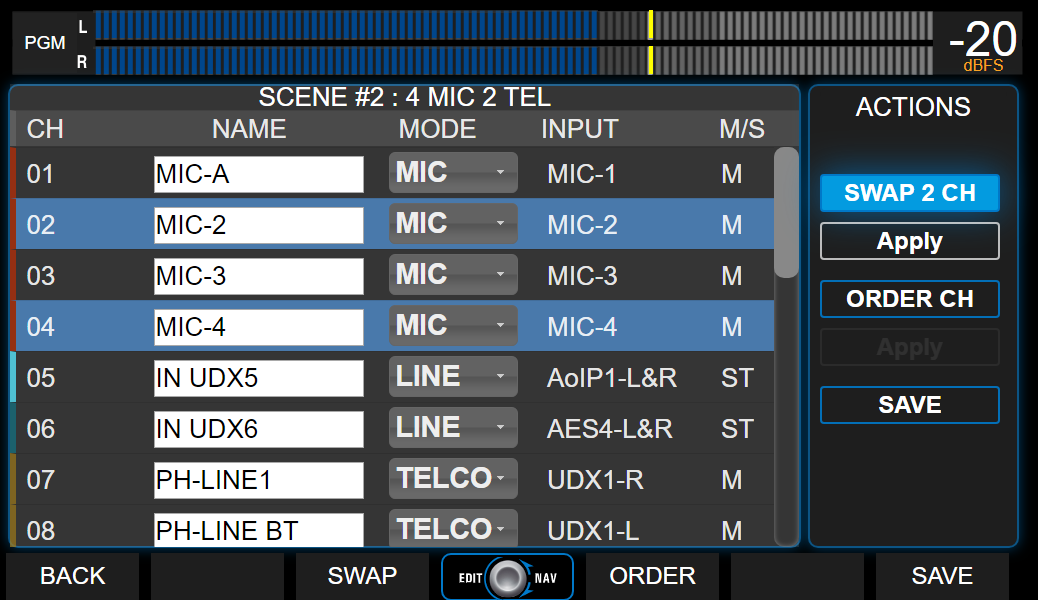
There are two operation modes: **SWAP 2 CH** (swap two channels) and **ORDER CH** (reorganize channels).
### SWAP 2 CH
Allows swapping position of two channels.
## USERS
The **USER LOGIN** area (1) shows the currently active user and allows switching to another user by touching the corresponding option.\
There are **three user levels** with different preset permissions. Restrictions apply both to console screen operation and remote web interface.
### BASIC User
Most restricted profile:
* No password protection
* No access to advanced configuration options (SETTINGS)
* Can change scenes but cannot save changes or create new scenes
* Can view processor settings and status but cannot modify or turn them on/off
* Can temporarily modify basic channel options (**GAIN**, **NAME**, **PAN**, **CHANNEL ACTIONS**) but cannot save changes to the scene
### EXPERT User
Profile with intermediate restrictions:
* Password protected (default: `expert`). Only ADMIN user can change it
* Like BASIC, no access to advanced configuration (SETTINGS)
* Full access to audio processing
* In **CHANNEL** screen can change **gain**, **pan**, **name**, **input assignment** and **channel mode**, but cannot access SETTINGS
* Can save current scene, except if protected
* Can create new scenes, even from a protected one
### ADMIN User
Profile with full access:
* Password protected (default: `admin`). Can change all passwords from **SETTINGS** screen
* Can create protected or read-only scenes that are operational for BASIC and EXPERT but only editable by ADMIN
Passwords are defined in the **SETTINGS - USERS** screen.
#### Startup User
On power up, the console starts with a predefined user profile (factory default: ADMIN) and never requests password.
In **SETTINGS → USERS** you can:
* Change the startup user
* **Change passwords** for ADMIN and EXPERT
## SCENES
A **scene** stores all console configuration, except system settings (network, streaming, startup user, etc.). It includes:
* Input and output configuration
* Channel and bus assignments
* Gains
* Audio processor settings
Scenes allow quickly loading a preset configuration according to each show's requirements; for example, reassigning inputs, changing channel order or adjusting microphone processors.
The scene must be saved after modifying any parameter (gain, equalizer, channel name, etc.) for the change to be permanently stored.
### Available Scenes
The list (see 2 in image) shows 12 user scenes.
* Navigate by turning the encoder and confirm by pressing it
* Active scene is highlighted in **light blue**
* Selected scene (but not confirmed) is highlighted in **orange**
### Protected Scenes (Lock)
* Only **ADMIN** profile can create them
* Identified with a padlock icon
* BASIC and EXPERT users can load them but cannot modify or delete them
### Scene Manager
Presents two option groups: for the **selected scene** and for the **active scene**.
**LOAD**: Loads the selected scene. Can be done from touchscreen, contextual button or encoder.
* Requires confirmation (cancels after 8 seconds if not confirmed)
* All profiles can load any scene
* If channels are on-air, they remain active even if position changes, maintaining bus assignments
* If the new assigned channel has a different fader level, previous digital level is maintained and indicated by flashing OLED
* **Audio cuts if previously on-air input is not assigned** to a channel in new scene
* Cannot change scenes with telephone line on-air or on hold
**RENAME**: Changes selected scene name.
* Disabled for BASIC
**COPY CURRENT**: Copies active scene over selected scene.
* Requires confirmation
* Disabled for BASIC
**SET TO DEFAULT**: Restores active scene to factory configuration.
* Disabled for BASIC
**SAVE**: Saves current configuration of:
* Input assignment to 24 channels
* Signal assignment to outputs
* Specific input/output configuration (phantom, MIX-MINUS modes, etc.)
* Input and output gains
* Channel labels and actions
* Audio processor settings
* Assignment status, including VBUS
Scene does **not save** status of **ON-AIR** or **CUE** buttons.
### Factory Scenes
Any of the 12 scenes can be reset to a default configuration. Additionally, UNIDEX comes from factory with scenes designed with different configurations and UDX expansions, intended as base or example for creating new configurations.
Download [default scene configuration infographic](https://solidynepro.com/descargas/productos/UX24_Quickguide_Default_scenes_routing.pdf) (PDF)
### Export and Import Scenes
Scenes can be exported and imported from the **WEB control interface**.\
From the scene management option in web control, each scene can be exported as a disk file. And later imported into any of the 12 available positions.
## Channel Map
The **CHANNEL MAP** function shows all channel configuration and allows easy reordering.\
There are two operation modes: **SWAP 2 CH** (swap two channels) and **ORDER CH** (reorganize channels).
### SWAP 2 CH
Allows swapping position of two channels.
 **Procedure:**
1. Press **SWAP 2 CH** to enable option
2. Select the two channels to swap from the list
3. Press **APPLY** to execute swap
4. Press **SAVE** to store changes in current scene
***
## ORDER CH
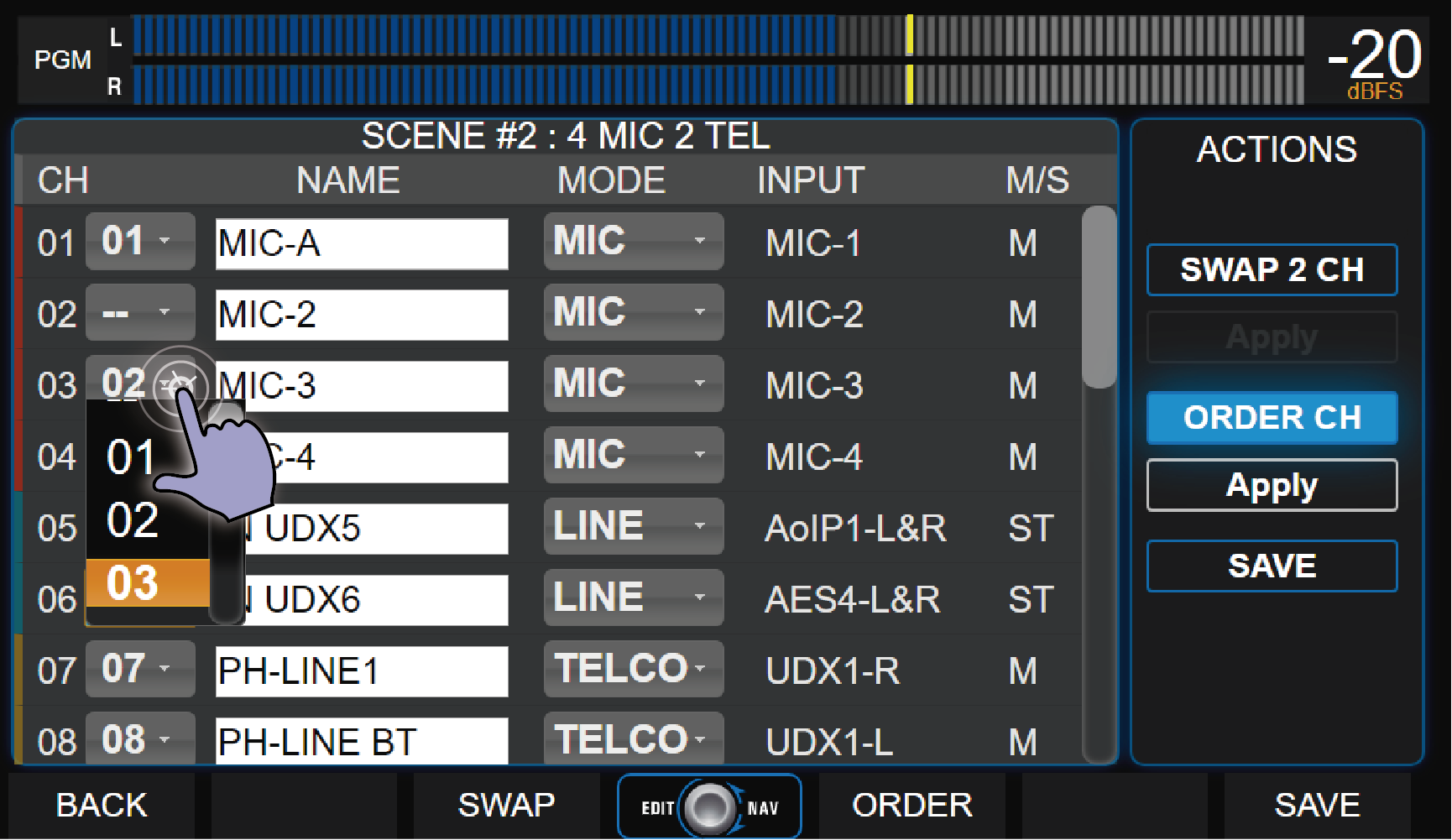
Allows assigning new positions to one or more channels.
**Procedure:**
1. Press **SWAP 2 CH** to enable option
2. Select the two channels to swap from the list
3. Press **APPLY** to execute swap
4. Press **SAVE** to store changes in current scene
***
## ORDER CH
Allows assigning new positions to one or more channels.
 **Procedure:**
1. Press **ORDER CH**.\
A dropdown menu appears right of channel number, allowing new position assignment
2. Touch screen menu and choose new position for channel.\
Multiple channels can be relocated at once
If assigning a channel to an occupied position, destination channel information will be overwritten when applying changes.
3. Press **APPLY** to confirm
* **APPLY** applies changes temporarily (not saved yet)
* Changes are lost if scene is abandoned without saving
4. Press **SAVE** for changes to be permanent in scene
5. To cancel, deactivate **ORDER CH** by touching option again or press **BACK** contextual button
**Procedure:**
1. Press **ORDER CH**.\
A dropdown menu appears right of channel number, allowing new position assignment
2. Touch screen menu and choose new position for channel.\
Multiple channels can be relocated at once
If assigning a channel to an occupied position, destination channel information will be overwritten when applying changes.
3. Press **APPLY** to confirm
* **APPLY** applies changes temporarily (not saved yet)
* Changes are lost if scene is abandoned without saving
4. Press **SAVE** for changes to be permanent in scene
5. To cancel, deactivate **ORDER CH** by touching option again or press **BACK** contextual button