

- Files played in a commercial break → green background
- Files played by AutoDJ or live blocks → light blue background with asterisk
- Program stop intervals (presumed live) → yellow background
- Even hours → light gray, odd hours → dark gray
.air extension, one for each broadcast day. The location is defined in Audicom.ini under [Directories].
Double-clicking an
.air file in Windows Explorer will open it directly in Aaudit.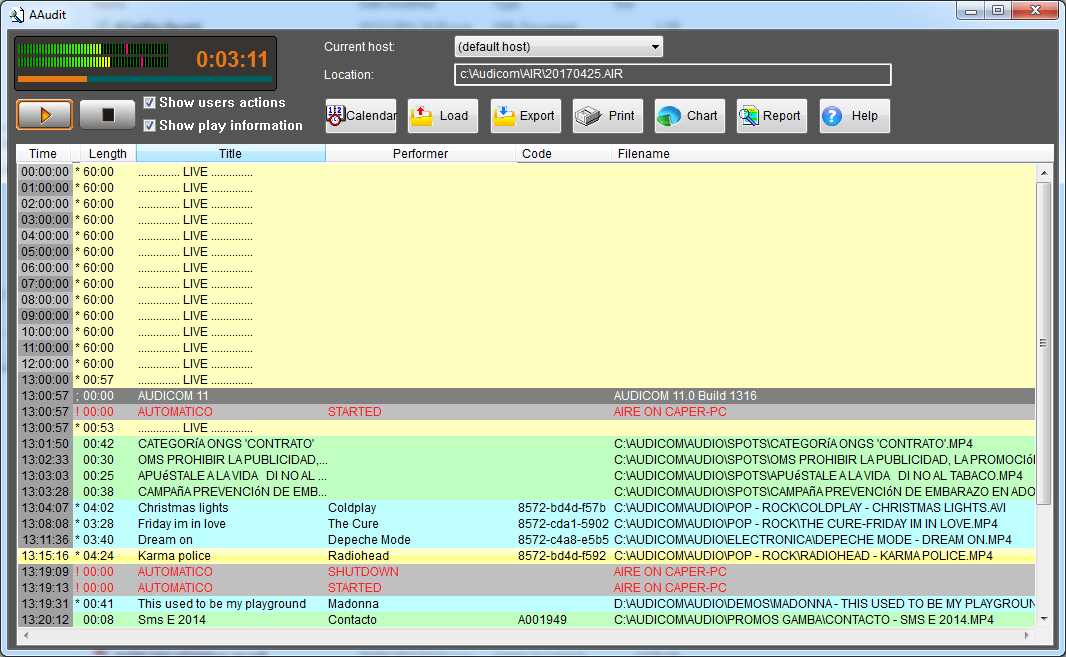
Music or spots identification
Aaudit determines the file type using two criteria:- Playback block: everything aired within a commercial break is marked as commercial spot.
- Example: if the operator inserts a music track within a break, it will be marked as spot.
- Database: the Class field in InfoMusic is validated.
Class = Spot→ appears in greenClass ≠ Spot(Promo, Music) → appears in light blueEmpty Class or unregistered file→ considered Spot if aired in a break
User logging
The On-Air module also includes user changes in the logs.In Aaudit they appear as gray lines with red text, indicating login/logout time and username.
Playing a title
You can listen to a logged file by selecting it and pressing Play.The file plays from its original location: if moved or deleted it cannot be played.
Open file
The .air button allows opening another log.- By default files from current month are shown
- The File types menu allows expanding view to previous logs
- In installations with multiple on-air terminals, you can select which terminal to open logs from
Save as TXT
Allows exporting the log in plain text, useful for viewing or printing in any text editor.Available reports
The reports menu includes different modes:- Global Report: duration of selected file, number of broadcasts and total airtime
- Spot tracking: detailed list of broadcasts of a title within a date range, with playback times to verify complete airing
- Copyright Listing: report with Title, Artist, Author, record label and album code, for submission to entities like SADAIC
Graphical reports
Aaudit can generate different visual graphs:- Pie Chart: percentages of music, spots and live programs. Double click → minutes and seconds
-
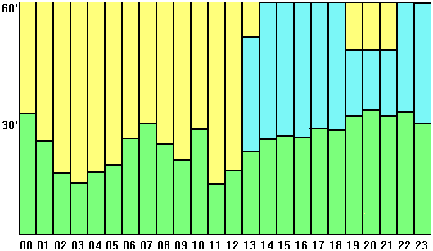
24-Hour Composition: bars showing hourly distribution of music, spots and programs. Double click on bar → exact times
-
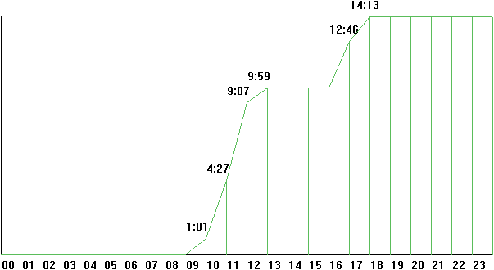
Accumulated break time: evolution of aired advertising throughout the day
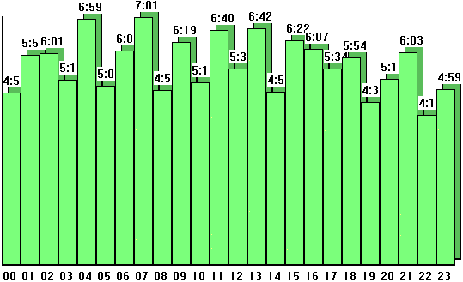
- Hourly spots detail: bars showing minutes of advertising aired each hour
- 3D Graph: three-dimensional version of pie and bar charts
-
Spots ranking: comparison of total airtime for each spot
- Preferred music styles: pie chart showing airtime by music styles registered in database