

StudioBox Operation
Studio Headphones
- StudioBox HD5: handles up to five headphones with independent level controls.
- StudioBox HD3: supports three headphones and features two level knobs (headphones 2 and 3 share volume control).
-
STUDIO MONITOR
Signal received through Studio Monitor Input.
In UNIDEX consoles, the audio source is assigned from the monitoring screen (PGM, REC, AUX, VBUS, CUE, ON-AIR).
When pressing the TalkBack button, the talkback microphone sends signal to speakers and headphones.Speakers are automatically muted when microphones are on-air.
-
AUX IN
Auxiliary line input. Up to three headphones can be assigned to this input (HD5).
In UNIDEX, an output that replicates the studio assignment can be connected, but with its own talkback switching, allowing communication to a specific group of headphones (AUX) or to all.
See StudioBox connections for details about dual talkback channel configuration.
Studio Monitors
The studio speaker output has its own level control.The monitors play the signal from the STUDIO input, according to the console assignment.
Speaker volume: Adjust the active monitor speakers for a comfortable listening level with the StudioBox LOUDSPEAKER LEVEL control positioned at center.
Reverse Intercom
The white button has two functions:- Microphones off:
- Press to talk to Control.
- The box includes a surface microphone.
- In the Control Room, the operator hears the signal on the console’s CUE channel.
- To respond, from the Control Room the operator uses the console’s TalkBack button.
- Adjustments:
-
mic gain preset (located in the StudioBox under the microphone).
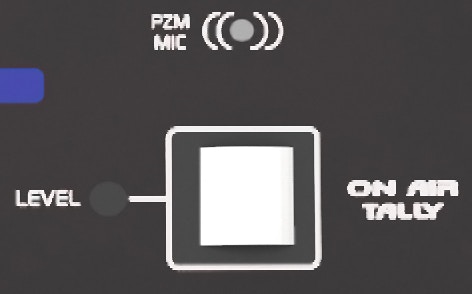
- Intercom Input Gain on the console, in MONITOR → ADVANCED screen.
-
mic gain preset (located in the StudioBox under the microphone).
- Microphones on-air:
- The button acts as Tally Light, illuminating red to indicate ON AIR.
Timer / Clock (HD5 only)
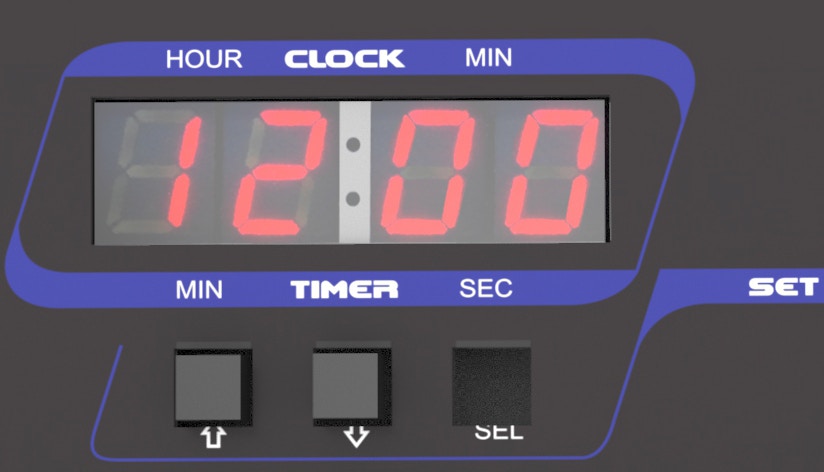
- Microphones off: displays current time.
- Manual adjustment using SET buttons (HOURS/MINUTES) and UP/DOWN arrows.
- Microphones on-air: displays elapsed on-air time.