Connection
Next diagram shows a connection to UX24.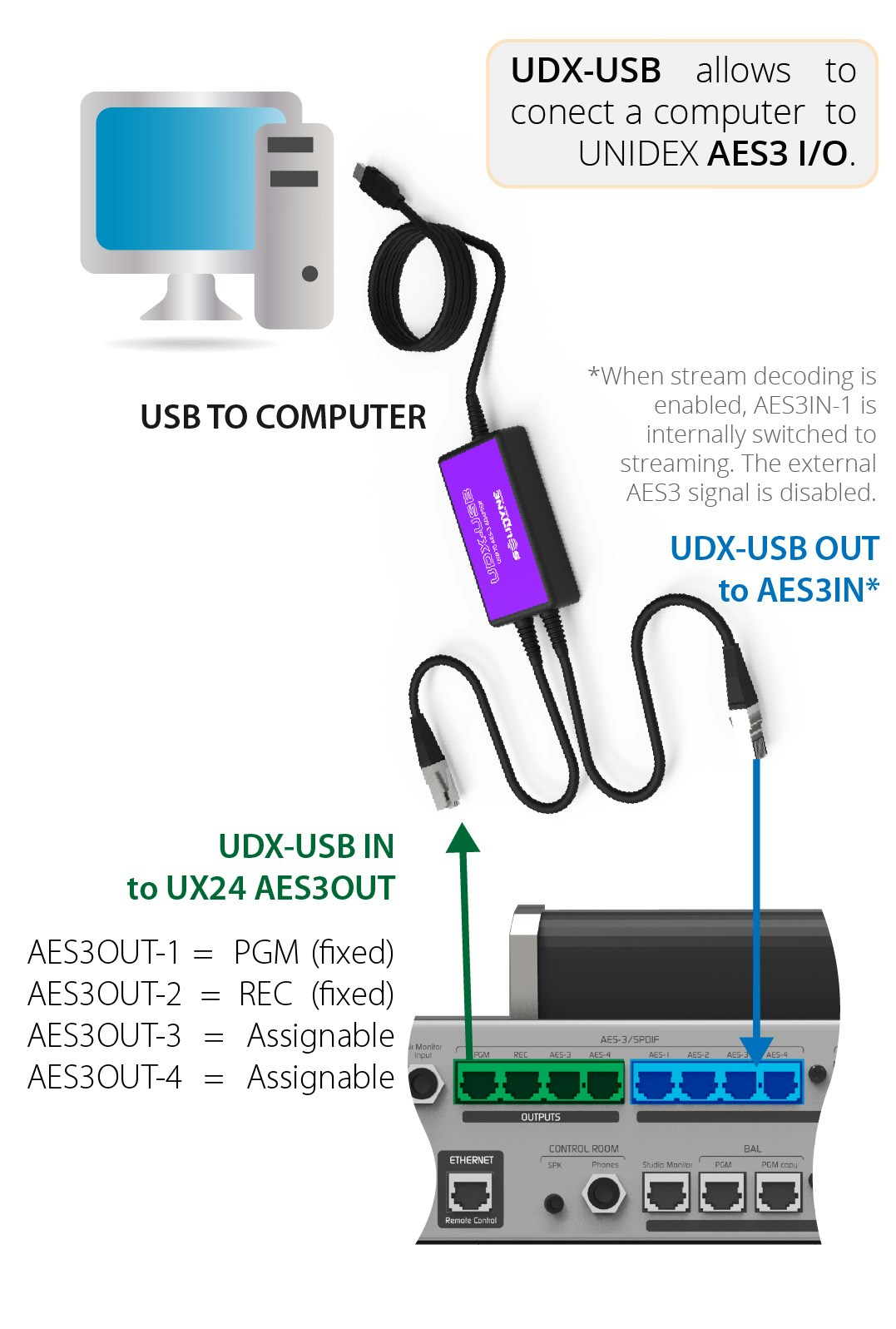
- AES3-1 input is not available if streaming playback service is enabled.
- On UX24 models, AES3 outputs 1 and 2 deliver PGM and REC signals respectively, while 3 and 4 are assignable. UX18 has two AES3 outputs, both assignable.
- Computer installation is automatic. Windows recognizes and enables UDX USB as a standard USB audio device for stereo playback and recording.
AES3 Input Configuration
The layout and appearance of controls shown below may vary. This does not affect the configuration procedure.
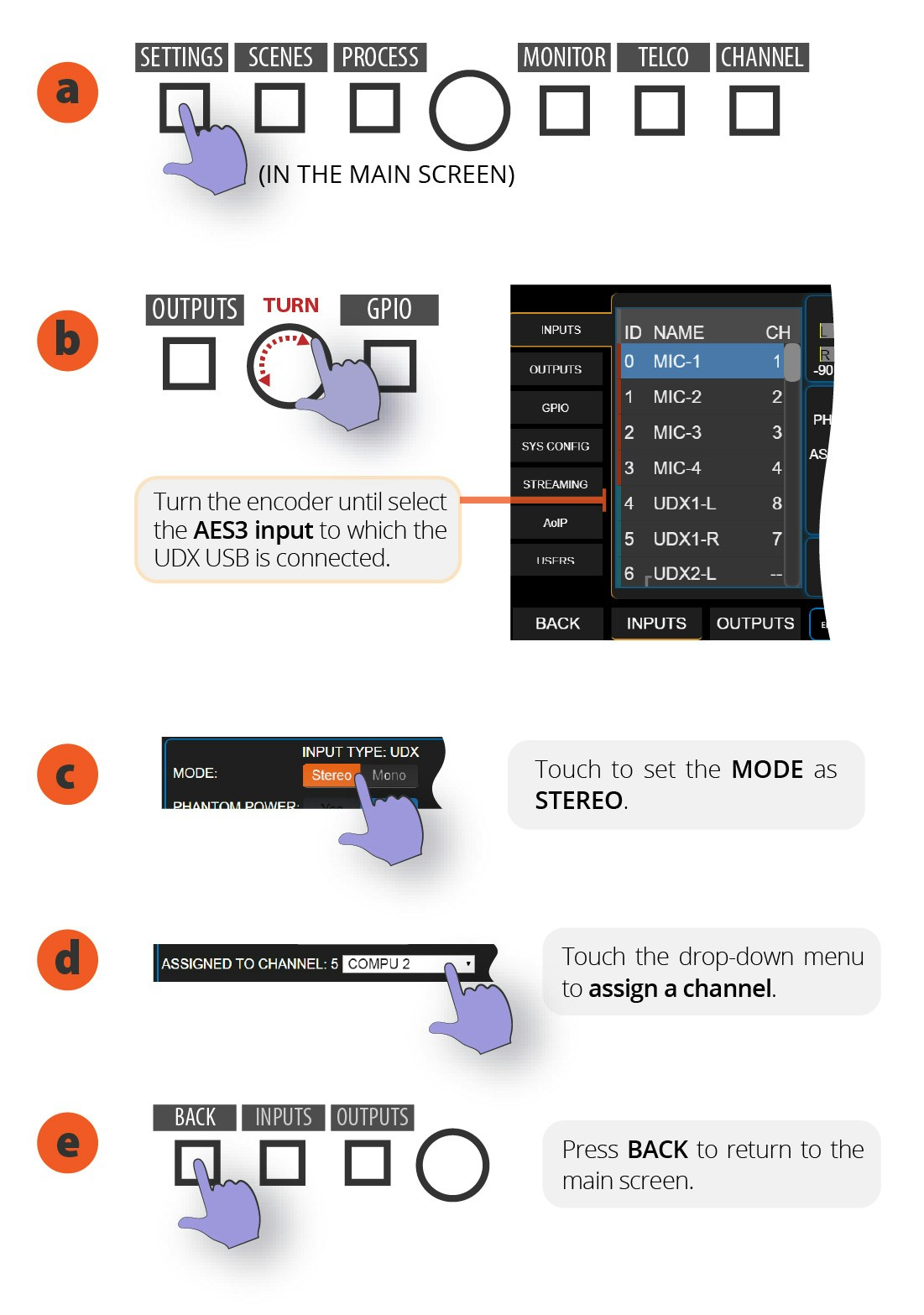
- On the main screen, go to SETTINGS.
- Turn the encoder until reaching the AES3 input where UDX USB was connected.
- Set MODE to STEREO.
- Assign a channel to the input. If you choose a channel that is assigned to another input, a warning will appear. If you continue, the previous assignment will be overwritten.
AES Output Configuration
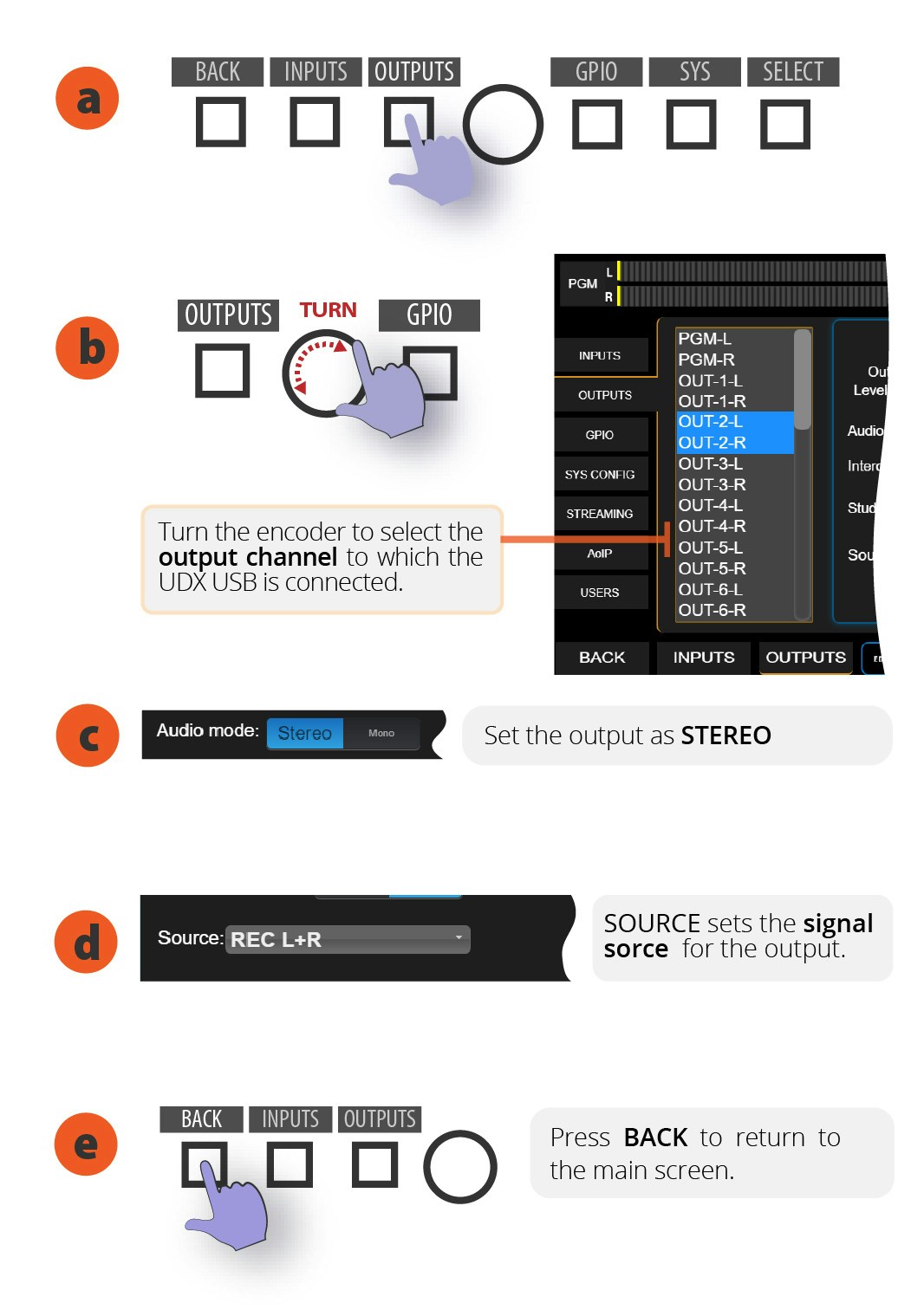
- On SETTINGS screen select OUTPUTS.
- Turn the encoder to select the output where UDX USB was connected.
- In AUDIO MODE set the output to STEREO.
- If the output is assignable, SOURCE allows choosing the signal delivered by the output.
- Press BACK to return to main screen.
AES3 outputs work at 48 KHz. In Windows, configure the recording device to 48 KHz.
Channel Configuration
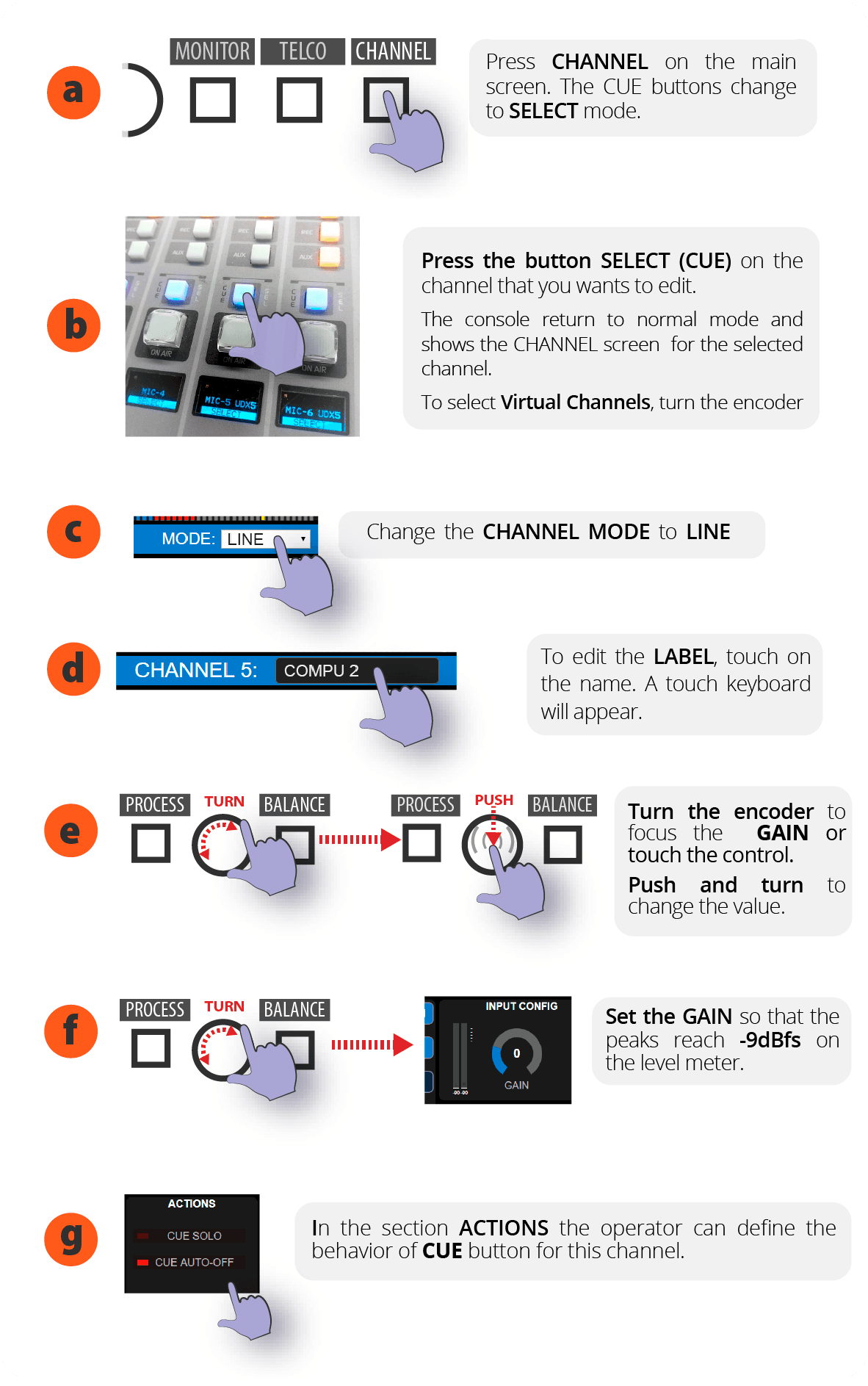
- On main screen, press CHANNEL. CUE buttons change to SELECT mode.
- Press SELECT button on the channel to configure. The console exits SELECT mode and the channel is selected. For virtual channels, turn the encoder and press to confirm.
- Touch MODE menu on screen and choose LINE.
- To edit the label, touch the name. A keyboard will appear to edit the text.
- Turn encoder or touch control to choose GAIN. Press encoder to edit the value.
- Adjust GAIN so peaks reach -9dBfs on the level meter.