

Connection Diagram
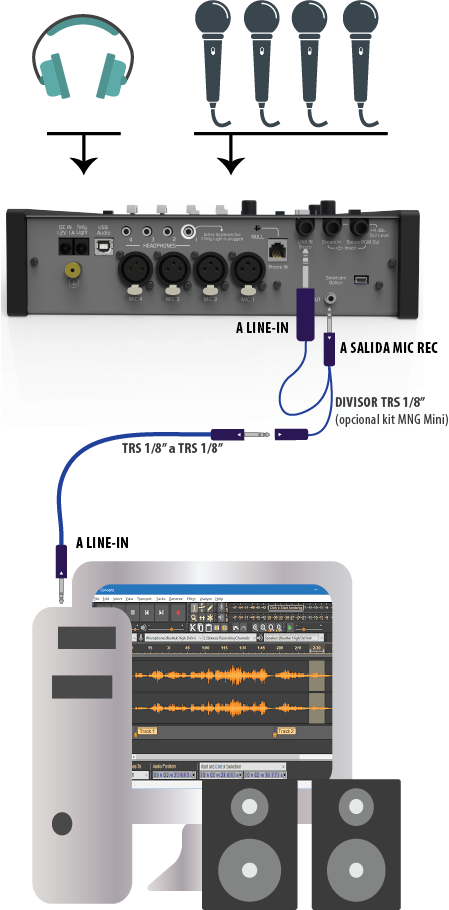
Basic Connection
- The computer must have an analog line input (common in desktop or mini-tower PCs).
- The “Y” splitter cable connects the three TRS in parallel.
- Can be purchased with the Solidyne MNG-Mini cable kit (see Cables and Accessories section).
- Any standard “Y” splitter TRS 1/8” → 2 × TRS 1/8” female can be used, with TRS-TRS cables to the LINE IN input of the console and computer.
- The recording software must be configured to work with the PC’s internal line input and output (or other audio interface connected for microphone recording).
- In the reference diagram, speakers appear connected directly to the computer output.
Alternative Connection with ASIO Interface
If you have an audio interface with ASIO support:- The ASIO interface output can connect directly to MiniMixer’s LINE IN.
- Software with ASIO support must be used (e.g.: Reaper, Vegas, Audition).
- During recording, internal input monitoring is activated on the software channel, while microphones are heard through MiniMixer’s LINE IN.
- During playback, recorded material plays directly to the console.
Recording Procedure
1
Play programming from computer
The PC plays Audicom-MX programming (or other software) entering via USB to MiniMixer (fader #4).
The console’s VU meter should show peaks at 0 VU to maintain correct streaming level.
The console’s VU meter should show peaks at 0 VU to maintain correct streaming level.
2
Configure microphone status
The MASTER MIC button must be off, as microphones should not go on air.
The on-air light remains off.
The on-air light remains off.
3
Monitor transmission or recording
- To monitor streaming transmission in headphones: press PGM button in CUE MONITOR zone.
- For recording: keep this button released to avoid hearing the transmission.
4
Send microphones to recording output
Raise the MIC-1, MIC-2 and MIC 3+4 faders.
Adjust levels watching the MIC COMP indicator, which should show two LEDs lit.
Adjust levels watching the MIC COMP indicator, which should show two LEDs lit.
5
Monitor during recording
Use headphones connected to the console.
- If there are speakers in Headphone-1, they must be muted to prevent feedback, since automatic muting doesn’t activate when the on-air light is off.
6
Listen to microphone mix in headphones
In the PHONE zone:
- Set PHONE/LINE IN to LINE IN position.
- Set CUE/PGM to CUE position.
- Set level control to maximum.
Final volume adjustment is done with the CUE MONITOR control.
7
Play the recording
Play the file from the computer and listen through speakers or headphones connected to it.
Recording Software
- Audacity (installed with Audicom-MX): open-source multitrack editor (www.audacityteam.org).
- Allows recording voice on one track and then adding music and effects on additional tracks.
- HDCorder: editor included in Audicom-MX for simple recordings and edits.