

UX24 Main Panel Zones and Controls
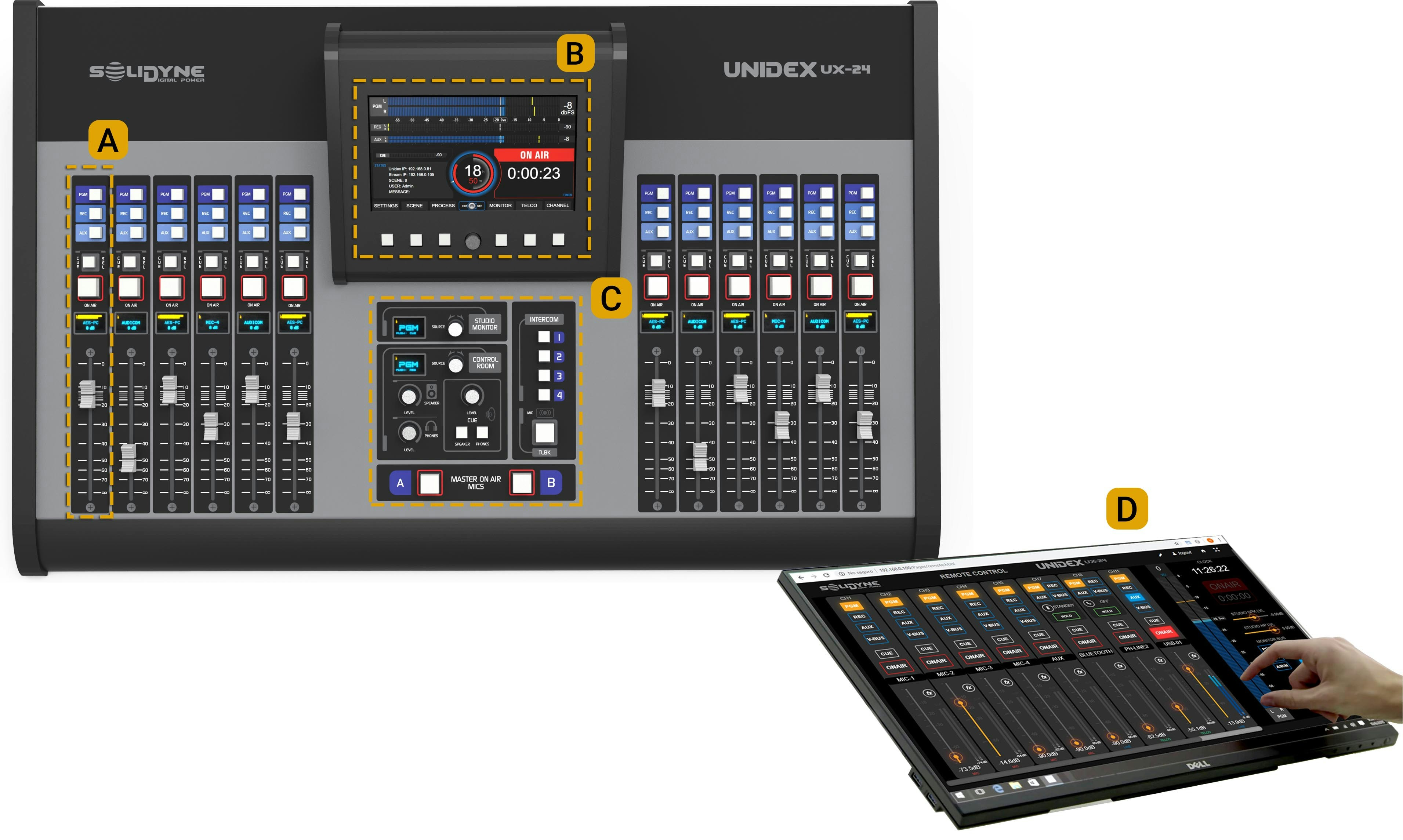
Traditional controls with faders, bus assignment buttons, ON AIR and Pre-Fader Listen (PFL).
They operate conventionally and allow direct control of line inputs, VoIP and cellular via Bluetooth (through UNIDEX TELCO adapters). B — Touch Screen
7” screen used to operate multiple console functions.
Includes 6 shortcut buttons and a rotary encoder.
Both buttons and encoder are context-sensitive controls, their function varies according to the active screen. C — Monitoring and Talkback Zone
Area dedicated to monitoring control and talkback circuit. D — Remote Control
Enables remote operation and configuration of the console.
Any computer with a web browser can access the console using its IP address.
Useful for managing virtual channels, using a tablet as a fader extension, or setting up a remote studio.
Main Screen
Level Meters
The PGM, REC, AUX and VBUS meters display:- Average level in VU (slow-moving blue bar).
- Peak level in dBfs (floating yellow segment).
The numerical value on the right shows the current maximum (in VU or dBfs) and toggles by touching the number.
The main meter remains visible on all screens and can be switched between buses by touching the bus name on the left.
CUE Level
Shows the CUE bus level, after the physical level knob.Status
- Unidex IP: IP address for remote control. Enter in a web browser (recommended: Google Chrome) to access the control interface. Requires Ethernet Remote Control port connection to LAN.
- Stream IP: Streaming module IP address. Enter in a browser to configure streaming services. Requires Ethernet Streaming port connection to LAN.
- SCENE: Currently active scene name.
- USER: Active user profile (ADMIN, EXPERT or BASIC).
- MSG: System messages.
- ”+” Advanced: Opens maintenance options (includes internal CPU shutdown before power off).
Central Clock
Displays current time.Syncs automatically when console is connected to Internet, or manually (see SETTINGS -> SYS CONFIG screen).
ON AIR Counter
Starts an ascending count (hh:mm:ss) when microphones are activated. When turned off, the value remains on screen.Context Menu
Six buttons located below the screen provide quick access to main functions.Their function varies according to the active screen. Navigation and editing are done via touch screen and encoder. Main screen shortcuts:
- SETTINGS: Advanced and system configuration (ADMIN only).
- SCENE: Scene and user profile management.
- PROCESS: Access to equalization, compression, de-esser and noise gate (available processes vary for each input).
- VIRTUAL: Pressing the encoder accesses the virtual channels control screen (12, 6 or none, depending on UX6 expansions).
- MONITOR: Audio source assignment for Studio and Control Room, with advanced monitoring functions.
- TELCO: Management of telephone lines, Bluetooth or VoIP, with level and gain controls.
- CHANNEL: Selected channel information and control, including gain, panning, processors and source reassignment.
Power saving mode
Screens turn off after 15 minutes of inactivity.
They reactivate by moving a fader or pressing an Intercom button.