

The SETUP Screen
The SETUP screen is one of the four main screens.It is accessed by rotating the encoder and allows configuring all network and streaming options.
- The initial view shows the status of Wi-Fi, Ethernet and Modem.
- For each connection it indicates if there is an assigned IP or if it is inactive.
- For Wi-Fi, it also shows the network name of the connected network.
SETUP → Wi-Fi
- Lists available 2.4G and 5.8G wireless networks, sorted by signal strength.
- Signal level is expressed in dB millivolts (values closer to 0 = stronger signal).
- The Wi-Fi interface MAC appears in the upper right corner.
Some providers require reporting the interface MAC to authorize the connection.
SETUP → Ethernet
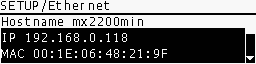
- Configures wired network parameters.
- Factory default is DHCP enabled, so it receives an IP automatically.
- For static IP, DHCP must be disabled and manually assign:
- IP Address
- Subnet Mask
- Gateway
- DNS Servers
- Shows the MAC address for reference (not editable).
SETUP → Modem
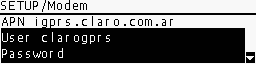
- Compatible with 4G dongles (plug & play).
- Modern dongles act as Ethernet adapters and require no configuration.
- Older 3G dongles need APN, username and password parameters (provided by ISP).
- If connection is active, it shows an IP different from 0.0.0.0.
SETUP → RTP Stream
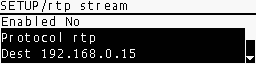
- RTP transmission configuration:
- Destination IP address
- Port
- Codec (MP3, Opus, PCM)
SETUP → HTTP Stream
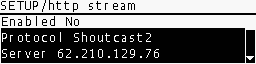
- Configuration for streaming to Icecast/Shoutcast web servers.
- Credentials and parameters from the contracted server are entered.
SETUP → SIP Account
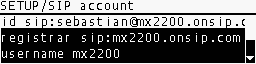
- Entry of SIP account data (provided by the service).
- At least two accounts are required:
- A SIP address for the console. Ex:
mx2200@sip.linphone.org. - A SIP address for the studio, to be configured in the VoIP software used to receive (or make) calls. Ex:
studio@sip.linphone.org.
- A SIP address for the console. Ex:
SIP services can be free (e.g.: Linphone) or paid, depending on implementation complexity.
SIP Audio Quality
SIP account QUALITY allows setting the preferred audio quality for SIP calls.Available options:
- Mono VoIP 16 kbps
- Mono Wideband 32 kbps
- Mono FM 64 kbps
- Mono HiStudio 128 kbps
- Stereo Mid 128 kbps
- Stereo HiStudio 256 kbps
MX2200 prioritizes the Opus codec at the selected quality.
If the receiver doesn’t support it, another available codec will be automatically negotiated.
If the receiver doesn’t support it, another available codec will be automatically negotiated.
SETUP → SIP Contacts
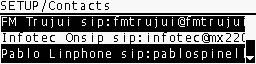
- Shows the SIP contacts directory.
- Basic navigation from console; full editing only from web interface.
Add a contact (web interface)
Add a contact (web interface)
- Access the web interface.
-
Select the CONTACTS tab.
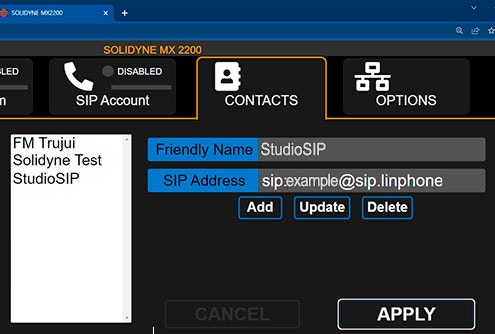
- Enter SIP Address and Friendly Name.
- Press ADD and then APPLY to send changes to hardware.
Edit contact
- Select the contact from the list.
- Modify the fields.
- Press UPDATE and then APPLY.
Delete contact
- Select the contact.
- Press DELETE and then APPLY.
SETUP → Power Info
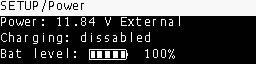
- Shows power and battery status.
- Indicates if the unit is using internal battery or external power.
- Example:
Battery 7.0 V→ console running on battery. - The
Bat levelfield shows remaining level (%). - A 100% charge typically provides over 3 hours of transmission.
- The unit automatically shuts down at 6.2 V.
- A 12V power bank can be used as external power source.
SETUP → Time Zone
- Adjusts the time zone to correctly timestamp recordings.
- Usually configured once.
- Synchronization is done through public NTP servers.
SETUP → RX Volume
- Adjusts the return level sent from the station when connection is via SIP.
- This return is added to:
- CUE monitoring circuit (headphones).
- Send to POTS lines.
- Send to Bluetooth line.