

Operating Areas
Audio sources (microphones, computer and telephone lines) enter the console through input channels, which amplify them.The console mixes all signals to generate a single main signal called Program (PGM). The level of each source is controlled using the main faders. The final mix is sent to the studios through one or more transmission channels. Different areas can be distinguished in the console:
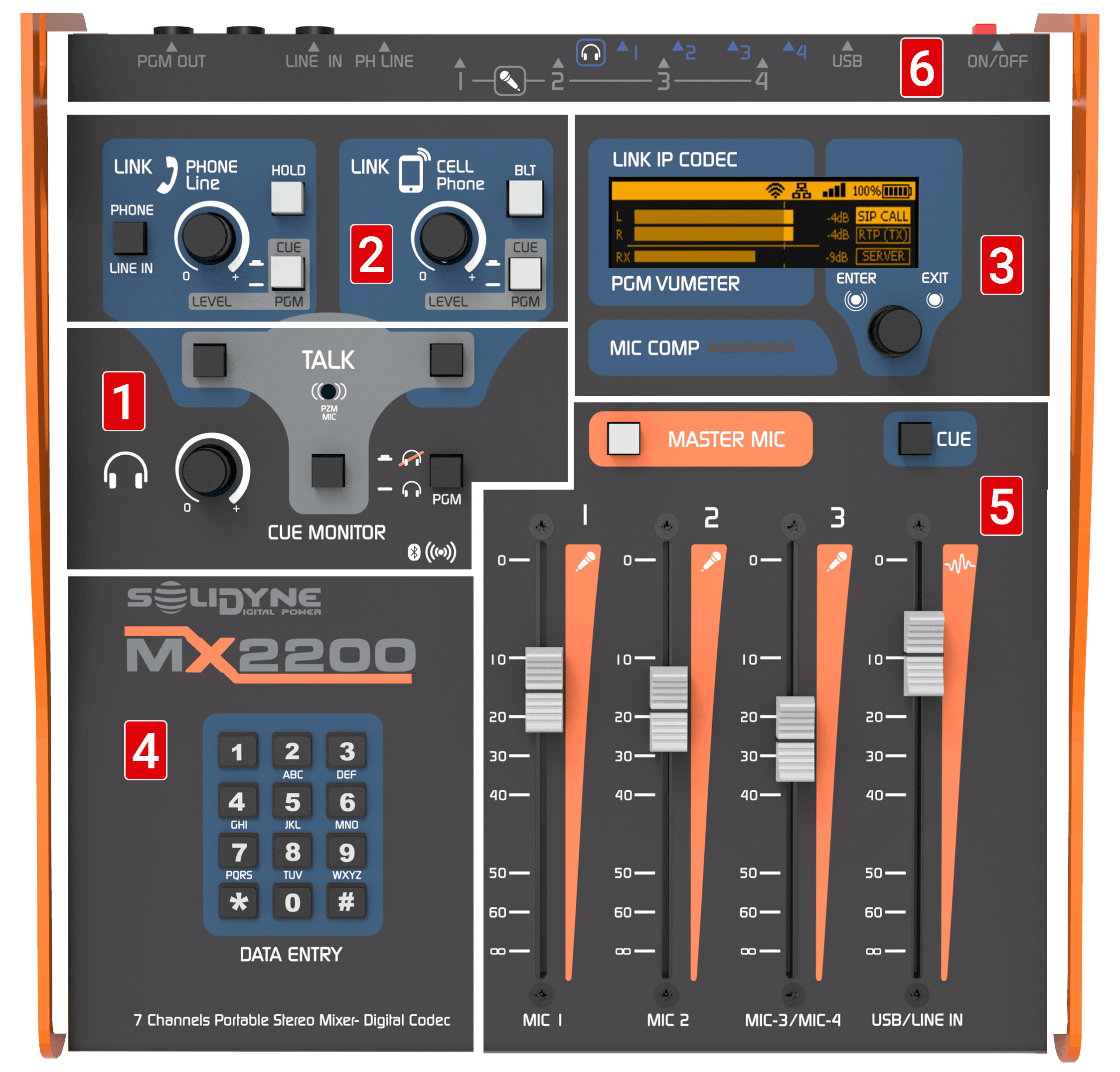
- INTERCOM: controls for talking to telephone lines and headphones.
- TELECOMMUNICATIONS: controls for managing landline and Bluetooth-linked mobile phone.
- DISPLAY AND ROTARY CONTROL: allow management of Internet connection options (streaming and SIP) and recording.
- DTMF KEYPAD: used to enter text in fields and dial (DTMF) on landline calls.
- FADERS: allow mixing microphone and line signals (USB or analog) to generate PGM. Level should be maintained around 0 VU (-10 dBFS).
- CONNECTION LAYOUT: indications to easily locate main connectors on the rear panel.
Power Supply
The unit has an internal battery that allows operation up to 4 hours (see specifications).The level is shown on display and it’s recommended to connect the charger when it falls to 10%.
Full charging time, if battery is depleted, is 10 hours.
- Included charger delivers 12 VDC / 2 A and works on 110/240V 50/60 Hz networks.
- Console can be used connected to charger even with battery at 100%.
- If external power is disconnected while unit is on, system automatically switches to battery mode.
Power On / Off
The power on/off button is on the rear panel.- When powered on, a startup screen appears for 15 seconds followed by the main screen.
- To power off, press again: system shuts down after 5 seconds.
- Wait a few seconds before powering on again.
Display and Rotary Control
Navigation is done using the rotary encoder:- Turn: navigate between screens or options within a screen.
- Short press:
- on screen: enter its items
- on item: edit it
- on value: confirm change
- Long press (1 s): cancel option or change
- Successive key presses cycle through associated characters.
- Turn encoder to move edit position.
- Confirm: short press. Cancel: long press.
Main Screens (Quick View)
-
HOME SCREEN
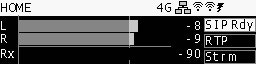
- PGM level indicators (L/R) in dBFS. The mark at 0 VU (-10 dBFS) shows brighter. Avoid signal permanently exceeding this level.
- Reception level indicator (Rx) for SIP calls.
- Network status (4G/Ethernet/Wi-Fi).
- SIP, RTP and streaming connection status (active, off or error).
- Battery level (plug in at 10%).
- Quick access to SIP Contacts by pressing encoder.
-
CONNECTION CENTER
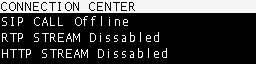
- Shows the three connection modes and their current status.
- Allows establishing or interrupting each connection.
-
SETUP

- Shows active IP addresses.
- Access to all configuration options from here:
- Wi-Fi
- Ethernet
- 4G Modem
- RTP Stream
- HTTP Stream (webcasting)
- SIP Account
- SIP Directory
- Battery Info
- Time Zone (for recordings)
- Firmware Version
-
RECORDING

- Shows and edits internal memory recording parameters.
Channels
Microphones
- The MX2200 handles 3 microphone channels and supports a fourth shared with MIC 3 fader.
- Gains are automatic, adjusting according to fader position. This optimizes signal-to-noise ratio and prevents preamp saturation.
- The MASTER MIC button enables microphones, sends them to PGM, activates On Air Light and mutes headphones #1 (when an On Air Light is connected).
- Microphones are not sent to CUE; they are only heard in headphones when in program.
Microphone Compressor
- Dynamic compressor acts when exceeding -10 dBFS (0 VU) threshold.
- High ratio, attenuating up to 20 dB.
- MIC COMP 3-state indicator:
- Green: reaches threshold (-10 dBFS)
- Red: maximum attenuation, near clipping (-5 dBFS)
- Clipping: indicated with 3 s hold
About stereo mixes
Although MX2200 transmits in stereo, microphone channels generate a mono mix.
For stereo captures (e.g. ambient sound), an auxiliary console connected to line input is required, usually with condenser microphones and phantom power.
Although MX2200 transmits in stereo, microphone channels generate a mono mix.
For stereo captures (e.g. ambient sound), an auxiliary console connected to line input is required, usually with condenser microphones and phantom power.
USB and Analog Line
- USB/LINE IN fader controls USB audio if computer is connected.
- If no USB, it takes signal from stereo analog LINE IN.
- With USB connected, LINE IN can be used through telephone line control (PHONE) when hybrid is not in use.
- To send to program: raise fader. Optimal level when peaks reach 0 VU.
- To listen in CUE: press CUE button above fader.
USB Audio
When connecting USB port to a computer, operating system installs a USB recording device that receives PGM mix.
When connecting USB port to a computer, operating system installs a USB recording device that receives PGM mix.
Monitoring
- CUE MONITOR control adjusts level in all four headphone outputs.
- Any signal in CUE is sent to all outputs.
- PGM button allows muting program signal in headphones and listening only to CUE.

Monitor Speaker Output
- With an on-air light connected, headphone output #1 functions as speaker output.
- This is muted when microphones are activated to prevent feedback.
- Audio remains in headphones #2, #3 and #4.
Talk to CUE
Pressing TALK button in CUE MONITOR area:- Interrupts signal in headphones.
- Sends voice from built-in microphone.
- Allows operator to communicate with headphone users without shouting or gesturing, and without removing headphones.