

SETTINGS Screen
Access by pressing SETTINGS on the main screen. Contains all console configuration options.1 CONFIGURATION MENU
- Configuration options are shown in tabs on the left side: INPUTS, OUTPUTS, GPIO, SYS CONFIG, STREAMING, AoIP (Dante), USERS.
- When accessing SETTINGS, the first menu item (INPUTS) loads by default.
- Some options can also be accessed from the context menu at the bottom.
- Touching an option displays its corresponding controls and values on screen.
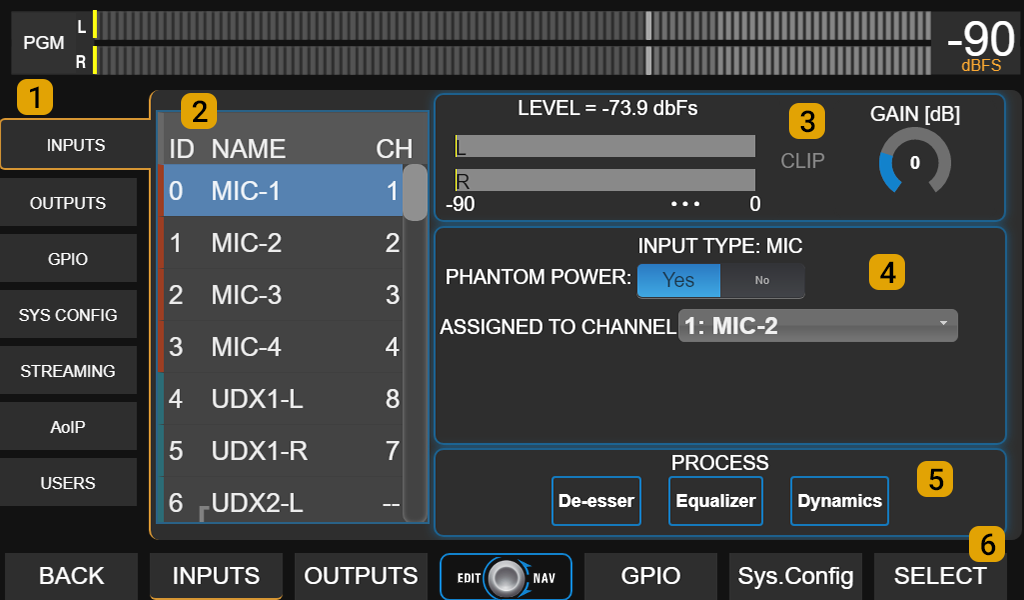
INPUTS SETTINGS
2 Input List
Shows all available inputs.Select an input by turning the encoder.
The options and configuration for the selected input are shown on the right.
- The ID number on the left of each input is fixed and corresponds to the internal order.
- The number on the right indicates the assigned channel for that input.
- Stereo inputs are shown grouped in L/R pairs.
- When set to
STEREO, they are grouped as a pair. - When set to
MONO, left and right channels are unlinked and can be selected separately.
- When set to
3 Input Gain
Controls the gain of the selected input.Turn the encoder to modify the value.
Press the encoder to toggle between list navigation and gain adjustment. The level indicator shows the peak signal value at the input (dBfs). Quick gain adjustment:
-
Play music with low dynamics (e.g. current pop) for line inputs,
or speak continuously at normal level and correct distance for microphone inputs. - Position the channel fader in the normal working zone (marked between -10 dB and -20 dB).
- Adjust gain until the PROGRAM VU meter reads around 0 VU. Observe the slow reading (VU), not the dBfs peak, as the peak will always “float” above the VU value.
This gain control is also shown on the CHANNEL screen. Gain adjustment can be done from either screen.
4 Input Options
Available options depend on the type of selected input:- INPUT TYPE: Indicates input type (MIC, LINE, UDX, USB, AES).
- MODE: Stereo or mono. In mono, L/R channels are configured as independent inputs.
- ASSIGNED TO CHANNEL: Channel where the selected input signal is routed.
Channel is chosen from the dropdown menu. This option is also shown on the CHANNEL screen. - PHANTOM: Available only for MIC inputs. Enables/disables 48V power.
- UDX TYPE: Available only on UNIDEX inputs. Defines the connected adapter model.
If used as balanced line, value should beLINE(default).
5 Process
Direct access to available processes for the input.During normal operation, these are accessible from PROCESS and CHANNEL screens.
6 Select
Activates SELECT mode, allowing channel selection via CUE/SELECT buttons and displaying the assigned input.The encoder always navigates the input list, even with SELECT active.
OUTPUTS SETTINGS
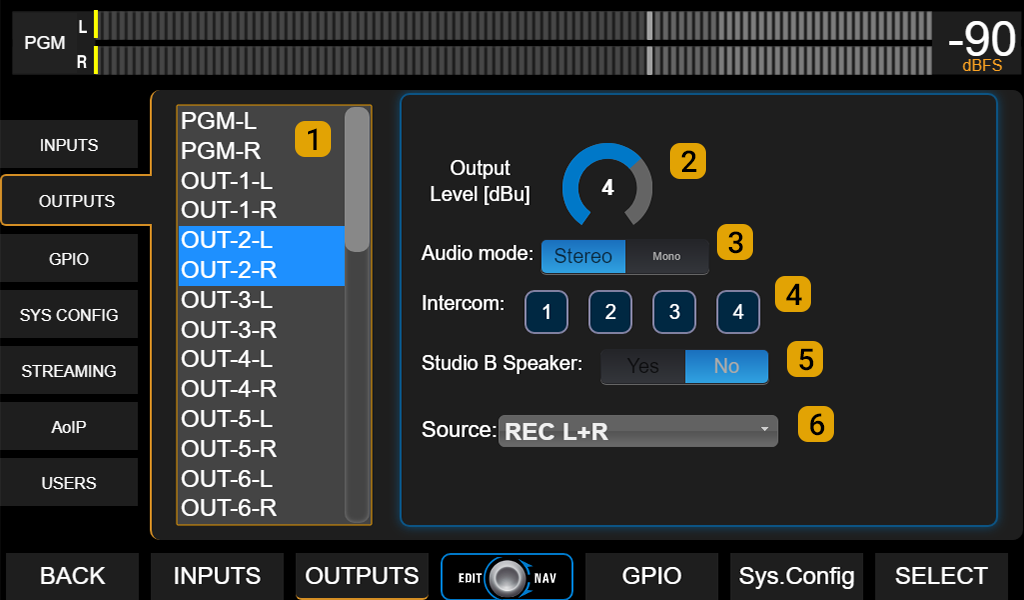
1 Output List
Shows all available outputs.Selection is made by turning the encoder or touching directly on screen.
Configuration options for the selected output are shown on the right.
2 Output Gain
Adjusts output level. Depending on output type, adjustment may be in dBu or dBfs.- Analog outputs: level is expressed in dBu referenced to 0 VU (default: +4 dBu).
- Digital outputs: gain is expressed in dB.
When gain is zero (default), level matches meter scale
(0 VU = –20 dBfs, 1 kHz @ 0 VU).
PGM, REC and AUX meters on main screen show bus level before output gains. If digital gain is modified, actual output level may differ from indicated level,
with clipping risk not visible on meters.
with clipping risk not visible on meters.
3 Audio Mode
Configures output asstereo or mono. In mono mode, left and right channels of the pair are used as independent outputs (for example, to feed UDX 2TEL adapters sending mono signals to lines).
6 Source
Only available on assignable outputs. Defines signal sent to that output.For outputs with MIX-MINUS option, defines source signal for output in DIRECT mode. Available sources for UX-24 outputs:
PGM, REC, AUX, VBUS, CUE, STUDIO HEADPHONES, TALKBACK, MIC-1, MIC-2, MIC-3, MIC-4, UDX-1 to UDX-8
Available sources for UX-18 outputs:
Mix-Minus Sends
A MIX-MINUS output sends a mix from which an associated input signal is SUBTRACTED. It’s used, for example, for telephone line return, preventing call audio fromre-entering the system and causing feedback. The line receives a PGM MIX-MINUS, which is the PGM signal MINUS the telephone line audio. Stereo outputs (5 to 8 in UX24; 1 to 4 in UX18) and all USB can be configured as Direct or Mix-Minus.
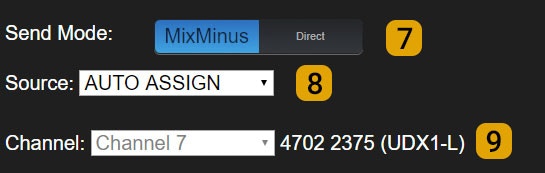
7 Send Mode
- Direct: Normal output operation mode. MIX-MINUS is disabled. Signal defined in SOURCE is sent directly to output.
- Mix-Minus: Associated input signal is subtracted from output signal.
8 Mix-Minus Source
Defines bus for subtraction:PGM, REC, AUX, VBUS or AUTO ASSIGN.In AUTO ASSIGN, bus is automatically chosen by priority: Priority 1 - PGM
Priority 2 - REC
Priority 3 - AUX
Priority 4 - VBUS For example:
- If a channel is assigned to PGM and REC, Mix-Minus is done on PGM.
- If assigned only to REC and AUX, it’s done on REC.
9 Mix-Minus Channel
Shows input associated with selected output and channel assigned to that input.These fields cannot be edited.
Each Mix-Minus mode output has its predetermined associated input. Default MIX-MINUS assignments for UX24:
Special Options for Talk-Back and Intercom
Intercom (UX24 only)
Enables intercom send to that output. When assigned Intercom button is pressed on console, talkback mic audio interrupts current output signal. Used, for example, to set up differentiated talkback sends to headphone monitoring.Studio B Speakers (UX24 only)
Allows using output to feed monitor speakers in Studio B.When microphones assigned to this studio are activated, output is automatically muted.
Talk-Back Ch and Studio Talk-Back Link (UX18 only)
These options allow configuring UX18 to work with differentiated talkback channels and headphone groups. For connection details see Configuring StudioBox with dual Talk-Back channel. Talk-Back Channel: Links output to hardware channel talk-back mode.- Talk-back is activated from a channel by holding the CUE/SELECT button.
- When activated on a channel associated with an output, talkback mic signal (internal or external) is sent only to that output, interrupting current audio.
- Dropdown menu allows selecting:
- Channels 1 to 6
- A GROUP channel (A, B, C or D)
- Disable function (unassigned)
- When Talk-Back is pressed, talkback mic is sent to STUDIO output and all outputs with Studio Talk-Back Link enabled.