

System Settings
The SYS CONFIG option in the SETTINGS screen allows configuring different system functions.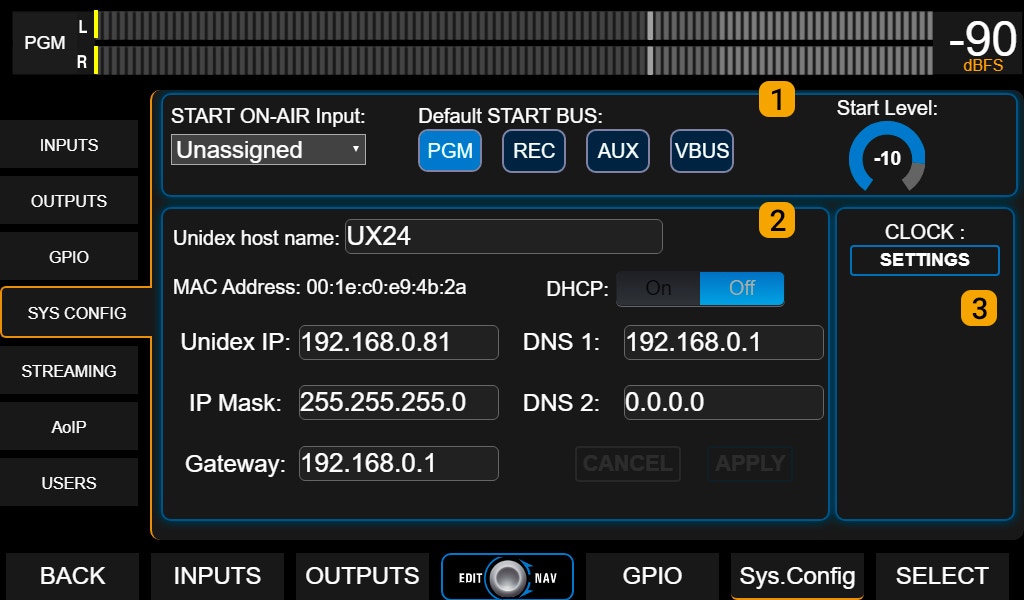
1 Start On-Air Input
Defines which input will automatically go on-air if the console restarts due to a power failure.For stereo inputs, any channel of the pair can be selected. The chosen input must be assigned to a physical or virtual channel. The console always starts with the last used scene; therefore, if the station works in automated mode, make sure the selected scene has at least one channel assigned with the input defined for “automatic startup”. The audio source connected to that input must also resume autonomously. Default Bus
Indicates which buses will be activated on the channel assigned to the input defined in
Start on-air input.
LevelPreset level, independent of the physical fader position. If the fader is moved, the level will change to the value corresponding to its current position.
2 Network Settings (Remote Access)
Configures network connection for remote control via Ethernet Control.By default, the console works in DHCP mode. The IP address assigned by the router is shown on the main screen (field UNIDEX IP in the STATUS section). Using this IP, the console can be accessed from any computer on the same LAN using a web browser.
UNIDEX includes an internal HTML5 server that provides the graphical interface to operate and configure all its functions.
1 Clock Settings
Opens a window to adjust the time. The adjustment can be done in three ways:- Automatic synchronization via STREAMING port
Connect the STREAMING Ethernet port to a LAN with Internet access. Synchronization is performed automatically against an international time standard (UTC), without user intervention. - Automatic synchronization via CONTROL port
Connect the CONTROL Ethernet port to a LAN with Internet access. This synchronizes the console’s internal clock (UX-Core). Then manually synchronize the control computer (touch screen) by pressing the SYNC FROM UX-CORE option. - Manual adjustment
Enter the time manually in cases where there is no Internet access.
Define the corresponding time zone in the
Time Zone field.
Users and Access Levels
These are accessed from the SETTINGS screen, under the USERS option.UNIDEX has three user levels:
- ADMIN
- EXPERT
- BASIC
Only the ADMIN user can modify passwords.
Default passwords are the usernames in lowercase:
admin and expert.
How to Start with Restricted Access
TheDEFAULT USER option defines which user is loaded when powering up the console.The default user is ADMIN and at startup, the system never requests a password. To restrict access to advanced functions, it is recommended to change the default user (ADMIN) to BASIC or EXPERT, depending on the desired restriction level.
- If the console starts with BASIC level, the operator must enter the EXPERT or ADMIN password to access restricted functions.
- If it starts with EXPERT level, only functions requiring ADMIN level are locked.