

The web control screens offer the same options as the built-in touchscreen, although the layout and design of some controls may vary.
This section describes only the screens that present major differences.
This section describes only the screens that present major differences.
Connecting UNIDEX to the network
LAN ConnectionAccessing the WEB control interface
From a computer connected to the same LAN as UNIDEX (preferably via cable), open a web browser —Google Chrome is recommended— and enter the Unidex IP address to access the operation and configuration control interface. Upon access, the main screen will be displayed, very similar to the one that appears on the console itself.User Profile
Allows switching the user for the web interface, independently of the user set in the hardware. A dialog box will appear to enter the username, followed by another one to enter the password.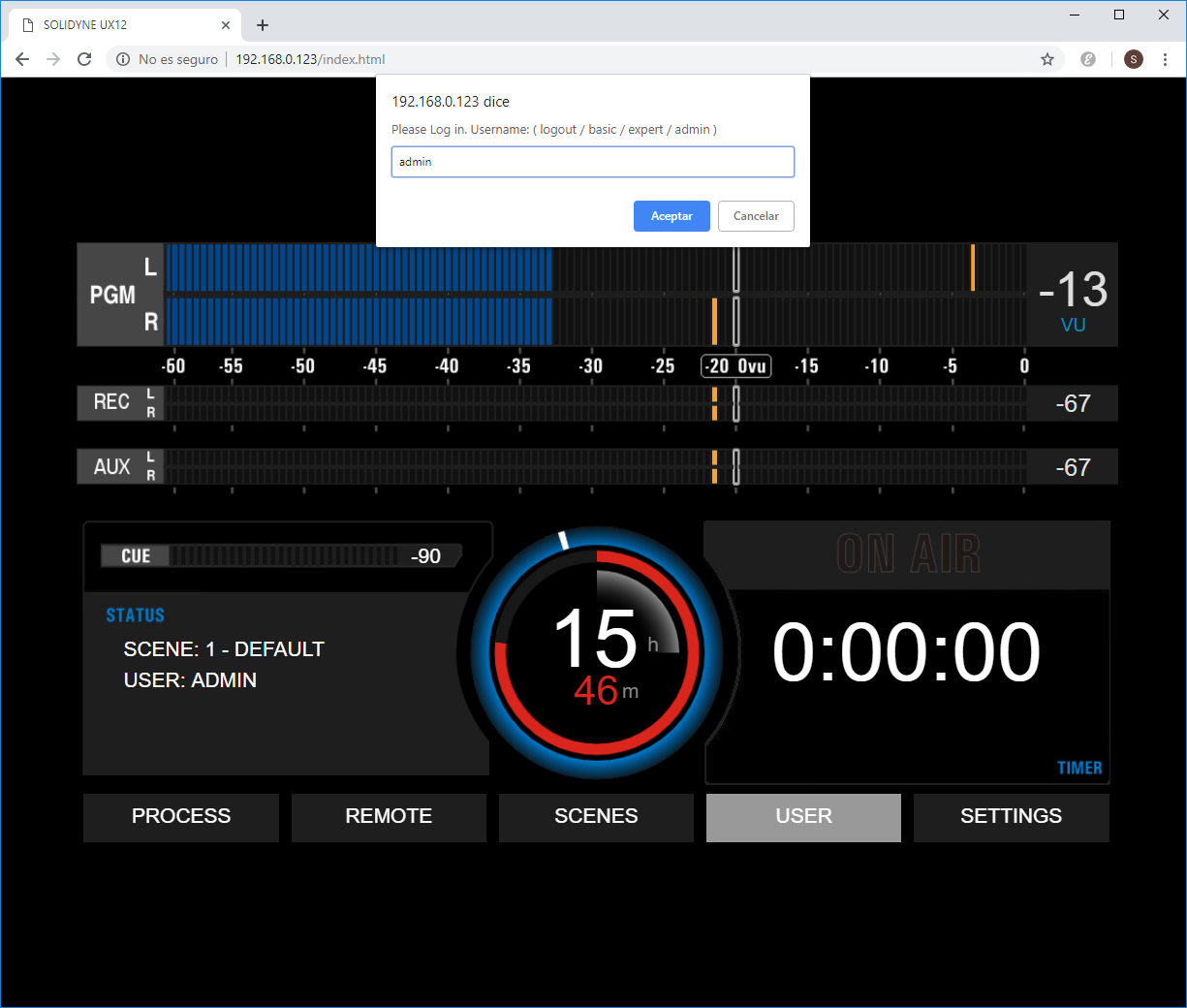
There are three user profiles:
- ADMIN with full access.
- EXPERT with access to some advanced functions
- BASIC with restricted access.
Remote Operation Interface
Selecting the REMOTE CONTROL option in the menu accesses the remote operation interface. The available functions are the same as those offered by the hardware and onboard display, so the explanations in this manual are valid for each of them. However, there are some operational differences described below. The main screen of the remote interface is similar to the hardware’s HOME screen.It includes level meters, counters, ON AIR signaling, and a quick access menu in the lower area.
- PROCESS: Direct access to the processors screen. This screen can also be reached from the mixing console.
- REMOTE: Opens the mixing console, a graphical interface that emulates the physical console’s surface controls.
- SCENES: Allows changing scenes. The change is made directly on the console, just as if done from the onboard screen. The web interface doesn’t have its own scenes, although scenes can be imported from disk.
- SETTINGS: Access to configuration options. The options are presented in a vertical menu, similar to the onboard SETTINGS screen layout.
Mixing Console
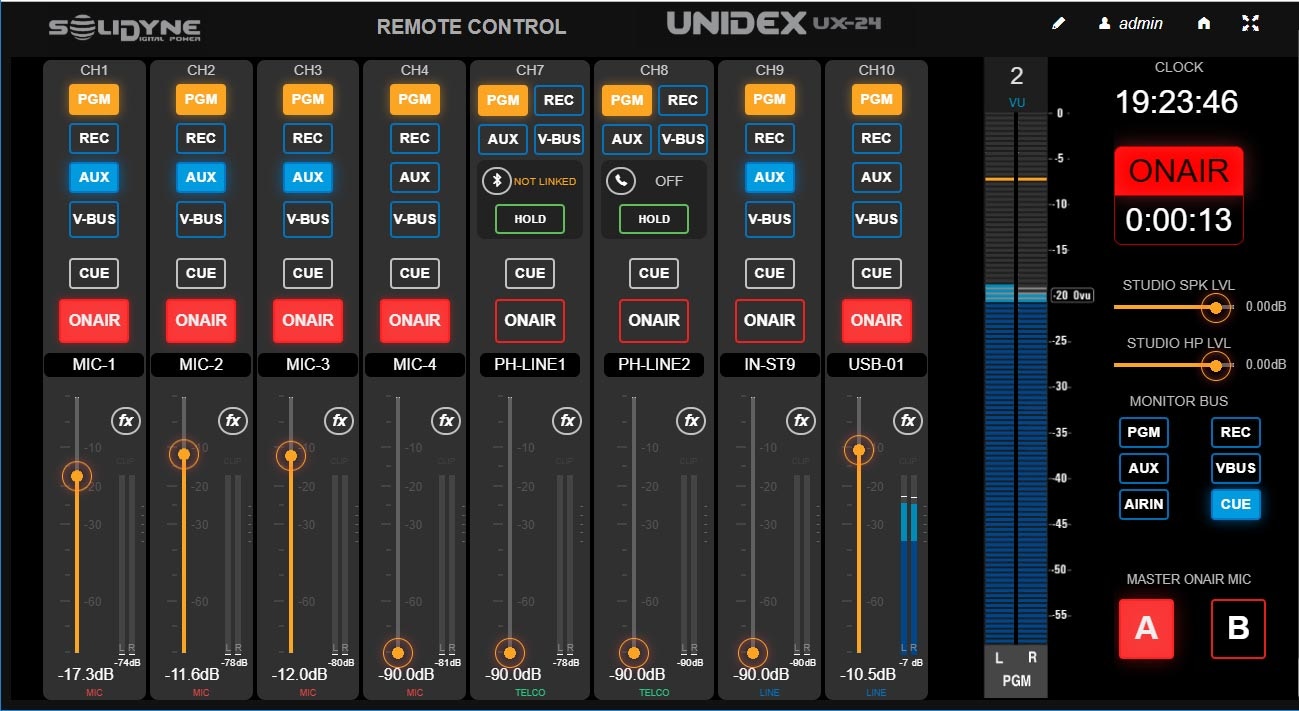
The WEB interface can control all console channels. Its design is optimized for touchscreen operation. A “traditional” application is to configure it as an auxiliary controller to the onboard display, running on a large touchscreen monitor.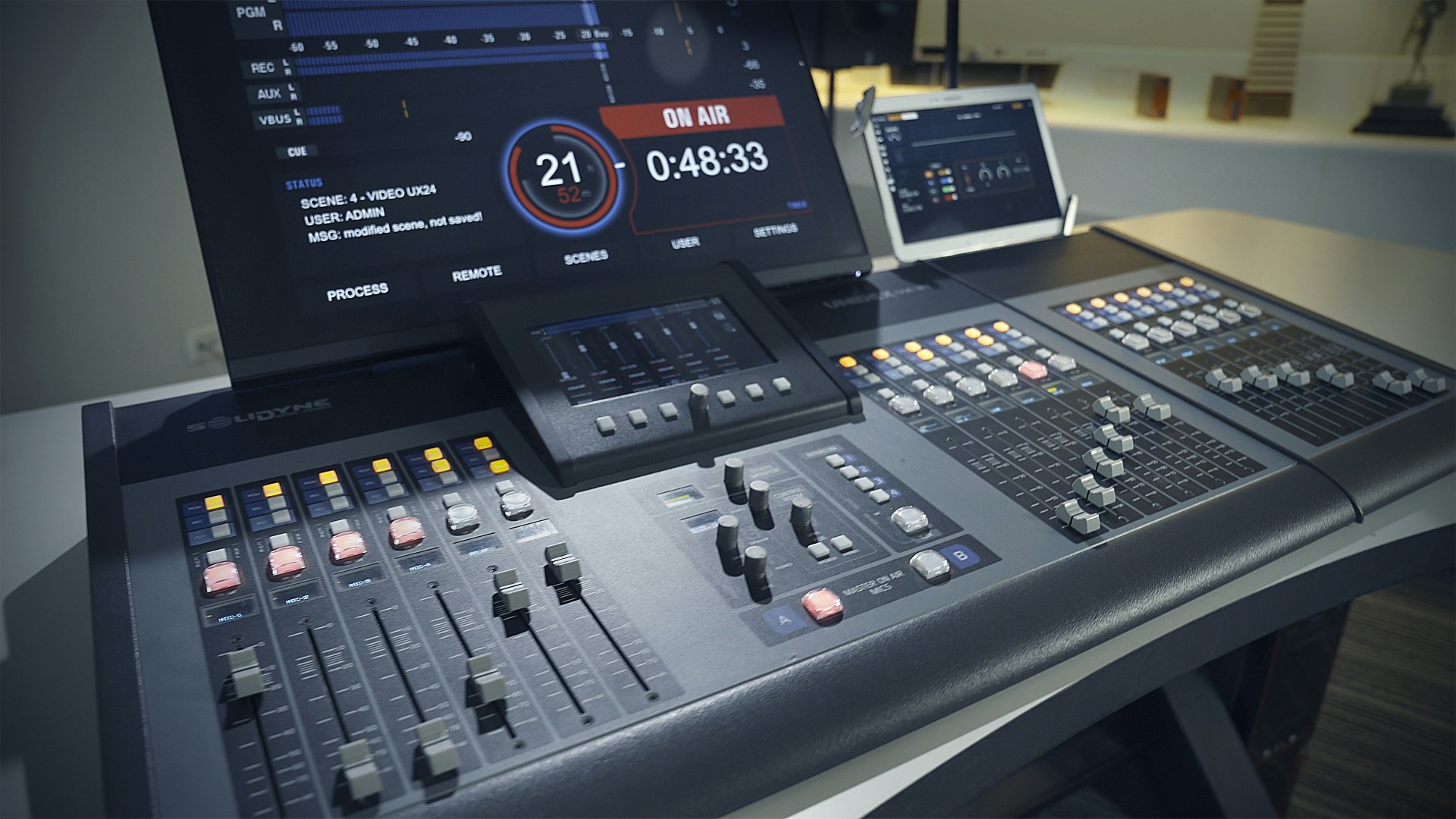
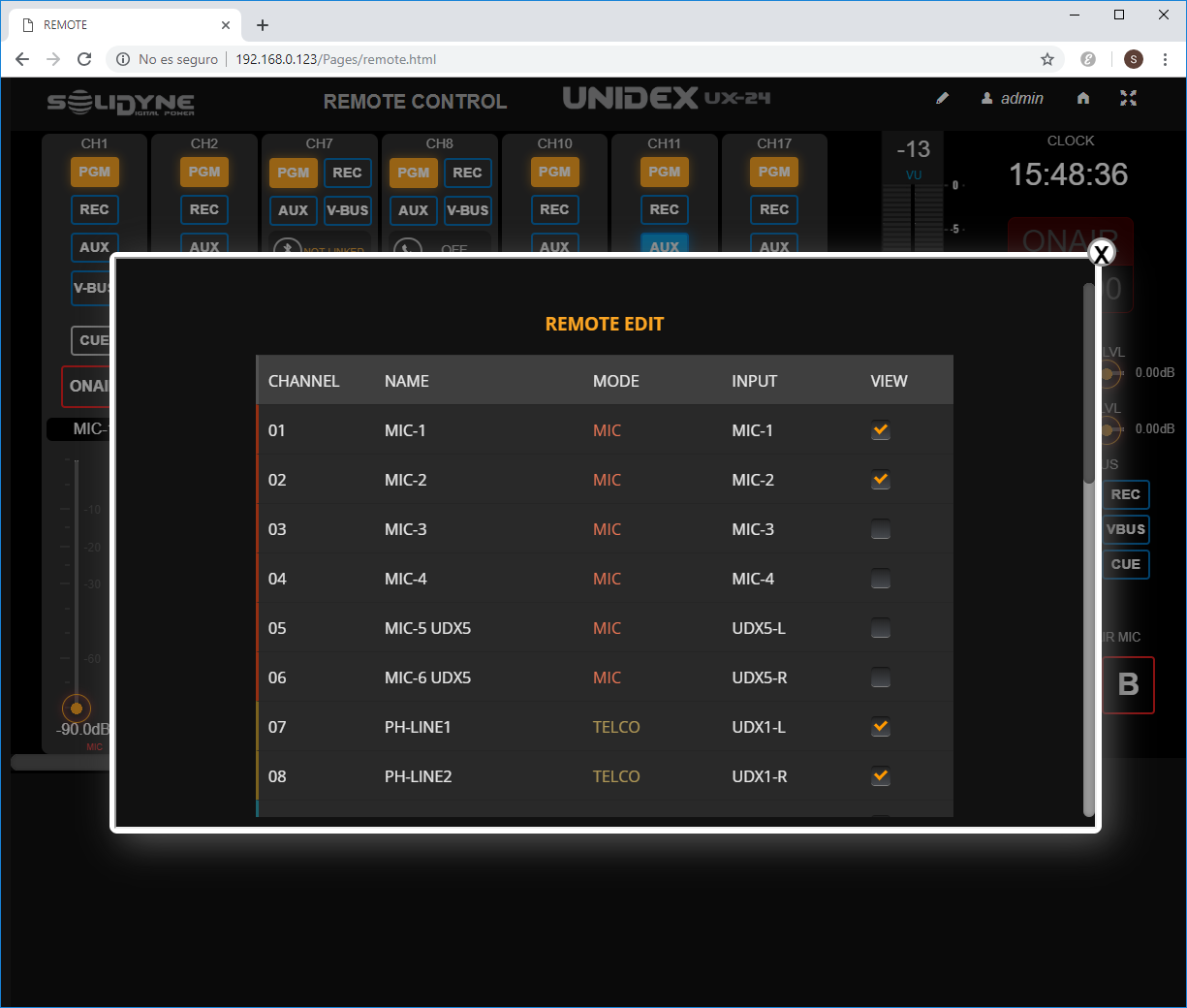
This setting can be saved in the active scene.
Microphone and Line Channels
Each channel replicates the same controls present on the console surface.Operations performed from the web controller are immediately reflected on the physical console.
- BUS BUTTONS: Assign the channel to the corresponding bus.
- CUE: Activates CUE monitoring for that channel. The audio is heard through the CUE circuit in the console.
- ON AIR: Toggles the channel on/off.
- FADER: Controls the channel level.
- When adjusted from the web controller, the console updates the level and displays the value in dB on the OLED screen, which flashes to indicate remote change.
- The physical fader is not motorized, so its position doesn’t change. If the operator moves the physical fader, the level smoothly adjusts to the new value and the web interface updates the fader position.
TELCO Channels
Telecommunication channels include, in addition to the controls already seen, a RING/HOLD button that allows answering incoming calls; and information about the line status. However, talk-back and dialing functions must be done from the console, or in a remote Studio configuration, using an associated telephone.Audio Processing
In the remote interface, audio processes are accessed from the PROCESS option on the initial REMOTE CONTROL screen, or from the FX icon on each channel of the web mixer. Available processes:- Parametric equalizer
- De-esser
- Compressor and noise gate
Processes are assigned to inputs, so the availability of each one depends on the input connected to the channel.
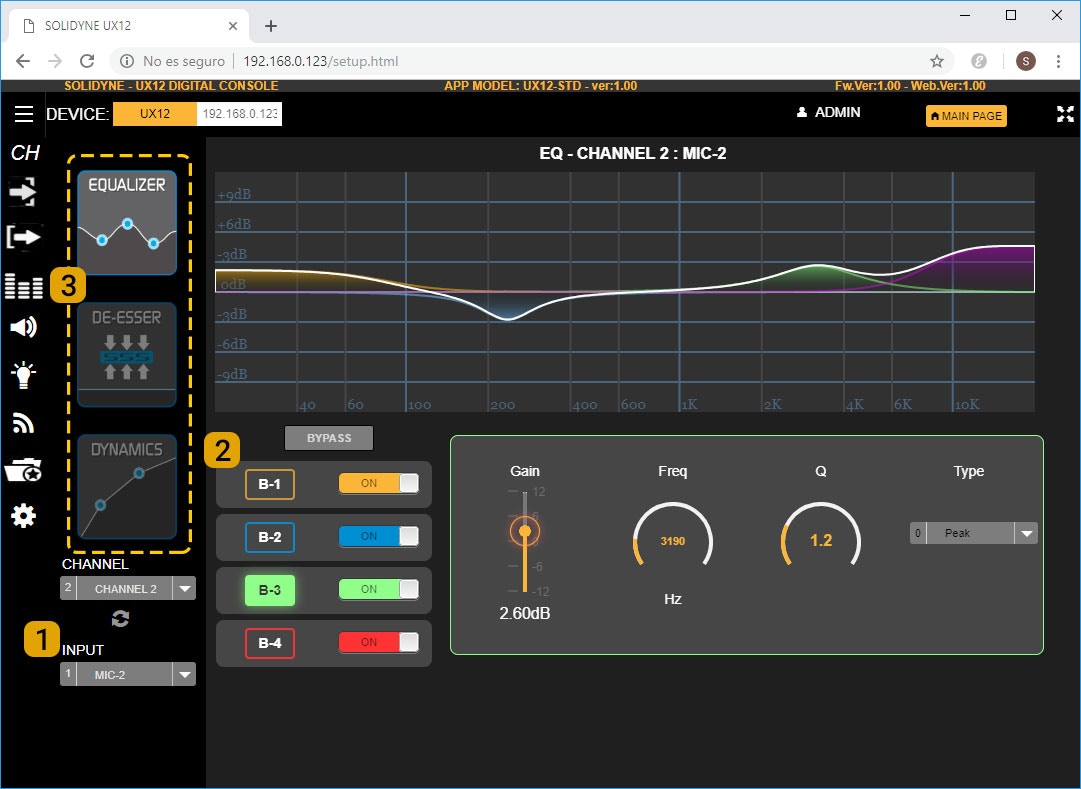
- Processors are inserted on each input.
- To view them, select the input from the INPUT (1) dropdown menu.
- A channel can also be chosen from CHANNEL; the interface will show the processes of the input assigned to that channel.
- In the parametric EQ, the remote interface presents some differences from the onboard screen:
- ON/OFF buttons enable or disable each band.
- The B1, B2, and B3 boxes allow selecting the band to edit (2).
- This design reduces the number of visible controls and facilitates use on touchscreens.
- Switching between processes is done by touching the corresponding icons (3).
- Available processes change according to the selected input.