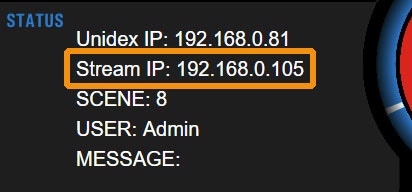
Ethernet Connection for Remote Control
The console features an Ethernet port for remote control through local network (LAN). The internal web control interface can be accessed with a web browser from any computer connected to the same network.Step 1: Physical Connection
Connect the UNIDEX CONTROL ETHERNET port to a router port using a standard Ethernet network cable.Do not confuse the CONTROL Ethernet connector with the STREAMING Ethernet port.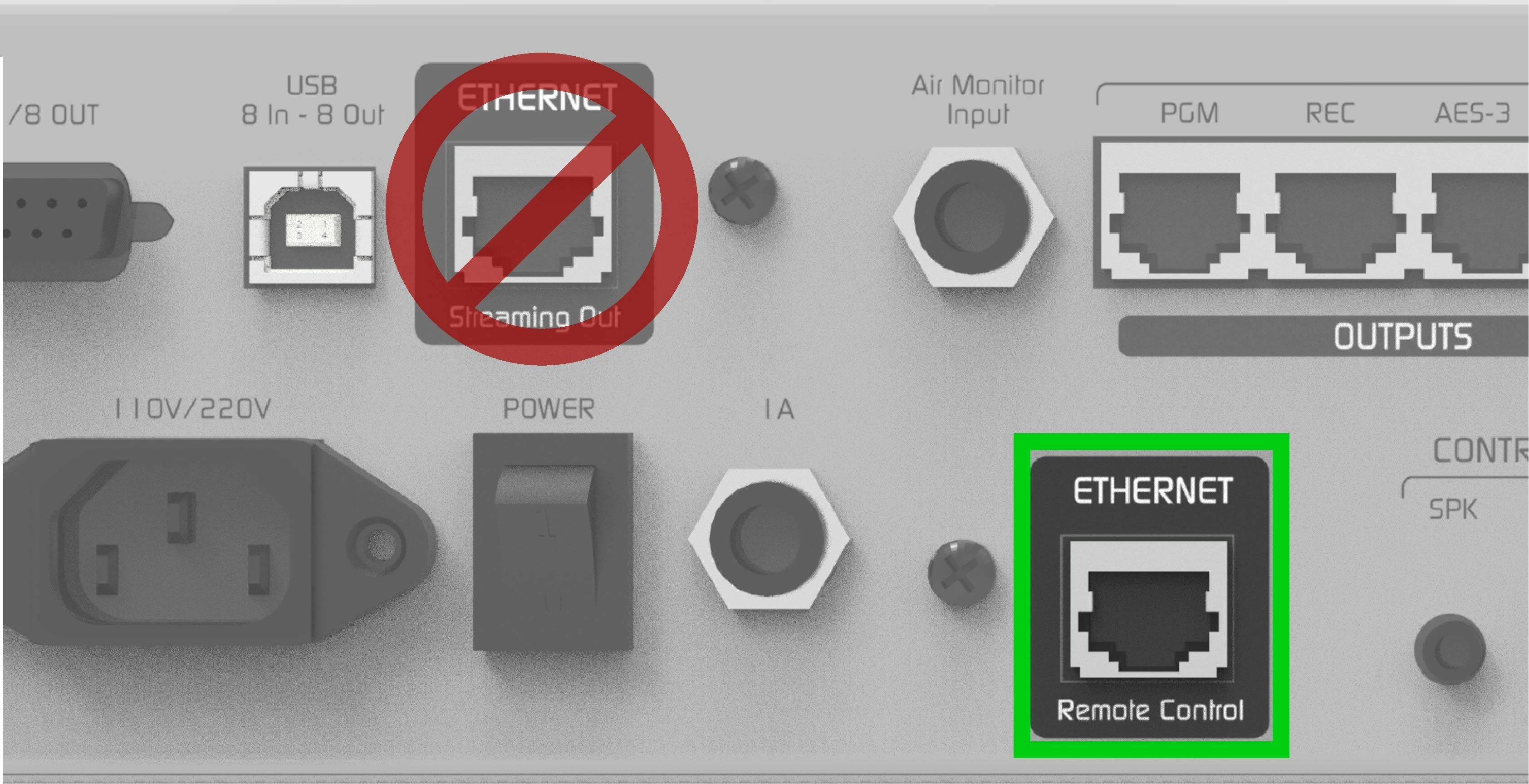
- By default, UNIDEX is configured with DHCP enabled.
- The router will automatically assign an available IP address. This IP may change when restarting the console, unless a static IP is configured, but this is usually not necessary.
-
The current IP address is displayed on the console’s main screen under:
UNIDEX IP.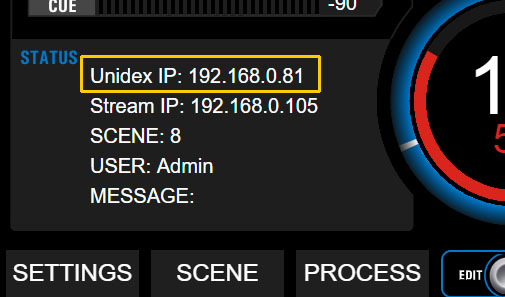
-
If a static IP needs to be assigned, go to:
SETTINGS → SYSTEM
Step 2: Browser Access
From any computer connected to the same local network (preferably via cable) open a web browser (Google Chrome recommended) and enter the IP address shown as UNIDEX IP.Solidyne Multi-DiscoveryIf physical access to the console is not available, you can download the Multi-Discovery tool that detects Solidyne devices connected to the network.
Ethernet Connection for Streaming Services
-
Connect the Streaming Out port to the LAN router using a standard Ethernet cable.
DO NOT CONFUSE the streaming Ethernet connector with the remote control Ethernet connector.
Both use RJ45, but serve completely different functions.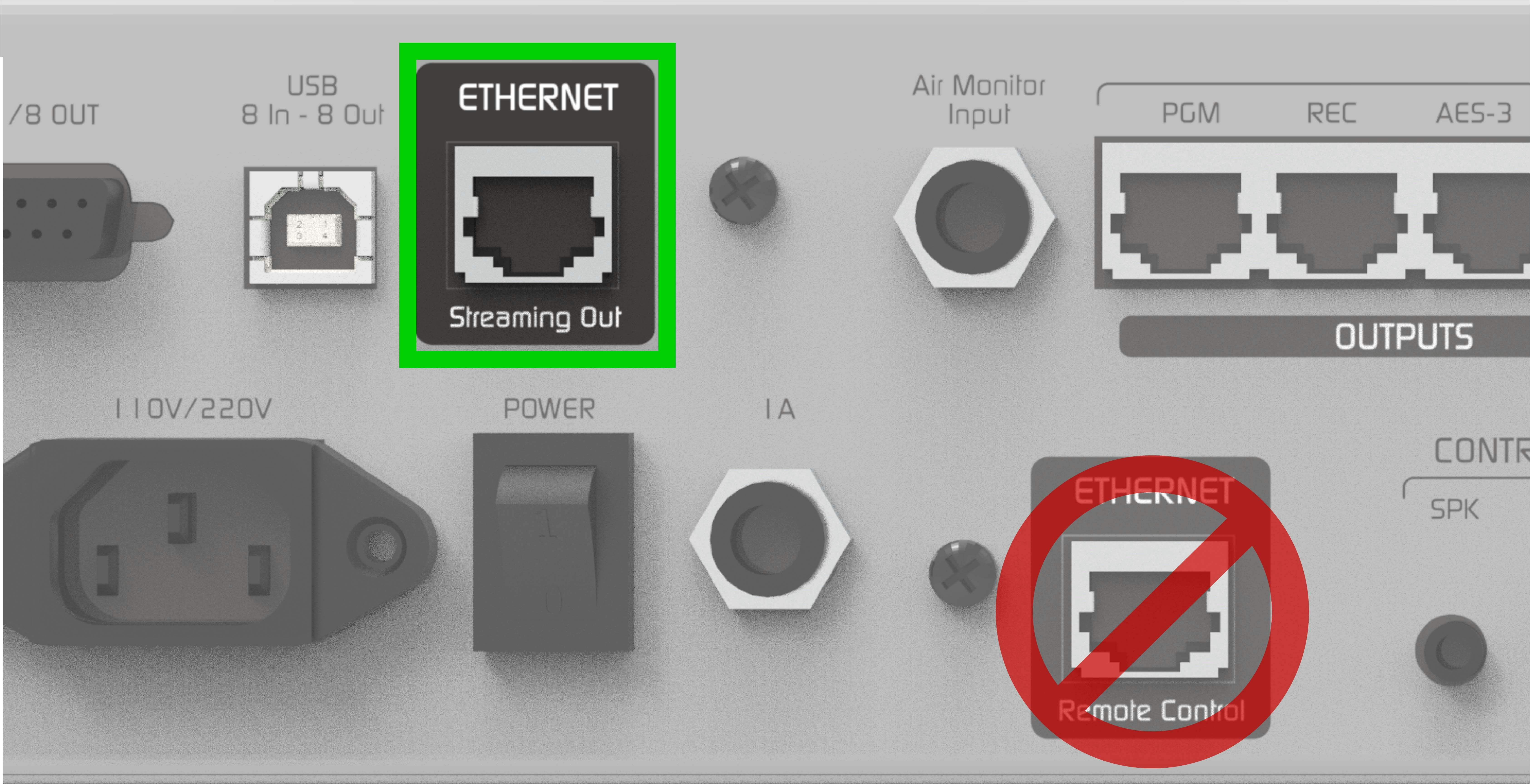
- The router will assign an IP address via DHCP, visible on the main screen as: Stream IP
- This IP may change when restarting the console, unless a static IP is configured.
-
Streaming services can be configured in two ways:
- From the console’s touchscreen.
-
From any computer on the network, accessing the Stream IP address through a web browser.