

Physical channels
The UNIDEX UX18 console has 18 channels. The main cabinet panel features 10 channels with 100 mm soft-touch faders.The remaining 8 channels can be operated from the touchscreen or remotely via web.

1 Buses
The signal on each channel can be assigned to 4 mix buses: PGM, REC, AUX, and VBUS.- For channels 1 through 6, assignment to PGM, REC, and AUX is done via three quick-access buttons. When the channel is assigned, the button lights up in orange.
- Channels 7 through 18 are assigned to output buses by accessing the CHANNEL screen or VIRTUAL CHANNELS from the main screen.
When a virtual channel is assigned to a group, it inherits the bus assignment of the group.
- For all channels, assignment to VBUS is done from the CHANNEL screen or from the web control.
2 CUE/SELECT button
Serves three functions:- CUE: Pre-listen (pre-fader). Allows monitoring the signal present on the channel before the fader and the ON-AIR button.
- SELECT: Channel selection for adjustments and configuration.
- TALKBACK: TALK-BACK mode is used for communications (TELCO and USB channels assigned to call software) and to generate a second cue channel to the Studio. Holding CUE activates the talk-back microphone for communication.
3 ON-AIR button
Activates the channel.When on, the signal is sent to the assigned buses according to the fader level.
4 OLED display
Shows:- Signal level before the fader. The CLIP indication means the input signal has reached 0 dBfs and requires reducing the gain.
- Channel name or label.
- Status in special modes such as SELECT or TELCO.
About OLED brightness
Brightness is reduced after 5 minutes of inactivity and turns off after 15 minutes.
Any action on the controls reactivates the display.
5 Main fader
Controls the signal level in the mix buses.If the level is modified from the CHANNEL screen or remotely via web, the actual attenuation value may not match the physical fader position (non-motorized). In that case, the OLED display flashes showing the current value.
Moving the fader progressively synchronizes the value.
Virtual channels
UNIDEX UX18 handles 8 channels from the touchscreen.VIRTUAL MIXER allows control of all functions for these channels. When one or more virtual channels are on air, the VIRTUAL indicator on the main screen flashes red to signal this condition. To facilitate touch operation, the controls for each virtual channel are divided into two screens. The LEVEL screen shows the faders and ON AIR activation buttons.
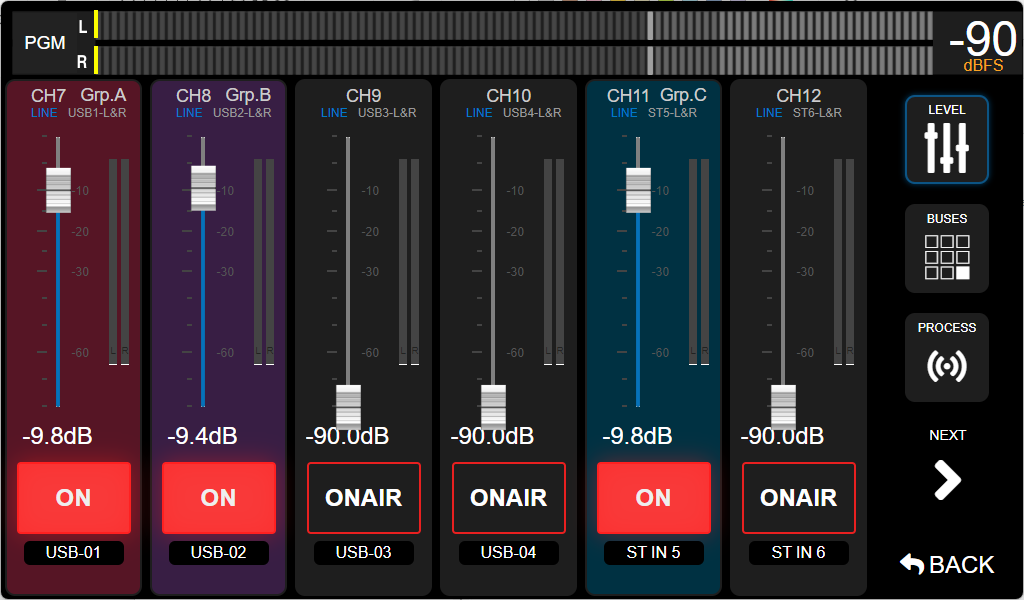
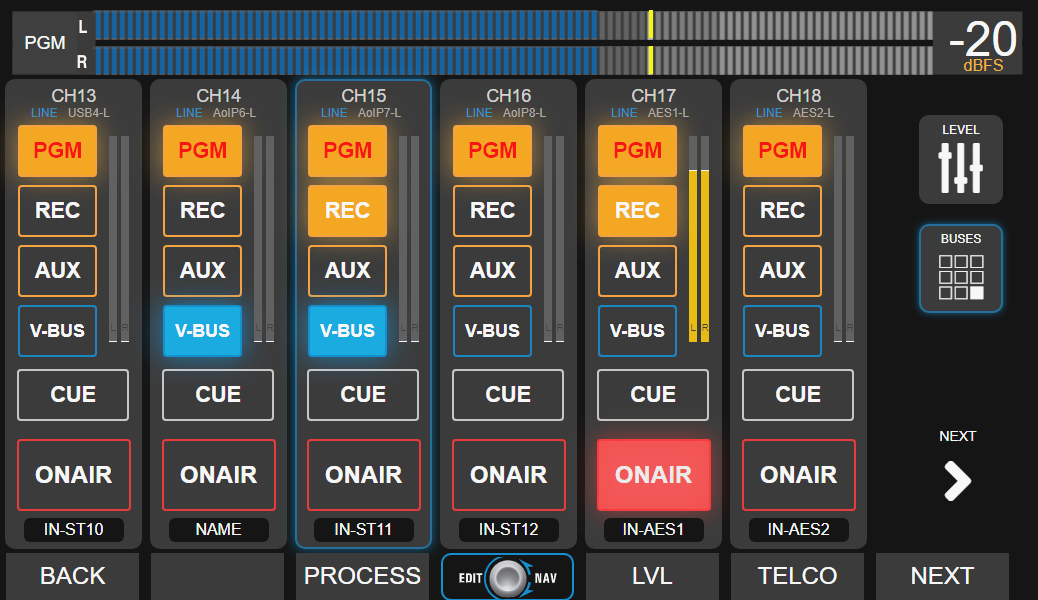
VIRTUAL MIXER and channels assigned to groups
Virtual channels can be assigned to group submixes. There are four group channels, each identified by a color. Channels assigned to a group are shown in VIRTUAL MIXER with the color corresponding to the group. Bus assignments to output buses are locked at the channel level, since grouped channels inherit the group’s assignment. The power button of a grouped channel changes from ON AIR to ON/OFF, since putting the channel on air depends on the group being activated.Channel screen (CHANNEL)
The channel screen displays all values and settings associated with a channel.It includes basic functions, such as input gain adjustment, and advanced options that require special permissions.
Accessing the channel screen
From the main screen, press the CHANNEL option. This will display the screen for the last selected channel and activate SELECT mode.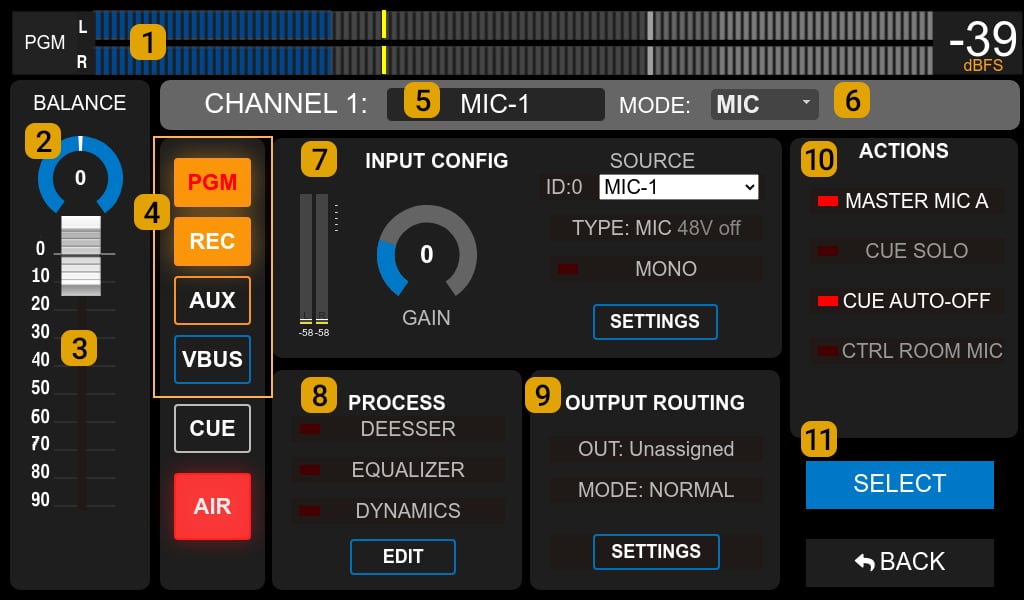
SELECT mode
SELECT mode is activated in any of the following situations:- When pressing CHANNEL on the main screen.
- When pressing PROCESS on the main screen.
- When pressing SELECT on the CHANNEL screen or on a process screen (EQ, compressor, etc.).
- By pressing a CUE/SELECT button on the channel.
The controls for that channel are shown on screen. SELECT mode remains active, allowing other channels to be selected (this makes it easy to compare/review channels). The CUE/SELECT button of the currently selected channel continues to flash. - By turning the encoder.
With SELECT active, the encoder scrolls through all 24 channels, whether physical or virtual. As the encoder is turned, the channels displayed on screen will change.
CHANNEL screen elements
1 VU meter
Level indicator visible on all screens.Shows the level of a mix bus, typically PROGRAM, on a VU scale with peak hold.
- Touching the PGM label allows switching to display AUX, REC, or VBUS.
- The number on the right indicates the maximum value, in VU or dBfs. Touching the number toggles between both units. The VU/dBfs unit change applies to all screens.
2 Balance
On stereo inputs, adjusts the relationship between left and right channels.On mono inputs, acts as a pan-pot.
To change the value, touch the control and turn the encoder. Press the encoder to confirm.
3 Channel level
Represents the physical fader and modifies the signal level in the buses.On channels with mechanical faders, the on-screen value reflects the physical position. If the level is modified from the screen, the actual value changes but the physical fader does not move (non-motorized). In this case, the channel’s OLED display flashes the current value to indicate it differs from the physical fader position.
The level at the outputs may differ from what is shown on the meters due to output gain compensation. They match only when the output is set to its nominal level (4 dBu for analog outputs).
4 Buses
Shows the channel’s assignments to mix buses.- On physical channels, they reflect the PGM, REC, and AUX buttons.
- On virtual channels, they allow assignment to any bus.
- On both, they allow assigning the channel to the VBUS bus, which has no hardware assignment button.
5 Name
Allows assigning a name of up to 10 characters. On physical channels, it is shown on the channel’s OLED display.Touching the name opens a window for text editing.
6 Mode
Defines the channel behavior according to the signal type:- LINE: for any source other than microphones and communications.
- MIC: for microphone signals, whether onboard inputs, external UDX adapters, or third-party preamplifiers connected to line inputs.
- TELCO: for communications (landlines, VoIP, Bluetooth cell phones), controlling compatible UNIDEX adapters from the TELCO screen.
7 Input Config
Includes the gain control and information about the assigned input.- ADMIN profile: access to full configuration by touching SETTINGS or reassignment from the drop-down menu.
- Gain: adjustment in decibels via touchscreen and encoder.
8 Process
Shows the processors available on the assigned input and their status (active/inactive).- On/off by touching the name (except BASIC profile).
- Settings editing from EDIT (ADMIN profile only).
The available processes are not specific to each channel; they depend on the inputs assigned to them.
9 Output Routing
Indicates whether the channel is associated with a direct output (e.g., UNIDEX adapters for TELCO lines).Routing configuration is accessible in ADMIN profile from SETTINGS.
10 Channel Actions
Specific functions according to the channel MODE.- CUE SOLO: when CUE is activated on the channel, it turns off CUE on other channels with this option active.
Channels that do not have CUE SOLO active are not affected, allowing CUE to be on in more than one channel at a time.
If all channels operate in CUE SOLO mode, only one CUE will be on at a time. A common configuration is to use CUE SOLO mode on line channels (computers and audio players) and normal mode on microphones and TELCO channels. - CUE AUTO OFF: automatically turns off CUE when the channel goes on air.
- MASTER MIC A: assigns the channel to one or both master buttons.
- CTRL ROOM MIC: mutes the Control Room monitors (not the Studio monitors) when the channel goes on air.
11 Activates/deactivates SELECT mode
Groups and submixes
The UX18 console features 4 GROUP faders.Each group can have one or more virtual channels assigned to it (channels 7 through 18). Behavior
- A single assigned channel → the group behaves as an additional channel, giving the virtual channel physical controls (fader, ON-AIR button, and CUE).
- Two or more assigned channels → the group functions as a sub-master, handling a submix of those virtual channels.
- Group channels can be linked to the MASTER ON-AIR MIC button from the CHANNEL screen.
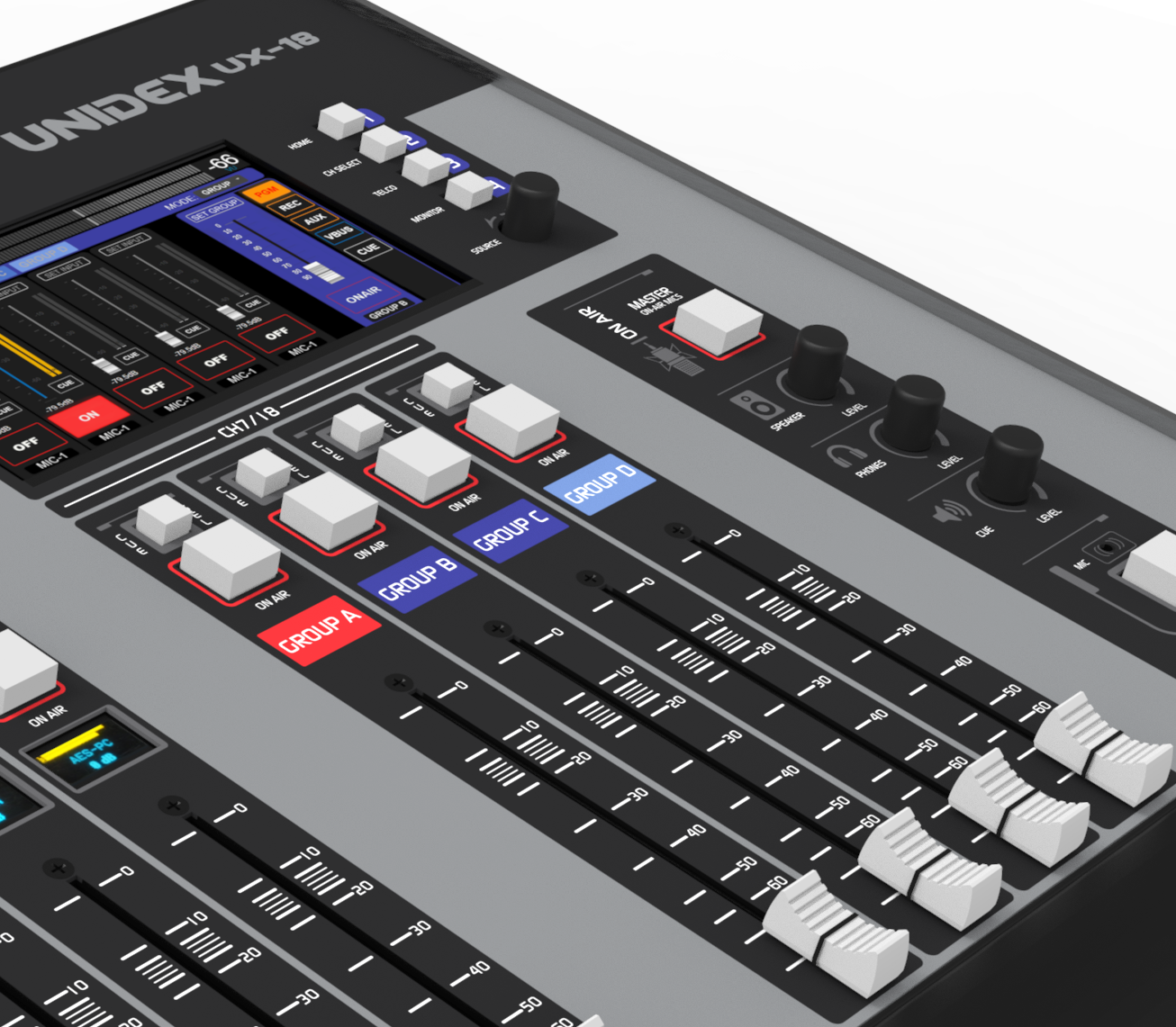
Controls and GROUPS screen
- Physical: fader, ON-AIR, CUE.
- GROUPS screen: Accessed by pressing the GROUPS quick-access button. Allows managing bus assignments and submixes.
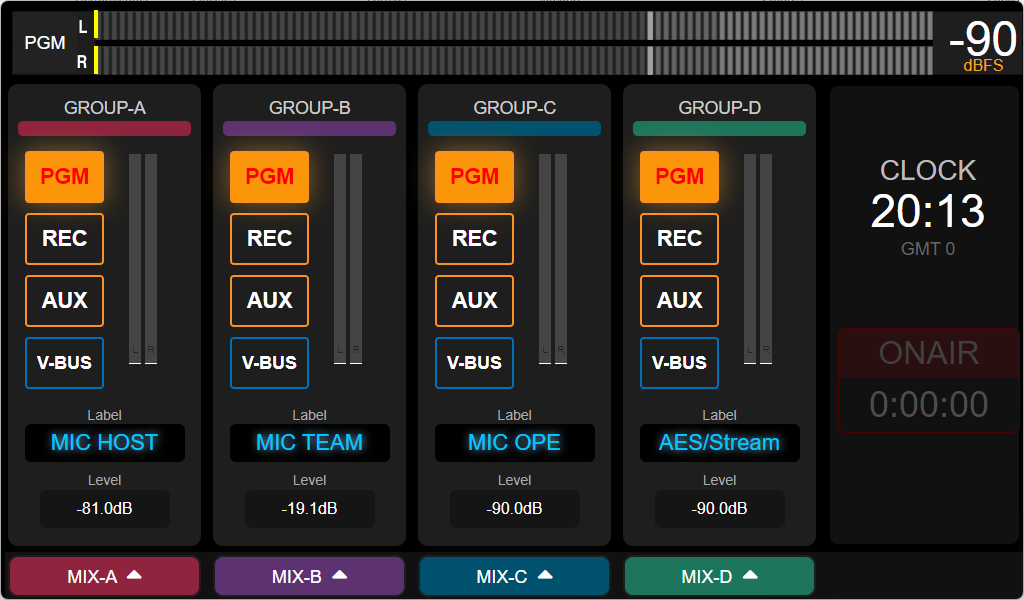
- Bus assignment: allows assigning each group to output buses. All channels linked to the group inherit this assignment.
- Essential information: allows working with the GROUPS screen without losing sight of: program level, current time, time counter, and on-air microphone indication.
- Pressing MIX at the bottom of each group accesses the submix screen for the channels assigned to the group.
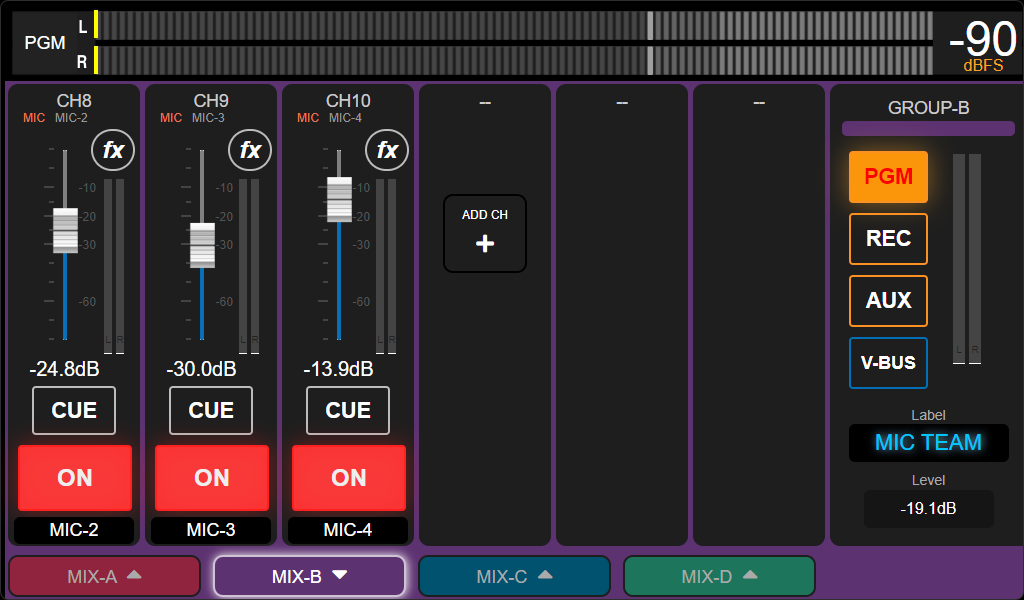
- Group submixes are saved in the scene.
Assigning channels to a group
Virtual channels can be assigned to a group in two ways:- From the CHANNEL MAP wizard, accessible from the SCENES screen or by pressing ADD in the group’s submix view.
- From the CHANNEL screen, accessible from the main screen.
Assigning or removing channels from a group requires ADMIN profile access.Group configuration is saved in the scene.