

- Changing the active user
- Changing the current scene
- Using advanced channel organization functions
USERS
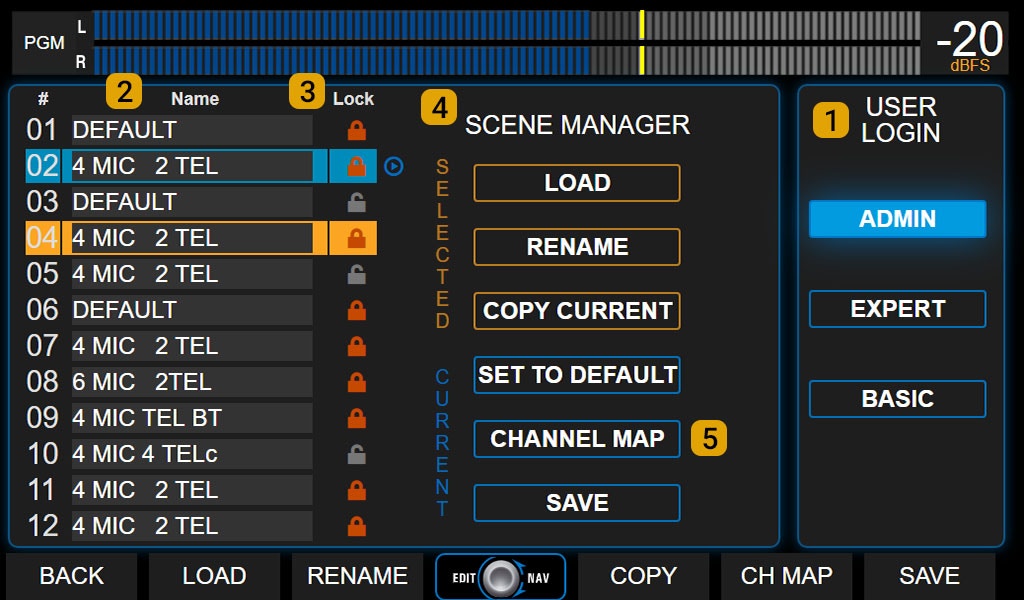
The USER LOGIN area (1) shows the currently active user and allows switching to another user by touching the corresponding option.There are three user levels with different preset permissions. Restrictions apply both to console screen operation and remote web interface.
BASIC User
Most restricted profile:- No password protection
- No access to advanced configuration options (SETTINGS)
- Can change scenes but cannot save changes or create new scenes
- Can view processor settings and status but cannot modify or turn them on/off
- Can temporarily modify basic channel options (GAIN, NAME, PAN, CHANNEL ACTIONS) but cannot save changes to the scene
EXPERT User
Profile with intermediate restrictions:- Password protected (default:
expert). Only ADMIN user can change it - Like BASIC, no access to advanced configuration (SETTINGS)
- Full access to audio processing
- In CHANNEL screen can change gain, pan, name, input assignment and channel mode, but cannot access SETTINGS
- Can save current scene, except if protected
- Can create new scenes, even from a protected one
ADMIN User
Profile with full access:- Password protected (default:
admin). Can change all passwords from SETTINGS screen - Can create protected or read-only scenes that are operational for BASIC and EXPERT but only editable by ADMIN
Passwords are defined in the SETTINGS - USERS screen.
Startup User
On power up, the console starts with a predefined user profile (factory default: ADMIN) and never requests password. In SETTINGS → USERS you can:- Change the startup user
- Change passwords for ADMIN and EXPERT
SCENES
A scene stores all console configuration, except system settings (network, streaming, startup user, etc.). It includes:- Input and output configuration
- Channel and bus assignments
- Gains
- Audio processor settings
Available Scenes
The list (see 2 in image) shows 12 user scenes.- Navigate by turning the encoder and confirm by pressing it
- Active scene is highlighted in light blue
- Selected scene (but not confirmed) is highlighted in orange
Protected Scenes (Lock)
- Only ADMIN profile can create them
- Identified with a padlock icon
- BASIC and EXPERT users can load them but cannot modify or delete them
Scene Manager
Presents two option groups: for the selected scene and for the active scene. LOAD: Loads the selected scene. Can be done from touchscreen, contextual button or encoder.- Requires confirmation (cancels after 8 seconds if not confirmed)
- All profiles can load any scene
- If channels are on-air, they remain active even if position changes, maintaining bus assignments
- If the new assigned channel has a different fader level, previous digital level is maintained and indicated by flashing OLED
- Audio cuts if previously on-air input is not assigned to a channel in new scene
- Cannot change scenes with telephone line on-air or on hold
- Disabled for BASIC
- Requires confirmation
- Disabled for BASIC
- Disabled for BASIC
- Input assignment to 24 channels
- Signal assignment to outputs
- Specific input/output configuration (phantom, MIX-MINUS modes, etc.)
- Input and output gains
- Channel labels and actions
- Audio processor settings
- Assignment status, including VBUS
Factory Scenes
Any of the 12 scenes can be reset to a default configuration. Additionally, UNIDEX comes from factory with scenes designed with different configurations and UDX expansions, intended as base or example for creating new configurations.Download default scene configuration infographic (PDF)
Export and Import Scenes
Scenes can be exported and imported from the WEB control interface.From the scene management option in web control, each scene can be exported as a disk file. And later imported into any of the 12 available positions.
Channel Map
The CHANNEL MAP function shows all channel configuration and allows easy reordering.There are two operation modes: SWAP 2 CH (swap two channels) and ORDER CH (reorganize channels).
SWAP 2 CH
Allows swapping position of two channels.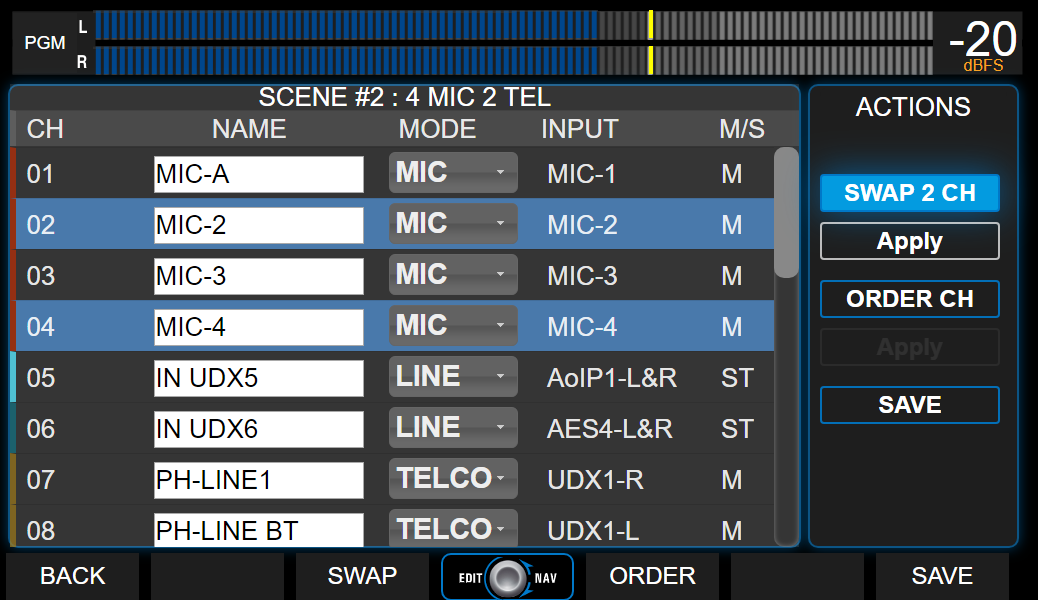
- Press SWAP 2 CH to enable option
- Select the two channels to swap from the list
- Press APPLY to execute swap
- Press SAVE to store changes in current scene
ORDER CH
Allows assigning new positions to one or more channels.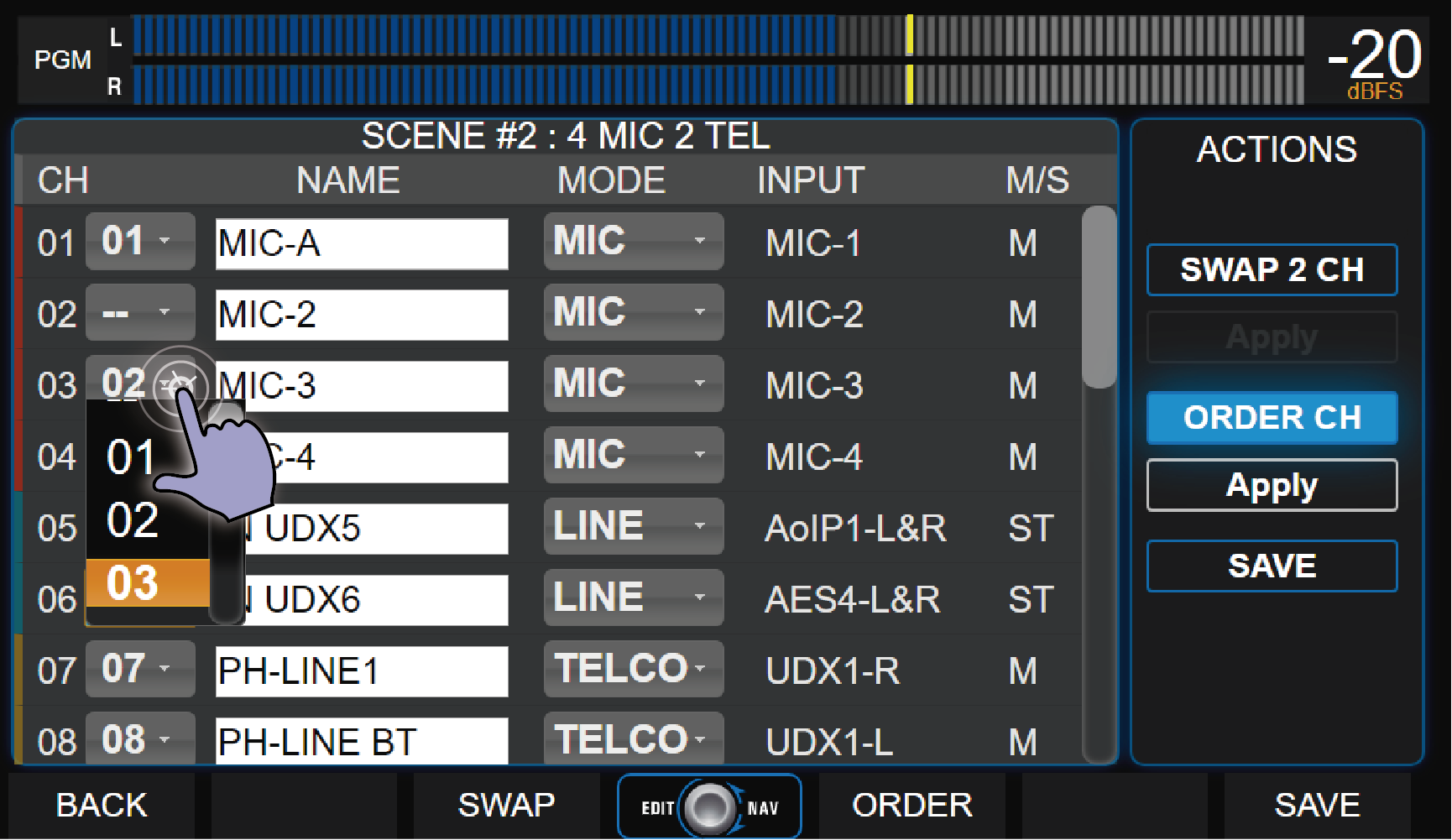
- Press ORDER CH.
A dropdown menu appears right of channel number, allowing new position assignment - Touch screen menu and choose new position for channel.
Multiple channels can be relocated at once
- Press APPLY to confirm
- APPLY applies changes temporarily (not saved yet)
- Changes are lost if scene is abandoned without saving
- Press SAVE for changes to be permanent in scene
- To cancel, deactivate ORDER CH by touching option again or press BACK contextual button