

Introduction
Models with /AoIP option include a module that generates program signal streaming, allowing:- Link the console to the transmitter site via point-to-point data link. Audio is sent in PCM or low-compression MP3, using RTP protocol.
- Send or receive audio from other consoles through LAN (RTP streaming from other Solidyne equipment with /AoIP option).
It can be updated to new versions or changed to Upstreamer model, compatible with shoutcast/icecast servers.
Firmware Update
The firmware can be updated to:- Change to a new STL version.
- Migrate to Upstreamer model (broadcasting to shoutcast/icecast servers).
The complete procedure for updating and configuring Upstreamer mode can be found in the document Equipment with AoIP Streaming Option
Power Supply
The IP module is powered through USB connection.- Only available if the console is connected to a computer via USB.
- If the PC is turned off, IP service does not work.
- Alternatively, a standard 5V USB power supply can be connected to the port.
Studio-Transmitter Link (STL)
At the studio, D612/IP operates as an encoder, transmitting audio streaming to the transmitter site. At the transmitter site, streaming can be received through:- A dedicated decoder (e.g. Solidyne ADA102).
- A processor with integrated decoder (e.g. Solidyne 542 APC).
- A computer with compatible software, like VLC Player (not recommended, reserved for testing or emergency cases).
- VPN.
- Point-to-point physical link (e.g. fiber).
- Data link with antennas (microwave).
Microwave data link
Microwave data link
- Band: 5.8 GHz (or 2.4 GHz in some countries).
- Standard: 802.11.x (license-free in all countries).
- Range: up to 45 km without obstacles.
- Allows uncompressed PCM audio transmission (16 bits/48 kHz).
- Also supports encoded audio and bidirectional applications.
IP Module Configuration
Configuration is done from a web browser. The equipment comes from factory in dynamic IP mode (DHCP).Configuration Steps
- Connect the console to power supply. Connect USB port to a computer (turned on) or to an external USB power supply (a standard charger).
- The TCP module announces the assigned IP address through audio:
- Set Channel 4 BAL-LIN switch to “LIN-2”.
- Press CUE on Channel 4 and give level to CUE speaker.
- Connect the console to a network router using Ethernet cable. It will assign IP via DHCP.
- Write down the announced IP address.
- If you didn’t hear the announcement or couldn’t write it down, disconnect and reconnect the console’s USB cable (with PC turned on).
- Once IP is obtained, green LED on RJ45 blinks indicating operation.
- If no DHCP, console will search for a free IP (may take minutes).
- Open a browser and enter the announced IP address.
- The D612 IP Control Panel will open.
Solidyne Multi-DiscoveryIf physical access to console is not available, you can download Multi-Discovery tool that detects Solidyne devices connected to network.
Destination IP Address
- Defined in
Configuration → Basic settings. - Factory default:
Studio Encodermode.
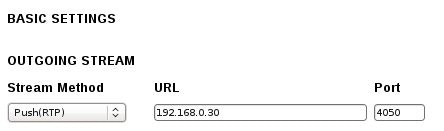
Stream method: Push (RTP).URL: receiver’s IP address or DNS + destination port.- Press Apply to confirm.
Port Forwarding
Port Forwarding
The destination IP address corresponds to the external network address at the Transmitter Site where the DECODER is connected (usually a static IP assigned by Internet provider).When data packets sent by the console reach the router or firewall at the transmitter end, they must be redirected to the DECODER’s internal IP address (for example, 192.168.0.30).Since D612/IP always transmits to a specific IP address and port, at the transmitter site all packets arriving at that port on the configured router address must be forwarded to the DECODER or, alternatively, to a computer that processes the audio signal.This procedure is done through port forwarding, which allows identifying which packets should be delivered to the equipment responsible for converting them back to audio.
Audio Options
Configured inConfiguration → Audio:
Input source: Line Stereo (do not modify).Format: MPEG Stereo.Sample rate: 44.1 kHz.Quality: 7 (highest).
If bandwidth allows, uncompressed PCM can be used in point-to-point links.
Main Screen
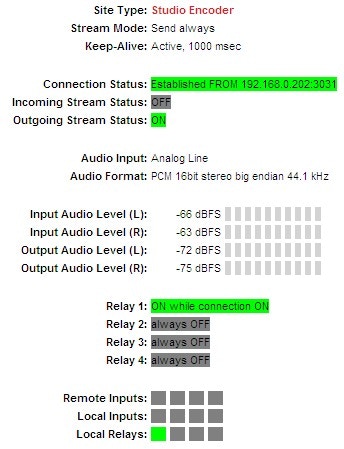
Site type: working mode (e.g. Studio Encoder).Stream mode: active configured event.Keep-alive: connection maintenance strategy.Connection status: green = successful connection; red = error.Incoming Stream: incoming streaming status (inactive in encoder mode).Outgoing Stream: outgoing streaming status.Audio input: source in use.Audio Format: encoding format.Input/Output level: levels in dBfs.Relay, Remote inputs, Local inputs: not implemented.
Reception at Transmitter Site Using a Computer
To receive RTP streaming with a PC:- VLC Player is recommended (http://www.videolan.org/vlc/).
- Supported formats:
- MP3 44.1 kHz / Quality 7 (default).
- PCM16 @ 44.1 kHz (uncompressed).
VLC Configuration
-
Menu
Media → Open Network Location. -
Enter:
rtp://[source_IP]:[port]Example:rtp://0.0.0.0:3030
0.0.0.0= any incoming IP.3030= port used.
Some VLC versions also accept:
rtp://@:3030D612/IP as Streaming Receiver
The console can be configured as a DECODER for RTP streaming generated by another device.Steps
- Access IP module from browser.
- In options appearing at window top, choose Location
- Change from Studio Encoder to Transmitter decoder. Default reception values are adopted, which normally don’t need modification, except for ports and IP addresses.
- In
configuration→streaming:- In
Portenter port used by encoder. - In
URLleave0.0.0.0. - Press Apply.
- In
Incoming Streaming Audio
Decoded audio is internally summed to auxiliary input of Channel 4 (LIN-2). To send it on air:- Switch Channel 4 to LIN-2.
- Ensure there’s no signal on RCA inputs.
- Raise channel fader.
When using streaming audio, RCA input of Channel 4 cannot be used simultaneously, as both signals are internally summed.