

Studio–Transmitter Link
- In studios, the console with /AoIP option operates as an encoder and generates an audio stream to the transmitter site.
- At the transmitter site, a decoder receives the stream and sends it to the audio processor (for example Solidyne ADA102). Some FM processors can receive and decode the audio stream (for example Solidyne 542APC /AoIP)
- Studio and Transmitter on the same LAN with a point-to-point link (physical or wireless), or
- VPN over high-performance Internet (consult with network technician).
Connection and Access
Procedure:- Connect the console to the network using an Ethernet cable.
- Check the LEDs on the Ethernet connector: they indicate that the AoIP modules are powered by USB (at least one USB to PC powered on or an external USB source). The LEDs should blink.
- The network assigns an IP via DHCP. With the obtained IP, the green RJ45 LED will blink.
If there is no DHCP, the module will search for a free IP (this may take a few minutes). - Obtain the IP using Solidyne Multi-Discovery.
Solidyne Multi-DiscoveryIf physical access to the console is not available, you can download the Multi-Discovery tool which detects Solidyne devices connected to the network.
- Open a browser (Firefox/Chrome) and enter the IP found. The IP Control Panel will appear.
Streaming Configuration
Destination IP (Basic settings)
The initial status screen shows the IP port configuration. The factory default setting is Encoder: Studio Encoder (option “Location” → ‘Studio Encoder’). To verify the configuration, access the “Configuration” option and select “Basic settings” from the left menu.
Audio Options
Access: Configuration → Audio.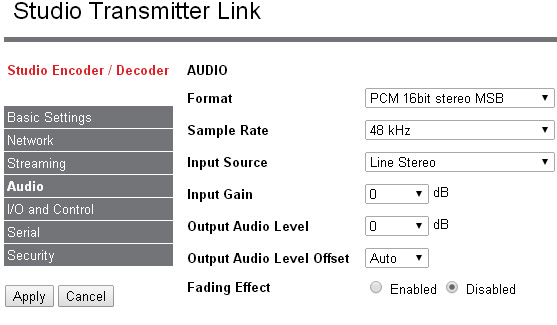
Status Screen
Microwave Digital Link
For distances of up to 45 km, a point-to-point data link in 5.8 GHz (or 2.4 GHz depending on the country), 802.11.x standard, can be used:- License-free band, no special authorizations required.
- Allows transport of PCM 16-bit / 44.1 kHz audio (uncompressed) or encoded audio.
- Supports bidirectional connection for special applications.
For more details: info@solidynepro.com
AoIP Module Power Supply
- AoIP modules are powered via USB; they require at least one USB connection to a powered-on PC.
- Without a USB-connected PC, or with the PC turned off, the IP service will not be available.
If no PC is connected, you may use a standard USB power supply (5 V) to power the AoIP modules.