

- Automatic: using the Admicom module (recommended).
→ See: Traffic, Administration and Statistics. - Manual: directly in CyberPlay Editor.
Manual Creation of Breaks
-
In the Break window, enter the break instruction.
Each instruction corresponds to a single break; you must repeat it for all breaks of the day. Example: -
Below, write the filenames of the advertisements that make up that break.
You can drag them from File Manager or InfoMusic-Production. Example:- Files cannot be scheduled from extra folders (see File Manager).
- Files containing a period (.) in the name and not registered in the Database must be scheduled with full extension (e.g.:
107.5.wav).
- To add another break (e.g.: at 00:30), repeat the previous steps.
- Once all breaks are completed, save the file in the corresponding format (see saving section).
Creating Breaks with Magic Programming
The Magic Programming tool simplifies manual break generation. It automatically inserts the instructions, and the operator only needs to load the files below each break.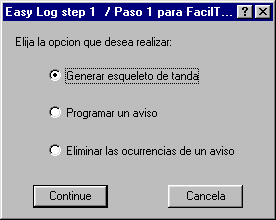
- Start time: start time of the first break.
- End time: time of the last break.
- Interval between breaks: minutes between each break.
- Flexibility: margin in minutes to shift the break in AutoDJ programs.
(All breaks created by Magic Programming are flexible; to change their attributes they must be edited manually).
Schedule a Commercial
Allows scheduling a spot in multiple breaks automatically.Define:
-
The time range (e.g.: from 19:00 to 22:00).
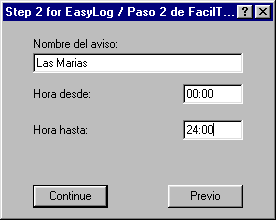
- The minimum separation between appearances (e.g.: every 15 minutes).
Remove Advertisement Occurrence
Allows removing all occurrences of an advertisement within a specified time range.Remember: For changes to take effect, you must save the files and, if it corresponds to today’s or tomorrow’s programming, you must reload the files in the On-Air terminal.
- The breaks log (
.LOG). - The programs log (
.PGM). - The complete schedule (CyberPlay window).