

Loading and Saving Files
Individual Loading of LOG / PGM Files
This procedure applies to both LOG and PGM windows.It allows loading files individually, although they can also be loaded together (see next section). When pressing the load button, a window appears with dropdown menus to select:
Day – Day of the week – Month – Year.
You can also select a file directly from the list on the right.
File names always correspond to the date for which they were generated, as explained in the previous section.
Loading Complete Programming by Date
When CyberPlay Editor opens, it automatically loads the commercial breaks and program blocks files for the current day. The load by date button allows simultaneous selection of LOG and PGM files for a specific date.1
Load programming by date
Click the corresponding button and select the date in the calendar.
Confirm with OK.
Confirm with OK.
2
Result
CyberPlay Editor will load LOG and PGM files following the priority order explained in the previous section.
It will then generate a graphical preview in the Test CyberPlay window.
It will then generate a graphical preview in the Test CyberPlay window.
3
Subsequent editing
Once loaded, LOG and PGM files can be edited and saved independently.
Saving LOG / PGM Files
Pressing this button saves changes made to a LOG or PGM file.The save window is similar to the one used for loading files.
- To create a new file, enter a name and press OK.
- If the name doesn’t exist, a new file will be created for the specified date.
- If it already exists, a dialog box will appear to confirm replacement. Accepting will overwrite the previous file.
The Year field always shows: the previous year and the two years following the current year.
AUDICOM includes sample files (7 LOG and 7 PGM), which should be deleted to avoid interference with actual programming.
AUDICOM includes sample files (7 LOG and 7 PGM), which should be deleted to avoid interference with actual programming.
PlayLists – Title Lists
Within the Save PGM window, there is a specific button for saving PlayLists, which are title lists in TXT format that can be inserted into the on-air programming schedule.- When pressing the button, a box appears to enter the PlayList name.
- This name will be displayed by the PlayList Manager, which manages these lists in the On-Air module.
- PlayLists are always saved in the PGM folder.
Playlists can also be created directly by operators from the On-Air screen using the PlayList Manager.
Entering Titles in LOG and PGM Windows
There are three ways to enter titles in the LOG and PGM editing windows:- Manual typing (writing directly).
- Drag & Drop from File Manager.
- Drag & Drop from InfoMusic.
Programming Test (F9)
The CyberPlay preview window graphically shows how the programming schedule is organized.- When pressing Test, the graph is generated based on commands entered in LOG and PGM.
- The graph simulates what the On-Air operator will see.
- Simultaneously, a validation of the programming is performed, and results are shown in the STATUS window below LOG and PGM.
Test-CyberPlay Window
The Test-CyberPlay window allows you to verify and modify entered commands. When pressing TEST, the following aspects are verified:- Scheduled files:
- If a title doesn’t correspond to any file, it appears in RED.
- In the On-Air module, that file will be ignored, marked as error, and playback will continue with the next one.
- AutoDJ Formats:
- The existence of assigned formats is validated.
- If a format doesn’t exist, it appears in STATUS and must be corrected from PGM.
- If not corrected, the block will be built with the Default format, which includes all styles available in the Database.
Listening to Scheduled Titles
From the Programming Terminal (requires installed sound card):- Select a title in the CyberPlay window.
- Press PLAY to preview it.
Changing the Schedule from the Preview Window
The preview window allows direct modification of various aspects of the programming schedule.- Right-click on an item opens a menu with the following options:
- PLAY / STOP → Playback controls (if the item is an audio file).
- INSERT METEOR → Inserts a METEOR instruction above the selected item.
- INSERT PAUSE → Inserts a PAUSE above the selected item.
- REMOVE → Removes the selected item.
- For a commercial spot, only that occurrence is removed.
- To remove all occurrences of the spot, use Magic Programming (this function will soon be available in the context menu as well).
- Complete blocks cannot be deleted from this menu.
- Each change made in the preview window automatically generates the corresponding code in the LOG or PGM window (as appropriate).
- Double-click on an item in CyberPlay shows the code line that generates it in the corresponding instructions window.
Changing File Positions
You can reorder scheduled files:- Click on a title and drag it up or down.
- You can also drag pauses or Meteor commands.
- Commercial breaks and program blocks cannot be moved.
- Double-click on the block header → the code is shown in LOG or PGM.
- Directly edit the code line with the desired time.
Multiple On-Air Terminals
From a Production terminal, you can navigate and operate on any of the network terminals. This is useful when there are multiple active On-Air terminals, as it allows managing the programming of either one.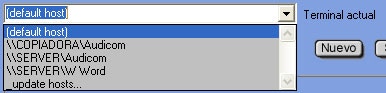
- The “Current terminal” dropdown menu shows all available terminals.
- The “Default host” value always points to the local terminal, unless the administrator redefines the default configuration in
audicom.ini. - If you select an On-Air terminal, its programming files will be displayed, allowing you to work directly with its LOG/PGM.
When deploying the menu for the first time, the system scans the network for active AUDICOM terminals.
This process may take a few seconds, but the result is stored in memory, speeding up subsequent access.
This process may take a few seconds, but the result is stored in memory, speeding up subsequent access.