

aConfig Panel
This tool launches during installation. The aStart Configuration Panel defines audio output assignments and other system settings.Options are grouped by categories. The panel can also be opened after installation from the program group created in the Windows Start menu.
Audio
- Determines the use of each channel.
- The CyberPlay, Live Assist 1, Live Assist 2 and Playlist Manager 1 and 2 modules can be assigned to different output channels.
-
A dedicated channel can be defined for preview monitoring (CUE).
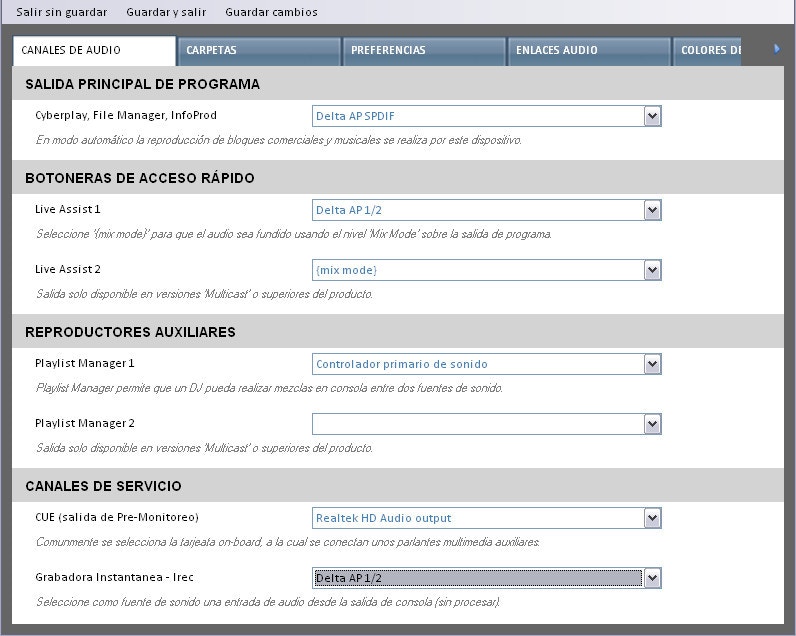
Channels assigned in mix mode are added to the main program output.
When changing assignments, all AUDICOM applications must be restarted.
When changing assignments, all AUDICOM applications must be restarted.
Folders
Audio Sources
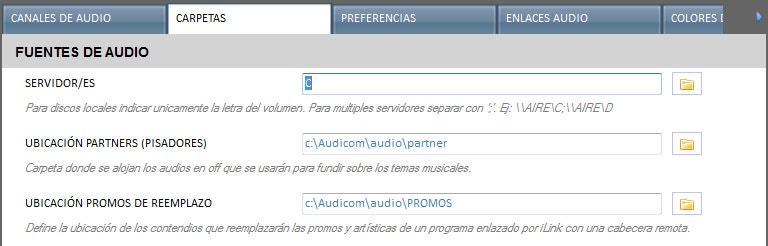
- Servers: Defines enabled disk drives for each terminal.
- Must be declared in UNC mode, for example:
\\Serveror\\PC-AIRE.
- Must be declared in UNC mode, for example:
- Partners Location (voiceovers): Folder for pre-recorded song presentations (dry voices).
- Replacement Promos Location: Folder with content that replaces promos and station IDs from remote-linked programs via iLink.
Databases
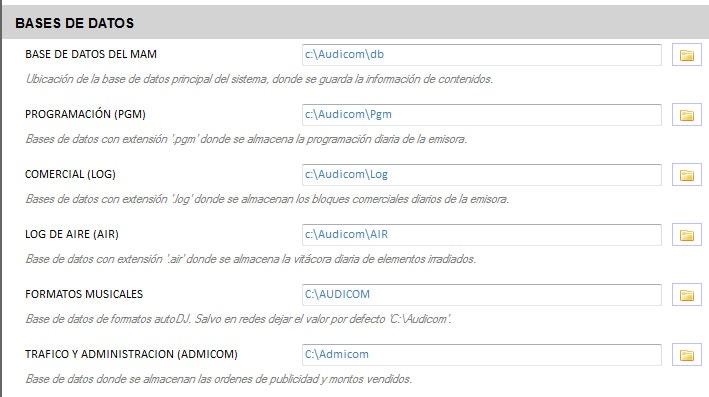
- MAM Database (Media Asset Management): Single location of the music database.
- Can be hosted on the server (
\\SERVER\Audicom\db) or on the on-air computer (\\AIRE\Audicom\db).
- Can be hosted on the server (
- Programming (PGM):
.pgmfiles that define non-commercial content. - Commercial (LOG):
.logfiles that define commercial scheduling. - Air Log: On-air broadcast records.
- Music Formats: Database for AutoDJ.
- Usually hosted on the on-air terminal.
- In multiple stations, each station maintains its own formats (e.g.:
\\Station-1\Audicom,\\Station-2\Audicom). - Any Audicom terminal or AutoDJ Editor can access different on-air terminals.
Advanced music database customizationIt’s important to note that some database aspects can be modified BEFORE starting to load audio files into the system. By editing the audicom.ini configuration file, it’s possible to redefine some database fields such as CATEGORY, TEMPO, MODE definitions, among others. For more details contact via email soporteaudicom@solidyne.ar
News Sources
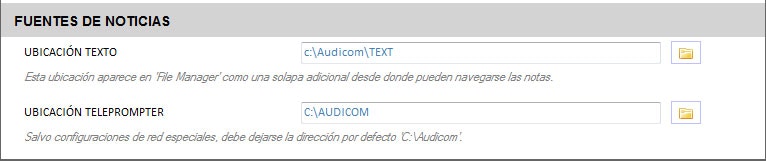
- Text Location: Special File Manager folder that accepts text files.
- Teleprompter Location: Discontinued function. Do not modify.
Preferences
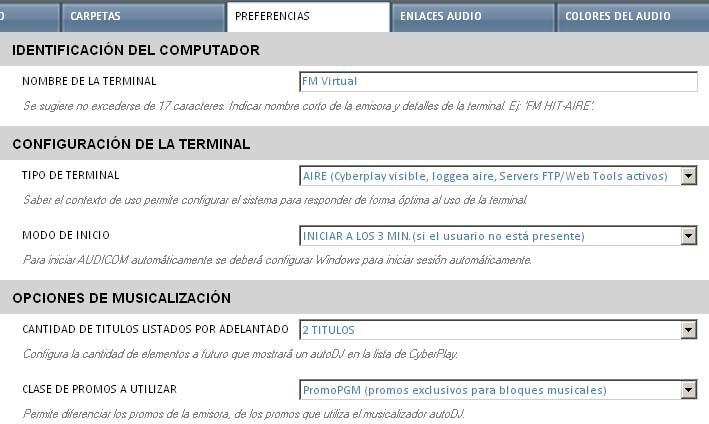
Computer Identification
- Terminal Name: Defines an alias for the AUDICOM terminal, different from Windows name.
- Recommended not to exceed 17 characters.
Terminal Configuration
- Terminal Type: Defines usage context and optimizes system configuration.
- Startup Mode:
- Never start Audicom: Shows Ilogon screen until user logs in.
- Start after 3 minutes: After showing Ilogon, system automatically starts under “auto” user.
Music Programming Options
- Number of titles listed in advance: Defines how many tracks AutoDJ programs ahead.
- Type of promos to use: Differentiates between station ID promos and music programming promos.
CyberPlay Options
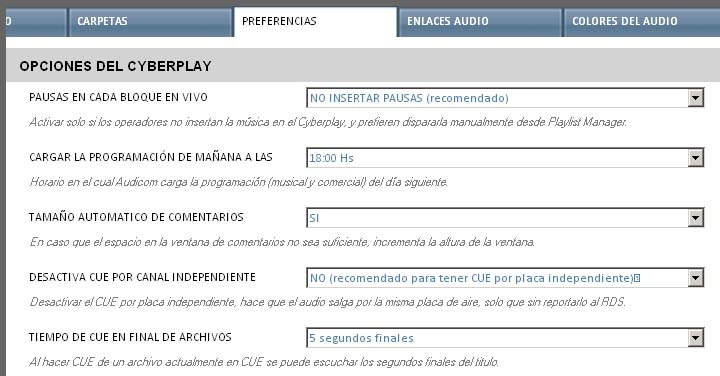
- Pauses in each live block: Inserts a stop point before each block.
- Load tomorrow’s programming at: Time when next day’s schedules are loaded.
- Automatic comment size: Adjusts window height if insufficient space.
- Disable CUE by independent channel: CUE titles output through the device assigned to the module instead of CUE output.
- In this mode they are not reported to RDS.
- CUE time at end of files: Defines listening duration in CUE END mode.
Quick Access Buttons
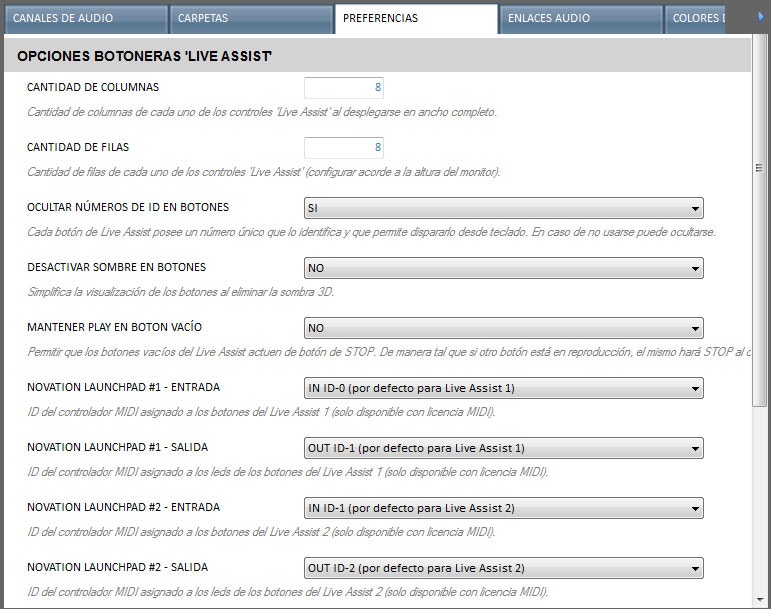
- Number of columns: Number of columns in Live Assist pad (default 4).
- Number of rows: Number of rows based on monitor height (default 12).
- Hide ID numbers on buttons: Allows simplifying interface if numeric keypad shortcuts aren’t used.
- Keep Play on empty button: An empty button acts as Stop, stopping active playback.
- Novation Launchpad: MIDI controller configuration for triggering in Live Assist 1 and 2.
- Requires configuring two MIDI channels for each Live Assist: one input and one output.
- Input allows triggering actions from the controller.
- Output lights up the MIDI device buttons.
External Editor
- Allows defining external audio and video editors.
Content Library Browser
- Should only be active on terminal functioning as file server.
Admicom Commercial Scheduling Options
- Randomness in scheduling: Admicom always fulfills advertising orders.\
Audio Links
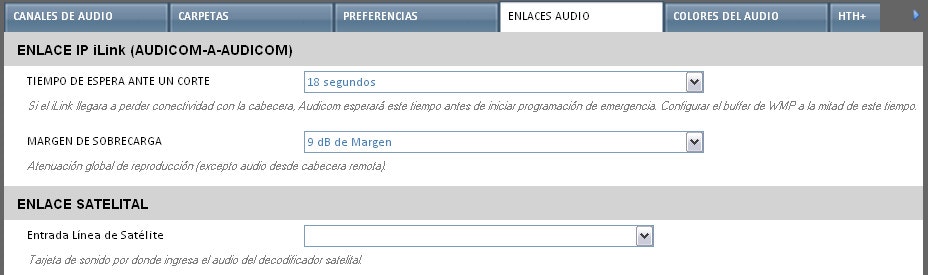
- iLink IP Link (Audicom ↔ Audicom):
-
Wait time before cutoff: Time before starting emergency programming if connection to head-end is lost.\
Windows Media Player buffer should be configured to half this time.
- Overload margin: Attenuates level according to margin defined by head-end stream.
-
Wait time before cutoff: Time before starting emergency programming if connection to head-end is lost.\
- Satellite Link: Defines line input used by SatFill mode.
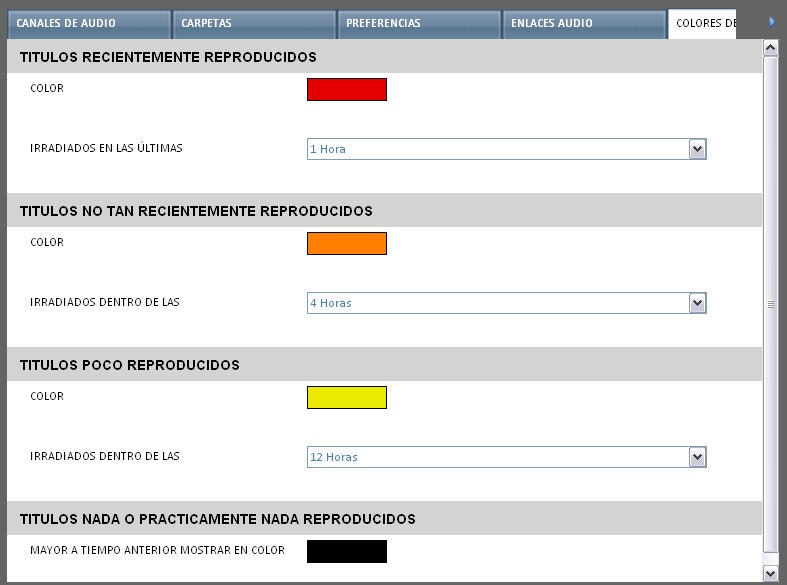
Audio Colors
- Titles can be displayed in different colors based on time since last broadcast.
-
Ranges and colors are defined in this panel.
HTH (Current Time and Weather Data)
-
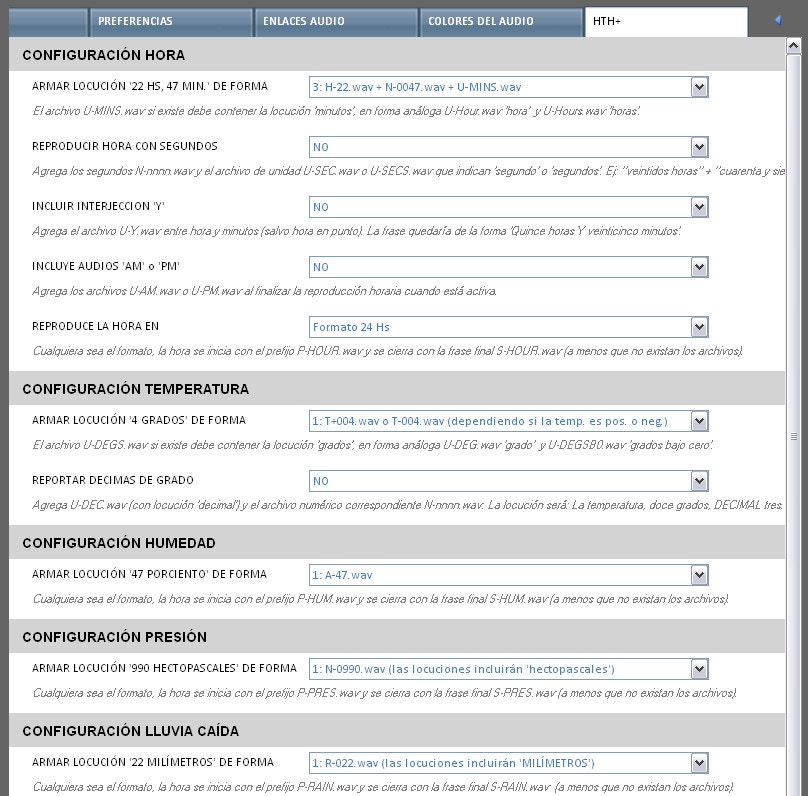
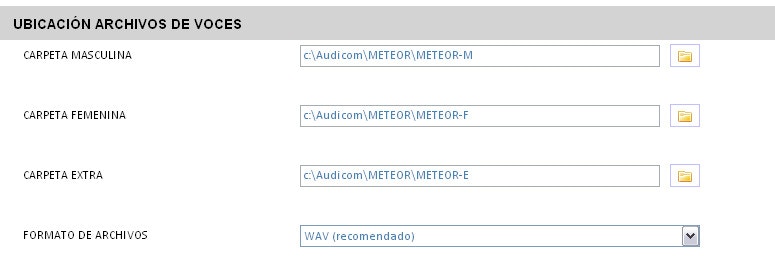
Allows generating time and weather announcements from pre-recorded files defined in “Custom Voices”.
Top of Hour Beep
- Defines beep file played 5 seconds before each hour.
- For on-air output, O’clock button must be active in Meteor zone.
-
Plays through output assigned to Live Assist 2.

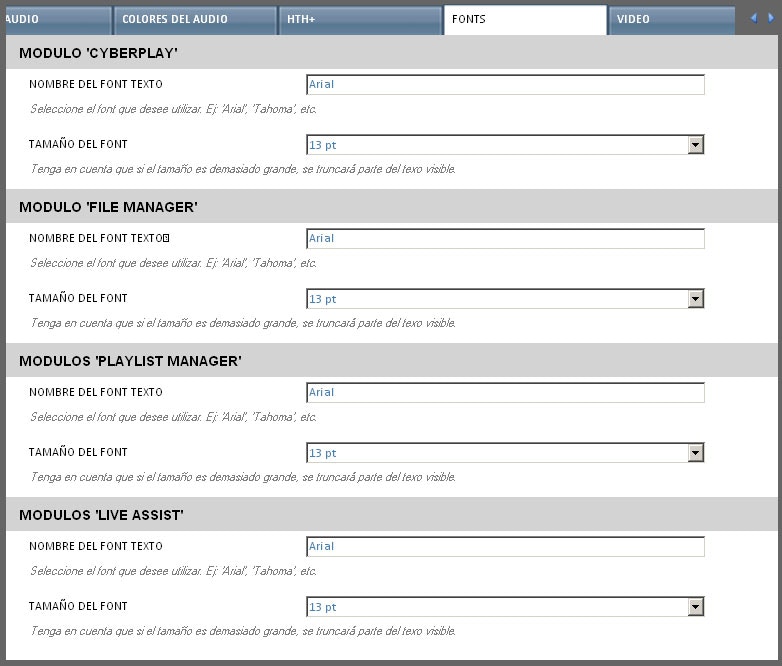
Fonts
- Defines text characteristics in CyberPlay, File Manager, Playlist Manager and Live Assist.
Video
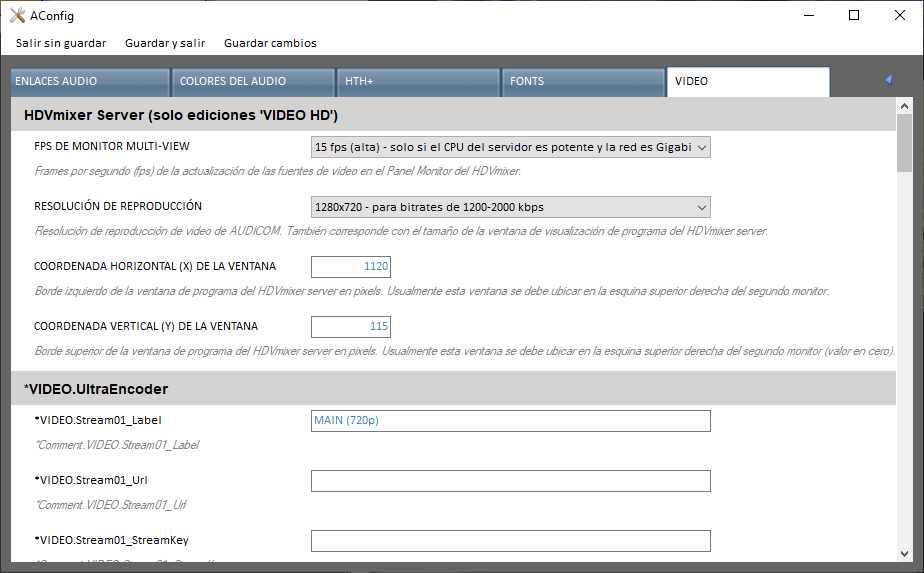
- Multiview Monitor FPS: discontinued option.