

Windows Network Installation Example
For proper AUDICOM network operation, the following is required:- Microsoft TCP/IP network (Windows default).
- Dedicated network recommended (own router, not shared with administrative areas).
- Suggested speed: 1 Gbit (sufficient for most installations).
- Each PC must have:
- Dedicated partition for operating system (10 GB is sufficient).
- Installation folder at
C:\Audicom. - Read/write shared
Audicomfolder. - File and printer sharing service enabled.
Although UNC access is slower than DOS drive letter access, UNC is the official recommendation to ensure network compatibility.
- On-Air Terminal:
947AUDICOM-PC - Artistic Content:
Production - Commercial:
Commercial
Tip: name each machine according to its studio (e.g.:AM,FM,Production) for easier network identification.
AUDICOM Network Configuration
Initial configuration is done from the AUDICOM Configuration Panel, Folders tab.- On first launch, set the File Server to the network path where system files are located.
Example:\\Server\\947AUDICOM-PC(On-Air server)
Configuration on Air Computer / Server
It’s essential to configure access using UNC (e.g.:\\AIR-AUDICOM\Audicom) instead of C:\Audicom.
This way, all Database references are stored in UNC mode and are accessible by other terminals.If configured in local mode (
C:\Audicom), other terminals won’t be able to locate the files.
Even if the installation doesn’t have a dedicated server (the Air PC itself stores the files), using a UNC path is essential to ensure the Database is unique and accessible from all stations.
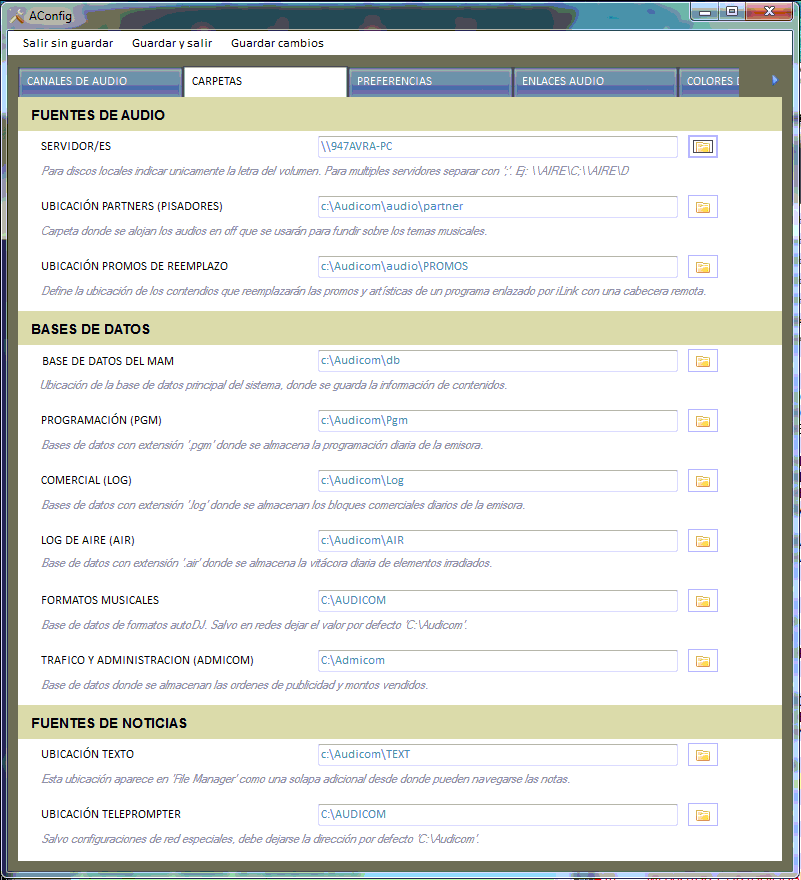
Folder configuration on the on-air computer (file server)
Workstation Configuration
(Production, Artistic Programming, Commercial)- All terminals must share the
Audicomfolder with FULL access (read/write). - Applications are installed on each terminal, but media files and Database reside on the Air PC.
- Additional modules (Administration, Billing) are only installed on the Commercial Administration terminal.
- Each terminal is customized according to its function (Production, Commercial, Air, etc.).
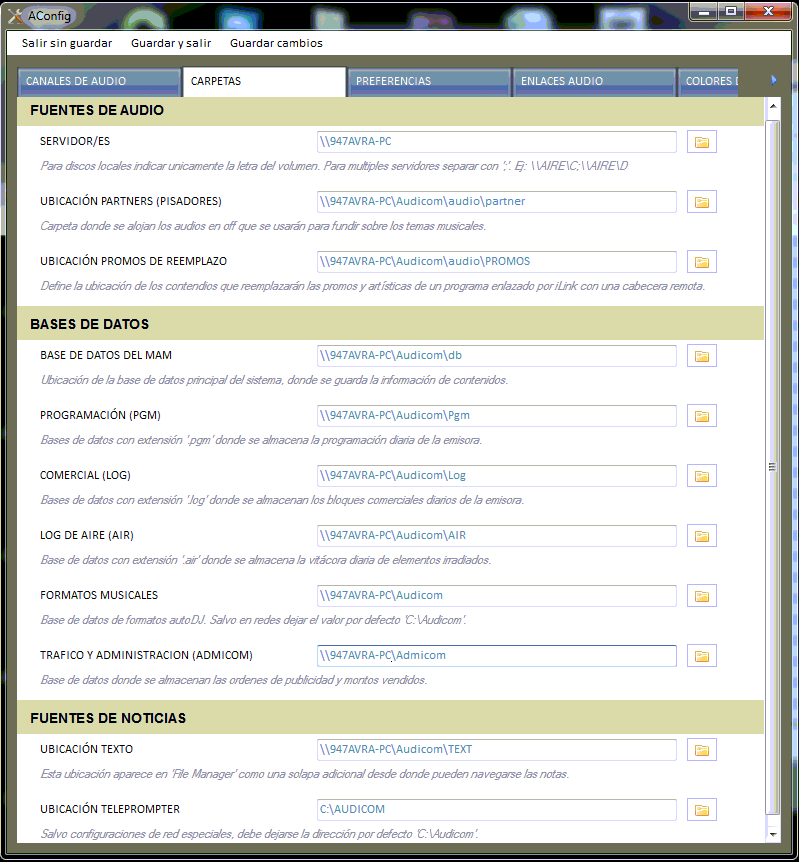
Folder configuration on workstations (Production, Programming, Commercial)
Database Location
ADBDir=C:\Audicom\DBIndicates the location of the AUDICOM music Database. In a simple two-terminal setup (Production ↔ Air, no dedicated server), it’s most practical to locate the Database on the On-Air computer.
The Production terminal is configured (from the Configuration Panel) to point to that remote database using a UNC path:
\\947AUDICOM-PC\Audicom\DB
Networks with Multiple On-Air Terminals
In more complex scenarios (AM, FM, Production, News, Commercial, Server), Distributed Databases are used:- Each Air terminal (
AM,FM) hosts its own local Database. - This optimizes access and ensures independence if network or server failure occurs.
- The Production terminal is configured to read/write to one of them (e.g.
FM) but can switch toAMto manage its Database.
AM→ADBDir=\\AM\Audicom\DBFM→ADBDir=\\FM\Audicom\DBProduction→ADBDir=\\FM\Audicom\DB
Programming Files
LogDir=C:\Audicom\LOGPgmDir=C:\Audicom\PGM
In the example, workstations access the LOG and PGM folders on the Air terminal. In networks with multiple broadcast stations, users can access all terminals using CyberPlay Editor.
Server/s (system drives)
Server/s= \\947AUDICOM-PC\Audicom\Audio
Defines the system storage drives.In network, access is always via UNC, never with local paths (
C:\).
- The default folder is
\Audicom\Audio. - Subfolders outside
Audioare not allowed. - Each volume must contain a single
\Audicom\Audiofolder.
; (no spaces):
Server/s=\947AUDICOM-PC;\947AUDICOM-PC\D;\Production;\Production\D
Sharing the entire
Only the
For additional drives (
C:\ drive is not necessary.Only the
Audicom folder is shared (full access).For additional drives (
D:\, E:\), sharing the entire drive is recommended.\\947AUDICOM-PC → shares only C:\Audicom\\947AUDICOM-PC\D → shares entire D:\ drive
The order of drives in the Server/s line affects File Manager: it will first show folders from the first listed drive (usually local), then network drives.
Music Formats
The AutoDj Editor module saves configuration inAutodj.ini.The On-Air module always reads the local file to schedule automatic blocks.
- In Production, AutoDj Editor accesses via UNC the file located on the Air terminal.
- In installations with more than one broadcast station, AutoDj Editor allows selecting the Current Terminal from a dropdown menu.
If a format is created on the wrong terminal, the On-Air program won’t recognize it, as it always reads the local
Autodj.ini.