

The playback module includes:
- Artist, title and genre of the current playing file.
- Level meter (dBfs).
- Elapsed time indicator (hours:minutes:seconds).
- A horizontal progress bar that fills as playback advances.
-
Transport controls (explained in the CyberPlay Operation section).
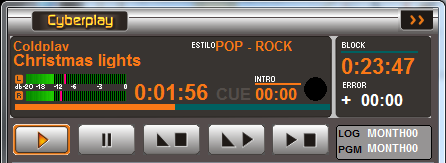
Intro
Countdown timer that indicates the duration of a song’s introduction, which is the time before the vocalist begins singing.- Helps the announcer know how long they can talk over the song intro.
- The Intro time is defined in the InfoMusic Production window and can be modified from InfoMusic Air.
- If titles have presentation files (Partner), the Intro time is crucial for adjusting these presentations.
Crossfades
To the right of the Intro indicator, a circle progressively fills each time AUDICOM performs a crossfade between two audio files.Block
Shows the remaining time until the end of a block in minutes and seconds.- A line above the numbers graphically indicates elapsed time.
- In live programs (manual mode), AUDICOM remains stopped during the block.
- The counter shows time remaining until the next commercial break as a warning.
- The operator must press Play to air the commercial break.
Error
Indicates in minutes and seconds how far ahead or behind the programming is compared to the original schedule.- In automatic mode, AUDICOM corrects the error when possible using commercial block tolerances.
- In manual mode, timing errors can occur due to different program or news durations.
- An error of -05:00 indicates the next block will start 5 minutes earlier than scheduled.
- This information allows the operator to make corrections by adding or removing music, promos or spots.
Expanded Mode
Allows widening the CyberPlay window to show more display information.- LOG: Commercial break file loaded for the current day.
- Double-click the field to open a window to load any
.logfile for the day.
- Double-click the field to open a window to load any
- PGM: Program file loaded for the current day.
- Double-click the field to open a window to load any
.pgmfile for the day.
- Double-click the field to open a window to load any
Comments Window
Shows additional data about the currently playing title:- Artist and author.
- Notes or comments.
- When 15 seconds remain in the current title, information for the next track appears.
- Also indicates if the title has associated files, like presentations.
Pop-up Messages
If a user attempts a restricted operation, a pop-up message appears informing about the restriction.- These messages disappear automatically after a few seconds.
- They can also be closed by clicking or pressing ESC.
Playback Controls
Below are the controls and operations for the CyberPlay window (On-Air Screen).Keyboard shortcuts are shown in brackets.
Play [spacebar / Home]
- Starts playback from the title marked as “next” (green cursor).
- If Play is pressed during playback, it skips to the next title.
- The skip is always a hard cut.
- To transition to the next track with a fade, use Fade → Play.
- In case of restart after power failure, if Autorun is enabled:
- AUDICOM starts as auto user.
- If 1 minute passes without intervention, playback starts from the title closest to current time.
- Configured in Configuration Panel > Preferences.
Some stations create a “virtual autorun” by scheduling a Satfill block overnight.
This procedure is explained in Overnight Transmission Break.
This procedure is explained in Overnight Transmission Break.
Pause / Stop [End]
- When pressed during playback:
- Pause: stops the title, can resume with Play.
- Stop: completely stops playback.
Fade & Stop [Ctrl + End]
Reduces level by 20 dB per second until playback stops.
Fade & Play [Ctrl + Home]
- Current title ends with progressive fade.
- Next title begins playing.
- If titles have fade-in and fade-out, crossfade is applied.
Stop Point [Page Up]
Inserts a pause in the CyberPlay list:
- When current title ends, playback stops.
- Next title becomes “next” (green cursor).
- Representation: black bar with PAUSE label.
- Insert pause on selected title (yellow cursor).
- If no selection, inserts below red cursor (playing title).
- Remove pause: select it and press Pause button, or drag it to the left.
- Can also be done from context menu (right click).
Title Window Actions
Select a Title [↑ / ↓ Arrows]
- Click on a title marks it with yellow cursor (selection).
- With arrows, selection cursor moves through the list.
Preview (Cue) [Delete]
- Double click on title → playback through Cue output.
- Second double click → plays last 5 seconds (CUE END).
- Output configuration in Configuration Panel.
- Control from InfoMusic Air, with level meters and position bar.
- Stop Cue playback: Stop-cue in InfoMusic or ESC key.
- Activate CUE by double clicking counter’s left label.
- Audio plays from Live Assist but:
- Not reported via RDS/iRDS.
- Not logged in
.airfiles.
Remove a Title [Backspace]
- Select title and drag it to left side of CyberPlay or toward counters.
- Alternatively: right click → Remove.
Insert a Title [Insert]
- Can insert titles from other modules (InfoMusic, MediaManager, Live Assist).
- Drag it to CyberPlay window.
- Blue line appears indicating insertion position.
- Can also use insert button (blue arrow) or Enter key.
Change Title Position
- Select title and drag up/down.
- Blue line appears indicating new position.
Many operations may be restricted by user profile.
If you attempt a prohibited action, a pop-up message will indicate the restriction.
For questions, consult the network administrator or technical manager.
If you attempt a prohibited action, a pop-up message will indicate the restriction.
For questions, consult the network administrator or technical manager.