

Installation
Computer and Sound Card Configuration
General Configuration: Recommendations
For proper AUDICOM operation, verify that computer and Windows configurations meet the following requirements:- Operating System: Windows 10/11
-
Antivirus: Configure it to exclude
C:/AudicomandC:/Admicomfolders on all network terminals. Ensure exceptions are 100% respected. - It is recommended to disable APM (Advanced Power Management) from the computer’s BIOS. After doing so, Windows may request reinstallation of some components.
-
If the computer has integrated sound card, it can be used as monitoring channel (CUE).\
Do not use onboard audio for program output. These cards do not meet minimum quality requirements for professional systems with AUDICOM.
- Screensavers are not recommended. Instead, configure automatic monitor shutdown when AUDICOM works in automatic mode.
- Do not enable scheduled maintenance tasks in Windows.
- Set font size to 100%. Using 125% or 150% may affect AUDICOM window display.
- Disable Windows sounds, as they could accidentally go on air.
- Configure the Taskbar to auto-hide, optimizing screen space for AUDICOM.
-
Avoid keyboards with power off or “sleep” keys. If operators press them by mistake, they could shut down the on-air machine.
- Disable these functions from Advanced Power Management (APM) in BIOS.
- The procedure varies by computer model and operating system, and in some cases cannot be disabled.
Supported Sound Cards
- Many current broadcast consoles include channels with USB connection, eliminating the need for additional audio cards.
- AUDICOM works with interfaces that support WASAPI, DirectSound or MME drivers.
-
For multichannel interfaces, ensure the hardware is compatible with WDM or WASAPI.
ASIO is not supported by AUDICOM.
- Onboard cards: Can be used as playback channel for monitoring (CUE). Not recommended for on-air output.
- AoIP Systems: AUDICOM supports virtualized devices in Audio over IP systems like Dante and LiveWire.
License Key
- AUDICOM requires a USB license key to operate.
- For security, it is recommended to secure it to the chassis with a seal or cable, or place it inside the case.
- The key enables different modules according to system configuration.
Full Installation
The Full mode installer installs all AUDICOM modules and accessories.Recommended for first installation when no previous installations exist. Includes:
- Security: Drivers for license key.
- AUDICOM: all main modules (Air, Media Manager, File Manager, InfoMusic Production, CyberPlay Editor, AutoDJ Editor, Internet tools —requires annual subscription—, help files, among others).
- Admicom: automatic commercial break generation and billing (Multicast and HD versions).
- Media: demo content (music, video clips, effects, promos) —optional—.
- Programming: demos —optional—.
- AutoRec 202: 24h MP3 recording. Sold separately but enabled for 2 channels through AUDICOM license.
- Reaper: audio editor (third-party software developed by Cocko’s).
- System restart will be requested.
- An AUDICOM program group will be created in Windows Start menu.
- All files will be installed in
C:\AUDICOMfolder, shared with full access for current user.
-
AIR: on-air broadcast logs. -
AUDIO: audio folders used by AUDICOM.\ -
DB: music database. -
LA-ICONS: icons for Live Assist module. -
LOG: commercial programming logs. -
PGM: music programming logs. -
METEOR: time and weather data files. -
TEXT: system text files.
This structure is fixed. Its location is defined in the
See: Audicom Network > Software Configuration.
Audicom.ini file, which must be modified when installing AUDICOM in network.See: Audicom Network > Software Configuration.
AStart (Web Tools Services Configuration)
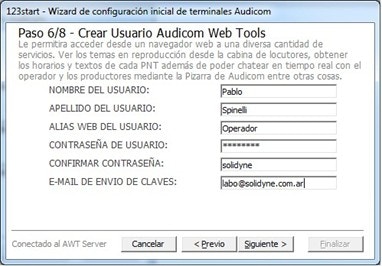
During installation, user and terminal data must be completed. It is essential to carefully register this information and keep it.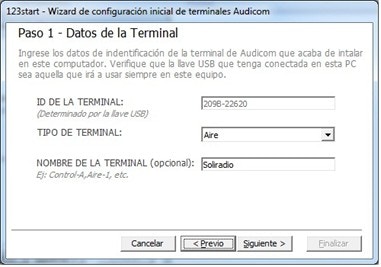
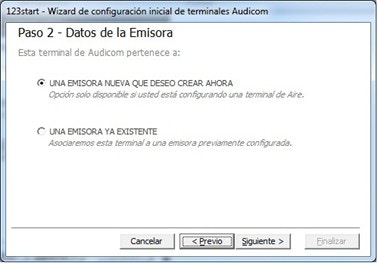
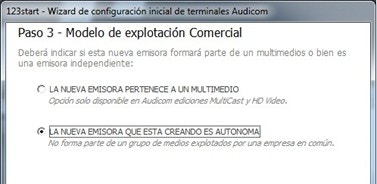
- A multimedia groups several stations, each with their WebTools users.
- Example: “National Radio” may contain “AM National”, “National Rock”, “National Folk”.
- The multimedia name will be required to access the WebTools Administration Panel, where users are created for each station.
- For standalone stations, the alias (with -admin suffix) will be the default administration name.
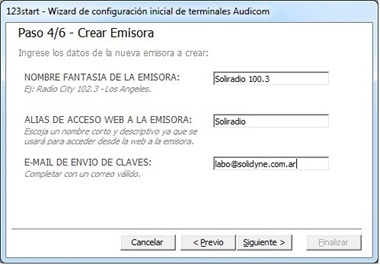
- This data is confirmed via email sent by the AUDICOM WebTools server, validating account creation.
Migration from Other Systems
Supported Audio Files
- PCM: Uncompressed
.wavfiles, 16/24 bits at 44.1/48 kHz. - MP3: 64 – 320 kbps at 44.1 kHz.
- FLAC: supported.
-
.wavencoded in MPEG Layer 3: used in old systems, now obsolete. -
ADPCM (typically
.wavextension): different variants existed; some still supported by Windows. AUDICOM supports MS-ADPCM and any ACM-compatible variant if corresponding codec is available. -
MP2 / WAV-MP2 (MPEG Layer 2):
.mp2or.wavextension. Used by systems with ANTEX, Digigram or other cards. Can be used directly without conversion if appropriate codec is installed (not included with AUDICOM). -
Dolby AC2:
.wavor.atxextensions.\Not supported by AUDICOM.
Audio and Video File Location
AUDICOM works with a rigid folder structure to ensure information maintenance and organization. All audio and video files must be organized in system subfolders:- These folders are called media folders.
User only selects disk and folder name.
See Audicom Media Manager and Audicom File Manager chapters for more information.
Database
For automated operation (AutoDJ), media files must be entered into the Media Database.- This is done from Media Manager (recommended) or File Manager.
- The InfoMusic Production module allows database management.
Programming Schedule
AUDICOM offers several options for generating commercial and content schedules:- The Admicom module manages commercial schedule through its own database, independent from media database.
- Content programming generation is done from CyberPlay Editor and Admicom.