

USB Control
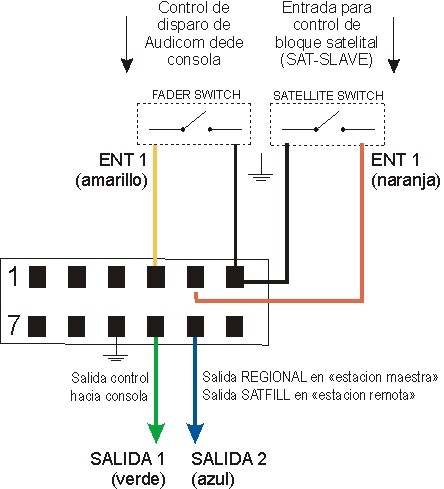
The USB I/O (GPIO USB) interface is an accessory sold separately (consult your dealer).- Features 2 inputs and 2 outputs for control.
- Allows external control of AUDICOM transport functions.
- AUDICOM can also send commands to control external devices.
- When opening the fader or enabling the on-air button, AUDICOM starts playback.
- When closing it, playback stops.
Command sending and receiving must be enabled from AUDICOM’s configuration panel.
Warning
The ground terminals of the USB interface share the ground with the PC’s USB port.
Not being internally isolated, they may expose the computer’s USB ground potential.
Not being internally isolated, they may expose the computer’s USB ground potential.
- Verify circuits before making connections.
- Reverse voltage or high spikes can damage the interface or computer.
- Outputs provide 5V with 250 Ohm internal resistance to limit current.
- Inputs are dry contact, switched by direct connection to ground.
Remote Signal Handling Options
Internet Link
A “head” station can control a “relay” station that only replaces commercial breaks with local content.More details in the Internet Tools chapter.
Remote Blocks
Previously called “satellite”. Automates switching between local audio and an external source (satellite, streaming decoder, etc.).Also allows controlling relay stations. Available modes:
- SatFill: time-based switching.
- SatSlave (Master-Slave): centralized control of remote terminals.
SatFill Remote Block
- Used when switching between local programming and external sources (satellite, point-to-point links, etc.) is needed.
- These blocks appear as SYNC in the On-Air Screen.
- While the SYNC event is active, the external signal plays.
- When finished, AUDICOM resumes local CyberPlay programming.
SatSlave Remote Block (Master-Slave)
- Allows linking AUDICOM terminals in different locations.
- Master terminal sends command using /REGIONAL instruction, generating a pulse via USB I/O (e.g. GPO).
- Slave terminals switch between Master programming and local programming.
- Last block can be programmed as Syncro, ensuring time-based switching if pulse is not received.
External Signal Retransmission with SatFill
Example: an on-air terminal switching between local and satellite signal. Switching methods: a) Controlling console modules via USB port- External signal enters a console module.
- AUDICOM sends commands through USB interface to activate/deactivate VCA modules.
- Connections:
- Data: USB interface ↔ console.
- Audio: satellite signal and local signal to console modules.
- External signal enters a soundcard line input.
- AUDICOM switches between that input and local audio.
- Controls only one input; multicard required for more signals.
- On console: PGM-1 output for local audio, line input for satellite.
Streaming Retransmission with SatFill
AUDICOM supports iLink blocks for direct audio streaming playback.Remote Station Control from Master Terminal
Configuration based on SatSlave blocks:- Master Terminal: sends program signal and control pulses.
- Slave Terminal: receives programming and switching commands.
Slave switches between satellite signal and local programming.
Central Terminal (satellite uplink)
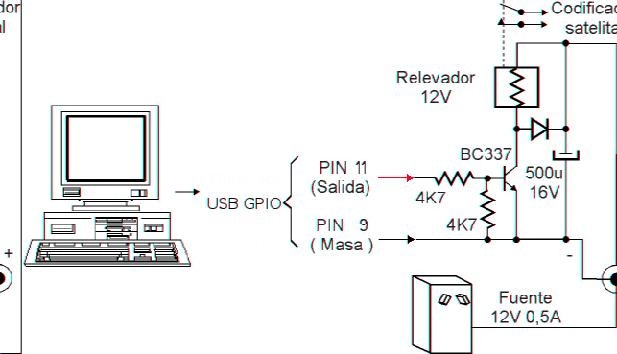
- USB interface connections described in USB Control Signals.
- /REGIONAL input changes state (e.g. SAT-1 DataBit 2) and can switch audio console.
- Can also input directly to audio card without console.
Remote Terminals (satellite downlink)
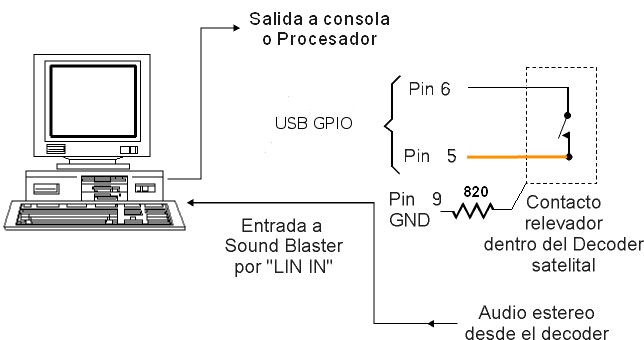
- USB interface connections described in Parallel Port Control.
Control Command Configuration
- With multiple sound cards, you can define which line input will be used for satellite blocks.
- Configure in
Audicom.iniunder[Hardware]section:
- Value
0indicates Windows default card. - Value
1corresponds to second card, though order may vary by Windows enumeration. - In some cases, trial and error may be needed to determine desired input.