

User Configuration and Access Levels
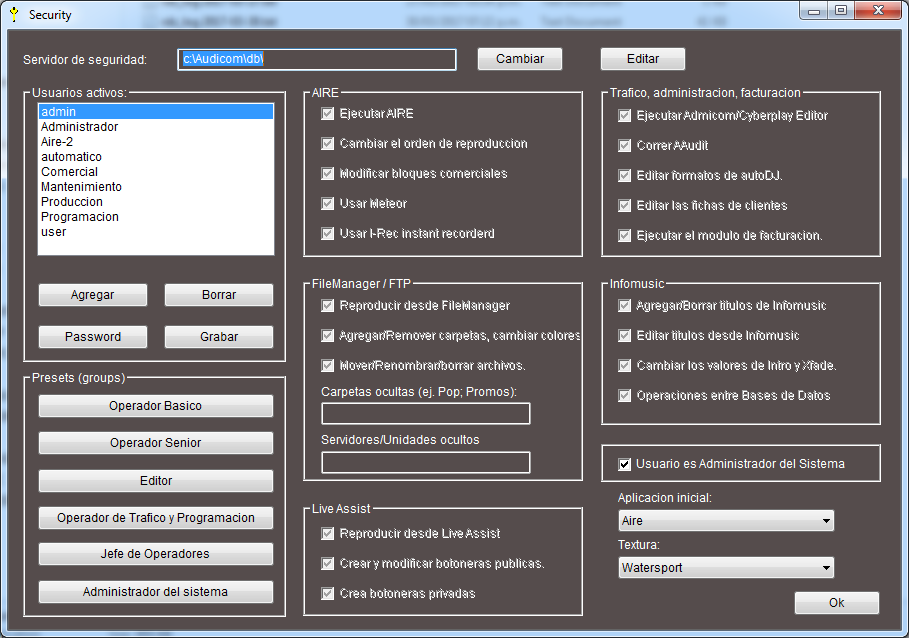
User and permission management is exclusively handled through the Access Levels module (
security.exe), accessible at:
Start Menu > Programs > AUDICOM > Access Levels
Creating User Profiles
Administrator
- The first user to configure is always the Administrator.
- Initial login:
- Username:
admin - Password: (empty)
- Username:
- After logging in, set a password using the Password button.
- Store it securely: if lost, you must contact Solidyne technical support (
info@solidynePro.com).
- Store it securely: if lost, you must contact Solidyne technical support (
- Any user can become administrator by enabling the User is administrator option.
- Administrators can:
- Access the Access Levels module.
- Modify all users’ permissions.
- Have no operational restrictions.
New Users
1
Add user
Press Add and enter the new username.
2
Assign password
Press Password to set the password.
Recommendation: let users set their own passwords to avoid forgetting Administrator-imposed passwords.
Recommendation: let users set their own passwords to avoid forgetting Administrator-imposed passwords.
3
Configure permissions
Adjust the user’s permissions and attributes according to their role.
4
Save
Press Save to register the changes.
5
Delete
To delete a user, select them and press Delete.
If a user forgets their password, they must be deleted and created again.
Security Options
Security Server
- The Security Database stores passwords and profiles in an encrypted file.
- All terminals must access this file (typically located on the Server).
Network Failures
- When logging in, a local copy of the user profile is created.
- If the Server is unavailable, AUDICOM will use this local copy.
- In this condition, desktop changes are not saved.
Permission Areas
On-Air
- Run On-Air: access to the On-Air Screen.
- Alter playback order: if restricted, operator cannot change sequence (green cursor).
- Modify commercial blocks: prevents inserting, deleting or reordering ads; breaks remain editable.
- Use Meteor: blocks manual Meteor usage.
- Use Instant-Rec: restricts access to quick recording module.
File Manager
- Play from File Manager: blocks direct on-air playback.
- Add/remove folders, modify colors: restricts structural changes.
- Move, rename, delete files: prevents file manipulation.
- Hidden folders: listed separated by
;(e.g.:Edits;Calls-2). - Hidden Servers/Volumes: restricts access to drives or UNC terminals (e.g.:
\\Production\D).
Live Assist
- Play from Live Assist: enables button panels.
- Create/modify public button panels: access shared by all users.
- Create private button panels: only visible to the user.
Traffic, Administration and Billing
- Run Traffic / CyberPlay Editor: access to ADMICOM and CyberPlay.
- Run Aaudit: access to broadcast logs.
- Edit AutoDj formats: access to AutoDj Editor.
- Access Client Records: access to client database.
- Run Billing: access to billing module.
InfoMusic
- Add/Delete titles.
- Edit existing titles.
- Modify Intro and Cross Fade.
- Database Operations: restricts title exports.
Initial Application
- Defines which application opens at login.
- On On-Air terminals:
aire.exe - On Production or others:
desktop.exe
- On On-Air terminals:
- For mixed users (On-Air + Production), adjusting shortcuts is recommended.
Favorite Skin
- Defines the user’s graphical environment.
- For a single fixed skin, delete others in
\Audicom\Skins.
Presets
- Default configurations based on user position.
Pop-up Messages
- If user attempts a restricted action, a warning pop-up appears.
- Message disappears automatically after a few seconds or by pressing
ESC.
Shortcuts
- Shortcuts: Defines keyboard shortcuts for each user.
- Shortcuts Editor: Accessed from
Tools > Shortcuts Editor. - Shortcuts File: Located at
\Audicom\Data\shortcuts.dat. - Shortcuts Backup: Located at
\Audicom\Data\shortcuts.bak.
Shortcuts Editor

- Keyboard: Shows available keys.
- Actions: Lists assignable functions.
- Current Assignments: Shows active shortcuts.
- Assign: Links selected key to action.
- Remove: Deletes selected shortcut.
- Default: Restores factory settings.
- Save: Stores changes.
- Cancel: Exits without saving.
Shortcut Types
- Global: Work in all modules.
- Local: Specific to current module.
- Restricted: Limited by user permissions.
Shortcut Configuration
- Select key from keyboard display.
- Choose action from list.
- Click “Assign” to create shortcut.
- Save changes.
Important Notes
- Some keys are reserved by Windows.
- Avoid conflicts with system shortcuts.
- Test shortcuts before implementation.
- Back up shortcuts file before changes.