

Live Assist Button Panels
The Live Assist 1 and Live Assist 2 modules enable instant playback of audio files.They are mainly used for playing SFX, promos, jingles and beds.
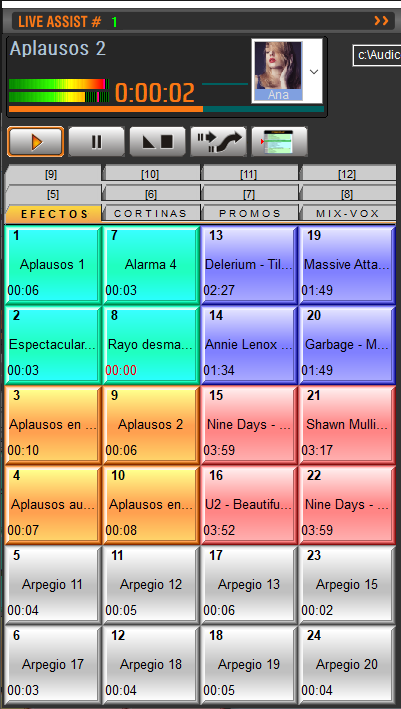
- Audio files are organized in button grids.
- Each profile has 12 pages or tabs.
- The number of buttons per page depends on rows and columns defined in the Configuration Panel.
- The panel can be resized and button sizes adjust automatically.
- Keyboard (see Keyboard Control section).
- External controllers via MIDI.
Audio Devices
- Can be assigned independent output devices or share the same as CyberPlay.
- When sharing, mixing is done internally according to MIX value.
- Assignment is done from the Configuration Panel.
Video
In Audicom Black Video, Live Assist also supports video playback.- Does not interrupt or overlap with videos playing through CyberPlay or PlayList Manager.
Output Devices
Both modules can play through internal mix with CyberPlay or through independent outputs.Assignment is done from the Configuration Panel.
Expanded View
You can toggle between compact and expanded views.- Toggle using the Maximize button in the title bar.
Pause, Stop and Fade-Stop
- Pause: stops playback and allows resuming with Play.
- Stop: completely stops and returns to start.
- Fade-Stop: gradually fades out level then stops.
Preview (Cue)
- Right click on a button → plays in CUE through dedicated channel.
- Hold right click >1s also activates CUE.
- Alternatively: double click on CUE label in display.
Playback Modes
Live Assist has three modes, selectable by pressing the button successively:- Normal:
- Plays once.
- If another file is triggered, it queues (flashing text).
- Loop:
- Continuous loop playback.
- Stops with Stop or changing modes.
- Instant:
- If another button is triggered, interrupts previous playback.
Chain to Air
- With Air module stopped:
- Trigger one or more Live Assist buttons.
- Then press the chain to air button.
- Window closes and after sequence ends, Air playlist continues.
From keyboard, same operation using spacebar after triggering a file.
Start and End Markers
1
Enable CUE
Set Live Assist to CUE mode with double click on CUE label.
This prevents audio from reporting to RDS or logging to
This prevents audio from reporting to RDS or logging to
.air files.2
Trigger button
Press the button you want to mark.
3
Set markers
Right click to select Mark In or Mark Out.
Listen to audio and mark at desired point.
Listen to audio and mark at desired point.
Icons Window
- Shows name and icon of active Live Assist profile.
- Icons are
.icofiles located in\Audicom\LA-Icons. - Icons can be added or removed as needed.
Private Profiles
- Private profiles are only accessible by the user who created them.
- They appear identified with owner’s name.
- If another user attempts access, a restriction message appears.
Export / Import Page
- Export: saves current page as a Playlist (
.txt). - Import: loads a Playlist into Live Assist buttons.
Creating Live Assist Profiles
1
Open creation menu
In icons window, right click → Add.
Enter profile name and icon.
Enter profile name and icon.
2
Set privacy
Enable Private option if profile should only be available to that user.
(Requires administrator authorization).
(Requires administrator authorization).
3
Load titles
Drag titles from Media Manager.
Button takes the color of title’s category.
Button takes the color of title’s category.
4
Edit profile
To change name or icon: load profile → right click on icon → Edit.
Live Assist Configuration
Button Panel Size
- Set in Configuration Panel > Preferences.
- Number of rows and columns can be modified.
- Larger buttons with fewer quantity, smaller with more quantity.
- Default configuration: 4 columns x 12 rows = 48 buttons per page.
- Font type and size can also be changed.
Data Files
- Information is saved in
Liveass.datandLiveass2.dat. - Path is defined in
audicom.ini.
Icons
- Default location is
\Audicom\LA-Icons. - Location can be changed in
audicom.ini. - Can be freely added or removed.