

I-Logon
The installer creates an AUDICOM shortcut on the Windows desktop and an applications group in the Start menu. When running AUDICOM, the system login window (Log-on) appears.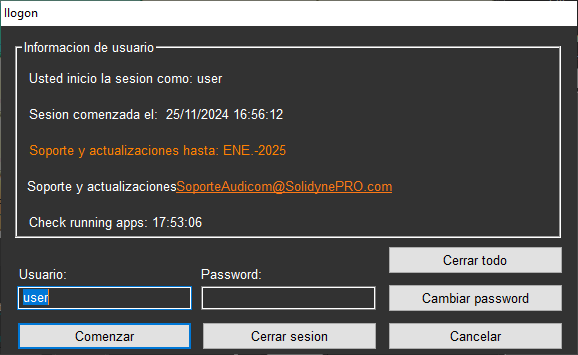
- Here you must enter username and password.
- The corresponding profile will load, including desktop organization and default security levels.
- Users with permissions and restrictions are managed from the Administration Panel (see Access levels and passwords).
The system will continue running under the system user (auto).
The new operator must log in by accessing the I-Logon window with a double click on the RADIO/USER area.
-
Double clicking the USER icon opens the I-Logon window.

I-Logon and the Tool Bar (Info button) show the expiration date of the support and updates license.
- The username is not case-sensitive.
- The password is case-sensitive.
.air files, so management staff can track who operated the system at any time.
Usernames and passwords
Predefined users
AUDICOM includes a set of default users with different profiles:- user
- admin
- auto
The auto user is part of the system and cannot be deleted.
- It activates when an operator logs out.
- Maintains programming in automatic mode.
Auto mode is also used after a power failure.
If the I-Logon window remains open for 1 minute without any user logging in, AUDICOM starts automatically.
Audio playback begins one minute later.
See: Power failures - auto-start.
If the I-Logon window remains open for 1 minute without any user logging in, AUDICOM starts automatically.
Audio playback begins one minute later.
See: Power failures - auto-start.
New users
- Usernames and passwords are defined by the administrator.
- Once created, the username cannot be modified.
- The password can be changed from I-Logon:
- Press Change Password.
- Enter current password.
- Type new password and confirm it.
- Click OK.
Logging out
When an operator leaves, they must log out to prevent unauthorized use.- If another operator logs in, they do so directly with their user.
- This automatically closes the previous session.
- Select Log out in I-Logon.
- AUDICOM will remain active under the auto user.
- Only basic functions are enabled (Play / Stop).
- Desktop customizations are not saved.
- Changes to commercial schedule are not allowed.
Shutting down AUDICOM
To close all applications, press Close.This will terminate all AUDICOM-related programs.