

What is Modified
Successive updates of the same software model can:- Optimize processes.
- Add new features.
- Improve or modify the graphical interface.
- Incorporate new processing presets.
- On the startup screen of the front panel.
- On the top line of the WEB Control screen.
It may cause a brief audio interruption on-air (less than 2 seconds).
Versions Prior to 2.0
For units with firmware version 1.35 or earlier, consult the corresponding manual at:👉 Discontinued Units
Units with STREAMER AoIP Module
The Streamer AoIP expansion allows direct access to the unit via a link and adds a simplified update method.See details for Units with STREAMER AoIP Option
542 APC Standard Model
Units with firmware 2.0 or later, which do not have the STREAMER AoIP expansion, are updated with the following procedure:- Ensure the computer accessing the processor has Internet connection and is on the same LAN as the 542APC.
-
Access the WEB Control page by entering the control IP in a browser.
(See Network Access and Control). - Enter SETUP mode (top right) and select the INFO option from the side menu.
-
The unit will automatically check for an available update and generate a direct download link.
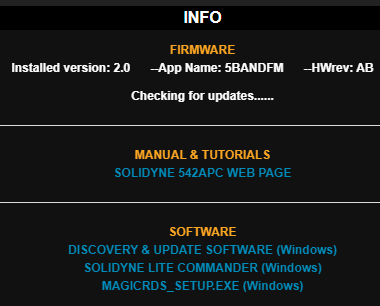
- Download the firmware update from the link.
-
Download and install the Windows application Solidyne Discovery & Update (link in the SOFTWARE section of the INFO screen).
- The installer will create a Solidyne Audio Processor folder in the Windows Start menu.
-
Run the Discovery & Update application.
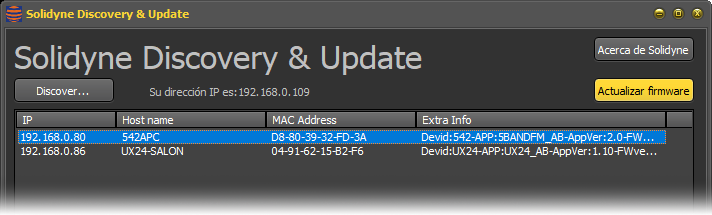
- Click Discover… → Solidyne units on the network will be listed.
- Select the 542APC unit and click Update Firmware.
- In the pop-up window, select the update file downloaded in Step 5 and click OK.
- The application will overwrite the firmware of the 542APC.
- The unit will remain operational; there will be a brief audio interruption (less than 2 seconds) upon restart.
Do not power off or disconnect the unit during the update.
It could cause irreparable user damage.
It could cause irreparable user damage.