

Accessing the STREAMER Module
From a LAN
Processors equipped with the STREAMER AoIP module feature two Ethernet ports:- Ethernet→ web interface for CONTROL
-
Ethernet AoIP → AUDIO STREAM
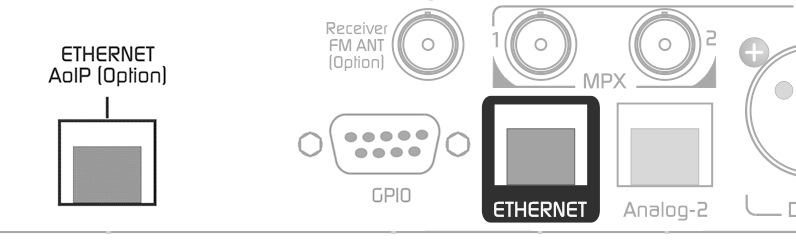
- Connect the Ethernet AoIP port to the LAN using a UTP CAT5 cable. By default, it operates in DHCP. When the connection is successful, the green LED on the RJ45 flashes.
- To identify the IP assigned to the Streamer module, download the Solidyne Multi-Discovery application.
Solidyne Multi-DiscoveryIf there is no physical access to the console, you can download the Multi-Discovery tool to detect Solidyne devices connected to the network.
- Once we access the module, we proceed with the configuration.
Remote Access via the Internet
The 542APC units with STREAMER AoIP expansion feature a redirection service that avoids advanced configurations (port forwarding, static IPs, etc.). The service is provided by third parties. Solidyne offers a temporary free activation, limited to 4 hours of connection. Activating Redirection- Access the equipment from the LAN.
- In the SYSTEM menu, open the Internet Access tab.
- Enable the ENABLE button.
- Request account activation by writing to support@solidyne.ar with:
- Subject: “ZROK account activation for remote access”.
- Email to register.
- Processor serial number.
- Enter the received key in the ENTER KEY field on the Internet Access screen.
The free ZROK service enables 4-hour sessions.
For continuous access, the service must be contracted from the external provider.
For continuous access, the service must be contracted from the external provider.
Integrated Control Interface
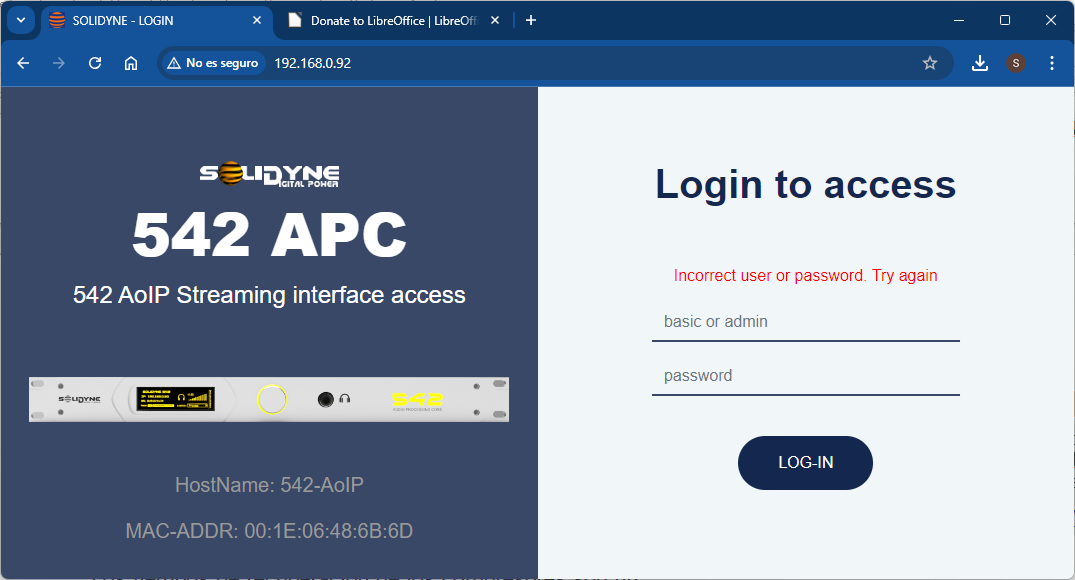
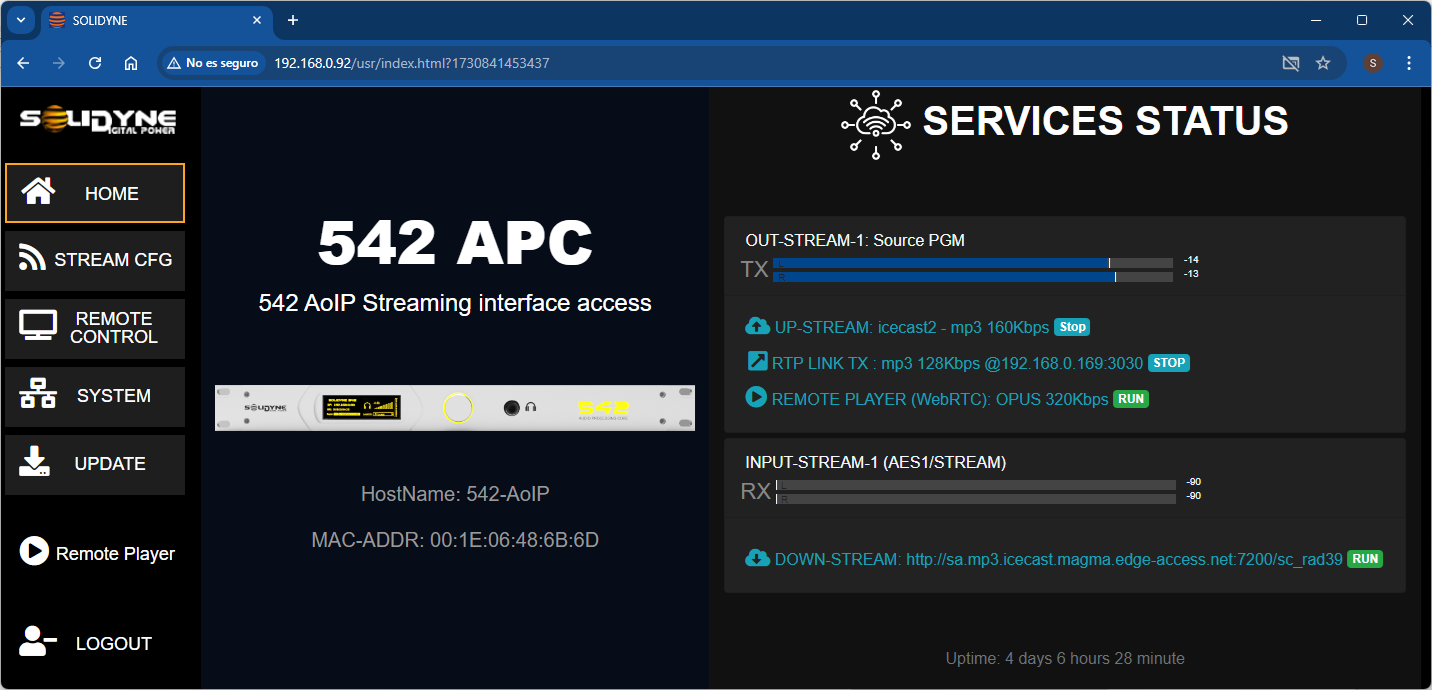
The 542APC processors with the STREAMER AoIP module include an integrated interface, providing access to audio streaming services and the WEB Control interface.Access requires a username and password.
- BASIC user → access to Remote Control (audio, MPX, and reception configuration).
- ADMIN user → enables all options, including audio stream configuration.
Streaming Configurations (STREAM CFG)
In the STREAM CFG menu, the following streaming services are configured:- UP-STREAM (Tx)
- RTP-LINK (Tx)
- DOWN-STREAM (Rx)
- REMOTE PLAYER
- SERVICE CFG
Down-stream RTP - Link (STL)
First, the reception of audio stream is described, as it is the most common case for establishing the connection between the processor and the station’s studios (STL, Studio to Transmitter Link). Concept. The processor receives an RTP audio stream generated by an encoder in the studios (for example, a Solidyne DX816 console, UNIDEX line, or other compatible equipment).Network Configuration
There are different configurations for interconnecting two devices located in different locations. The installation and configuration of the network are beyond this manual; consult specialized technicians. As a reference, two general schemes are mentioned.- Point-to-Point Link
In this scheme, the processor is on the same network as the codec or transmitting equipment; the Internet is not involved. The point-to-point link can be:
- Physical: intranet via fiber.
- Wireless: microwave in the WI-FI band or Wi-Max 5.8 GHz. These links reach up to 50 km and have low costs due to being mass-produced equipment. The 5.8 GHz band is free for data transmission.
- Link via the Internet
As a reference, see the requirements document RTP_AudioStream_Link(STL)_requirements.
Configuring Incoming RTP
The 542APC behaves as a passive receiver of an RTP audio stream generated by a device/encoder that emits in a compatible format. Only protocol, port, and IP address through which the stream enters need to be configured.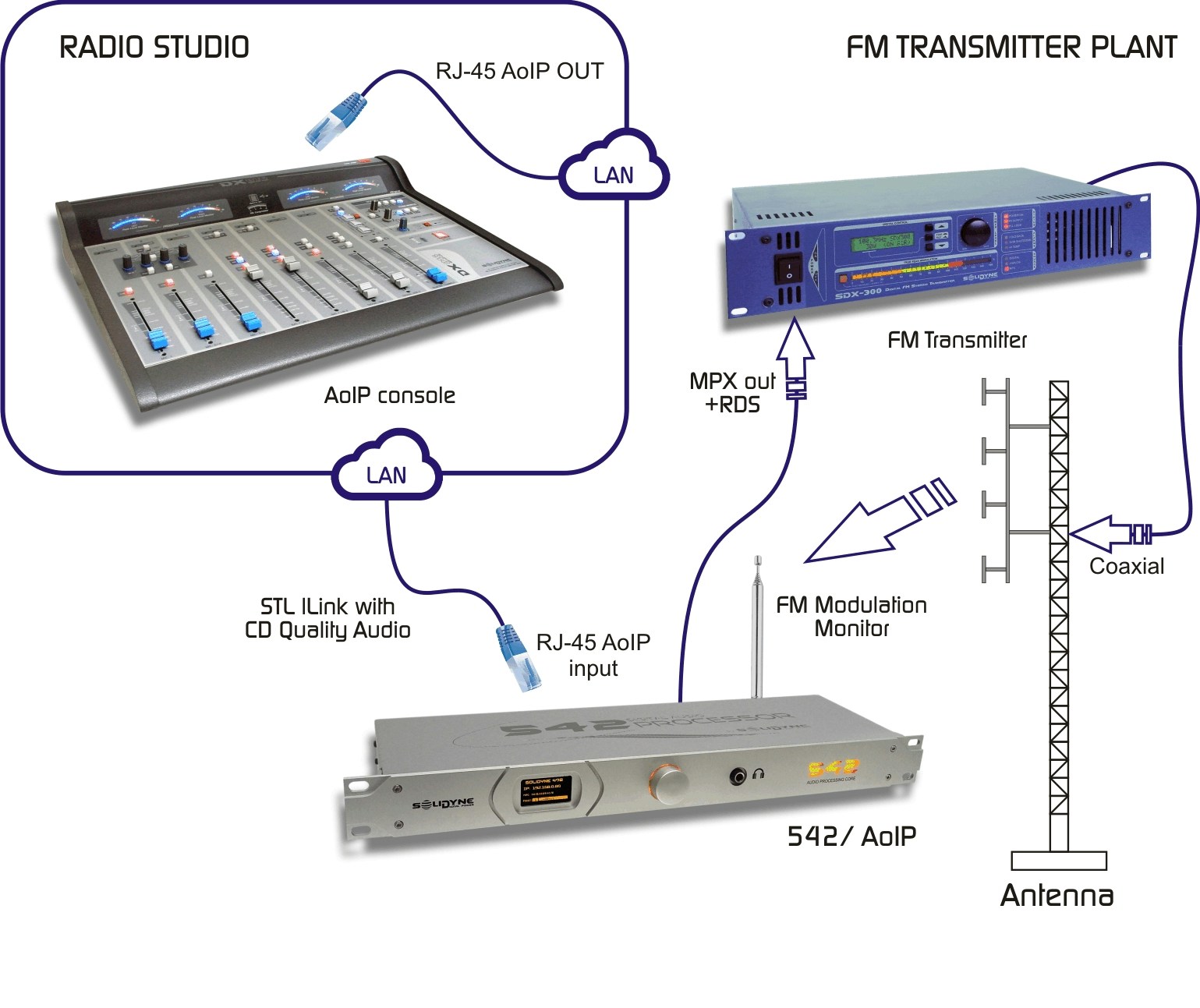
- It is assumed that the processor is correctly connected to the same LAN as the encoder, through the Ethernet AoIP port.
- In the General Status Screen, select the STREAM CFG option.
-
Select the DOWN-STREAM (Rx) tab.
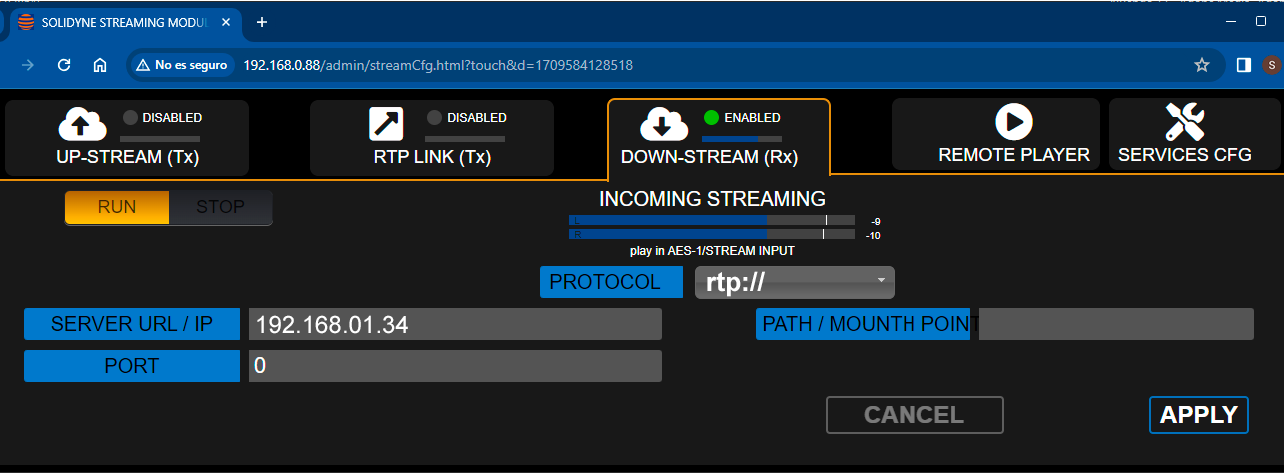
- Enable reception with RUN/STOP → RUN.
- In PROTOCOL, select RTP.
-
In SERVER URL/IP, enter the IP of the encoder (the one generating the streaming in the Studio).
It is also possible to enter 0.0.0.0 to receive from any IP transmitting to the declared UDP port. - In PORT, enter the UDP port through which the RTP arrives (must match the one defined in the encoder).
-
Verify that the encoder emits in a compatible format:
- PCM 44.1 kHz
- MP3 CBR/VBR 96–320 kbps
- PATH/MOUNT POINT is not used for RTP. Leave blank.
- Press APPLY to confirm.
- The processor will start receiving audio from the studios. The signal level is displayed on the screen.
RTP Transmission from Studios
Any device capable of generating an RTP stream can transmit to the processor. Configure:- (In this example) The encoder is within the same LAN as the processor. In other architectures (VPN/Internet), the configuration may differ.
- Send RTP to the IP of the STREAMER module of the 542APC (see Accessing from a LAN to obtain the module’s IP).
- Define the UDP port (for example, 3030).
- Audio format (must be compatible with the 542APC, otherwise the connection will not be established):
- PCM 44.1 kHz with latencies of 15 to 40 ms
- MPEG Layer-3 (MP3) VBR/CBR 96–320 kbps
For links via the Internet, MPEG/MP3 is recommended: it allows low bandwidth (≈ 0.5 Mbps for 192 kbps), but introduces delays of 200 to 500 ms.
The inherent latency of the 542APC (~ 9 ms) is added to the link latency.
Public Streaming Reception
The STREAMER AoIP module can receive public streams (HTTP or MMS), in PCM 16/44.1–48 kHz, MP3, or OPUS.They can be used as the main input or backup.
- In STREAM CFG, select DOWN-STREAM (Rx).
- Enable with RUN/STOP → RUN.
- In PROTOCOL, select HTTP or MMS.
- In SERVER URL/IP, enter the HTTP/MMS address of the streaming to be played.
- Press APPLY.
- The processor starts receiving the streaming. The signal level is displayed on the indicators.
Up-Stream (Icecast/Shoutcast)
The UP-STREAM (Tx) tab configures transmission to Icecast/Shoutcast servers.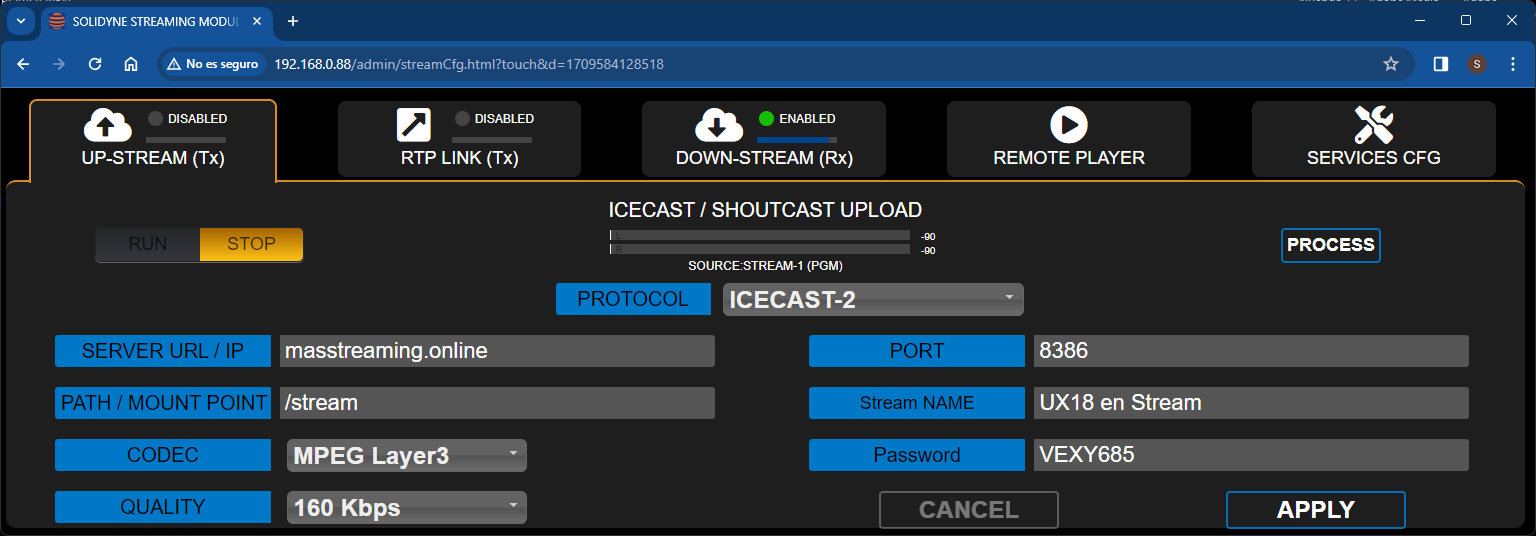
The configuration data is provided by the Icecast/Shoutcast hosting service.
RTP Link (Tx)
Allows sending audio to an IP address (local point-to-point link or via the Internet).For example, to link to a second studio, a repeater station, or the transmitter plant (STL) when the processor is located in the Studios.
Remote Listening
This feature allows listening to the processor’s audio signal through the web interface, enabling remote listening via the network.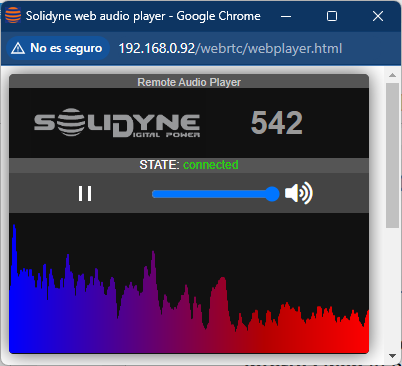
- the processed signal
- the internal tuner output.
Services Config
Informative screen showing the signal assignment matrix for the different services.It cannot be modified.
Simplified Updates
Equipment equipped with the STREAMER AoIP expansion includes a simplified method for firmware updates. The system automatically downloads the update packages and leaves them ready to be installed when the user decides. Updates allow:- Optimizing processes.
- Adding new processes and functions.
- Improving or modifying the graphical user interface.
- Adding new processing settings (presets).
- The front panel startup screen.
- The top line of the REMOTE CONTROL screen.
- The UPDATE screen itself.
Procedure
This procedure is valid only for equipment with the STREAMER AoIP expansion.
To update equipment without this option, see Firmware Update.
To update equipment without this option, see Firmware Update.
- Access the IP of the Streamer AoIP module using a computer connected to the same LAN as the 542APC.
It is also possible to do this by accessing the 542 directly (see Remote Access via the Internet). - On the access page, log in as the ADMIN user.
- Access the UPDATE menu option.
- The update screen will load on the right side. The equipment will automatically check if an update is available. If one exists, a list with details will appear.
- Updates are never installed automatically. The INSTALL button is enabled for the user to initiate the process with a single click.
- The processor remains operational on-air during the update. There will only be a brief interruption (less than 2 seconds) when the equipment reboots.
WARNING!
Do not turn off or disconnect the equipment from the network during the update. It could cause irreparable damage by the user.
Do not turn off or disconnect the equipment from the network during the update. It could cause irreparable damage by the user.